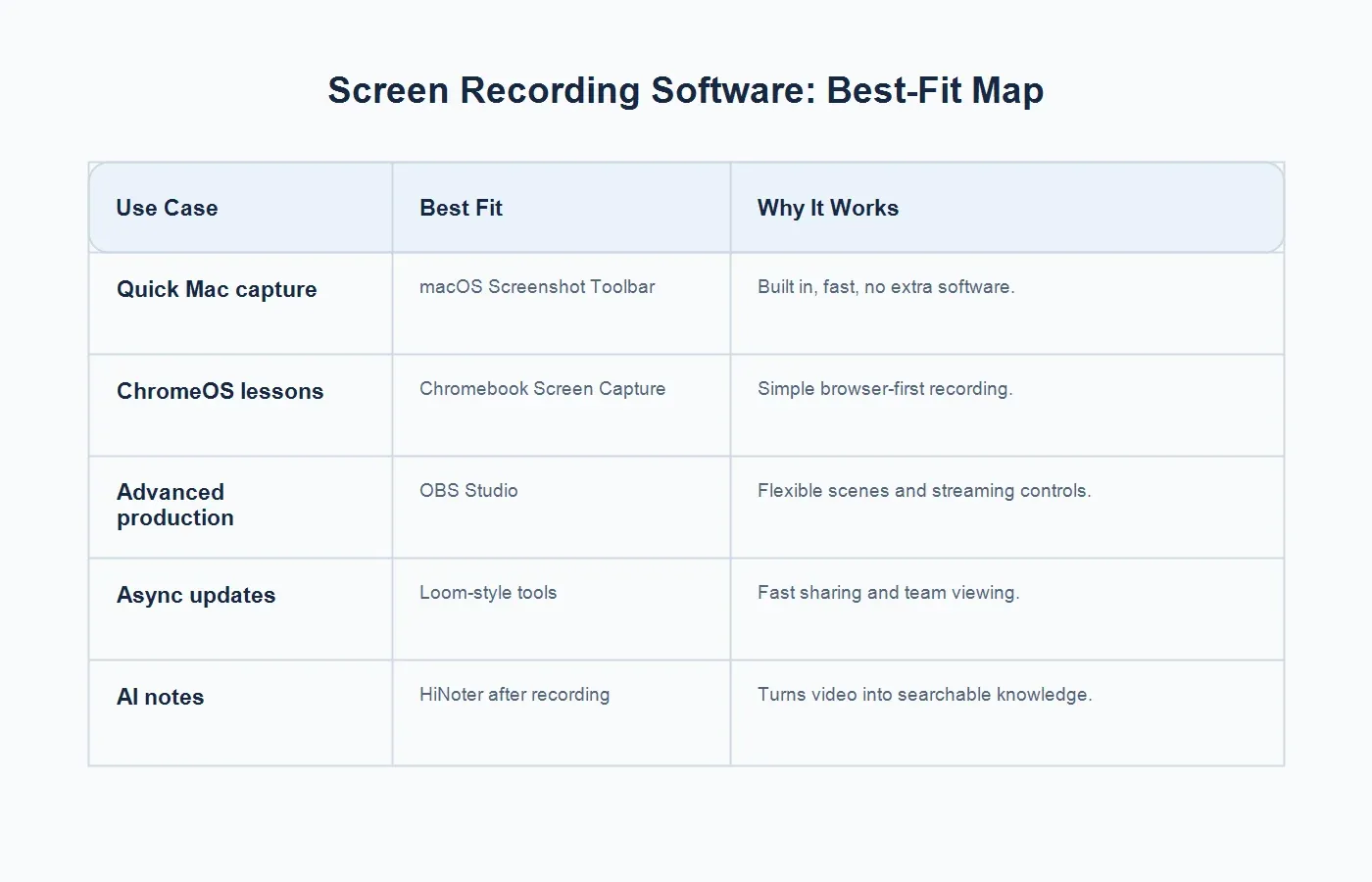
The best screen recording software depends on what you need after the recording. Native tools are enough for quick captures, Loom-style apps are better for async updates, OBS is strong for production control, Camtasia fits polished tutorials, and HiNoter is best used after recording to turn meetings, videos, and demos into searchable AI notes.
That last point is easy to miss. Many buyers compare recording tools by resolution, webcam bubbles, editing timelines, and sharing links. Those features matter, but they do not solve the follow-up problem. A one-hour demo is still a one-hour video. A recorded meeting is still something someone must review. If the team needs a summary, decisions, action items, timestamps, and source-linked answers, the workflow needs more than capture.
This guide uses a criteria-led method rather than a single winner. The right choice for a teacher recording a Chromebook lesson is not the same as the right choice for a sales engineer recording a product walkthrough, a marketer sending a Loom-style update, or a manager who needs AI meeting notes after every call.
Methodology: How These Tools Were Compared
The recommendations below are based on five practical criteria: capture quality, ease of use, editing depth, collaboration workflow, and what happens after the video exists. Pricing models are described at a high level because they change often. Before purchasing, check each vendor's current pricing, storage limits, AI limits, seat rules, and enterprise controls.
We also separate screen recorders from AI note workflows. HiNoter is not positioned as a traditional screen recorder. It is a post-recording and meeting-notes companion for teams that need knowledge, not just video. That distinction keeps the comparison honest and makes the recommendations more useful.
| Tool or Workflow | Best For | Pricing Model Note | Watch Out For |
|---|---|---|---|
| macOS Screenshot Toolbar | Quick MacBook captures and simple tutorials. | Built into macOS. | Limited editing and collaboration. |
| Chromebook Screen Capture | Students, teachers, and browser-first users. | Built into ChromeOS. | Basic editing and workflow controls. |
| OBS Studio | Advanced recording, streaming, webinars, and multi-source scenes. | Free and open source. | Steeper setup curve for nontechnical users. |
| Loom | Async updates, sales walkthroughs, and fast team sharing. | Free tier plus paid team plans. | Storage, AI, and admin needs may push teams to paid plans. |
| Camtasia | Polished training videos and edited tutorials. | Paid software and subscriptions. | More tool than many quick meeting workflows need. |
| ScreenPal | Education, simple tutorials, and lightweight editing. | Free and paid plans. | Less enterprise-focused than some collaboration suites. |
| Zoom Clips | Teams already using Zoom for async video clips. | Included or packaged through Zoom plan options. | Best if your team is already in the Zoom ecosystem. |
| Panopto | Lecture capture, training libraries, and enterprise video management. | Institutional and enterprise pricing. | Can be heavy for small teams that only need quick clips. |
| HiNoter | AI notes, summaries, action items, mind maps, and searchable knowledge after recording. | SaaS productivity workflow. | Pair it with a recorder when you need the actual screen video. |
Best Overall Workflow for Meetings: Record Less, Capture More Context
For meetings, the best workflow is often not a screen recorder at all. If the meeting happens in Google Meet, Zoom, or another video platform, the bigger problem is remembering what was decided. A recording may be useful for review, but most teams want the meeting record: summary, decisions, action items, owners, and references.
This is where HiNoter fits. With an AI meeting assistant, teams can let HiNoter attend scheduled meetings and create structured notes automatically. That is different from storing a meeting video. It is closer to building a searchable knowledge trail: what happened, who said what, what follow-up was assigned, and where the source context lives.
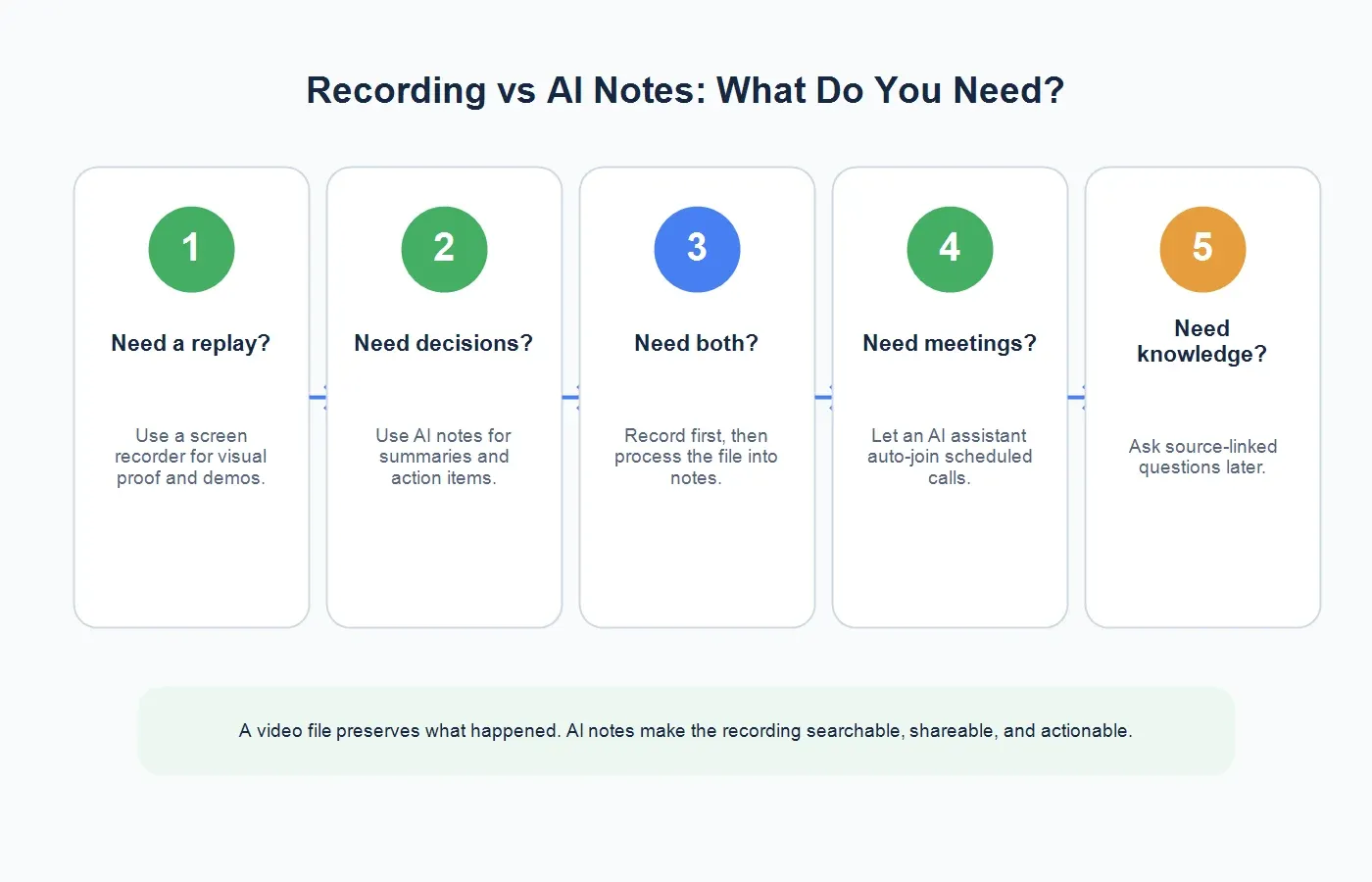
Use a screen recorder for meetings when the visual walkthrough matters, such as product demos, design reviews, user research sessions, training calls, and technical troubleshooting. Use AI notes when the decision record matters more than replaying the whole screen.
Best Free Native Option for Mac: macOS Screenshot Toolbar
For Mac users, Apple's built-in Screenshot toolbar is the fastest starting point. Press Shift-Command-5, choose record entire screen or selected portion, select microphone options when needed, and start recording. It is clean, reliable, and does not require another vendor account. For quick internal walkthroughs, bug reproductions, software demos, and short tutorials, that may be enough.
The limitation is workflow. The macOS tool records the screen, but it does not provide the kind of collaboration layer a team expects from a modern video tool. There is no built-in AI summary, action item extraction, viewer analytics, shared workspace, or source-linked chat. If the recording needs to become notes, upload it afterward and use HiNoter to turn it into a transcript, summary, and reusable team knowledge.
Best Free Native Option for Chromebook: Built-In Screen Capture
Chromebook users can record from the built-in Screen Capture controls. Google documents a native workflow for capturing screenshots and screen recordings on ChromeOS, which makes it useful for students, teachers, support walkthroughs, and lightweight tutorials. It works especially well when the recording happens inside the browser and the user does not want heavy desktop software.
The tradeoff is similar to Mac. Native capture is convenient, but the output is just a file. For a class, webinar, or product demo, the person watching later still has to find the important moment. A transcript, chaptered notes, and AI summary make the recording easier to use.
Best for Advanced Production and Webinars: OBS Studio
OBS Studio is the strongest free option for advanced users who want granular control. It can combine multiple sources, scenes, microphones, windows, cameras, overlays, and streaming outputs. That makes it popular for webinars, live production, software demos, online events, and creators who need more than a simple one-click capture.
The upside is flexibility. The downside is setup. OBS is not difficult once configured, but it is less friendly for a sales rep who wants to send a two-minute update or a manager who wants a simple meeting recap. Use OBS when production control matters. Use a lighter tool when speed and sharing matter more.
Best for Async Updates and Quick Sharing: Loom
Loom-style tools are built for speed. Record your screen, camera, or both, then share a link. This is useful for async status updates, design feedback, support explanations, onboarding walkthroughs, and sales demos that do not need a full editing timeline. Loom's product and pricing pages show a freemium-to-paid team model, which is common in this category.
The value is collaboration around the clip: link sharing, comments, viewer context, team libraries, and sometimes AI features depending on plan. The risk is sprawl. Teams can end up with hundreds of short videos that are hard to search if nobody turns them into structured knowledge. For important clips, process the recording afterward so the insight is not trapped in a video link.
Best for Polished Tutorials: Camtasia
Camtasia is a better fit when the recording must become a polished training asset. It combines screen recording with deeper editing, callouts, cursor effects, templates, captions, and export controls. This makes it useful for formal software training, customer education, certification material, and reusable tutorials where quality matters.
The tradeoff is effort. A polished tutorial takes time to script, record, edit, review, and publish. Camtasia is not usually the fastest answer for a recurring internal sync or a rough product walkthrough. It is best when the final video is the deliverable.
Best Lightweight Tool for Education: ScreenPal
ScreenPal, formerly associated with Screencast-O-Matic, remains a practical choice for education and lightweight tutorials. It focuses on approachable recording, simple editing, and classroom-friendly workflows. Teachers, instructional designers, and small teams may prefer it when Camtasia feels too heavy and native recorders feel too limited.
Its best use is straightforward knowledge sharing: explain a process, record a lesson, mark up a screen, and share the result. If the recording becomes part of a larger knowledge workflow, add transcription and summarization so learners can search the material rather than scrub the timeline.
Best for Zoom-Centered Teams: Zoom Clips
If your company already works in Zoom, Zoom Clips can be a natural async video option. It fits teams that want short updates, walkthroughs, and internal explainers without adopting a separate tool. The advantage is ecosystem familiarity: users already have Zoom accounts, permissions, and meeting habits.
The question is whether your team wants a Zoom-centered video library or a tool-agnostic knowledge workflow. If recordings also come from Google Meet, MacBook captures, Chromebook lessons, webinars, and customer calls, a post-recording AI notes layer can help unify the outputs across tools.
Best for Lecture Capture and Video Libraries: Panopto
Panopto is best for institutions and enterprises that manage large training or lecture libraries. It is more than a quick screen recorder. It supports video management, lecture capture, search, admin controls, and structured content libraries. Universities and large organizations often need this kind of governance.
For small teams, Panopto may be more infrastructure than necessary. But for education, compliance training, and large internal learning programs, governance and storage control can matter as much as the recording itself.
Best AI Notes Companion: HiNoter
HiNoter should not be evaluated as if it were OBS or Loom. Its role is different. After recording with any tool, use HiNoter AI meeting notes to transcribe, summarize, and turn the video into searchable team knowledge. For meetings, HiNoter can also reduce the need for manual recording by joining scheduled calls and generating notes automatically.
The strongest use cases are meetings, customer calls, interviews, webinars, tutorials, and long videos where the value is not the video file itself. The value is the summary, action items, decisions, mind map, and source-linked AI Chat that lets a teammate ask, "Where did we decide this?" or "What were the next steps from the demo?"
For teams working across meetings and media, HiNoter also supports workflows beyond live calls. Use audio to text for recordings, YouTube transcript generation for permitted videos, and AI Chat with source references when the notes need to become a knowledge base rather than a static archive.
When You Need Recording vs When You Need AI Notes
The cleanest buying decision is to separate capture from understanding. A recorder captures what happened on screen. AI notes explain and organize what happened. Many teams need both, but not for every workflow.
| Need | Use Screen Recording When | Use AI Notes When |
|---|---|---|
| Meetings | You need the visual replay, screen share, or full call archive. | You need summary, decisions, action items, and owners. |
| Tutorials | The viewer must see each click or workflow step. | The viewer also needs chapters, key points, and searchable notes. |
| Sales demos | The prospect needs to replay the exact product walkthrough. | The account team needs pain points, objections, and next steps. |
| Education | The lesson depends on visual instruction or a whiteboard. | Students need a recap, terms, timestamps, and study notes. |
| Research | You need to preserve the full interview or usability session. | You need themes, evidence, quotes, and source-linked findings. |
Privacy, Storage, and Collaboration Questions to Ask
Before choosing a recorder, ask where videos are stored, who can view them, how long they are retained, and whether admins can manage access. Screen recordings often include customer data, internal dashboards, private messages, unreleased product screens, or employee information. A fast recorder is not helpful if it creates unmanaged sensitive archives.
Also ask how the tool handles collaboration. Can teammates comment? Can admins transfer ownership? Can clips be organized by project? Can the content be exported? Can a recording be deleted completely when it is no longer needed? These questions become more important as the number of recordings grows.
For AI notes, ask a second set of questions. Can the transcript be searched? Can users ask questions with source references? Can notes be shared without exposing the entire video? Can action items move into the team's normal workflow? The best setup is not just secure capture; it is secure reuse.
Recommended Workflows by Use Case
For Meetings
Use HiNoter to auto-join scheduled meetings when the main goal is a reliable record of decisions and tasks. Add screen recording only when visual replay is necessary. This prevents teams from building a giant video archive when what they really needed was a clear recap.
For Tutorials
Use macOS Screenshot Toolbar, Chromebook Screen Capture, ScreenPal, or Camtasia depending on polish level. Then process the finished recording into a transcript and summary so users can find the section they need without rewatching the whole tutorial.
For Sales Demos
Use Loom, Zoom Clips, or a native recorder for quick walkthroughs. Then summarize the demo with HiNoter so the account team can capture customer pain, buying signals, objections, stakeholders, and follow-up tasks.
For Webinars and Education
Use OBS, Panopto, Zoom, or webinar software for capture. After the session, turn the recording into chaptered notes, highlights, and a mind map. Long-form education content becomes more useful when students or teammates can search it.
Final Recommendation
If you only need a quick screen capture, start with the native recorder on your device. If you need async collaboration, use a Loom-style tool. If you need production control, choose OBS. If you need polished tutorials, choose Camtasia or ScreenPal. If you manage institutional learning libraries, evaluate Panopto or a similar video platform.
If the real problem is what happens after the recording, add HiNoter. After recording with any tool, use HiNoter to transcribe, summarize, and turn the video into searchable team knowledge. For meetings, connect your calendar and let HiNoter capture the discussion directly so your team leaves with notes, action items, mind maps, and source-linked answers instead of another long video to review.
FAQs
What is the best screen recording software overall?
There is no single best tool for every workflow. Native Mac and Chromebook recorders are best for quick captures, OBS is best for advanced free production, Loom-style tools are best for async sharing, Camtasia is best for polished tutorials, and HiNoter is best for turning recordings into AI notes.
What is the best free screen recording software?
OBS Studio is the strongest free advanced recorder. For simple captures, macOS Screenshot Toolbar and Chromebook Screen Capture are often enough because they are already built into the device.
Can screen recording software create meeting notes?
Some tools include AI features, but traditional screen recorders primarily capture video. For structured summaries, decisions, action items, mind maps, and source-linked chat, use an AI notes workflow such as HiNoter after the recording or during the meeting.
Should I record every meeting?
No. Record meetings when visual replay, training, compliance, or exact review matters. For routine meetings, AI notes may be more useful than a full video archive because they capture decisions and next steps faster.
Can I upload a screen recording to HiNoter?
Yes. Use HiNoter after recording with another tool to transcribe, summarize, create action items, build mind maps, and ask source-linked questions about the recording.