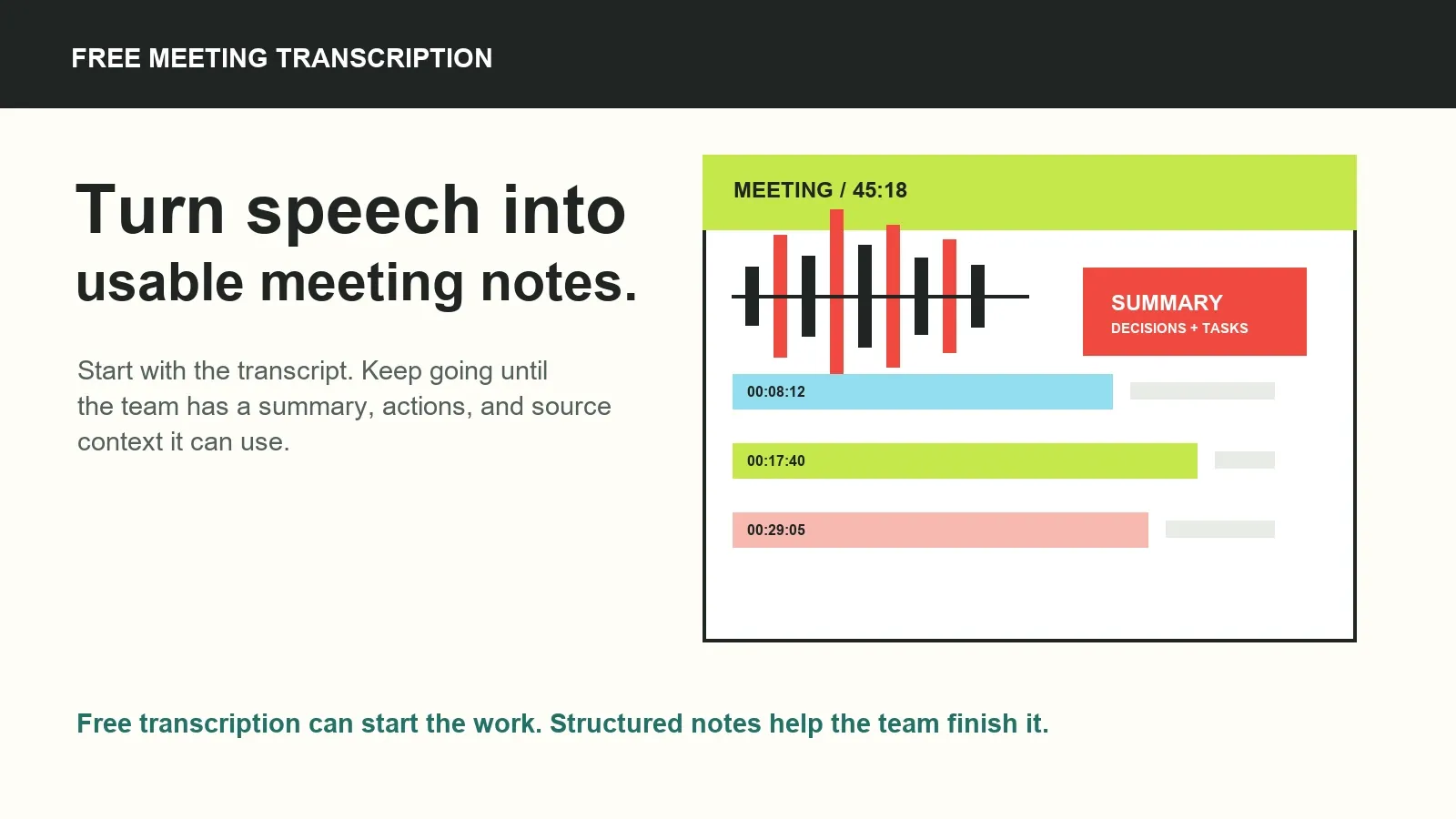
Free meeting transcription converts authorized spoken meeting content into written text without an upfront charge. It is a useful starting point for search, quotes, and sharing, but plan limits vary. To make the transcript actionable, add summaries, decisions, action items, and source-linked answers that a team can review and reuse.
Try HiNoter when you want to move beyond raw text and turn authorized meeting content into structured team knowledge.
What is free meeting transcription?
Free meeting transcription is a browser-based or app-based process that turns spoken words from an authorized meeting into text. It is also called free audio transcription, speech to text, or voice to text. The text can be searched, edited, quoted, and shared more easily than an audio or video file.
“Free” describes pricing access, not a universal feature set. Services may limit the number of minutes, file duration, upload size, languages, speaker labels, exports, collaboration, storage, retention, or AI features. Check the current details of any plan before relying on it for an ongoing team workflow or sensitive meeting material.
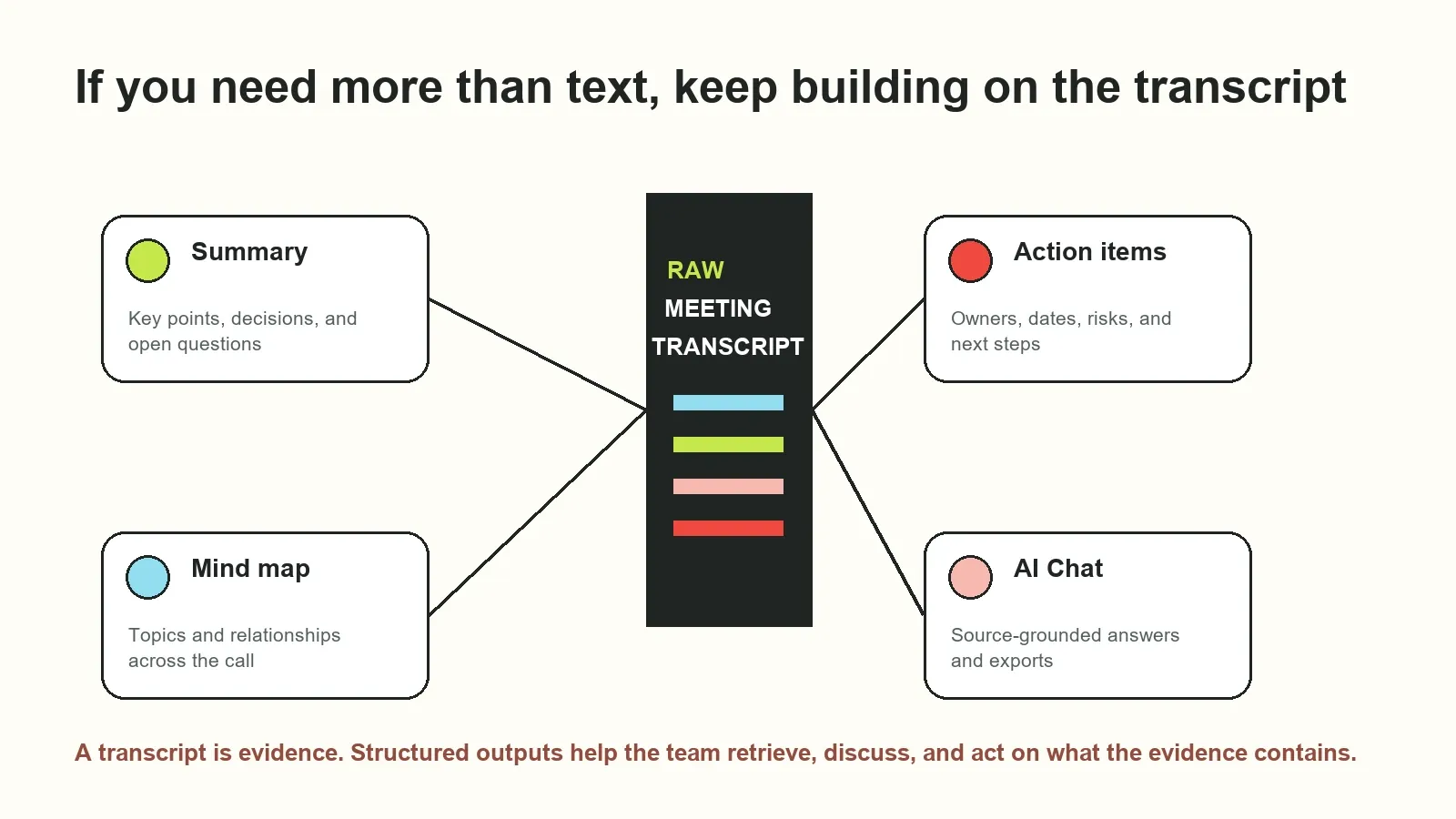
Transcription converts speech into written words. AI-assisted transcription adds a knowledge layer that can organize those words into a summary, decisions, action items, topics, a mind map, and questions with sources. The transcript remains the core record for checking those outputs.
Why raw meeting transcripts are not enough
Raw transcripts solve the immediate problem of getting words out of a recording. They do not automatically solve the next problem: understanding which statements were decisions, which tasks need an owner, or which customer concern was repeated across several calls.
Long meeting transcripts can be hard to scan, especially when people change subjects, speak over one another, or use tentative language. A transcript summarizer can surface key points, but teams still need a reviewable path from the short summary back to the original meeting context.
If you need more than text, HiNoter turns audio into a transcript plus summary, action items, mind map, exports, and searchable Q&A. That combination makes free meeting transcription a starting point for a broader meeting knowledge workflow rather than a final destination.
| Approach | What it gives you | What is still difficult | Best next layer |
|---|---|---|---|
| Manual notes | A participant's selected recap | Listening and typing at the same time; uneven detail | Shared template and review |
| Recording only | The full audio or video source | Finding one decision without replaying the call | Speech-to-text transcription |
| Free meeting transcription | Searchable spoken text | Finding ownership, rationale, and next steps quickly | Summary, actions, and source-linked Q&A |
| AI notes workflow | Text plus structured meeting knowledge | Reviewing important outputs before acting | Permission-aware sharing and follow-through |
How to transcribe a meeting for free and create useful notes
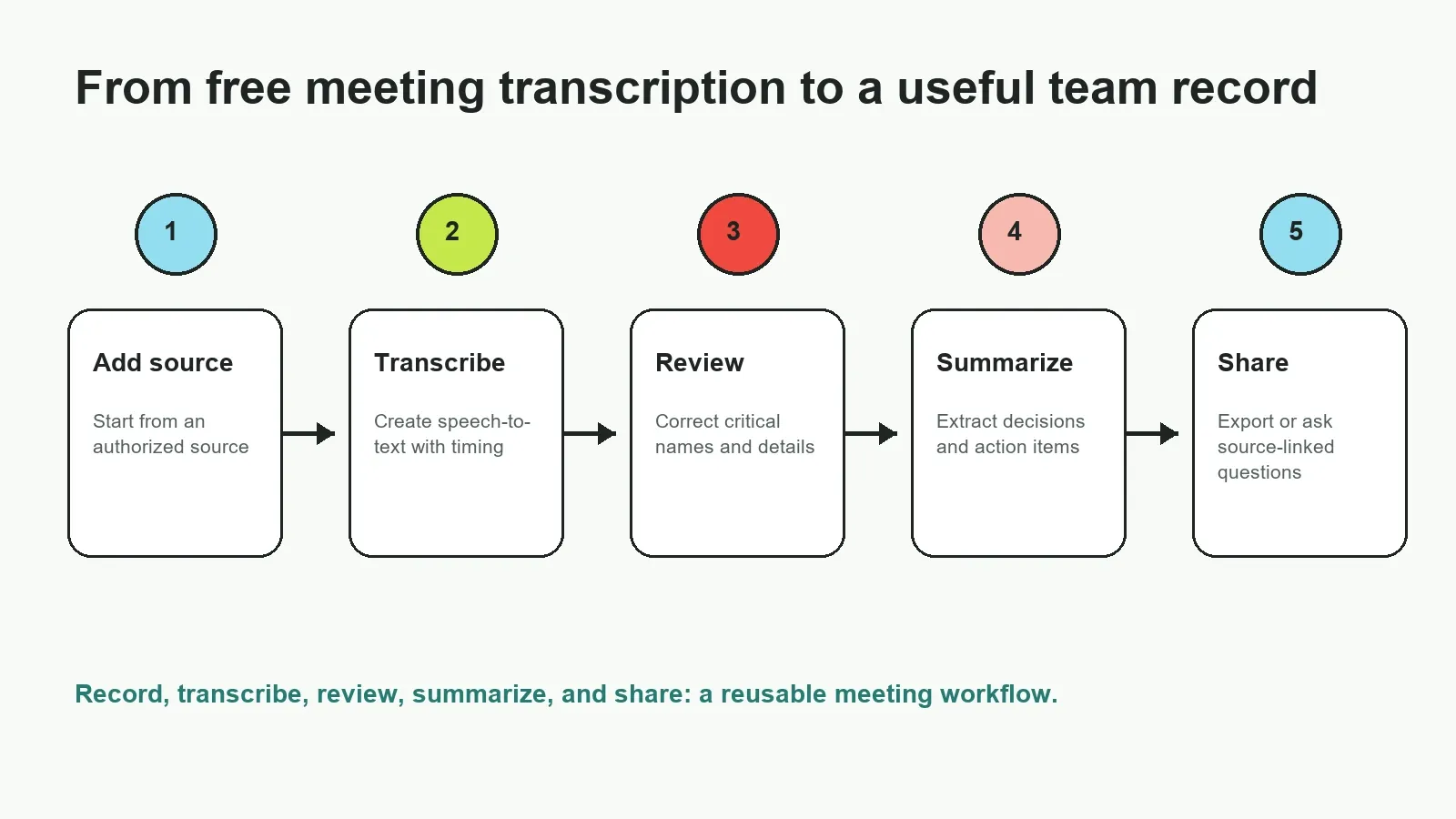
- Choose an authorized source. Begin with a meeting you have permission to record, or use an existing permitted recording, audio file, video file, screen recording, transcript, or note.
- Upload or record the content. Check current file formats, upload size, minutes, language availability, and retention limits. Keep the source named by date, project, customer, and meeting type.
- Create and review the transcript. Generate speech-to-text with timestamps and speaker labels where available. Correct critical names, numbers, terms, and uncertain speaker attribution.
- Structure the useful outcomes. Create a summary, decision list, action items, owner and date fields, a mind map, and a concise follow-up message.
- Share the approved result. Export the transcript or distribute the reviewed recap, tasks, and source links through the team’s documentation, chat, email, or project process.
What should you check before choosing a free transcription workflow?
Free access can be a sensible way to test an audio transcription workflow, but the practical fit depends on the constraints around it. A useful evaluation starts with the meeting volume your team expects, then checks whether the available usage and output options are enough for the people who need to work from the result.
- Minutes and file limits: Confirm the current allowance per month, per recording, and per upload. A workflow that fits a short interview may not fit recurring team meetings.
- Output limits: Check whether speaker labels, timestamps, exports, summaries, action items, language support, and shared workspaces are available at the level you need.
- Retention and access: Understand how long the source and transcript remain available, who can open them, and what happens when a limit is reached.
- Privacy and consent: Ensure the plan and workflow fit your participants, contracts, account settings, and internal policy before using it for a customer or confidential call.
These checks make the free-versus-paid decision more concrete. The question is not only whether a service can create text; it is whether the resulting text can become a reliable, permission-aware record for the work that follows.
Supported meeting sources and common file formats
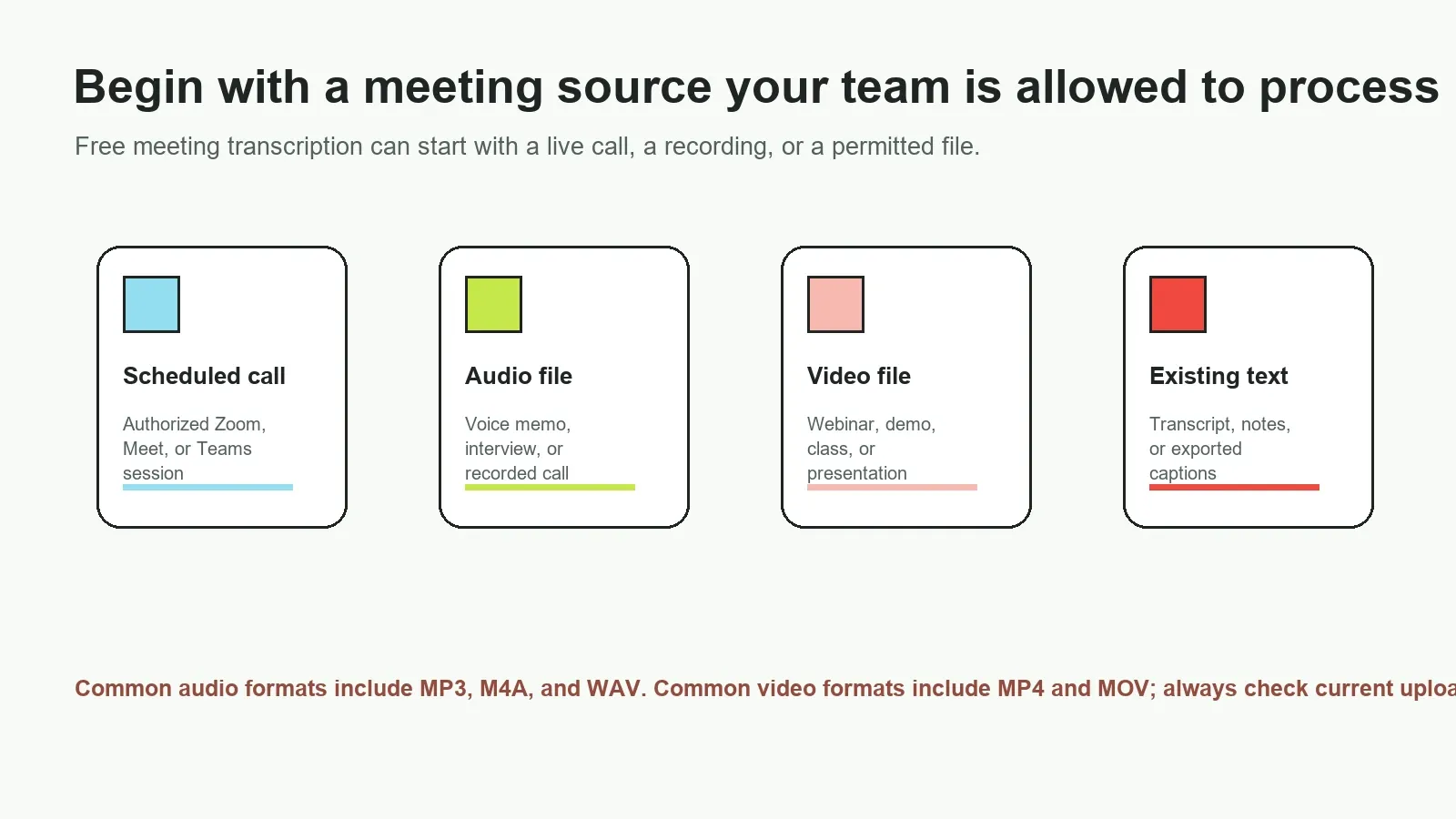
Free meeting transcription can start with a live online meeting, an existing recording, an interview, a voice memo, a webinar, a training video, or an imported transcript. The most useful input is an authorized source with clear audio and enough context for a team to identify the project, people, and purpose behind the conversation.
| Source type | Common examples | Useful transcript outcome | What to check |
|---|---|---|---|
| Scheduled meeting | Authorized Zoom, Google Meet, or Teams call | Speakers, decisions, and follow-ups | Host settings and recording permission |
| Audio file | MP3, M4A, WAV voice memo or interview | Quotes, themes, and timestamps | Current file size and duration limits |
| Video file | MP4 or MOV webinar, demo, or class | Spoken steps, key points, and chapters | Audio track quality and upload support |
| Screen recording | Product walkthrough or training capture | Spoken explanation with visual process context | Microphone versus system-audio coverage |
| Existing text | Imported transcript, captions, or meeting notes | Searchable history and AI questions | Whether source context is still available |
Speaker labels, timestamps, and language detection
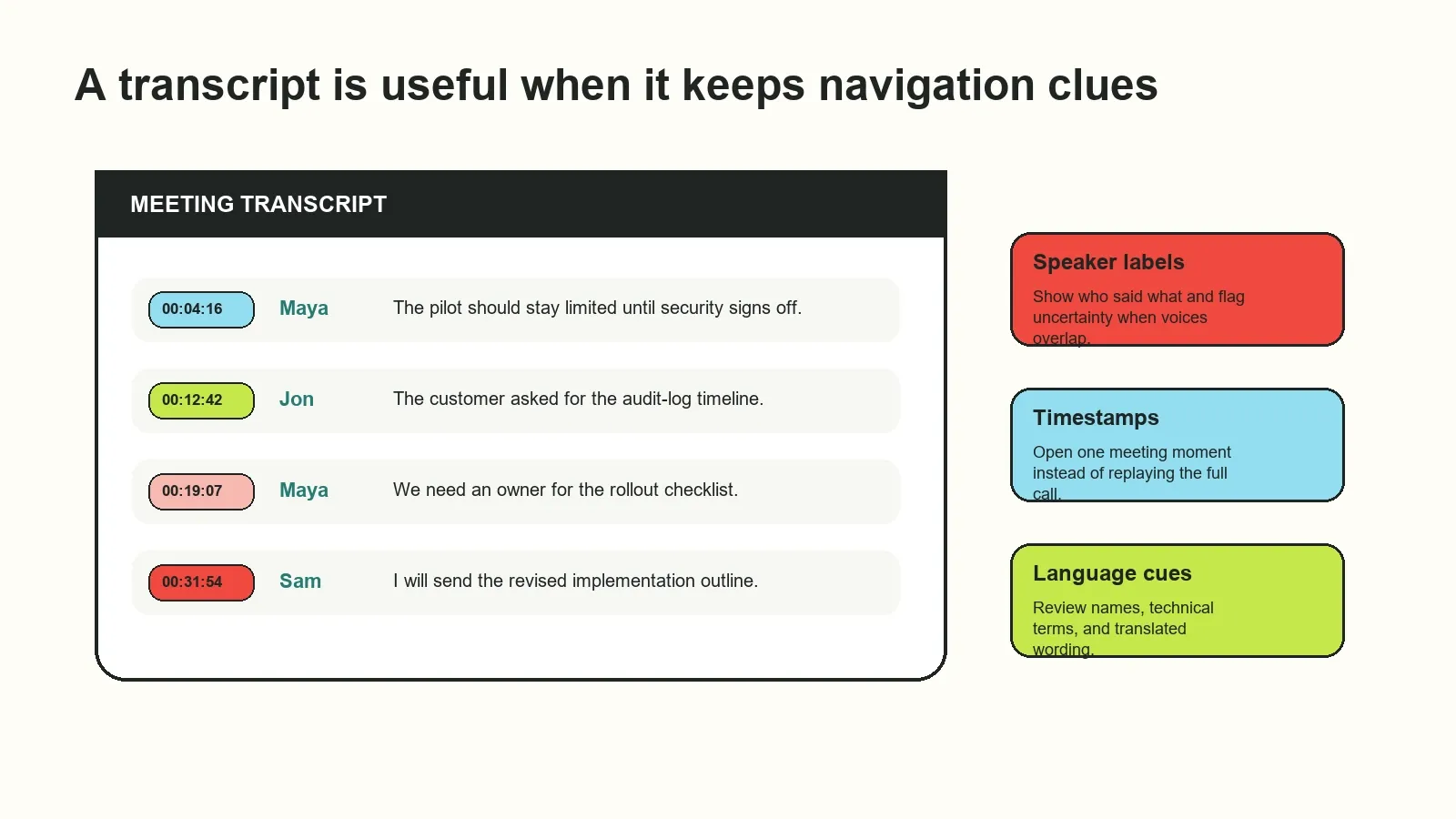
Speaker labels and timestamps make transcripts easier to navigate. A timestamp lets a reader open the relevant moment instead of replaying an entire meeting. A speaker label can distinguish a customer request from an internal proposal. Language detection helps route multilingual content through the right transcription and review process.
These details are not perfect. Crosstalk, background noise, speakers with similar voices, accents, code-switching, and specialized terms can affect recognition and attribution. Review the lines that matter before quoting a participant, assigning a task, or presenting a decision as final.
HiNoter can support multilingual meeting workflows so distributed teams can build a shared record. For critical translations, legal terms, product names, and commitments, confirm the wording against the source and with an appropriate reviewer.
Accuracy factors for free speech-to-text
There is no single meaningful accuracy number for every transcription workflow. A quiet one-on-one call with clear microphones behaves differently from a large multilingual workshop with overlapping voices. Treat free or paid automatic output as a useful draft, then review critical details that could change the meaning of a meeting record.
| Accuracy factor | Why it matters | Practical improvement |
|---|---|---|
| Audio clarity | Echoes, noise, and distant microphones obscure speech | Use a clear microphone and reduce background noise |
| Overlapping speakers | Speech becomes difficult to separate and attribute | Encourage one speaker at a time and review disputed lines |
| Names and jargon | Proper nouns and technical language are easy to mishear | Correct key terms before sharing the transcript widely |
| Multiple languages | Language switching may affect wording and speaker context | Verify settings and have a fluent reviewer check key sections |
| Meeting context | AI can mistake an idea for a final decision | Review source excerpts before recording commitments |
Turn free transcription into AI notes, summaries, and follow-up
A free transcript can be the right entry point, especially for a single recording or a quick search task. When a team needs consistency across repeated meetings, it also needs a way to turn the text into shared knowledge. HiNoter can create a structured record from authorized meeting content and preserve links back to the transcript or source.
That means a project lead can see decisions and blocked actions; a sales manager can retrieve recurring objections; a teammate can ask what changed in a roadmap discussion; and a new hire can inspect the meeting moments behind the answer instead of trusting an unsupported recap.
Edit, export, and share without losing context
Before sharing a transcript or AI-generated recap, check names, dates, amounts, customer statements, action owners, and the status of any decision. Then send the right output to the right place. A full transcript may belong in a shared document. A recap may belong in chat. A confirmed action item may belong in a project tracker. A source-linked answer may help resolve a question without starting another meeting.
Use audio to text transcription for authorized recordings, AI meeting notes for structured recaps, and an AI meeting assistant workflow when scheduled calls need automatic follow-through. HiNoter can also help distribute reviewed outcomes into Slack, Notion, Google Docs, and email.
Source-grounded answers and privacy
When you ask AI about a meeting, an answer should be easier to check than a generic summary. Source references can point to a transcript excerpt, meeting title, timestamp, recording moment, or related note. They do not eliminate errors, but they give the team a practical route to inspect evidence and correct the record.
The NIST Generative AI Profile identifies confabulation as a risk in generative systems. Source-grounded answers help a team review the material behind an AI response before treating it as a customer commitment, deadline, or formal decision.
Only record, upload, transcribe, or share meeting content when participants, account settings, contracts, and organizational policy permit it. Apply the same access controls to transcripts, summaries, AI questions, and exports as to the original recording.
Need more than a free transcript? Try HiNoter to turn authorized meeting content into transcripts, summaries, action items, mind maps, exports, and searchable Q&A with source context.
Frequently asked questions
What is free meeting transcription?
Free meeting transcription is a way to convert spoken meeting content into written text without an upfront charge. Available minutes, file size, exports, collaboration features, languages, retention, and AI outputs vary by service, so review the current plan details before relying on a free workflow.
How can I transcribe a meeting for free?
Start with an authorized recording or permitted meeting source, upload or record it in a transcription tool, review the generated speech-to-text, and export or share the result. Check the tool's current usage limits, supported formats, privacy terms, and permission requirements before processing meeting content.
Are free meeting transcripts accurate?
Accuracy depends on audio quality, overlapping speakers, accents, languages, names, technical terms, and the recording environment. Free or paid, automatic transcripts should be treated as a useful draft. Review critical names, numbers, decisions, and commitments against the source.
Can free transcription identify speakers and timestamps?
Some free meeting-transcription workflows provide speaker labels and timestamps, while others limit or omit those features. Speaker attribution can be uncertain when voices overlap or the recording is noisy, so review labels before quoting someone or assigning follow-up work.
Which files can I use for meeting transcription?
Common source types include authorized scheduled calls, audio files, video files, screen recordings, and existing transcripts. Common file examples include MP3, M4A, WAV, MP4, and MOV, but supported formats and limits differ by tool and can change.
What is the difference between transcription and AI notes?
Transcription turns speech into text. AI notes use the transcript and other permitted context to structure the content into summaries, decisions, action items, topics, mind maps, and searchable questions and answers. The transcript remains important for verification.
How should teams handle privacy with free meeting transcription?
Only record, upload, transcribe, or share meetings when participants, account settings, contracts, and organizational policy allow it. Apply access controls to transcripts, notes, and exports just as you would to the underlying recording, especially for confidential conversations.