Short Answer
A Google Meet AI note taker captures a Google Meet conversation and turns it into a transcript, meeting summary, decisions, action items, and searchable notes. If you are the host, first check Google Meet recording or transcript permissions. If you mainly need notes rather than video, connect HiNoter to your calendar and let it generate the meeting record automatically.
| If your situation is... | Use this path | Why it works |
|---|---|---|
| You are the meeting host or co-host | Use Google Meet recording/transcripts when available, or add HiNoter for structured notes | You have the best chance of controlling permissions and notifying attendees |
| You are a participant | Ask for recording permission or use an approved AI note taker workflow | Google Meet recording is permission-based; participants should not bypass consent |
| Recording is unavailable | Use AI meeting notes instead of chasing a video file | The team still gets a transcript, summary, action items, and follow-up record |
| You already have too many recordings | Upload or process meeting files with HiNoter | Long video becomes searchable knowledge with cited answers |
How Google Meet Recording and Notes Work Natively
Before choosing a Google Meet note taker, it helps to separate three different jobs: recording the meeting, transcribing the conversation, and turning the discussion into useful follow-up. They sound similar, but they solve different problems.
Google Meet can support meeting recordings, transcripts, and AI-assisted note features depending on Google Workspace edition, administrator settings, meeting organizer controls, and feature availability. Google's own help pages make the same point in practice: some users can record, some can only join, and some features are controlled by the organization rather than the individual attendee.
If you are evaluating an AI note taker for Google Meet, the most important question is not simply "Can I record?" It is "What output do I need after the call?" A video file preserves the conversation. A transcript makes it searchable. Structured meeting notes make the next action obvious.
Google Meet Permissions: Host, Participant, and Admin Settings
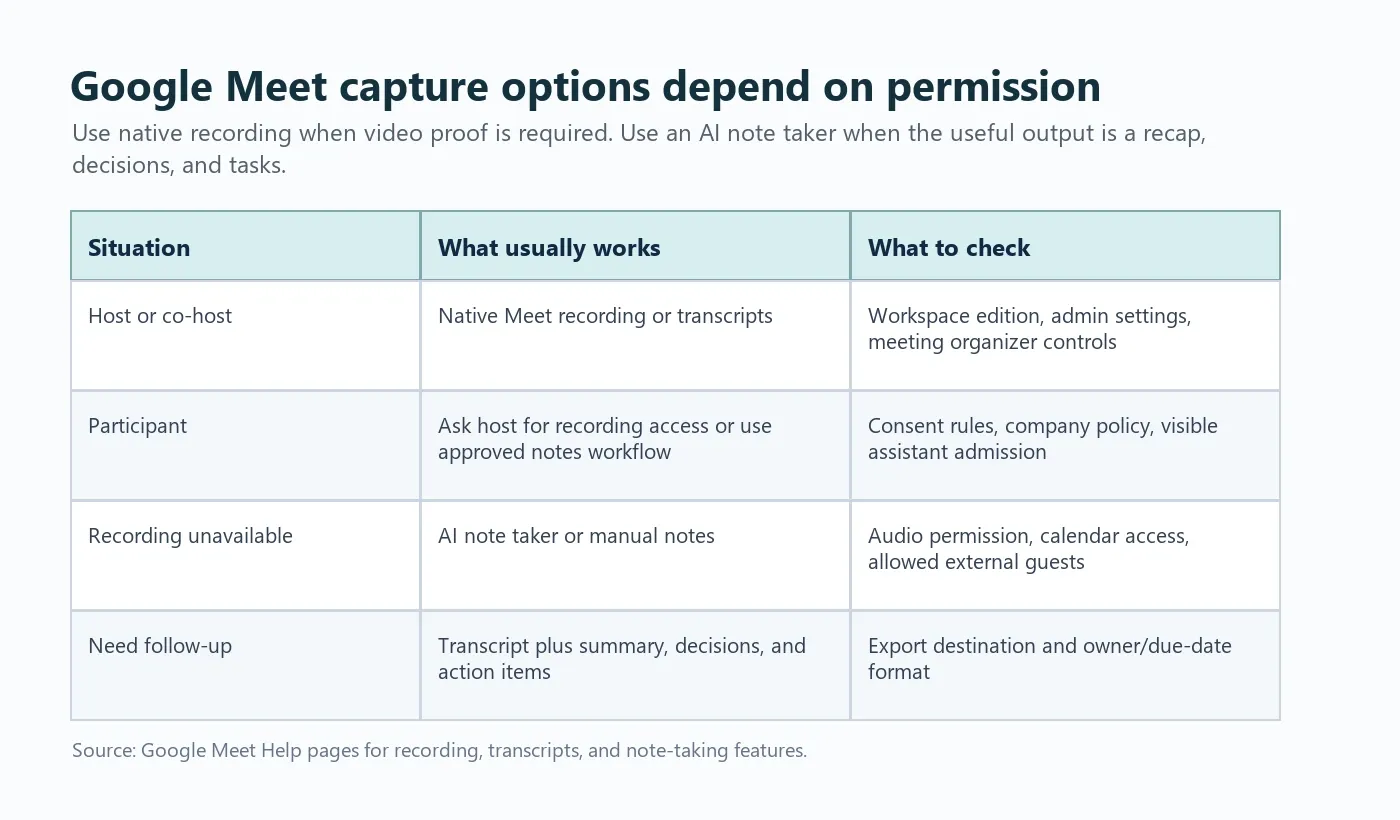
Google Meet is not a free-for-all recording environment. That is a good thing. Meetings often include customer data, HR topics, legal discussions, strategy, or private employee information. The right workflow should respect consent and still keep work from disappearing after the call.
| Role or setting | What it controls | Common blocker | Practical fix |
|---|---|---|---|
| Workspace administrator | Whether recording, transcripts, and some AI features are available for the organization | The feature is disabled at the admin level | Ask the admin to confirm Meet recording and transcript settings |
| Meeting organizer | Who can record, manage access, admit guests, or control meeting settings | The organizer did not enable or allow the needed capture method | Confirm permissions before the meeting, especially for client calls |
| Host or co-host | In-meeting controls and participant management | The wrong person owns the meeting link | Make the right operator a co-host before the call starts |
| Participant | Can join and contribute, but may not be able to record | No recording button or no access to final file | Ask for permission or use an approved note-taking workflow |
| External guest policy | Whether bots, assistants, or outside participants can join | The assistant is stuck waiting to be admitted | Test calendar and meeting access before high-stakes meetings |
For official details, use Google's current documentation for recording a video meeting, meeting transcripts, and Google Meet note-taking features. Those pages are the best place to verify plan-specific availability before you publish an internal policy.
How to Use Native Google Meet Recording
If your organization supports recording and you are allowed to record, the native workflow is straightforward. It is best for training sessions, legal records, demos, interviews, and customer calls where the full video matters.
- Open the scheduled Google Meet call.
- Confirm that participants know the meeting may be recorded.
- Open the meeting activities or controls menu.
- Select the recording option if it is available to your account.
- Start recording and wait for the visible recording indicator.
- Stop recording before the meeting ends, or let it process after the meeting closes.
- Find the recording in the organizer's Google Drive or the location provided by Google Meet.
Native recording is useful, but it is not the same as a meeting recap. Teams often finish a call with a video file and still have to answer the real questions: What did we decide? Who owns the next step? What deadline was mentioned? What should go into the project doc?
When Recording Is Unavailable: Use a Google Meet AI Note Taker
If the record button is missing, do not assume your computer is broken. The feature may be disabled by Workspace edition, admin policy, meeting ownership, or participant role. A participant may also feel awkward asking to record a sales call, recruiting conversation, or internal review.
A better alternative is to use an approved Google Meet AI note taker that is visible, consent-aware, and focused on structured outputs. HiNoter is designed for this situation: it can connect to your calendar, join scheduled calls when allowed, and produce the meeting record your team actually uses.
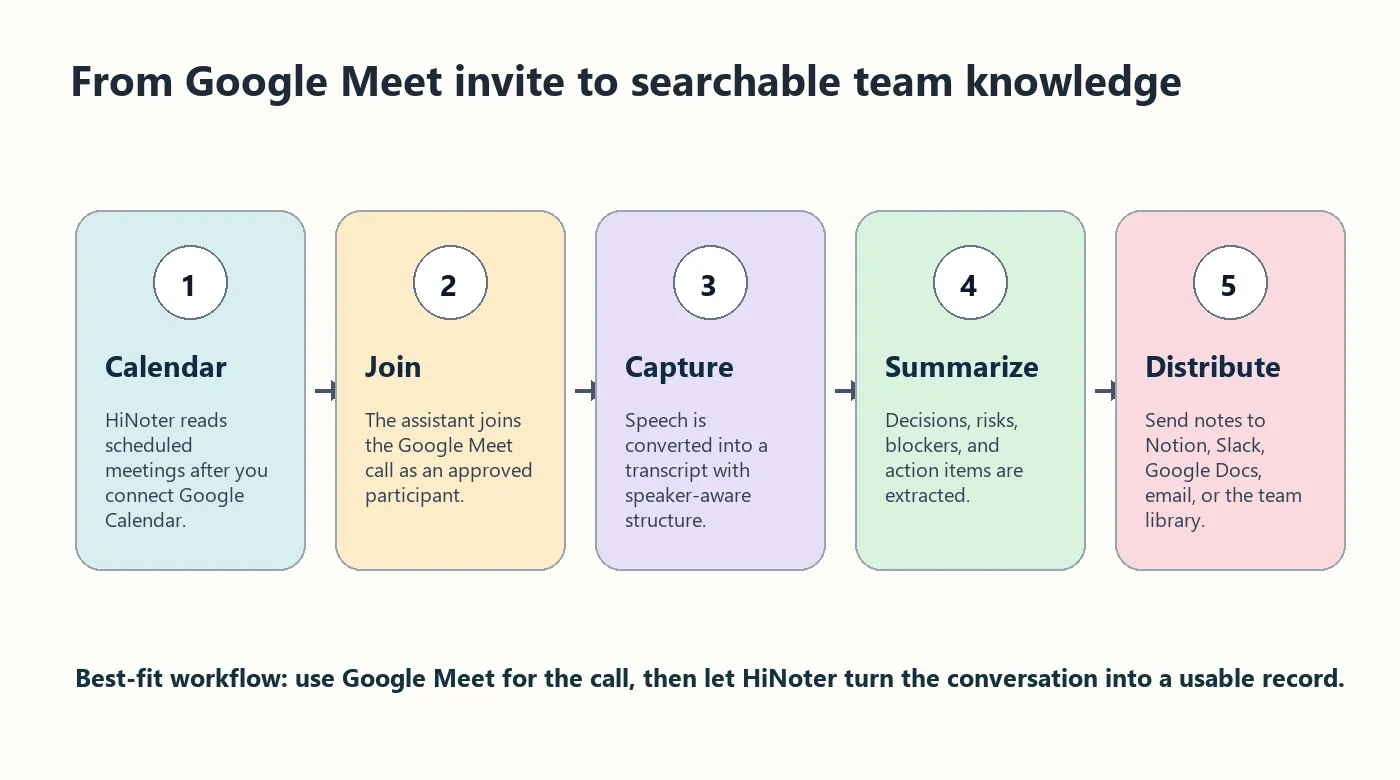
HiNoter workflow for Google Meet
- Connect Google Calendar. HiNoter detects scheduled meetings so you do not have to remember to start notes manually.
- Let the assistant join. When meeting settings allow, HiNoter joins as an AI meeting assistant.
- Capture the conversation. The call becomes a structured transcript instead of a loose memory.
- Generate the useful record. HiNoter creates the summary, action items, decisions, mind map, and follow-up context.
- Share it in the team's workflow. Export or sync to Notion, Slack, Google Docs, calendar follow-ups, email, or your meeting knowledge base.
For related workflows, see HiNoter's pages for AI meeting notes, AI meeting assistant, meeting summary generation, and the Google Meet integration.
Recording vs Google Meet AI Notes
Many teams record because it feels safe. The problem is that recordings pile up faster than people can review them. A 45-minute call can hide three decisions and six action items inside a file nobody opens again.
Atlassian has repeatedly reported that teams struggle with meeting overload and ineffective follow-up. The exact number changes by study, but the operational pattern is familiar: when the meeting ends without a written decision record, people leave with different versions of what happened.
| Need | Native Google Meet recording | Google Meet AI note taker | Best choice |
|---|---|---|---|
| Keep the full video | Strong | Not the primary purpose | Recording |
| Find a decision quickly | Weak unless reviewed manually | Strong with summary and citations | AI notes |
| Assign owners and due dates | Manual after the call | Extracted into action items | AI notes |
| Support multilingual teams | Depends on platform settings | HiNoter supports 50+ languages with automatic detection | AI notes |
| Create a compliance archive | Useful when policy requires video | Useful as a structured record, but not a video replacement | Both |
| Share a concise recap | Manual editing needed | Built into the workflow | AI notes |
What HiNoter Produces After a Google Meet Call
A good Google Meet meeting notes workflow should not stop at a transcript. Transcript-only tools move the problem from audio to text, but someone still has to read the text, identify decisions, and create follow-up tasks.
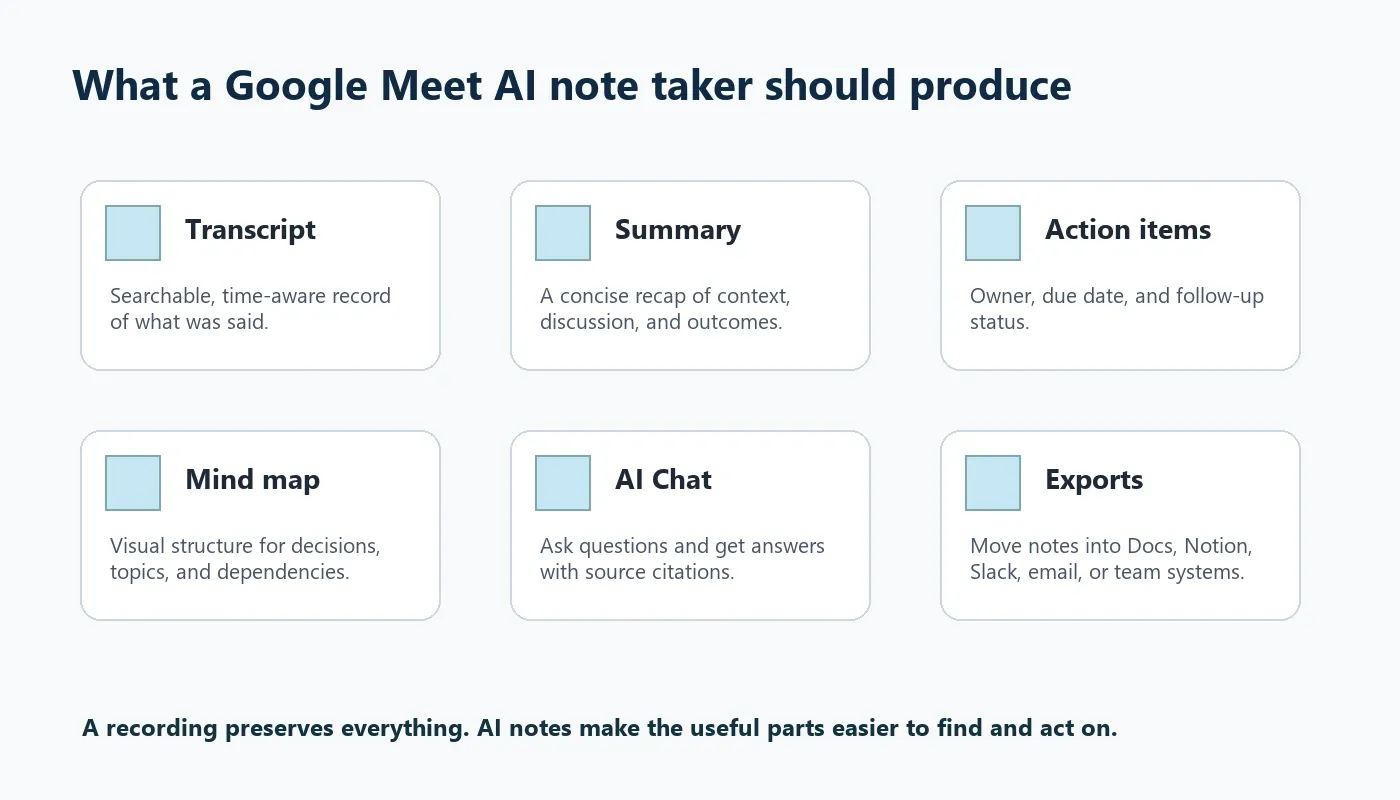
| Output | What it gives the team | Example |
|---|---|---|
| Transcript | A searchable written record of the call | "Customer wants rollout plan before July 22." |
| Summary | A short recap of context, discussion, and outcome | "The team agreed to launch the pilot with three departments first." |
| Action items | Tasks with owner, deadline, and next step | "Maya to send procurement checklist by Friday." |
| Decisions | Clear record of what was agreed | "Use Google Docs as the shared approval source." |
| Mind map | Visual grouping of topics, risks, and dependencies | "Launch plan: content, enablement, support, legal." |
| AI Chat with citations | Answers grounded in the meeting source | "What did finance say about budget timing?" |
Best-Practice Setup for Google Meet AI Meeting Notes
The cleanest setup is boring in the best way: calendar first, permission check second, automatic notes third, distribution last. That order reduces the two most common failures: forgetting to start capture and leaving the recap in a private document.
Pre-meeting checklist
- Add a clear agenda to the Google Calendar event.
- Invite the people who actually need to decide or own follow-up.
- Confirm whether the call needs native recording, AI notes, or both.
- Tell participants when an assistant or recording tool will be used.
- Make sure the meeting organizer can admit the assistant if external guests are restricted.
- Choose the export destination before the meeting ends.
During the meeting
- Say decisions out loud when the group reaches agreement.
- Name action-item owners directly.
- Attach dates to commitments whenever possible.
- Pause near the end and ask, "What did we decide, and who owns the next step?"
After the meeting
- Review the AI-generated summary for sensitive details before broad sharing.
- Push action items to the right system instead of leaving them inside the note.
- Use AI Chat to answer follow-up questions from the transcript with source citations.
- Archive the meeting record with a consistent title and project tag.
Troubleshooting Google Meet AI Note Taker Issues
Most failures are not mysterious. They usually come from permissions, access, audio quality, or unclear meeting language.
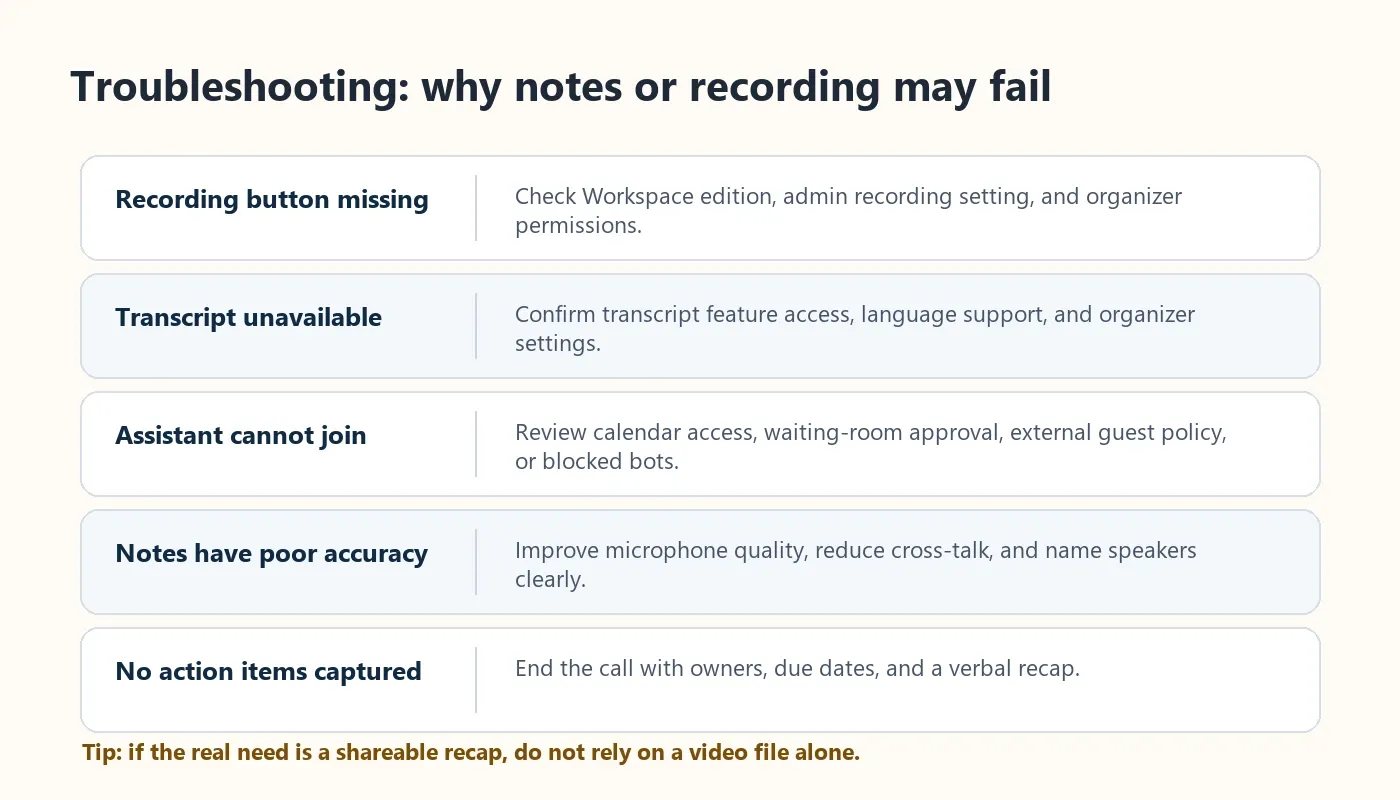
| Problem | Likely reason | What to do |
|---|---|---|
| The recording button is missing | Your Workspace plan, admin setting, or meeting role does not allow it | Ask the organizer or admin to confirm recording access |
| The AI assistant cannot join | External guests or bots may be blocked, or the assistant is waiting for admission | Test the setup with the same calendar and Meet link before the real meeting |
| Notes miss speakers | Cross-talk, weak microphones, or unnamed participants | Use better audio, avoid overlapping speech, and have speakers introduce themselves |
| Action items are vague | The meeting ended without owners or due dates | Close with a spoken recap of owner, task, and deadline |
| The transcript is not enough | Transcript text still requires manual reading | Use HiNoter summaries, mind maps, action items, and AI Chat |
Security, Consent, and Privacy Notes
AI meeting notes should be treated with the same care as recordings. If a meeting includes customers, candidates, legal topics, financial data, or employee information, tell people what is being captured and where the record will live.
A simple script works well: "We are using HiNoter to create meeting notes and action items so nobody has to type during the call. The recap will be shared with attendees after the meeting. Please let us know now if anything should stay off the record."
That sentence does three useful things: it names the tool, explains the purpose, and gives participants a chance to raise concerns before the meeting record is created.
When HiNoter Is the Better Google Meet Workflow
Use native recording when you truly need the full video. Use HiNoter when the work starts after the conversation: decisions, follow-up, project memory, customer commitments, and cross-functional alignment.
HiNoter is especially useful when your team works across regions or languages. It supports 50+ languages with automatic detection, so a single meeting record can serve multilingual teams instead of relying on one person's rushed private notes.
It also handles more than meetings. If the next step is to summarize a training video, turn a YouTube link into notes, extract the key points from a PDF, or ask questions about a recorded session, HiNoter can help turn those sources into structured knowledge.
Try HiNoter when your team wants Google Meet notes, summaries, action items, mind maps, and source-linked answers without manual note-taking.
FAQ
What is a Google Meet AI note taker?
A Google Meet AI note taker is a meeting assistant that captures a Google Meet conversation and turns it into structured notes, including a transcript, summary, action items, decisions, and searchable answers. HiNoter adds calendar-based workflows, exports, mind maps, and source-linked AI Chat.
Can I record a Google Meet meeting as a participant?
Usually not without the right permissions. Google Meet recording depends on Workspace edition, admin settings, meeting organizer controls, and the participant's role. If you are a participant, ask the host for permission or use an approved notes workflow that follows your organization's policy.
Does Google Meet have built-in AI notes?
Google offers note-taking features for eligible Workspace and Gemini plans, but availability depends on account type, administrator configuration, language support, and rollout status. Teams that want a broader workflow may use HiNoter for meeting notes, summaries, action items, exports, and multi-source knowledge.
What is the difference between Google Meet recording and AI meeting notes?
Recording saves the meeting as a video. AI meeting notes turn the conversation into a usable work record, such as a transcript, summary, decisions, owners, due dates, and follow-up items. Many teams use both when they need a full archive and fast execution.
Can HiNoter summarize Google Meet recordings?
HiNoter can turn meetings and supported audio or video sources into transcripts, summaries, action items, mind maps, and cited AI Chat answers. If you already have a recording, use HiNoter to avoid rewatching the full file.
How should I tell people that AI notes are being used?
Use a direct announcement before the meeting starts: "We are using HiNoter to create notes and action items from this call. The recap will be shared with attendees afterward." Adjust the wording for your legal, HR, or customer policy.