Short answer: If you are searching for how to record Google Meet, open your meeting on a computer, click Activities or Meeting tools, choose Recording, then Start recording if your Google Workspace edition and admin settings allow it. If recording is unavailable, use a calendar-connected AI meeting assistant such as HiNoter to auto-join eligible meetings and generate notes, summaries, action items, and mind maps.
Google Meet recording sounds simple until the button is missing. A user may be on the wrong account type, blocked by an admin setting, outside the host's organization, or joining from a device that does not expose the same controls. Even when recording works, the output is still a video file. Someone has to find it, review it, extract decisions, assign action items, and send a recap before the next meeting overtakes the last one.
This guide starts with the official Google Meet recording workflow, then shows a cleaner team process: connect calendar access, let HiNoter attend scheduled Google Meet calls, and receive structured AI notes without remembering to start and stop a recording.
If Your Workspace Edition Supports Recording
If your Google Workspace edition supports recording and your administrator has turned the feature on, you can record a Google Meet call from the meeting controls. Google says meeting recordings are available only for certain Google Workspace editions and account types, and administrators can control whether the feature is available. That is why two people in the same meeting may see different options.
In a typical eligible Workspace meeting, the host, co-host, or an approved participant can start recording. Google may also limit recording based on whether you are inside the host's organization, whether host management is enabled, and whether you have joined from a supported device. Recording is not a universal free Meet feature for every personal account.
Answer block: If your Workspace edition supports recording, join the Google Meet on a computer, open Activities or Meeting tools, select Recording, click Start recording, and wait for participants to be notified. Stop recording from the same menu. The file is usually saved in the meeting organizer's Google Drive under a Meet Recordings folder, and Google sends a link to the organizer and the person who started recording.
If Recording Is Unavailable
If recording is unavailable, the most likely causes are account eligibility, admin policy, host controls, device limitations, or meeting permissions. You may need a supported Workspace plan, an administrator to enable recording, or permission from the meeting host. If you are joining as a guest, joining from a personal account, or joining a meeting hosted by another organization, you may not see the same control.
Answer block: If the Google Meet recording button is missing, check whether your Workspace edition includes recording, ask your admin whether recording is enabled for your organizational unit, confirm that you are the host, co-host, or permitted participant, and try from a computer browser. If you only need a usable meeting record, HiNoter can auto-join scheduled meetings and create notes without relying on manual Meet recording.
How to Record Google Meet Step by Step
Use these steps when your account, administrator, and meeting role allow Google Meet recording. The labels in Google Meet can vary slightly as Google updates the interface, but the official path centers on opening the meeting's activity or tools menu, choosing the recording option, and starting or stopping recording from there.
1. Join the Google Meet on a Supported Account
Open the meeting from Google Calendar, Gmail, or a Meet link. Use the Google account that belongs to the organization hosting or managing the meeting. If you switch to a personal account by accident, the recording option may not appear even if your work account is eligible.
2. Confirm Consent and Meeting Policy
Recording rules vary by company policy, jurisdiction, and meeting type. Before recording, tell participants that the meeting will be recorded and confirm that your organization allows it. Google notifies participants when recording starts, but that notice is not a substitute for responsible consent practices.
3. Open Activities or Meeting Tools
Inside the meeting, open the Activities menu or Meeting tools panel. Look for the Recording option. If you do not see it, use the troubleshooting section below before assuming the feature is broken.
4. Start Recording
Select Recording, then Start recording. Wait for the recording to begin and for participants to see the notification. Do not start a sensitive conversation until everyone understands that the meeting is being recorded.
5. Stop Recording When the Meeting Ends
Open the same menu and choose Stop recording. Google may also stop recording automatically when all participants leave. Still, it is better for the host or owner to stop it intentionally so the file does not include idle time or unrelated discussion.
6. Find the Recording in Google Drive
After processing, the recording is saved to the meeting organizer's Google Drive, usually in a Meet Recordings folder. Google also sends the recording link by email to the meeting organizer and the person who started the recording. If the meeting was scheduled in Google Calendar, the recording link may also appear on the calendar event.
Where Google Meet Recordings Save
Google's support documentation explains that Meet recordings are stored in the meeting organizer's Drive, not necessarily the Drive of every participant. This matters for teams because the person who needs the recording later may not be the organizer. A project manager may start the recording, but the file could still live under the calendar owner's Drive depending on how the meeting was scheduled.
For recurring meetings, this can create a retrieval problem. Recordings can pile up in Drive with similar names. If the team does not have a clear naming and sharing habit, people may spend as much time hunting for the right file as they would have spent writing a recap. A shared calendar and consistent meeting ownership help, which is why a reliable Google Calendar workflow matters before any automated meeting note workflow. See HiNoter's guide to sharing Google Calendar if your team is still aligning calendar access and visibility.
What Google Meet Recording Captures and What It Does Not Solve
A recording gives you a replayable version of the meeting. That is useful for training, compliance, interviews, webinars, demos, and high-stakes decisions. It can also help people who missed the call catch up later. But the recording itself is not a summary, decision log, task tracker, or knowledge base entry.
Teams usually need four outputs after a meeting: what was discussed, what was decided, who owns the next step, and where the supporting context came from. A video file preserves the meeting, but it does not turn the meeting into those outputs automatically. That is where many teams lose time. They record the call, then still ask someone to rewatch, skim, summarize, copy notes into a document, post action items in chat, and answer follow-up questions.
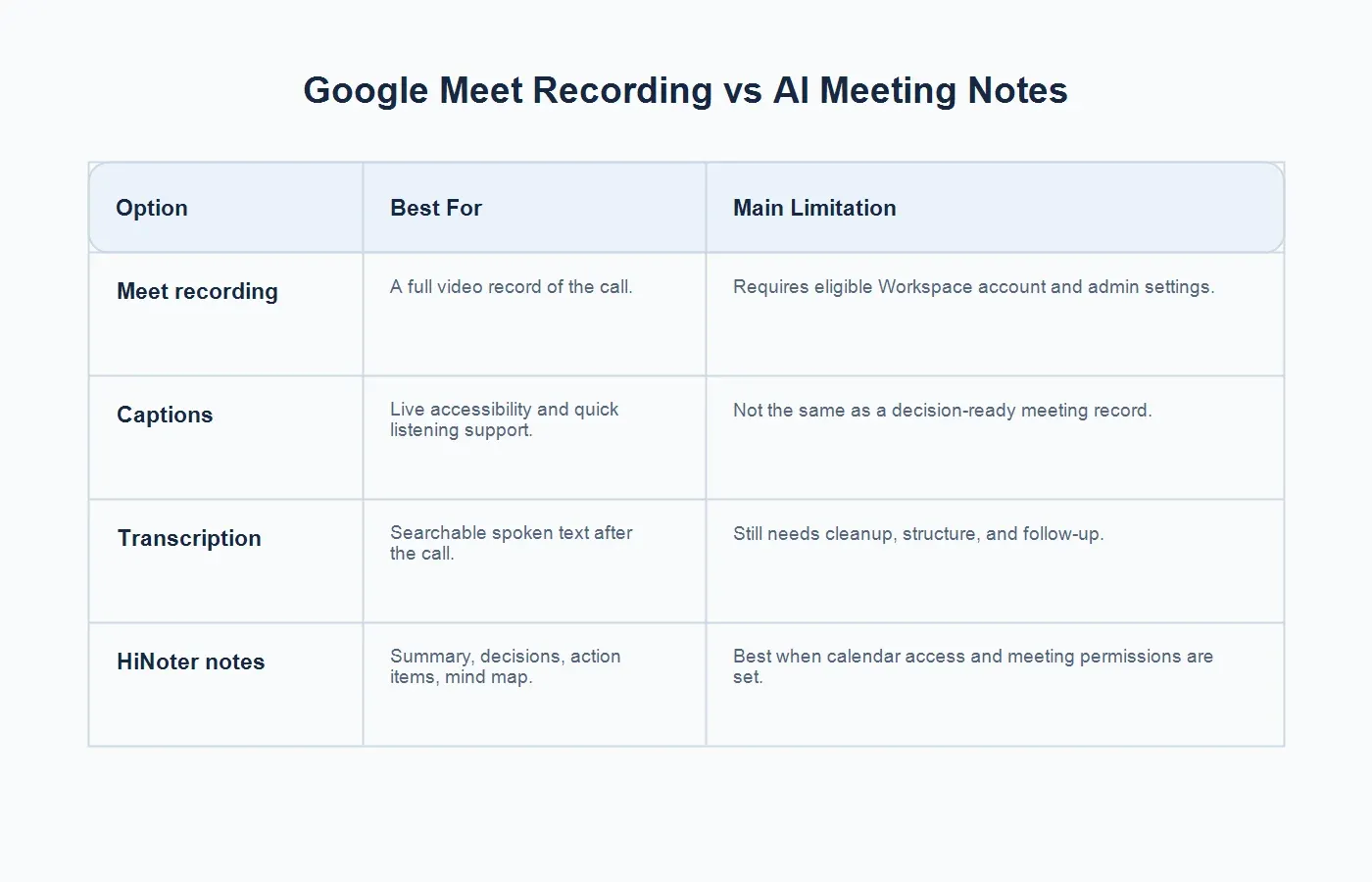
| Option | Best For | Main Limitation |
|---|---|---|
| Google Meet recording | Keeping a full video record of a meeting, training session, demo, or webinar. | Requires an eligible Workspace account, admin settings, and manual start or stop. |
| Captions | Helping participants follow the conversation live. | Captions are not the same as a structured recap with decisions and owners. |
| Transcript | Searching what was said after the meeting. | Raw text still needs cleanup, structure, summaries, and action items. |
| HiNoter AI notes | Getting summaries, decisions, action items, mind maps, and source-linked answers. | Works best when calendar access, meeting permission, and sharing rules are clear. |
A Faster Workflow: Let HiNoter Join Google Meet and Create Notes
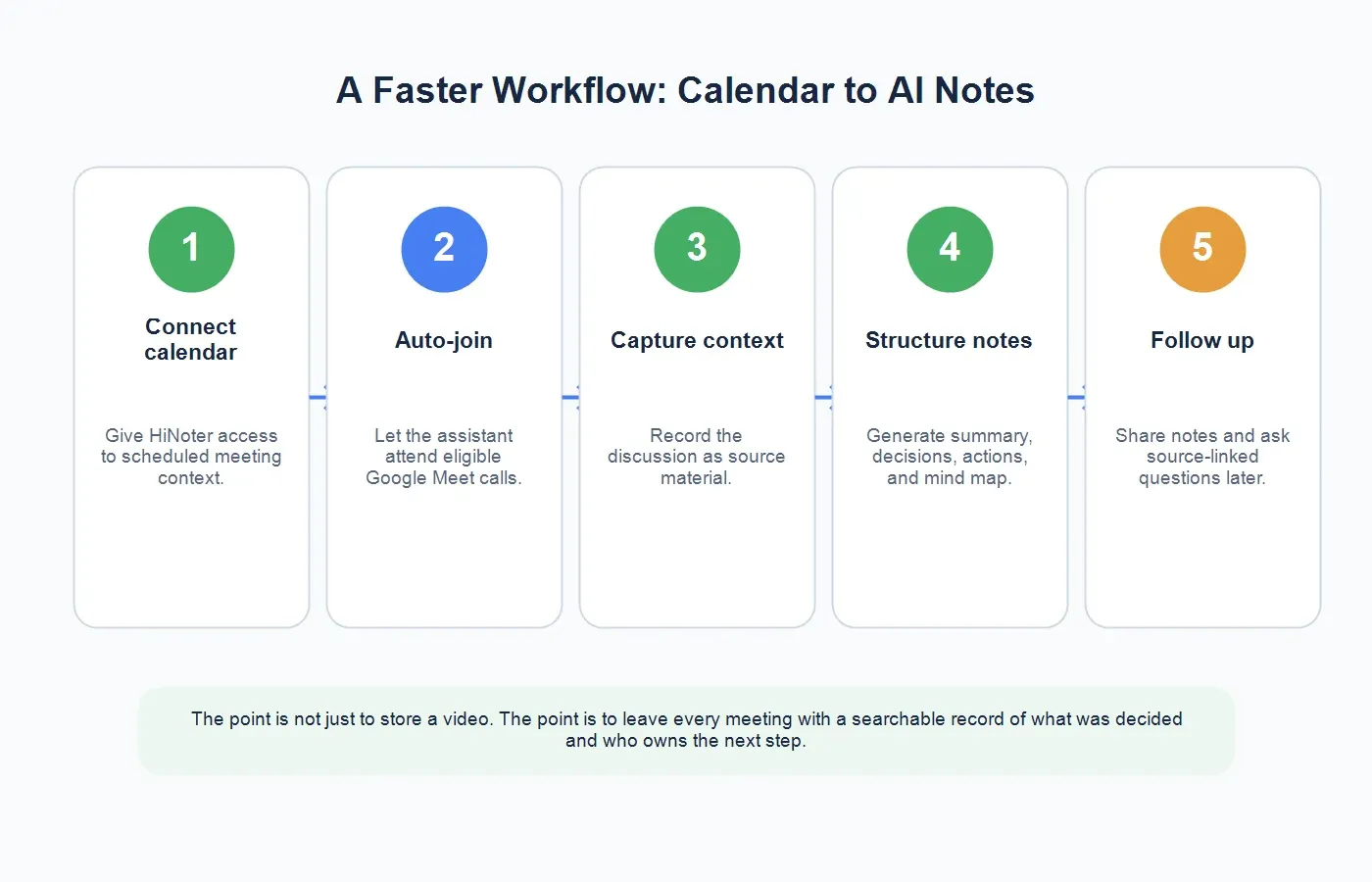
The easier workflow is to stop treating the recording as the final deliverable. For many teams, the real deliverable is the meeting record: summary, decisions, action items, owners, and searchable context. With the HiNoter Google Meet integration, teams can make Google Meet calls easier to capture and reuse.
HiNoter is useful when people forget to record, cannot access the recording feature, or do not want to spend time reviewing long videos. The process starts with calendar access. Once the meeting is scheduled, HiNoter can attend the call, capture the conversation, and produce structured outputs. The goal is not to replace good meeting ownership. It is to make the record reliable enough that managers do not have to chase every participant for a recap.
1. Connect Your Calendar
Calendar access is the foundation. The assistant needs to understand which meetings exist, when they start, and where the Google Meet link lives. If your team uses shared calendars, make sure meeting ownership and access are clear before expecting automation to work smoothly.
2. Let the AI Meeting Assistant Auto-Join
Instead of asking someone to click Record at the start of every call, use an AI meeting assistant that can join scheduled meetings. This reduces the common failure mode where everyone joins, the conversation starts, and nobody remembers recording until the first decision has already happened.
3. Receive Structured AI Meeting Notes
After the meeting, AI meeting notes can capture the summary, decisions, action items, and follow-up context. This is the difference between having a meeting archive and having usable team knowledge. A manager should be able to scan the output in a few minutes and know what happened.
4. Use Mind Maps and Source-Linked AI Chat
HiNoter can also create mind maps and let users ask questions about notes with source references. That matters when a teammate asks, "Where did we decide that?" or "Who owned the pricing follow-up?" Source-linked answers make the meeting record easier to trust.
5. Reuse the Same Workflow for Uploaded Audio
If you already have a lawful recording, or if a meeting happened outside Google Meet, audio to text can turn that file into searchable source material. The workflow then becomes the same: transcript, summary, action items, and notes that can be reused later.
Google Meet Recording Troubleshooting
The Recording Button Is Missing
Check your account first. Recording is controlled by Workspace edition and administrator settings. If you are using a personal account, guest account, or an account outside the host's organization, the option may not appear. Try joining from your work account on a desktop browser and confirm your role with the host.
The Admin Disabled Recording
Workspace admins can control whether recording is available. If your organization disables it, the meeting interface will not override that policy. Ask your admin whether recording is available for your organizational unit and whether any compliance rules apply.
The Recording Did Not Save Where Expected
Look in the organizer's Google Drive under Meet Recordings. Also check the email inbox of the organizer and the person who started the recording. If the meeting was scheduled in Calendar, inspect the event attachment or event details.
Participants Object to Recording
Do not force recording into sensitive meetings without policy support and participant consent. In some cases, a structured note workflow is more acceptable than a full video archive because it captures the business record without retaining every visual and conversational detail. Your company policy should decide what is appropriate.
The Recording Is Too Long to Review
This is the most common productivity problem. A recording preserves the meeting, but a busy team still needs a summary. Use HiNoter to turn the meeting into a structured note with decisions, action items, and searchable context.
When Should You Record Google Meet?
Record Google Meet when a full replay matters. Examples include training sessions, customer demos, detailed research interviews, webinars, formal project reviews, and meetings where absent stakeholders need the exact discussion. A recording is also useful when visual context matters, such as product walkthroughs, screen shares, design reviews, or technical demos.
Do not record just because the button exists. Some meetings need a concise record more than a video archive. Daily standups, routine check-ins, short planning calls, and internal syncs usually create more value when they produce decisions and action items quickly. In those cases, AI notes are often the better default.
Best Practices for a Clean Meeting Record
Start with a clear agenda. A messy meeting produces messy source material, whether you record it or use an AI notetaker. Name the meeting owner, decision goal, expected output, and follow-up channel before the call begins.
Tell participants how the meeting will be captured. If you are recording, say so. If an AI meeting assistant is joining, say so. Transparency builds trust and reduces awkward questions later.
Use action-oriented language during the meeting. Say "Sarah owns the draft by Friday" rather than "we should look into the draft." AI tools can capture implied tasks, but explicit ownership produces cleaner notes.
Review the summary soon after the meeting. The best time to correct a note is when the conversation is still fresh. Add missing context, confirm owners, and push action items to the team's normal workflow.
Final Takeaway
Google Meet recording is helpful when it is available, allowed, and worth keeping. But it is not always available, and it rarely solves the whole meeting documentation problem by itself. The recording is a source file; the useful business output is the structured record that comes after it.
Connect Google Calendar and let HiNoter auto-join Google Meet calls to generate notes, summaries, action items, and mind maps. That way, your team does not have to remember the Record button before every call or rewatch long videos just to find the decision that mattered.
FAQs
Can anyone record Google Meet?
No. Google Meet recording depends on your Google Workspace edition, administrator settings, meeting role, and account permissions. Personal accounts and guests may not have the recording option.
Where are Google Meet recordings saved?
Google Meet recordings are usually saved to the meeting organizer's Google Drive in a Meet Recordings folder. Google also emails a recording link to the organizer and the person who started the recording.
Why is the Google Meet recording button missing?
The button may be missing because recording is not included in your account type, the admin disabled it, you are not the host or an approved participant, you joined from the wrong account, or you are using an unsupported device or workflow.
Can Google Meet create transcripts instead of recordings?
Some Google Workspace experiences include transcription-related features, but availability depends on account type, settings, and Google updates. If you need structured notes, summaries, and action items, use an AI meeting notes workflow rather than relying only on raw transcript text.
Can HiNoter join Google Meet automatically?
Yes. With calendar access and the right meeting permissions, HiNoter can auto-join scheduled Google Meet calls and generate structured notes, summaries, action items, mind maps, and source-linked answers.