How to Share Google Calendar With Your Team and Automate Meeting Notes
How to share Google Calendar is simple on the surface: open Settings and sharing, choose the calendar you want to share, add people or a Google Group, and select the right permission level. The part most teams get wrong is what happens after the calendar is shared.
A shared calendar should not just show who is busy. It should help the team understand which meetings matter, who owns them, what decisions were made, and which follow-ups need action. That is where a clean calendar setup becomes the foundation for automated meeting notes.
The Fast Answer: How to Share Google Calendar
To share Google Calendar with your team:
1. Open Google Calendar on desktop.
2. In the left sidebar, find My calendars.
3. Hover over the calendar you want to share.
4. Click the three-dot menu.
5. Select Settings and sharing.
6. Go to Share with specific people or groups.
7. Click Add people and groups.
8. Enter a teammate's email address or a Google Group.
9. Choose a permission level.
10. Click Send.
Google's own Calendar Help confirms that calendar sharing is managed from the desktop version, and that work or school sharing may be limited by your Google Workspace administrator.
Before You Share: Decide What the Calendar Is For
Do not share your primary calendar with everyone by default. First, decide what the calendar is supposed to accomplish.
Calendar Type | Best For | Recommended Access |
Personal work calendar | Availability and 1:1 scheduling | Free/busy or event details |
Team calendar | Sprint planning, customer calls, recurring team meetings | Event details or edit access |
Project calendar | Launches, deadlines, workshops, cross-functional reviews | Edit access for owners, view access for others |
If the goal is visibility, use free/busy or event details. If the goal is coordination, use a dedicated team calendar. If the goal is automatic meeting capture, make sure the right meetings include the right conferencing link and meeting owner.
Google Calendar Permission Levels Explained
Google Calendar gives you several permission levels. Choosing the wrong one is the fastest way to either hide too much or expose too much.
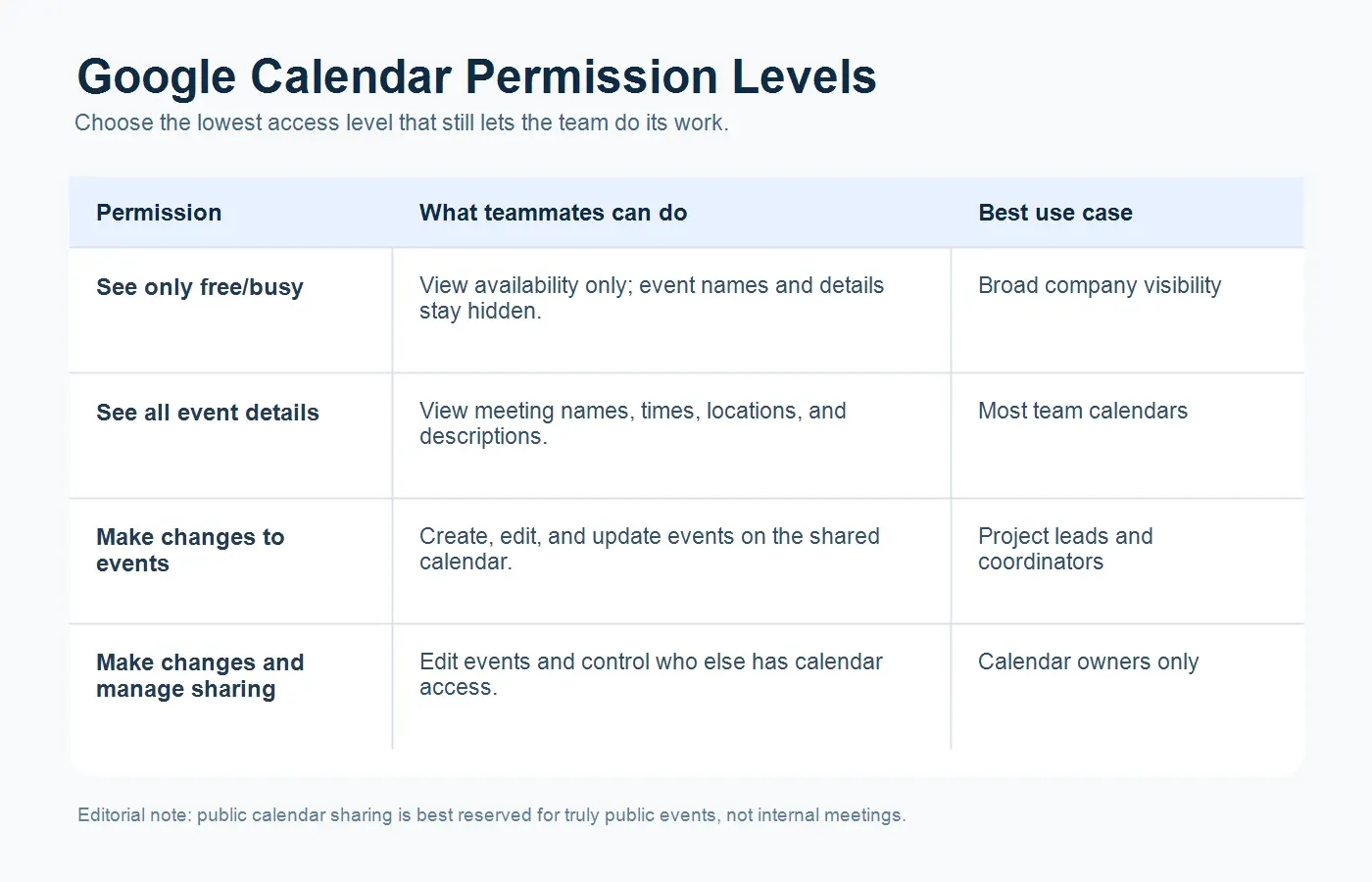
Permission Level | What Teammates Can Do | Best Use Case |
See only free/busy | See when you are unavailable, but not event titles or details | Broad company availability |
See all event details | View meeting names, times, locations, and descriptions | Team visibility and planning |
Make changes to events | Add, edit, or update events | Project coordinators or assistants |
Make changes and manage sharing | Edit events and control who else has access | Calendar owners or operations leads only |
Be careful with the last option. Google notes that people with full access can create and edit events, respond to invitations, share the calendar with others, and receive emails about changes. For most teams, 'Make changes and manage sharing' should be limited to a small number of trusted owners.
How to Share Google Calendar With Specific People
Step 1: Open Calendar Settings
On desktop, open Google Calendar. In the left sidebar, look under My calendars. Hover over the calendar you want to share, click the three-dot menu, and choose Settings and sharing.
Step 2: Add People or Groups
Scroll to Share with specific people or groups. Click Add people and groups, then enter an individual email address or a Google Group.
Using a Google Group is usually cleaner for teams. Instead of adding and removing people one by one, you manage access through the group. When someone joins or leaves the team, the calendar access follows the group membership.
Step 3: Choose the Right Permission
For a team calendar, 'See all event details' is often enough. For project managers or operations leads who need to create and adjust meetings, 'Make changes to events' may be appropriate.
Reserve 'Make changes and manage sharing' for people who are allowed to control calendar access itself.
Step 4: Send the Invite
Click Send. Google will email the people you added. They may need to click the email link before the calendar appears in their Calendar list.
How to Share a Google Calendar With Your Whole Team
For companies using Google Workspace, the cleanest setup is often a shared team calendar plus a Google Group.
A good structure looks like this:
1. Create a dedicated calendar for the team or project.
2. Share it with a Google Group such as product-team@company.com.
3. Give most members See all event details.
4. Give team leads Make changes to events.
5. Keep sharing management with one or two owners.
6. Add recurring meetings, project reviews, and customer calls to that shared calendar.
This setup reduces the risk of inviting the wrong people, losing meetings across time zones, or depending on one person's private calendar to understand what happened.
Should You Make a Google Calendar Public?
Usually, no.
Google allows calendars to be made public, but public sharing can make calendar information discoverable outside your organization. That may be fine for public events, webinars, office hours, or community programming. It is rarely appropriate for internal meetings, customer calls, hiring interviews, finance reviews, or product planning.
Use public calendars only when the calendar is designed for public visibility. For internal team operations, share with specific people, Google Groups, or your organization.
The Team Workflow: From Shared Calendar to Automated Meeting Notes
Sharing the calendar solves visibility. It does not solve meeting follow-through.
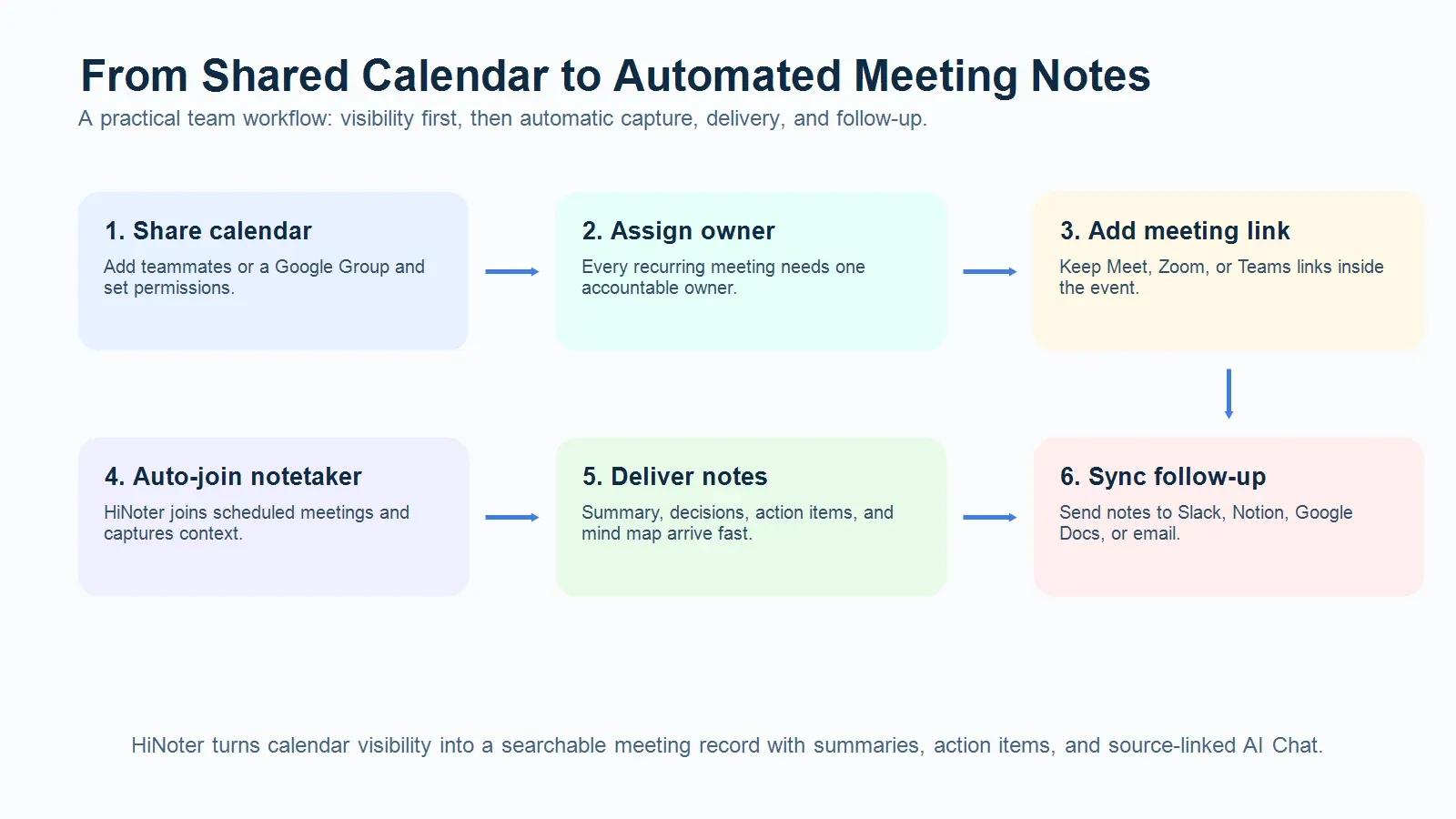
A better team workflow connects the calendar to the meeting record:
1. Share the team calendar so the right people can see upcoming meetings.
2. Assign a meeting owner for each recurring meeting or project call.
3. Add the conferencing link for Google Meet, Zoom, or Microsoft Teams.
4. Connect Google Calendar to an AI meeting assistant so scheduled meetings can be captured automatically.
5. Let the notetaker join the meeting and record the conversation with participant awareness and consent.
6. Generate structured notes after the call, including summary, decisions, and action items.
7. Sync the output to Slack, Notion, Google Docs, or your team knowledge base.
8. Review action items in the next team check-in instead of asking everyone to reconstruct what happened.
This is where HiNoter fits naturally. With HiNoter's AI Meeting Assistant, teams can connect scheduled meetings, let the assistant join supported calls, and receive summaries, action items, and mind maps after the meeting. Instead of one person writing notes while half-listening, the team gets a structured record that can be searched, shared, and reused.
Why Calendar Sharing Alone Is Not Enough
Meetings are not the problem by themselves. The real problem is the gap between the meeting and the work that follows.
Microsoft's Work Trend Index reported that the average employee spends 57% of their Microsoft 365 time communicating in meetings, email, and chat, compared with 43% creating. Microsoft also found that 68% of people say they do not have enough uninterrupted focus time during the workday.
Atlassian's research tells a similar story from another angle: in a survey of 5,000 knowledge workers, meetings were identified as the top barrier to productivity.
Workplace Signal | What It Means for Teams | Planning Response |
57% of time spent communicating | Meeting context is scattered across calls, email, and chat | Keep a searchable meeting record |
68% lack enough focus time | Manual note-taking adds another distraction | Automate capture and summaries |
Meetings ranked as a top productivity barrier | Teams need fewer unclear meetings and better records | Tie every meeting to decisions and owners |
A shared calendar helps people show up. Automated notes help the organization remember what happened.
How HiNoter Turns Calendar Access Into Meeting Memory
Once your team calendar is organized, HiNoter can help turn scheduled meetings into usable knowledge.
For example, a product manager can share a project calendar with the product, design, and engineering leads. When a sprint planning meeting happens, HiNoter can capture the discussion, generate AI meeting notes, extract action items, and produce a mind map of the main topics.
Afterward, the team can send the notes to Notion, export a clean version to Google Docs, or share the summary in Slack. If someone missed the meeting because of a time zone conflict, they do not need a second recap call. They can read the summary, review the decisions, and ask questions through AI Chat with source references.
That is the practical difference between 'we shared the calendar' and 'we know what happened.'
Troubleshooting Google Calendar Sharing
The person did not receive the calendar invite
Ask them to check spam, trash, and the email address you entered. If needed, remove them from the sharing list and add them again.
They can only see free/busy
Check their permission level under Share with specific people or groups. If your company uses Google Workspace, an admin policy may limit what you can share.
They cannot edit events
Make sure they have Make changes to events or Make changes and manage sharing. Also confirm they are editing the shared calendar, not their personal calendar.
The calendar does not appear for a teammate
They may need to click the email invitation link. For shared team calendars, you can also send the Calendar ID and ask them to add it manually.
Sensitive events are visible
Change the event visibility to private, or reduce the calendar permission level. For sensitive work, avoid broad calendar sharing and use a dedicated restricted calendar.
Best Practices for Team Calendar Sharing
Use a dedicated team calendar for shared work instead of exposing everyone's primary calendar. Name meetings clearly, include the owner in the event description, and add the video link before the invite goes out.
For recurring meetings, include a short agenda and the expected output. A calendar event called Weekly Sync is easy to ignore. Product Launch Sync: Risks, Owners, Launch Decisions tells people why the meeting exists.
Finally, connect the calendar to your notes workflow. A meeting that ends without decisions, owners, or a searchable record is likely to create another meeting. A meeting that ends with structured notes can move straight into execution.
FAQ
How do I share Google Calendar with my team?
Open Google Calendar on desktop, hover over the calendar under My calendars, click the three-dot menu, choose Settings and sharing, then add teammates or a Google Group under Share with specific people or groups. Choose a permission level and click Send.
Can I share Google Calendar from my phone?
Google's sharing instructions are designed for the desktop version of Google Calendar. If you need to change sharing permissions, use a browser on your computer.
What is the best Google Calendar permission for a team?
For most team members, See all event details is enough. Give Make changes to events to people who manage scheduling. Limit Make changes and manage sharing to calendar owners or operations leads.
Is it safe to make a Google Calendar public?
Only if the calendar is intended for public viewing. Public calendars may expose event information outside your organization. Internal meetings, client calls, hiring interviews, and planning sessions should usually be shared only with specific people, groups, or your organization.
How can I automatically create meeting notes from Google Calendar events?
Use an AI meeting assistant such as HiNoter. Once your meetings are scheduled and connected, HiNoter can join supported meetings, generate summaries, capture action items, create mind maps, and help sync notes to tools like Notion, Slack, and Google Docs.