Short Answer
To learn how to transcribe a meeting, start with a clear recording or live meeting source, run speech-to-text transcription, review speaker labels and timestamps, edit names and technical terms, then turn the transcript into a summary and action items. HiNoter adds the next layer: transcript, summary, mind map, exports, and source-grounded Q&A.
| Step | What to do | Why it matters |
|---|---|---|
| 1. Capture the meeting | Record live audio, upload a file, or connect a calendar-based meeting workflow | The transcript can only be as good as the source audio |
| 2. Convert speech to text | Use transcription software with speaker labels, timestamps, and language detection | Searchable text is easier to quote, edit, and share |
| 3. Review the transcript | Correct names, acronyms, unclear phrases, and speaker labels | Small edits prevent expensive misunderstandings |
| 4. Summarize and assign | Extract decisions, action items, owners, due dates, and risks | Follow-up happens faster when the next step is explicit |
What Meeting Transcription Means
Transcription is the process of converting spoken audio into written text. In meetings, transcription usually means turning a live call, recording, webinar, interview, or voice memo into a searchable transcript.
Speech to text is the technology layer that recognizes spoken words and outputs text. It may include timestamps, speaker labels, language detection, punctuation, and searchable playback.
AI-assisted transcription goes further. It uses the transcript as source material for summaries, decisions, action items, topic maps, and Q&A grounded in the original meeting. That is where raw meeting text becomes usable team knowledge.
How to Transcribe a Meeting: The Practical Workflow
The right workflow depends on whether you are transcribing a live meeting, a recording, or an uploaded file. The sequence is the same: capture, transcribe, clean up, structure, and share.
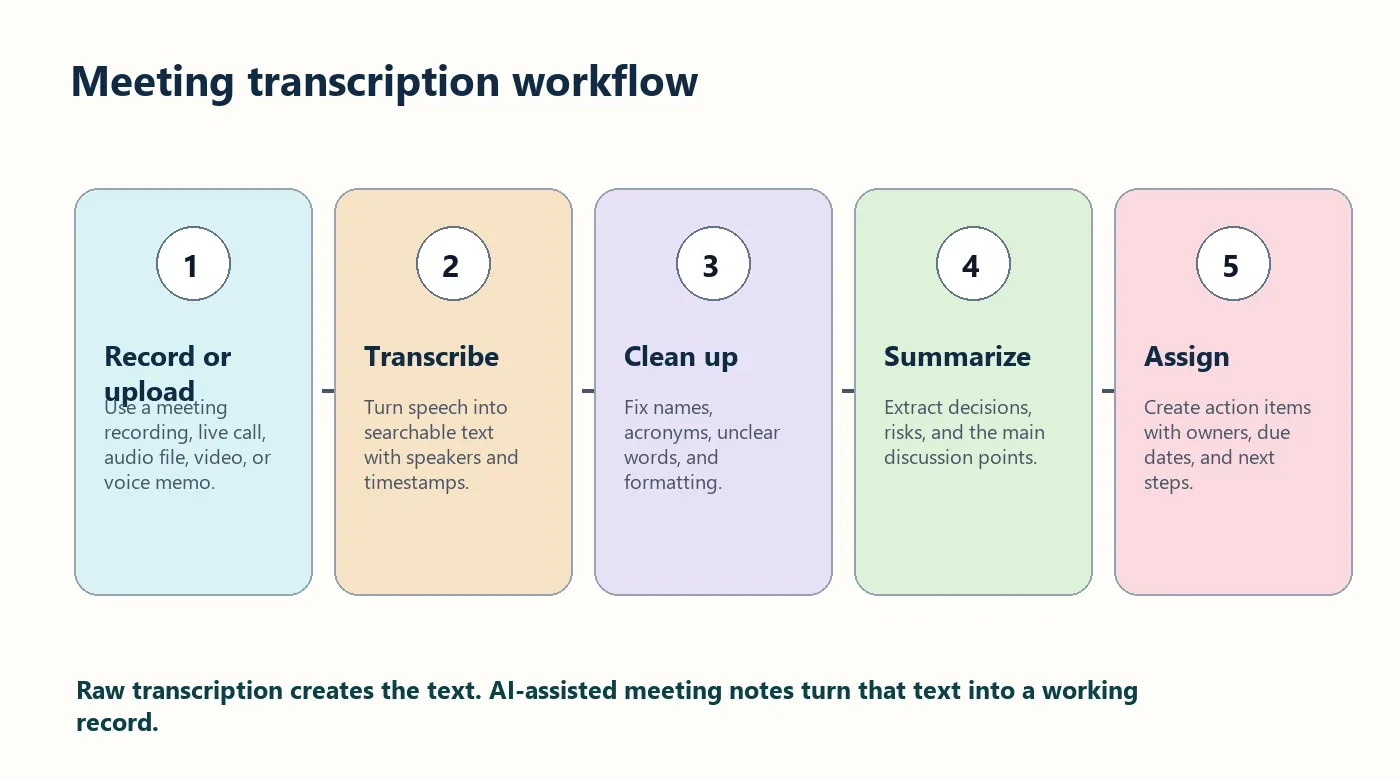
- Choose the source. Use a live call, uploaded audio, video file, meeting recording, webinar, lecture, interview, or voice memo.
- Check consent and permissions. If the meeting includes customers, candidates, employees, or sensitive information, follow your recording and transcription policy.
- Run transcription. Use a tool that can convert speech to text and preserve useful context such as timestamps and speakers.
- Review the transcript. Fix people names, company names, product names, acronyms, technical terms, and any confusing speaker labels.
- Summarize the discussion. Pull out key points, decisions, risks, blockers, questions, and commitments.
- Create action items. Add owner, task, due date, and status. A transcript without follow-up still leaves the work unfinished.
- Export the record. Send the cleaned transcript and notes to Google Docs, Notion, Slack, email, or your team knowledge base.
Supported Sources: Audio, Video, Live Meetings, and More
A modern meeting transcription workflow should not depend on one platform. Teams work across Zoom, Google Meet, Microsoft Teams, phone calls, training videos, webinars, YouTube content, PDFs, and uploaded files.
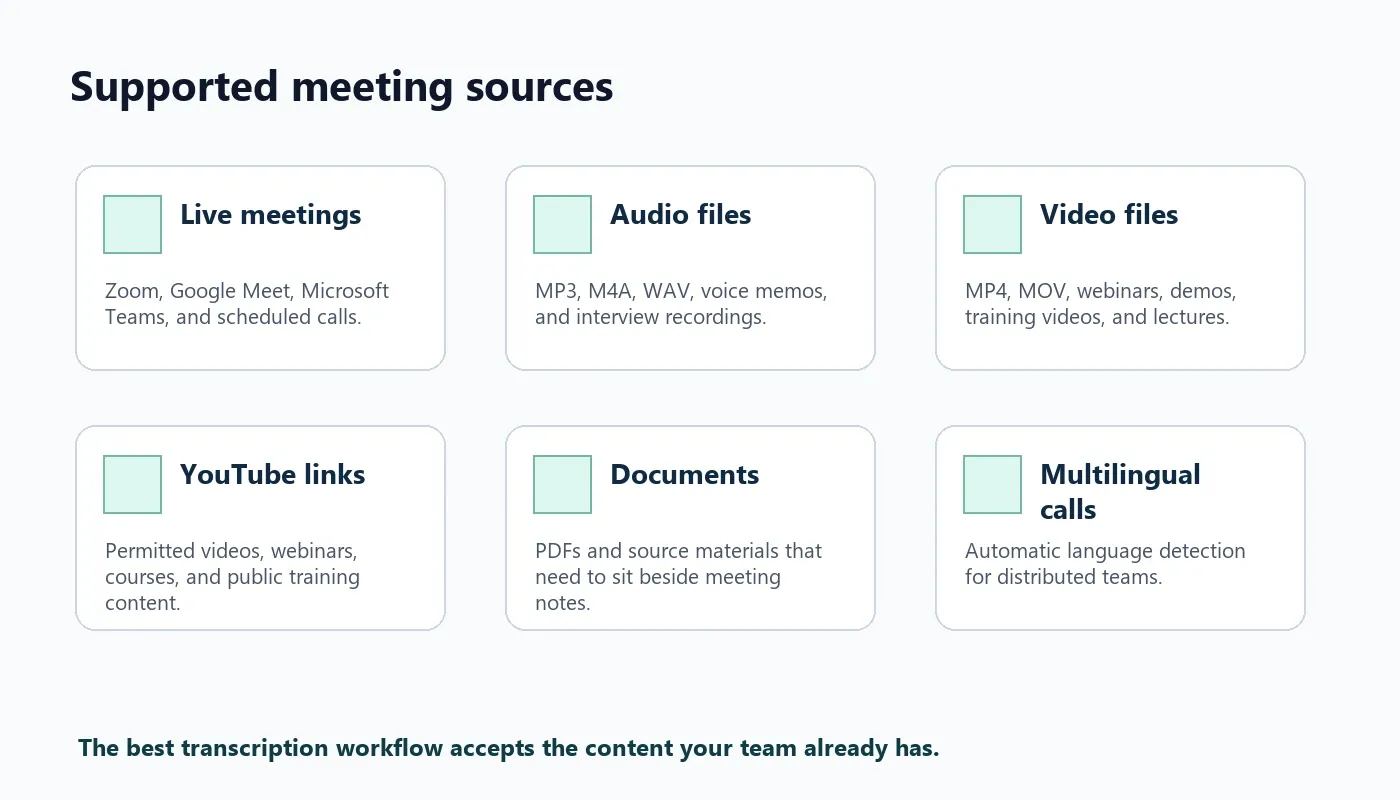
| Source | Use case | What to watch |
|---|---|---|
| Live meetings | Recurring team calls, customer calls, standups, interviews | Permissions, participant notice, and meeting assistant access |
| Audio files | Voice memos, MP3, M4A, WAV, recorded interviews | Background noise and missing speaker context |
| Video files | Webinars, demos, training recordings, lectures | Large files and visual information not captured in text |
| YouTube links | Permitted webinars, courses, public talks, product videos | Use only content you own or have permission to process |
| PDFs and notes | Agenda documents, briefing materials, post-meeting context | Source alignment between documents and discussion |
Manual vs Automatic vs AI-Assisted Meeting Transcription
Manual transcription can be accurate but slow. Automatic transcription is faster but still creates a long document. AI-assisted meeting notes are useful when the goal is not only text, but follow-up.
| Method | Best for | Strength | Limitation |
|---|---|---|---|
| Manual transcription | Legal, research, or publication-grade transcripts | Human review can catch nuance and context | Slow, expensive, and difficult to scale |
| Automatic transcription | Fast searchable text from meetings and recordings | Quick, affordable, and easy to search | Still requires review, cleanup, and summarization |
| AI-assisted meeting notes | Teams that need transcript plus decisions and tasks | Creates summary, action items, mind map, and Q&A | Needs permission-aware capture and source review for sensitive meetings |
Accuracy Factors: Why Transcripts Get Messy
Meeting transcription accuracy depends on more than the transcription engine. W3C's accessibility guidance treats transcripts as useful alternatives for audio and video content, but the transcript still has to represent the source clearly. In meetings, the hardest parts are usually not everyday words; they are names, acronyms, cross-talk, accents, jargon, and unclear decisions.
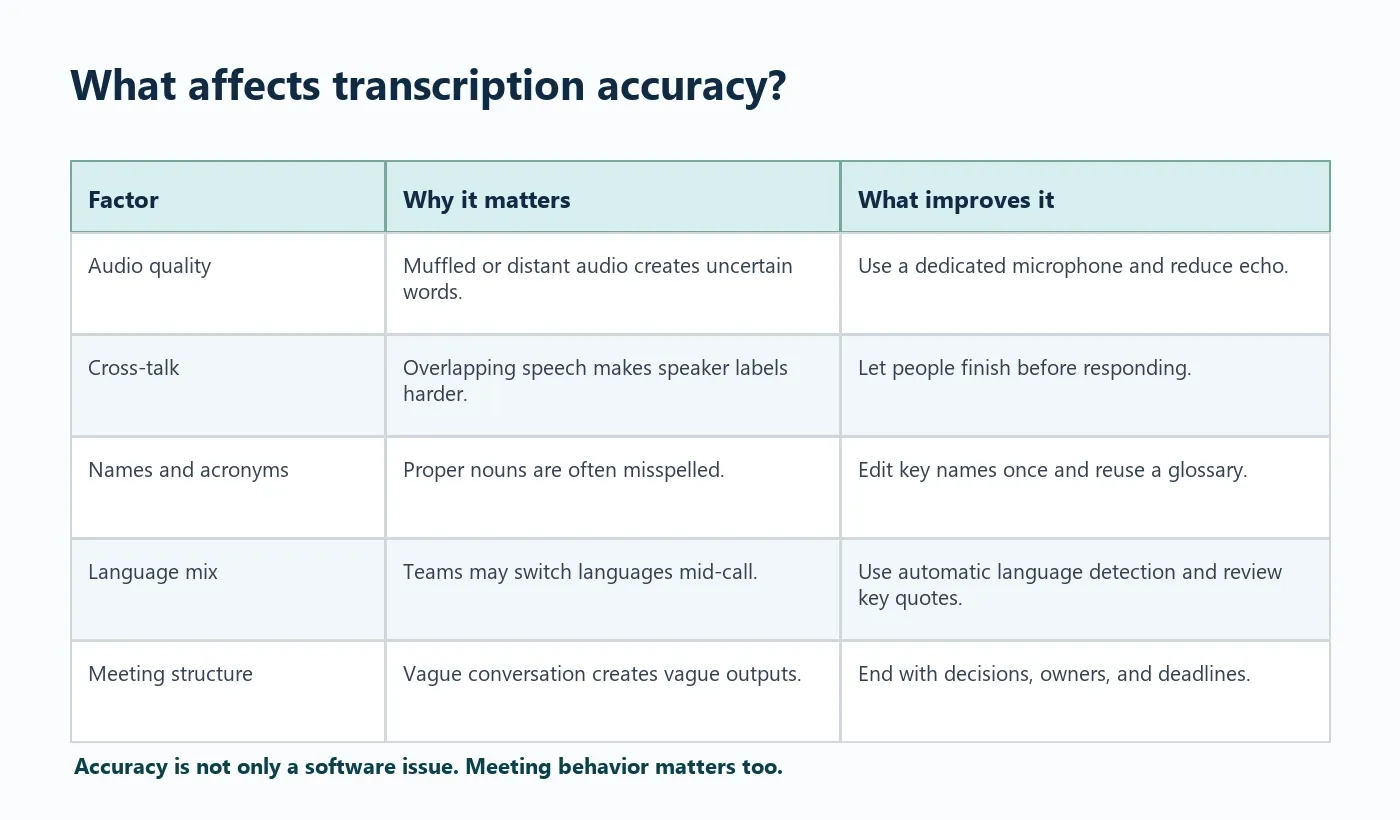
| Factor | How it affects the transcript | Practical fix |
|---|---|---|
| Audio quality | Muffled voices create uncertain words | Use a better microphone and reduce echo |
| Cross-talk | Overlapping speech hurts speaker labels and accuracy | Ask people to pause before responding |
| Speaker labels | Unknown speakers make action items hard to assign | Have participants introduce themselves and edit labels early |
| Acronyms and product names | Important terms may be misspelled | Review key names before sharing the transcript |
| Language switching | Mixed-language meetings can confuse basic tools | Use automatic language detection and review important quotes |
| Meeting clarity | Vague discussion produces vague action items | End with owners, dates, and decisions spoken clearly |
What to Do After You Have the Transcript
The most common mistake is treating transcription as the finish line. A transcript is useful, but it is usually too long for busy teams. The real value comes when you turn it into a work record.
If you need more than text, HiNoter turns audio into a transcript plus summary, action items, mind map, exports, and searchable Q&A. It can help teams stop moving information from one private note to another and instead create a shared source of truth.
| Transcript output | Knowledge-layer output | Why it helps |
|---|---|---|
| Chronological text | Concise meeting summary | People can understand the outcome without reading every line |
| Speaker turns | Decision log | Agreements are separated from discussion |
| Mentions of work | Action items with owners and due dates | Follow-up becomes visible and assignable |
| Long topic threads | Mind map | Complex discussions become easier to scan |
| Searchable text | Source-grounded AI Chat | Users can ask questions and trace answers back to the meeting |
How HiNoter Turns Meetings Into Action Items
HiNoter is designed as a transcription layer plus a knowledge layer. It can work from meetings, audio, video, YouTube links, PDFs, and uploaded files, then create structured outputs for teams that need to act on what was said.
- Connect your calendar or upload a source. Use scheduled meetings, recordings, audio files, video files, YouTube links, or PDFs.
- Generate the transcript. HiNoter turns speech into text with support for 50+ languages and automatic detection.
- Review the meeting structure. The transcript becomes a summary, topics, decisions, and key moments.
- Create action items. Tasks are extracted with owners, due dates, and follow-up context where the meeting makes that clear.
- Explore with AI Chat. Ask questions about the meeting and receive answers grounded in the source.
- Export where the team works. Send outputs to Notion, Slack, Google Docs, calendar workflows, or email.
Useful next pages include HiNoter's AI meeting notes, AI meeting assistant, audio to text converter, video to text workflow, mind map generator, and multilingual support.
Editing and Export Options
A transcript is easier to trust when teams can review it before sharing. Look for editing and export features that match your workflow.
- Edit speaker names and important terminology before publishing.
- Keep timestamps so people can trace quotes back to the source moment.
- Export transcripts and summaries to Google Docs or Notion.
- Send concise recaps and action items to Slack or email.
- Store final records in a shared knowledge base instead of private documents.
- Use source-grounded Q&A when teammates need answers without rereading the transcript.
Privacy and Consent
Meeting transcripts can include customer information, hiring details, employee data, legal topics, product strategy, financial plans, and private opinions. Before you record or transcribe, follow your organization's policy and the laws that apply to the participants' locations.
A simple notice is often enough for routine internal meetings: "We are using HiNoter to transcribe this meeting and create a summary and action items. The notes will be shared with attendees afterward." Use approved legal language for regulated or sensitive contexts.
FAQ
How do I transcribe a meeting?
Record or upload the meeting, run speech-to-text transcription, review speaker labels and timestamps, edit key terms, then summarize the transcript and turn decisions into action items.
What is the difference between transcription and meeting notes?
Transcription converts speech into written text. Meeting notes organize the useful parts of that text into a summary, decisions, action items, owners, due dates, and follow-up context.
Can AI transcribe meetings and create action items?
Yes. AI-assisted tools such as HiNoter can transcribe meetings and generate summaries, action items, mind maps, exports, and source-grounded Q&A.
What affects meeting transcription accuracy?
Audio quality, cross-talk, accents, background noise, speaker overlap, technical terms, and language switching all affect transcription accuracy. Clear meeting structure also matters because vague discussion creates vague follow-up.
Can I transcribe a meeting in multiple languages?
Yes, if your transcription tool supports the languages used in the meeting. HiNoter supports 50+ languages with automatic detection for multilingual teams.
Is a transcript enough for team follow-up?
Usually not. A transcript is helpful for search and quotes, but teams still need summaries, decisions, action items, owners, deadlines, and a way to ask questions about the source.