PDF summarizer AI extracts or reads PDF content and turns it into shorter summaries, key points, notes, and source-linked answers. The best workflow handles text-layer PDFs, scanned PDFs, OCR quality, page references, privacy, and reuse so reports, papers, manuals, and meeting prep documents become knowledge instead of static files.
Try HiNoter to upload permitted PDFs and turn them into summaries, notes, key points, meeting prep, and source-linked AI Chat.
What is PDF summarizer AI?
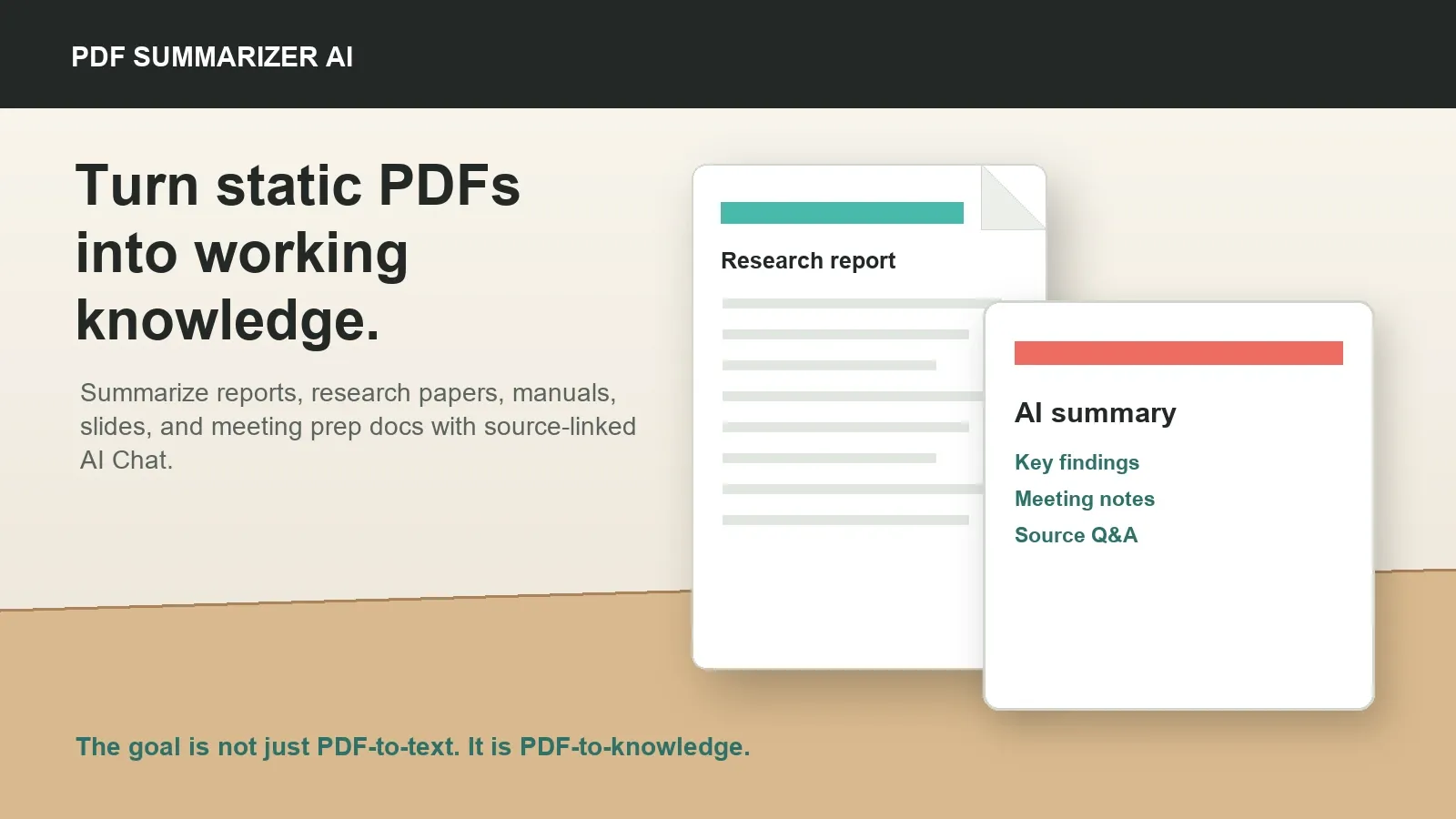
PDF summarizer AI is software that reads the content of a PDF and creates a shorter version of the important information. It can summarize reports, research papers, slide exports, manuals, class notes, internal policies, contracts, meeting packets, and other documents. A basic tool creates a short summary. A stronger workflow creates section summaries, key points, study notes, meeting prep, questions, and source-grounded chat.
The important distinction is that a PDF is a container, not always clean text. Some PDFs contain a normal text layer. Others are scanned images of pages. Some combine text, images, tables, footnotes, columns, annotations, and charts. Before AI can summarize a PDF accurately, the tool must extract usable content and preserve enough source context for review.
HiNoter is useful when the goal is PDF-to-knowledge. It can help extract or use PDF content, summarize sections, identify key points, create research or meeting notes, and let users ask source-cited questions about the document.
Definitions: OCR, PDF-to-text, PDF summarization, and source-grounded PDF Chat
OCR means optical character recognition. OCR recognizes text inside images or scanned pages and converts it into machine-readable text. In PDF summarization, OCR is often the bridge between an image-only document and a summary-ready text source.
PDF-to-text means extracting text from a PDF. If the PDF already has a text layer, extraction can be relatively direct. If the PDF is scanned, extraction often depends on OCR. Either way, extracted text may still need cleanup when columns, tables, footnotes, page headers, and figures are involved.
PDF summarization means turning extracted PDF content into a shorter explanation of what matters. It may produce an executive summary, section summary, bullet-point brief, study guide, meeting prep note, or list of risks, findings, and action items.
Source-grounded PDF Chat means asking questions about a PDF and receiving answers connected to source pages, sections, or excerpts. This helps users verify claims instead of trusting a generic AI answer disconnected from the document.
Text-layer PDFs vs scanned PDFs
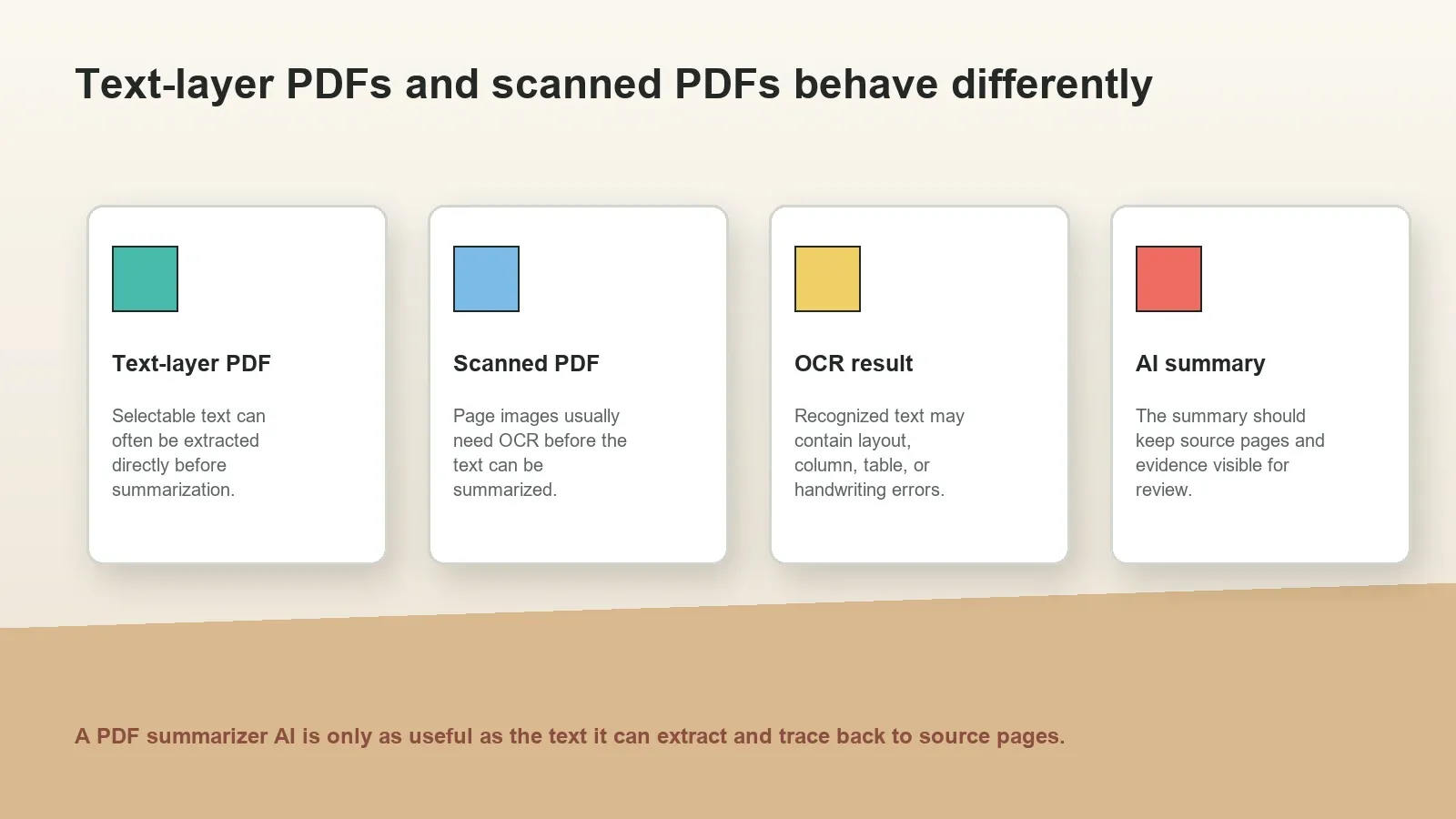
Text-layer PDFs and scanned PDFs behave differently. A text-layer PDF contains selectable text. You can often copy words from it, search inside it, or extract the text programmatically. A scanned PDF is usually a set of page images. It may look readable to a human, but a tool may need OCR before it can search or summarize the words.
Adobe's Acrobat documentation describes OCR as a way to recognize text in scanned documents so the resulting PDF becomes searchable and editable. That is the practical reason OCR matters for AI summarization: if the words are not machine-readable, the AI may not have reliable text to summarize.
| PDF type | How it behaves | Best workflow | Common limitation |
|---|---|---|---|
| Text-layer PDF | Text can often be selected, searched, and extracted | Extract text, preserve page references, summarize by section | Tables, columns, footnotes, and figures can still extract poorly |
| Scanned PDF | Pages are image-like and may not contain selectable text | Run OCR, review recognized text, then summarize | OCR can misread low-quality scans, handwriting, stamps, and layouts |
| Mixed PDF | Some pages have text while others are scans or images | Extract text where possible and OCR image pages | Page consistency and source references need extra review |
| Complex PDF | May include charts, tables, columns, forms, figures, and annotations | Summarize sections and review important evidence manually | Visual data and table structure may not survive extraction cleanly |
How to summarize a PDF with AI
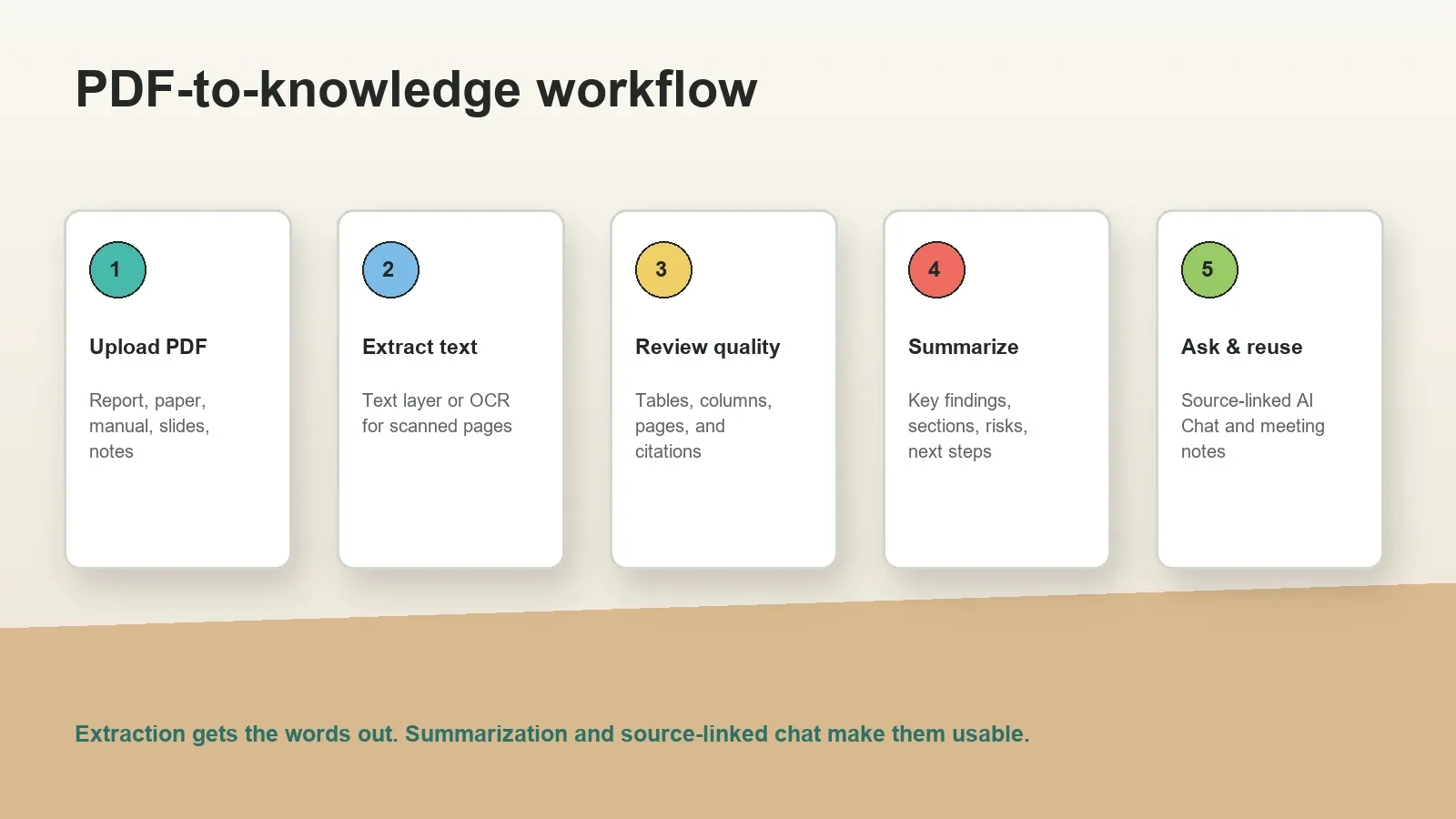
- Confirm permission. Use only PDFs your team is allowed to upload, process, summarize, export, or ask questions about. Reports, papers, contracts, manuals, and internal docs may be sensitive.
- Identify the PDF type. Check whether the PDF has selectable text or scanned image pages. This determines whether the first step is text extraction or OCR.
- Extract or recognize the text. Use the text layer when available. Use OCR for scanned pages or image-only PDFs. Keep page numbers, headings, and section order whenever possible.
- Review extraction quality. Check page order, columns, tables, equations, footnotes, charts, citations, headers, handwriting, and rotated pages. Fix obvious issues before relying on the summary.
- Generate the summary. Create an executive summary, section summaries, key findings, risks, definitions, research notes, or meeting prep brief depending on the reader's goal.
- Ask source-linked questions. Use AI Chat to ask about evidence, recommendations, definitions, contradictions, and next actions. Keep page or section references visible.
- Export responsibly. Share only the summary, notes, or answers your permissions allow. Apply access controls to summaries and AI Chat just as you would to the original PDF.
Common PDF extraction failure cases
Many users expect PDF summarizer AI to behave like a normal text summarizer. That works only when the document is clean enough. PDFs can be visually readable while still being difficult for software to parse. A tool may read columns in the wrong order, drop table headings, ignore footnotes, merge page headers into body text, or miss text inside images.
Scanned PDFs introduce another layer of risk. OCR quality depends on scan resolution, contrast, page rotation, image noise, language, fonts, handwriting, stamps, and whether the page has complex layout. Even a good OCR result can misread numbers, legal references, scientific symbols, or product names.
| Failure case | What can go wrong | How to reduce risk |
|---|---|---|
| Two-column layout | Paragraphs may be read out of order | Review section order before summarizing research papers |
| Tables | Headers and cells may lose their relationship | Verify numbers, rows, and columns against the PDF |
| Scanned pages | OCR may misread words, names, or symbols | Use clear scans and review critical sections manually |
| Charts and figures | Visual data may not become text automatically | Add notes or inspect figures when conclusions depend on visuals |
| Footnotes and citations | References may be detached from claims | Keep page references and citation context visible |
| Forms and contracts | Checkboxes, fields, and clauses may extract inconsistently | Review legal or operational documents before sharing summaries |
How HiNoter turns PDFs into reusable knowledge
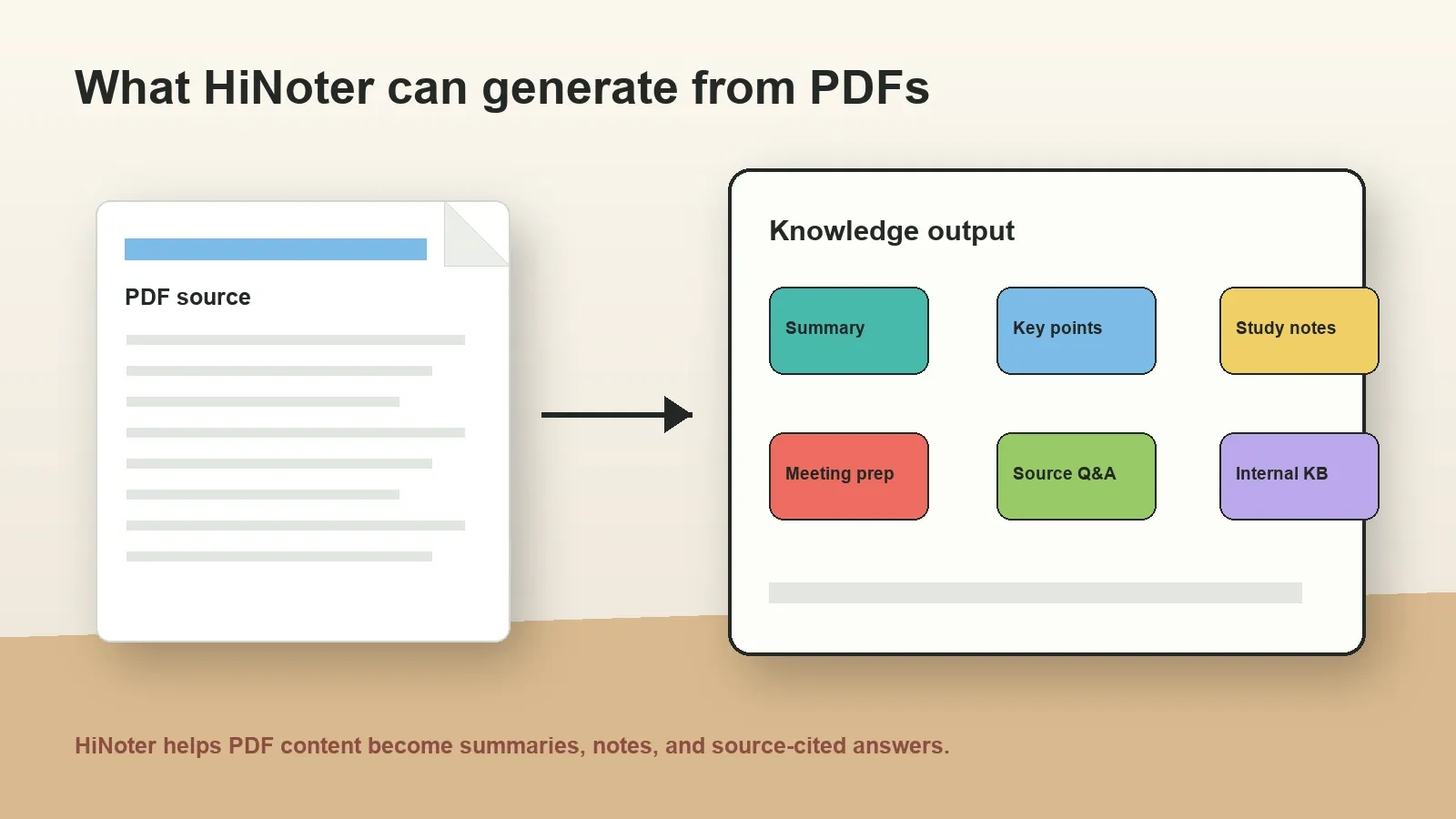
HiNoter should be used as a PDF-to-knowledge workflow, not only a PDF converter. The first layer is content extraction: text from the PDF, or OCR where the document requires it. The second layer is understanding: summaries, key points, section notes, open questions, study notes, and meeting prep. The third layer is retrieval: source-linked AI Chat that helps a user ask questions and trace answers back to the document.
For a research paper, HiNoter can help identify the research question, methods, findings, limitations, definitions, citations, and open questions. For a report, it can produce an executive summary, risks, recommendations, metrics, and stakeholder questions. For a meeting packet, it can turn a static document into a prep brief with decisions to make, questions to ask, and follow-up actions.
This connects naturally with HiNoter's broader workflow. Teams can combine AI meeting notes, audio to text, video notes, and PDFs into one source-aware knowledge process. Instead of scattering insights across files and private notes, users can ask questions across sources and check where each answer came from.
Use cases: reports, research, meeting prep, class notes, and internal knowledge
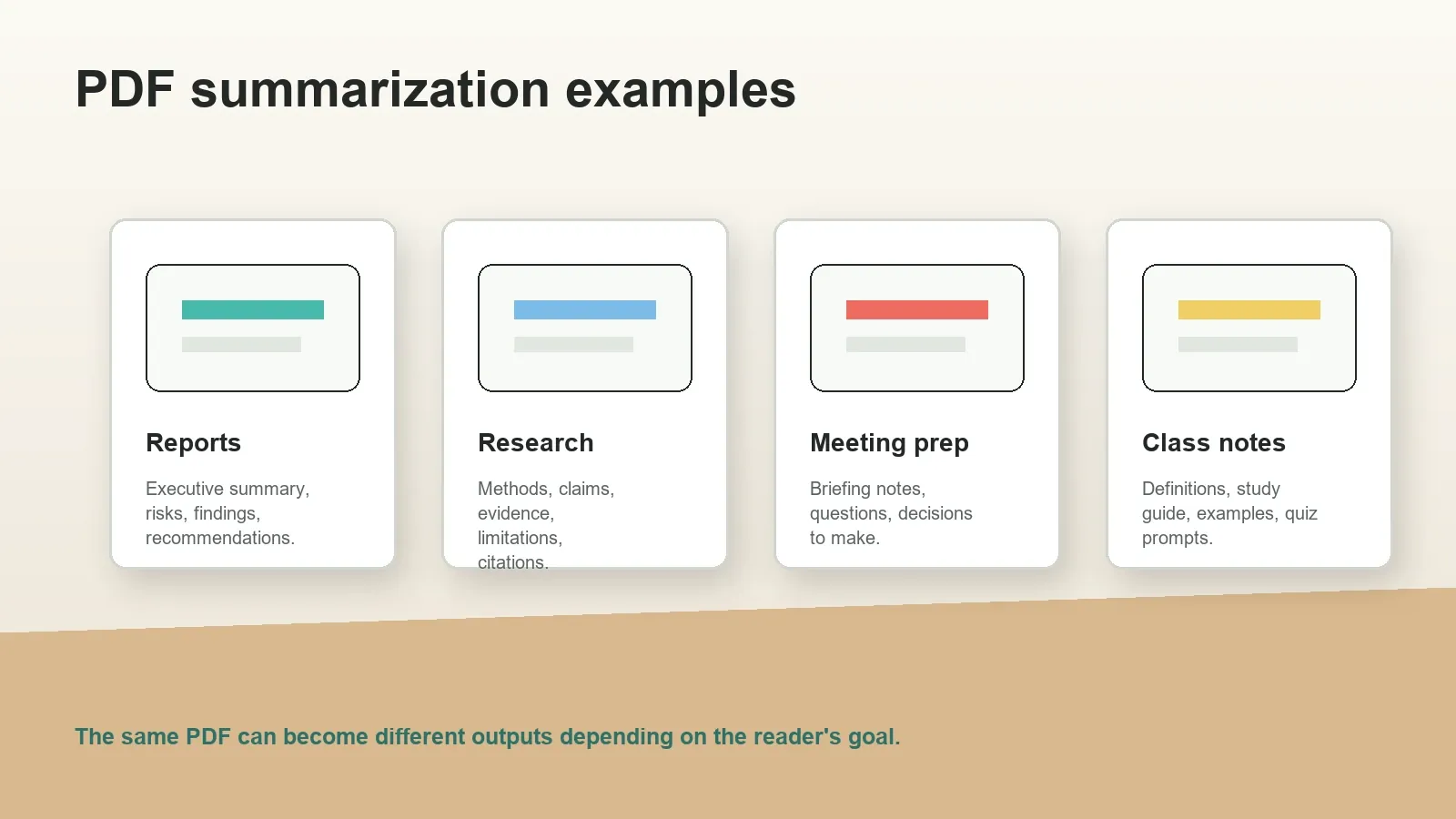
Reports often contain findings, charts, recommendations, and risk sections that busy teams do not have time to read in full. PDF summarizer AI can create an executive summary, highlight the most important metrics, identify risks, and list stakeholder questions before a meeting.
Research papers need a more careful structure. A good summary should separate abstract, research question, methods, dataset, findings, limitations, and citations. It should not invent certainty beyond the paper. Source-linked questions are useful because readers can ask where the paper supports a claim.
Meeting prep is one of the highest-value workflows. Instead of reading a long PDF packet minutes before a call, a user can generate a prep brief: what this document says, what needs a decision, what questions to ask, what risks matter, and what follow-up might be required after the meeting.
Class notes and study materials benefit from definitions, examples, study questions, mind-map outlines, and source-linked Q&A. A student can ask the document to explain a concept, but should still check the source pages before relying on an answer for an assignment or exam.
Internal knowledge reuse turns PDFs from static files into searchable memory. Manuals, onboarding docs, policies, product briefs, and customer research can become summaries and source-linked answers that help teams avoid asking the same questions repeatedly.
| Use case | PDF examples | Useful output | HiNoter workflow |
|---|---|---|---|
| Reports | Market reports, customer research, quarterly updates | Executive summary, risks, metrics, recommendations | Ask source-linked questions before strategy meetings |
| Research | Papers, literature reviews, technical studies | Methods, findings, limitations, citation-aware notes | Create study notes and evidence-backed Q&A |
| Meeting prep | Board packets, project briefs, sales docs | Decision brief, questions, action items, risks | Turn PDFs into pre-meeting notes and follow-up tasks |
| Class notes | Lecture PDFs, slide exports, readings | Definitions, examples, quiz prompts, study guide | Build a source-linked study workflow |
| Internal knowledge | Manuals, policies, onboarding docs, product specs | Searchable summaries, answers, reusable notes | Connect PDFs with meetings, audio, and video notes |
Source-linked PDF Chat examples
Source-linked PDF Chat is useful when a user does not know which page contains the answer. Instead of reading an entire report, the user can ask targeted questions and inspect the source context before trusting the answer.
| Question | Useful answer | Source reference to inspect |
|---|---|---|
| What are the top three risks in this report? | Ranked risks with short explanations | Risk section and page references |
| What should I prepare before the meeting? | Decision points, questions, and required context | Executive summary, recommendations, appendix |
| What evidence supports the main finding? | Key data points, examples, or cited claims | Tables, methods, result pages, citations |
| What changed from the last version? | Summary of updated assumptions or recommendations | Revision notes, changed sections, source pages |
| Draft a follow-up note from this PDF. | Short recap, decisions to make, and next actions | Sections that support each task or claim |
Copyable PDF summary template
A useful PDF summary should be structured enough to share, but not so compressed that the reader loses context. For reports, research, policies, manuals, and meeting packets, the best template is usually not a single paragraph. It is a layered brief that lets a busy reader scan the answer first, then inspect details and sources when needed.
Use this template when summarizing a PDF with AI. It keeps the summary practical for meeting prep, team updates, research review, and internal knowledge reuse.
| Section | What to include | Why it matters |
|---|---|---|
| One-line answer | The main takeaway in one sentence | Helps readers decide whether to keep reading |
| Executive summary | Five to eight bullets covering the most important points | Turns a long PDF into a brief that can be shared quickly |
| Key evidence | Claims, metrics, examples, page references, or cited sections | Lets readers verify important statements against the source |
| Risks and limitations | Unclear assumptions, missing data, weak evidence, or operational risk | Prevents the summary from sounding more certain than the PDF |
| Questions to ask | Open questions for a meeting, review, class, or stakeholder discussion | Moves the PDF from passive reading to active decision-making |
| Next actions | Tasks, owners, deadlines, or follow-up documents when available | Connects document understanding to real workflow outcomes |
In HiNoter, this template can become a repeatable workflow. A user can upload a permitted PDF, generate a concise summary, ask for the supporting evidence behind each bullet, and then export the brief to the workspace where the team already works. The summary can also be paired with meeting notes, so a pre-read PDF and the meeting discussion stay connected instead of becoming separate files.
Meeting prep prompts for PDF summarizer AI
PDF summarizer AI is especially valuable before meetings because it turns a long pre-read into a discussion plan. The goal is not to replace reading for high-stakes work. The goal is to identify the sections that deserve attention, the questions that need answers, and the decisions that cannot be postponed.
Try prompts like these when using HiNoter or another source-aware workflow for meeting prep:
- Summarize this PDF for a 15-minute stakeholder meeting and list the decisions we need to make.
- Extract the risks, unresolved questions, and assumptions that should be discussed live.
- Turn this report into a briefing note for an executive who has not read the full document.
- List the claims that need source verification and show the page or section reference for each one.
- Create a follow-up plan from this PDF with action items, possible owners, and dependencies.
- Compare the recommendations in this PDF with the meeting notes from our last discussion.
These prompts work because they ask for an outcome, not only a shorter version of the document. A generic summary says what the PDF contains. A meeting-prep summary says what the reader should understand, ask, decide, or do next.
How to evaluate source-linked PDF Chat answers
Source references do not make an AI answer automatically correct, but they make the answer easier to audit. The user should be able to inspect where the answer came from, whether the cited page supports the claim, and whether the model skipped important context. This is especially important for research papers, contracts, financial reports, technical manuals, and policy PDFs.
| Check | Good sign | Warning sign |
|---|---|---|
| Source coverage | The answer cites the relevant section, page, table, or appendix | The answer is confident but does not point to a source location |
| Claim strength | The answer uses careful language when the PDF is uncertain | The answer turns weak evidence into a strong recommendation |
| Numbers and names | Metrics, dates, names, and definitions match the PDF | OCR or extraction errors change important details |
| Context | The answer explains the surrounding assumption or limitation | The answer quotes a point without the condition attached to it |
| Actionability | The answer separates facts, decisions, questions, and tasks | The answer mixes summary, opinion, and follow-up into one vague paragraph |
HiNoter is designed for this review habit. Users can ask questions about the PDF, inspect the supporting reference, and keep the answer connected to the source. That source-linked pattern reduces hallucination risk because the workflow encourages verification instead of treating AI output as a final authority.
Plain PDF converter vs AI summarizer vs HiNoter
Many PDF tools sound similar, but they solve different problems. A PDF converter extracts content. A PDF summarizer compresses content. A PDF-to-knowledge workflow helps a person use the content across meetings, research, notes, and follow-up work.
| Workflow | Best for | Typical output | Limitation |
|---|---|---|---|
| Plain PDF converter | Getting text out of a file | Raw text, Word document, or copied text | Does not decide what matters or what to do next |
| Basic PDF summarizer AI | Creating a shorter version of one document | Paragraph summary or bullets | May lack source references, action items, or reuse across work |
| Generic AI chat with uploaded PDF | Asking quick questions about a document | Answers and short explanations | Quality depends on extraction, context limits, and source grounding |
| HiNoter PDF-to-knowledge workflow | Turning permitted PDFs into notes, prep, answers, and reusable knowledge | Summary, key points, meeting prep, source-linked AI Chat, exports, and connected notes | Users still need to verify sensitive claims and respect document permissions |
When not to use AI on a PDF
There are cases where the right workflow is to avoid uploading the PDF until permissions and controls are clear. Do not use an AI PDF summarizer when the document contains confidential information you are not allowed to process, when a contract or policy blocks third-party processing, when the PDF includes personal data that needs special handling, or when the stakes require formal legal, medical, financial, or compliance review.
In those cases, use internal approved systems, ask the document owner for guidance, or create a manual summary inside the controlled environment. AI can still be useful later, but only after the data governance question is answered. A good PDF summarizer AI workflow should make this boundary visible instead of hiding it behind a convenient upload button.
Privacy and security considerations
PDFs can contain sensitive information even when they look ordinary. Contracts, board decks, employee policies, financial reports, medical documents, legal memos, customer research, and internal product specs all need careful handling. Before uploading a PDF to any AI summarizer, confirm that the document can be processed under your contracts, internal policies, security requirements, and confidentiality obligations.
Apply access controls to summaries, notes, exports, and AI Chat answers as carefully as you apply them to the original PDF. A short summary can reveal the most sensitive part of a document more quickly than the document itself. For regulated or confidential work, define retention, deletion, sharing, and audit expectations before using any PDF summarizer AI workflow.
Quality checklist before sharing a PDF summary
Use this checklist before sending a PDF summary to a teammate, manager, class group, or customer. First, confirm that the PDF is permitted for AI processing. Second, check whether the document is scanned or text-layer. Third, review extraction quality for tables, pages, citations, and numbers. Fourth, confirm that the summary separates facts, interpretation, recommendations, and next steps. Fifth, keep page references visible for important claims.
If the PDF contains legal, medical, financial, academic, or technical details, do not rely on the summary alone. Use the summary as a navigation layer and review the source before making decisions. This is especially important when OCR was used, because OCR mistakes can cascade into summary mistakes.
Ready to turn PDFs into working knowledge? Use HiNoter to summarize permitted PDFs, create meeting prep notes, extract key points, and ask source-linked questions across your documents.
Frequently asked questions
What is a PDF summarizer AI?
A PDF summarizer AI extracts or reads PDF content and creates a shorter summary of the important information. A strong workflow can also create key points, study notes, meeting prep, source-linked answers, and reusable knowledge from reports, papers, manuals, slides, and internal documents.
Can AI summarize scanned PDFs?
Yes, but scanned PDFs usually need OCR first. OCR converts page images into machine-readable text. The recognized text should be reviewed because scans, handwriting, low contrast, columns, tables, and rotated pages can create errors.
What is OCR in PDF summarization?
OCR, or optical character recognition, is the process of recognizing text inside an image or scanned page. In PDF summarization, OCR is often needed before AI can summarize a scanned PDF as text.
What is the difference between a scanned PDF and a text-layer PDF?
A text-layer PDF contains selectable text that can often be extracted directly. A scanned PDF is usually a set of page images, so it needs OCR before the text can be searched, copied, summarized, or used for source-linked questions.
Can HiNoter chat with a PDF?
HiNoter can work as a PDF-to-knowledge workflow by extracting or using PDF content, creating summaries and notes, and letting users ask source-linked questions about the document when the PDF is permitted for processing.
What should I check before trusting a PDF summary?
Check whether the PDF has a reliable text layer or OCR result, whether tables and footnotes were extracted correctly, whether page references are preserved, and whether important claims, numbers, and citations match the source.
How should teams handle privacy with PDF summarizer AI?
Only upload, summarize, export, or chat with PDFs when contracts, internal policy, confidentiality rules, and document permissions allow it. Treat summaries, notes, and AI Chat answers with the same access controls as the original document.