Direct answer: How to record Google Meet: in an eligible Google Workspace account, join the meeting on a computer, open Activities, choose Recording, and start recording if your admin and meeting role allow it. Google Meet recordings save to Drive; HiNoter can then help turn approved meetings into transcripts, summaries, action items, and searchable notes.
Google Meet recording is useful when someone needs the full conversation, screen share, or training replay. But a recording alone rarely answers the real business question: what was decided, who owns the next step, and where should the follow-up live? A one-hour video can still become another file nobody has time to watch.
This guide starts with the practical platform details: who can record Google Meet, which accounts usually support recording, where the file goes, how transcripts and Google Meet notes work, and why some users never see the recording button. Then it shows the HiNoter workflow for teams that want meeting notes rather than another video archive.
How Google Meet Recording Works
Google Meet recording is controlled by Google Workspace eligibility, admin settings, and meeting role. Google Help explains that recording is available only on supported Workspace editions and must be enabled by an administrator. Recording is available on a computer, not through the mobile app, and participants are notified when recording starts or stops.
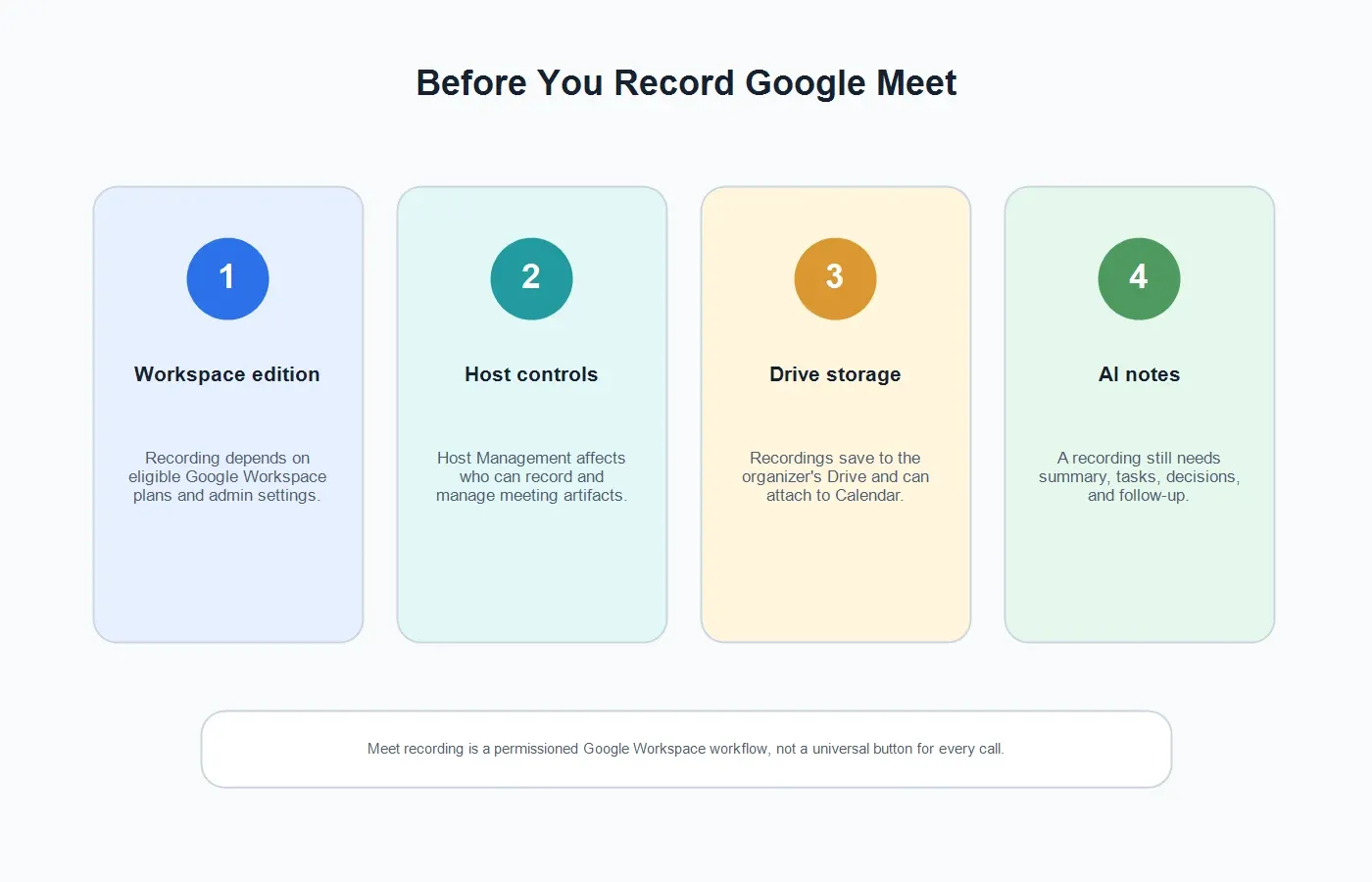
When a meeting is recorded, the file is saved to the meeting organizer's My Drive in a Meet Recordings folder. If the meeting was created in Google Calendar, the recording link can be attached to the Calendar event, and Google may also send the link by email to the organizer and the person who started the recording. That makes Meet recording tightly connected to Drive and Calendar rather than a simple local file download.
Meet also supports transcripts and AI notes in certain accounts and languages. Google Help says meeting transcripts are saved as Google Docs files, and Google's Take notes for me feature can generate notes during a Meet call when the feature is available. Those native tools are helpful, but they still depend on eligibility, settings, language support, and whether the meeting owner enabled them in time.
Before You Record Google Meet: Requirements and Permissions
| Requirement | What to Check | Why It Matters | Best Next Step |
|---|---|---|---|
| Workspace edition | Confirm that the account and meeting type support recording. | Many personal or unsupported accounts will not show the recording option. | Ask the Workspace admin if recording is missing. |
| Admin setting | Make sure Meet recording is enabled for the organization or group. | Admins can turn recording off or restrict who can use it. | Check policy before the meeting starts. |
| Meeting role | Know whether you are organizer, co-host, or an invited participant. | Host Management affects who can record and manage meeting artifacts. | Assign meeting ownership before the call. |
| Computer access | Use Google Meet on a computer when starting a native recording. | Google Meet recording is not started from the mobile app. | Have an eligible host join from desktop. |
| Notice and consent | Tell participants when recording, transcription, or AI notes are active. | Privacy rules vary by location, employer, customer contract, and meeting type. | Use clear notice and follow company policy. |
How to Record Google Meet Step by Step
Use this workflow when your goal is a native Google Meet recording. The exact interface can vary by Workspace account, admin policy, and feature rollout, but the practical sequence is consistent.
1. Confirm that recording is available
Before the meeting, check whether the account supports recording and whether your administrator has enabled it. If you are joining from a personal account or from outside the organizer's organization, you may not have the same controls as the meeting owner.
2. Join from a computer
Join the Meet call from a desktop browser or computer-based app experience. If the only eligible organizer is on mobile, recording may not be available from that device. For important calls, have the meeting owner join from a computer and test the controls before the conversation begins.
3. Open Activities
Inside the meeting, open Activities and choose Recording. If the option is missing, the account, admin setting, meeting role, or meeting type may not allow recording. Avoid improvising with unapproved screen recording tools if the organization has a policy around meeting capture.
4. Start recording and notify participants
Start the recording and make sure participants understand that the meeting is being recorded. Google Meet also shows recording indicators and notifies participants, but a brief verbal notice is still good practice for customer calls, interviews, research sessions, and sensitive internal discussions.
5. Stop recording and wait for Drive processing
After the meeting, Google processes the recording and saves it in Drive. The link may appear in the Calendar event or be sent by email, depending on how the meeting was scheduled and who started the recording. Processing may take time, so the recording may not be available immediately.
6. Turn the recording into notes
Once the recording or transcript exists, decide what people actually need. Managers usually need a short summary. Project teams need decisions and owners. Sales and customer teams need commitments and follow-up. This is where an AI meeting notes workflow becomes more useful than the recording itself.
If You Are the Host or Organizer
If you are the organizer, define the meeting record before the call. Do you need a video archive, a transcript, AI-generated notes, a customer-ready recap, or a task list? Google Meet can help with recording and native notes in eligible accounts, but the organizer still has to decide how the output will be reviewed and shared.
For recurring meetings, create a repeatable capture rule. If the meeting is a weekly project sync, decide whether every call should generate notes, where the summary should be posted, and who confirms action items. If the meeting includes external people, decide whether raw recordings should ever be shared outside the company.
If You Are a Participant
If you are a participant, ask before recording or inviting a note-taking assistant. Recording controls may be limited to the organizer or people inside the organization, especially when Host Management is enabled. Even when you can see meeting artifacts afterward, you may not be allowed to start capture yourself.
You can still reduce meeting loss. Ask who owns the notes, whether the recording will be shared, and where action items will go. That small question prevents the common situation where everyone assumes someone else will write the recap.
If Recording Is Unavailable
Recording may be unavailable because the Workspace edition does not support it, the admin disabled it, the meeting owner is not eligible, Host Management restricts access, or the meeting should not be recorded. It may also be unavailable because the person who can start recording forgot to do so.
If the team needs a formal video archive, solve the Google Meet recording issue with the organizer or Workspace admin. If the team needs decisions, tasks, and searchable notes, use an approved notes-first workflow. HiNoter can join scheduled Google Meet calls with the right calendar and meeting permissions, then generate a transcript, summary, action items, mind map, and source-linked AI Chat.
AI Meeting Notes Workflow With HiNoter
HiNoter is an AI meeting assistant and transcription platform for teams that need useful meeting output, not just recordings. With the Google Meet integration, teams can connect calendar-based meeting workflows and turn approved calls into structured knowledge.
| Step | What Happens | Why It Helps |
|---|---|---|
| 1. Connect your calendar | HiNoter sees approved scheduled Google Meet calls and meeting context. | The team does not rely on someone remembering to start manual notes. |
| 2. Let the assistant join | The assistant joins according to meeting access, notice, and company policy. | Participants can focus on the discussion instead of typing. |
| 3. Generate transcript | The conversation becomes searchable text that can be reviewed and cited. | Details are easier to recover than they are inside a long video. |
| 4. Create AI notes | HiNoter produces summary, decisions, action items, owners, follow-up, and mind map. | The meeting output is ready for managers, project teams, sales, support, and recruiting. |
| 5. Sync and ask questions | Notes can move to Notion, Slack, Google Docs, calendar, email, or AI Chat with source references. | The meeting becomes searchable team knowledge instead of a Drive file. |
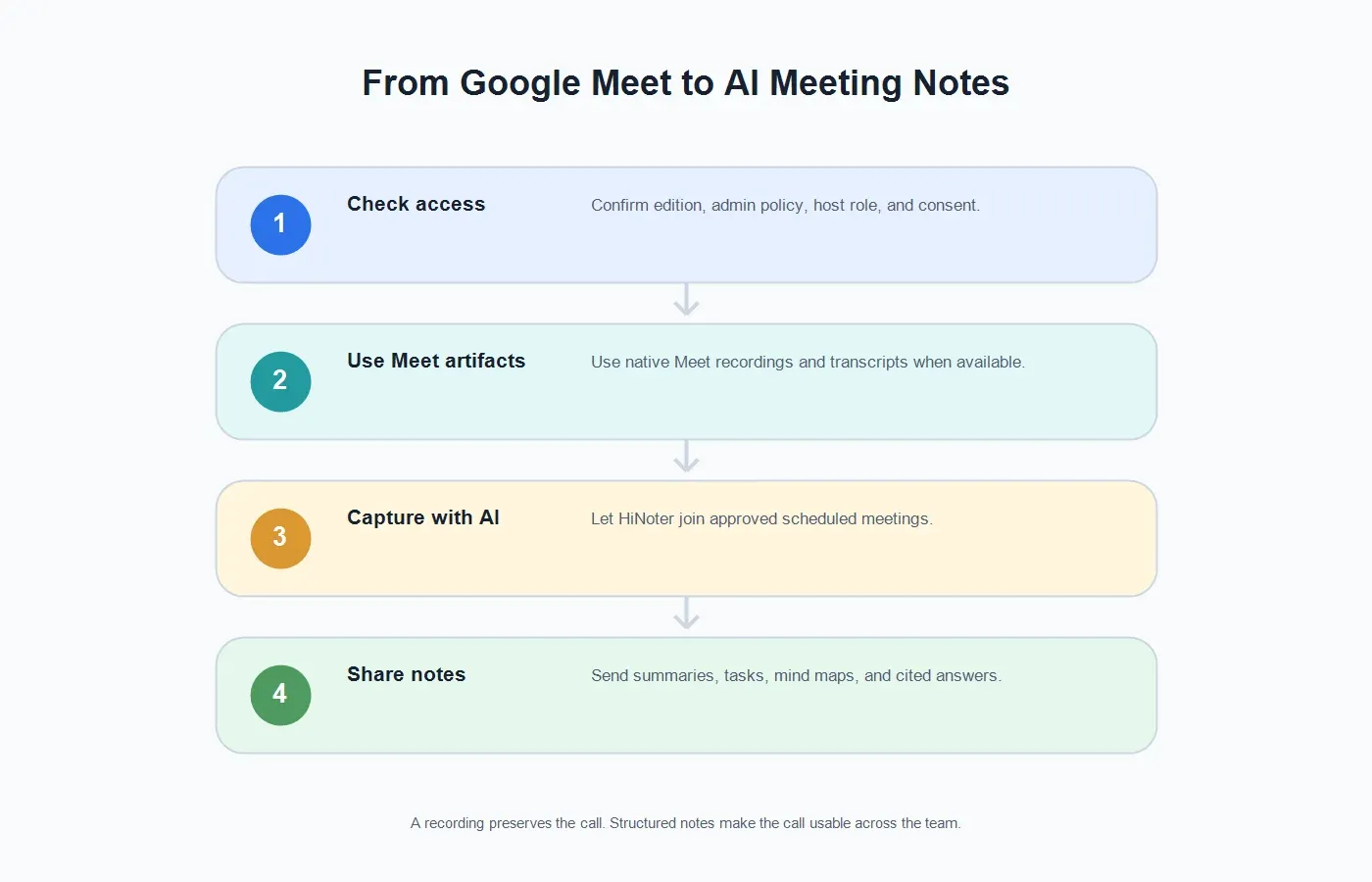
The main advantage is that AI meeting notes start where recordings usually stop. A Google Meet recording preserves the call; HiNoter turns the call into a summary, decision record, task list, and searchable knowledge base.
Native Google Meet Recording vs HiNoter AI Notes
| Need | Native Google Meet | HiNoter AI Workflow |
|---|---|---|
| Video archive | Best when the team needs the full recording or screen share replay. | Useful as a companion when the archive needs summaries and tasks. |
| Transcript or notes | Available only when Meet transcripts or Take notes for me are supported and enabled. | Creates searchable notes and structured outputs from approved meetings. |
| Action items | May need manual cleanup after the recording or native note document. | Extracts action items, owners, deadlines, decisions, and follow-up. |
| Multilingual teams | Native behavior depends on supported languages and account features. | Multilingual support helps teams document meetings across 50+ languages. |
| Other source files | Mostly centered on Meet recordings and Google Workspace artifacts. | HiNoter also supports permitted audio to text workflows for recordings and media. |
What to Do After the Recording Is Ready
Review the recording before sharing broadly
Recordings can include confidential chat, screen share, attendee names, customer data, or side discussions. Review the file and sharing settings before sending it to a broad audience.
Turn the meeting into a summary
A useful summary explains why the meeting happened, what changed, what was decided, what remains open, and what action is required. It should be shorter than the recording and more precise than a casual recap.
Extract owners and next steps
Every action item needs a task, owner, and timing. "Follow up" is weak. "Riley sends the revised onboarding plan by Thursday" is useful.
Keep the source available
For important meetings, keep the source recording or transcript available to the right people. A short summary is easier to read, but source context matters when someone needs to verify the exact wording.
Troubleshooting Google Meet Recording
I do not see the recording option
Check your Workspace edition, admin settings, meeting role, and device. Recording may be unavailable if you are using an unsupported account, joining from mobile, or do not have the right meeting permissions.
The recording did not appear in Drive
Wait for processing, then check the organizer's Meet Recordings folder in Drive and the Google Calendar event if the meeting was scheduled there. If the link is still missing, ask the organizer or Workspace admin to review the recording status.
I need notes, but recording is blocked
Do not bypass a recording restriction. Ask whether an approved AI note-taking workflow is allowed, or use a reviewed manual recap when automated capture is not appropriate.
The native notes are not enough
Native notes can be helpful, but teams often need a standard format across meetings, videos, audio files, and documents. HiNoter can create consistent summaries, actions, mind maps, and source-linked answers across meeting sources.
Privacy and Consent Best Practices
Meeting recording and AI notes should be visible to participants. Tell people when the meeting is being recorded, transcribed, or summarized by AI. Follow the laws, company policies, customer contracts, and regional consent rules that apply to everyone in the meeting.
For internal rollout, define which meetings can be recorded, which can use AI notes, who can invite the assistant, where recordings and notes are stored, and who can access or delete them. This is especially important for customer calls, recruiting, HR, legal, finance, healthcare, and security-sensitive work.
For external calls, share the right artifact. A customer may need a reviewed recap and action list, not the raw recording. A project team may need both the source and the summary. Good meeting documentation is not just capture; it is judgment about what should be shared.
When to Use Each Workflow
| Scenario | Use Native Google Meet | Use HiNoter |
|---|---|---|
| You need the official Meet recording | Use native recording when Workspace, admin, and role requirements allow it. | Use HiNoter afterward if the recording needs summaries and action items. |
| You need notes without manual cleanup | Use native transcripts or Take notes for me when available. | Use HiNoter to generate transcript, summary, actions, and mind map. |
| Recording is unavailable | Work with the organizer or admin if a formal video record is required. | Use an approved assistant workflow only when policy allows notes capture. |
| You run many meetings per week | Recordings can pile up in Drive and become hard to review. | Calendar-based capture creates consistent meeting output automatically. |
| You need searchable knowledge | Search Drive, Calendar, recordings, transcripts, or Docs manually. | Use AI Chat with source references to ask about decisions, owners, and context. |
Final Take
The best way to record Google Meet is to plan the capture path before the call. Confirm Workspace eligibility, admin settings, host role, device, participant notice, and where the recording will be stored. Then decide what the team needs after the meeting: video, transcript, notes, tasks, or all of them.
If your team needs more than a Drive recording, HiNoter gives you the next layer: automatic meeting attendance, transcript, summary, action items, mind map, exports, and source-linked AI Chat. The meeting becomes a reliable knowledge asset instead of a file someone has to replay.
CTA: Try HiNoter for your next Google Meet. Connect your calendar, let the assistant join approved calls, and get the transcript, summary, action items, and mind map automatically after the meeting.
FAQs
How do I record Google Meet?
In an eligible Google Workspace account, join the meeting on a computer, open Activities, choose Recording, and start recording if your admin setting and meeting role allow it. Participants are notified when recording starts.
Where do Google Meet recordings save?
Google Meet recordings are saved to the meeting organizer's My Drive in a Meet Recordings folder. If the meeting was created in Google Calendar, the recording link can also attach to the calendar event.
Can anyone record a Google Meet?
No. Recording depends on Workspace edition, administrator settings, meeting role, Host Management, and device. Some participants may be able to join but not start recording.
Can Google Meet create transcripts or notes?
Yes, in supported accounts and languages. Google Meet can support transcripts and the Take notes for me feature when the feature is available and enabled.
What if Google Meet recording is unavailable?
Check Workspace eligibility, admin settings, host role, and device. If the team needs notes rather than a formal video record, use an approved AI meeting assistant or a reviewed manual recap.
Can HiNoter summarize Google Meet calls?
Yes. HiNoter can join approved Google Meet calls and generate transcripts, summaries, action items, owners, mind maps, and source-linked AI Chat answers.