Direct answer: A video to text converter turns spoken video content into written transcripts. For permitted videos, HiNoter goes further by creating summaries, chapters, key points, action items, mind maps, exports, and searchable AI Chat with source references, so teams can use the knowledge without rewatching the full video.
Most people do not search for video transcription because they want another file. They want the value inside the video: the quote from a webinar, the product detail from a demo, the teaching point from a tutorial, or the decision hidden in a recorded meeting. A raw transcript is useful, but it is still long. The real productivity gain comes when the video becomes structured notes.
This page explains how to turn permitted video content into transcripts and AI notes, including YouTube-safe use, supported sources, output formats, summaries, action items, chapters, mind maps, and source-grounded questions. It is written for teams that process webinars, tutorials, podcasts, demos, courses, interviews, and meeting recordings.
What Is a Video to Text Converter?
A video to text converter extracts or analyzes the spoken audio inside a video and converts it into written text. The result may be a plain transcript, a timestamped transcript, captions, subtitles, or an editable document. A video summarizer adds a shorter recap. AI notes turn the transcript into structured outputs such as chapters, decisions, tasks, mind maps, quotes, and question-answering.
The distinction matters. A transcript answers, "What was said?" A summary answers, "What matters?" Notes answer, "What should we remember, share, or do next?" A strong video workflow keeps all three connected to the source so the team can verify important details.
How to Convert Video to Text Safely
Use this workflow for videos you own, created, are authorized to process, or can lawfully use. For YouTube and copyrighted content, do not bypass access controls, download restrictions, paywalls, or platform terms. If the video is not yours, confirm permission or rely on lawful access and published captions where appropriate.
| Step | What to Do | Output |
|---|---|---|
| 1. Confirm permission | Use content you own, have permission to use, or can lawfully access. | A safe source for processing. |
| 2. Add the video | Upload a permitted file or paste an allowed public source where supported. | Video ready for transcription. |
| 3. Generate transcript | Convert the spoken content into searchable text with timestamps where available. | Editable video transcript. |
| 4. Create structure | Build summaries, chapters, key points, quotes, and action items. | Notes people can scan quickly. |
| 5. Ask and export | Use AI Chat with source references, then export or share the result. | Reusable team knowledge. |
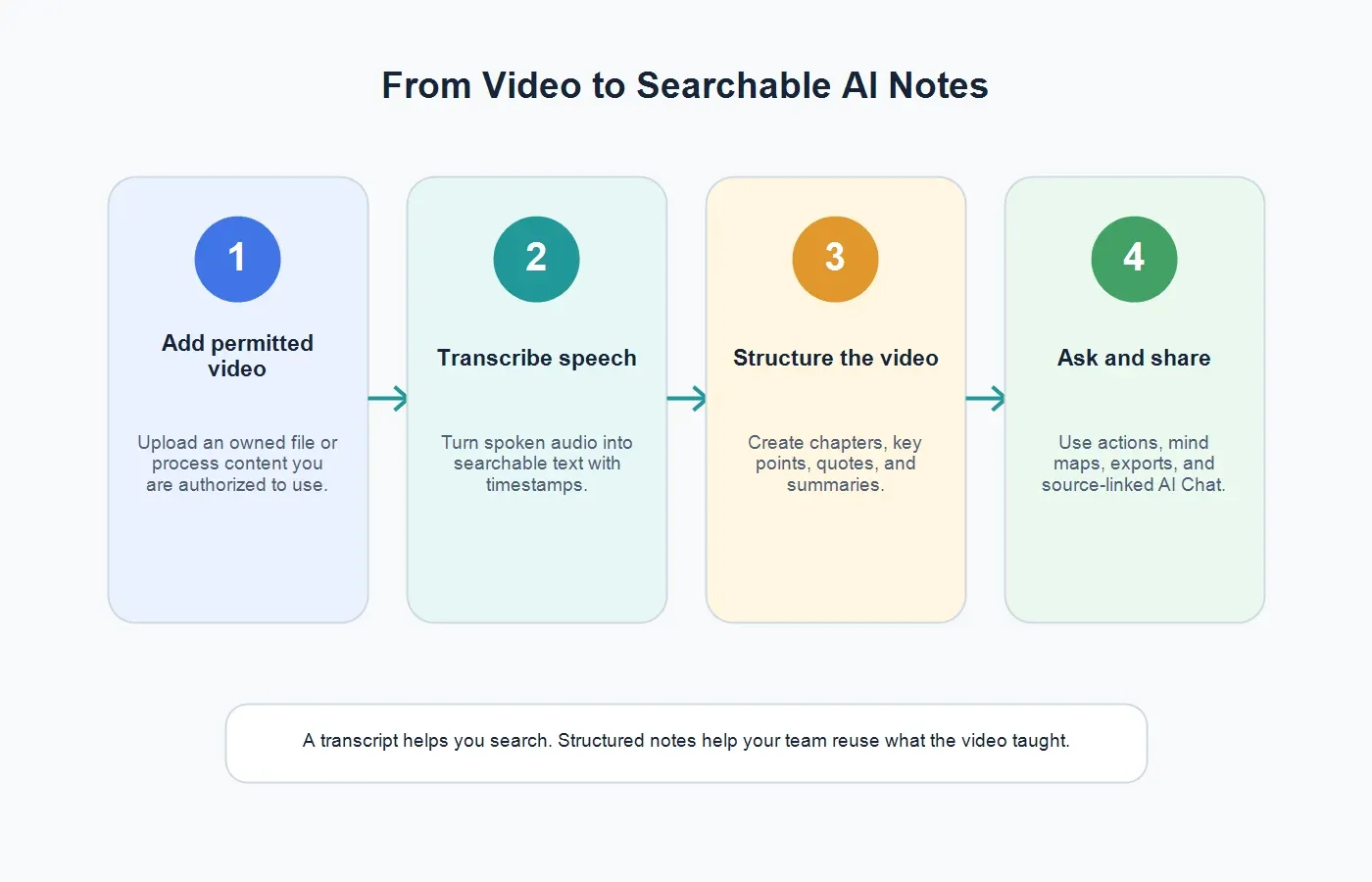
With HiNoter's video to text workflow, the transcript is only the first layer. HiNoter helps turn permitted videos into chaptered summaries, action items, mind maps, exports, and source-linked AI answers.
Safe Use for YouTube and Copyrighted Videos
YouTube and copyright rules matter because many video-to-text searches involve public videos, webinars, podcast clips, tutorials, or conference recordings. A public video is not automatically free to copy, redistribute, or process in any way you want. YouTube's copyright help explains that creators usually own the copyright in original videos they create, and the U.S. Copyright Office notes that fair use depends on context rather than a fixed percentage or word count.
A practical rule: process videos you own, videos your organization has permission to use, licensed content, public-domain material, or content where your use is otherwise lawful. Do not use a converter to evade technical restrictions, extract paid content, or create a competing copy of someone else's work. For third-party YouTube videos, use available transcripts or summaries only in ways that respect the platform, copyright, and the creator's rights.
Transcript vs Summary vs AI Notes
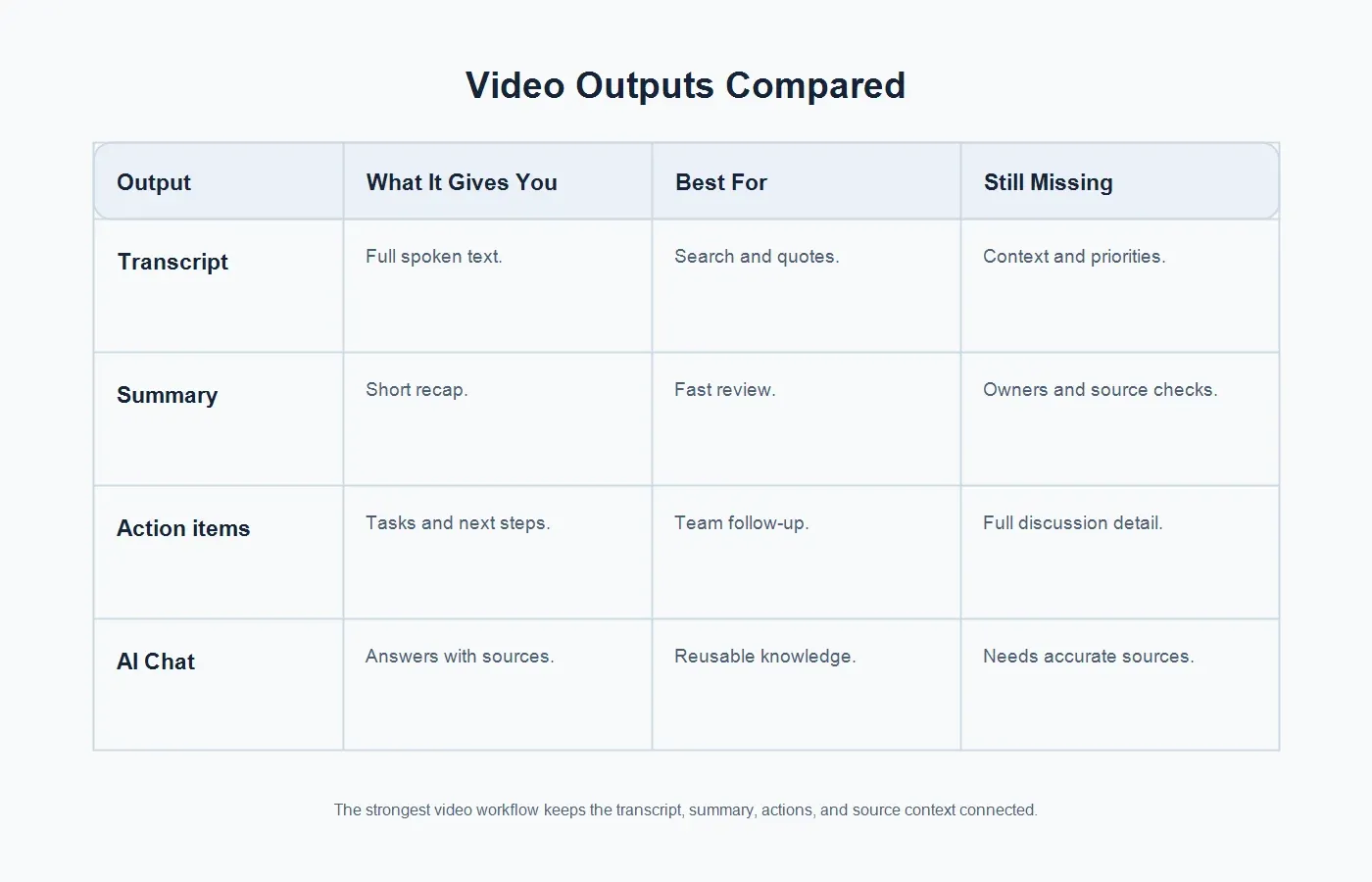
Different outputs serve different jobs. A legal or research reviewer may need the full transcript. A manager may need a summary. A project team may need action items. A content marketer may need chapters and quotes. A new employee may need to ask questions about the video without watching it end to end.
| Output | What It Gives You | Best For | Still Missing |
|---|---|---|---|
| Raw transcript | Full spoken text from the video. | Search, quotes, captions, and close review. | Priorities, context, and decisions. |
| Summary | A shorter recap of the main points. | Fast review, leadership updates, and content skimming. | Owners, due dates, and source verification. |
| Action items | Tasks, owners, commitments, and next steps. | Meetings, demos, interviews, and team follow-up. | The full discussion behind the task. |
| AI Chat | Answers grounded in the source video and notes. | Knowledge reuse, onboarding, research, and support. | Accurate source context and permission boundaries. |
What Kinds of Videos Can Become Notes?
Teams often start with meeting recordings, sales demos, training videos, product tutorials, podcasts, webinars, customer interviews, research sessions, and screen recordings. Students may use permitted lecture recordings. Marketers may process their own webinars and video podcasts. Product teams may convert customer demos into pain points and feature requests.
HiNoter also fits mixed-source knowledge work. If a video has only audio value, the audio to text workflow may be enough. If a team is collecting documents as well as videos, PDF to text helps bring reports, manuals, papers, and slide exports into the same knowledge process.
How HiNoter Turns Videos Into Knowledge
HiNoter is useful when the team wants more than a transcript generator. A transcript tells you what was said, but it does not automatically tell you which section matters, what changed, what someone promised, or where to look for the answer later. HiNoter adds the content-understanding layer on top of permitted video sources.
The workflow can produce transcripts, summaries, chaptered notes, key takeaways, action items, mind maps, and AI Chat answers with source references. That matters for real teams because the output can move into follow-up, documentation, onboarding, training, research, sales enablement, or customer success work.
For live or scheduled conversations that later become recordings, AI meeting notes help capture decisions and next steps directly. For videos that already exist, HiNoter can work as a video-to-knowledge layer that reduces replay time and preserves context.
Examples by Team
Marketing and Content
Marketing teams can convert webinars, video podcasts, interviews, and product explainers into transcripts, episode summaries, quotes, social snippets, article outlines, and FAQ ideas. The key is to preserve the source so claims and quotes can be checked before publishing.
Sales and Customer Success
Recorded demos and customer calls often include objections, competitor mentions, requested features, renewal risks, and follow-up commitments. A video transcript helps search the recording. AI notes help turn the recording into account context and action items.
Product and Research
User research recordings can become themes, notable quotes, pain points, and evidence for roadmap discussions. Teams should keep source references visible because research summaries are only useful when they can be traced back to what participants actually said.
Education and Training
Courses, onboarding sessions, tutorials, and screen recordings can become study notes, chapters, checklists, and searchable Q&A. Instead of rewatching a full lesson, learners can jump to the relevant section and verify the explanation from the transcript.
Accuracy Factors for Video Transcription
Video transcription accuracy depends on the same core factors as audio transcription: microphone quality, background noise, speaker overlap, accents, vocabulary, compression, and the clarity of the original recording. Google Cloud Video Intelligence documentation describes speech transcription as turning spoken audio in a video or segment into text. Google Cloud's speech best practices also emphasize recording quality and configuration.
For users, the practical advice is simple. Use the cleanest original file. Avoid heavily compressed versions if the original is available. Check names, numbers, product terms, acronyms, and quotes. If the video contains multiple speakers, speaker labels may need review. If the video is long, timestamps and chapters become essential.
Export Formats and Sharing
Different teams need different outputs. A creator may need a DOCX transcript and episode summary. A product manager may need themes and quotes. A manager may need decisions and tasks. A support team may need searchable answers. A training team may need chapters and quiz prompts.
Useful exports include plain text for search, DOCX or Google Docs for editing, PDF for review, summaries for email, and structured notes for collaboration tools. HiNoter can help move from video transcript to organized notes, then support team sharing through exports and connected workflows.
What to Review Before Publishing Video-Derived Notes
Video-derived notes often feel cleaner than the original recording, which can make them easy to overshare. Review them before publishing, especially when they include customer comments, training advice, financial details, product roadmaps, hiring discussions, or third-party content. A short summary can still expose private context if it names a customer, quotes an internal discussion, or reveals unreleased plans.
Use a simple review pass. First, confirm that the source video was allowed for transcription and summarization. Second, check any direct quotes against the timestamped transcript. Third, remove private information that is not needed for the audience. Fourth, keep source references available for internal users who may need to verify the context. Fifth, decide whether the raw video should remain accessible or whether the summary is enough for the business purpose.
YouTube Transcript Use: Practical Boundaries
For owned YouTube videos, a transcript and summary workflow can save hours. A creator can turn a webinar into a recap, a tutorial into a checklist, a podcast into show notes, or a product demo into sales enablement notes. The same workflow becomes more sensitive when the video belongs to someone else. Public availability is not the same as permission to reuse the work broadly.
When working with third-party YouTube content, keep the use narrow and respectful. Summarize for internal research only when allowed. Do not reproduce long sections of the transcript. Do not imply endorsement by the creator. Do not remove attribution where it is required. If the output will be published, quoted, repackaged, or used commercially, get permission or legal guidance. A responsible video to text converter workflow should help users understand content, not duplicate or exploit it.
Building a Team Video Knowledge Library
One transcript is helpful. A searchable video knowledge library is better. Teams that run webinars, demos, customer calls, training sessions, and research interviews need a naming and storage system before the archive becomes messy. A simple naming format can include date, source type, customer or topic, and project. For example: "2026-07-10 - Webinar - Product Onboarding - Transcript and Notes."
Decide what every video record should contain. A useful entry may include the source link or file name, transcript, short summary, chapter list, key quotes, action items, owner, follow-up status, and related documents. When the video is part of a larger project, link it to notes from PDFs, meeting recordings, audio interviews, or customer research. This prevents the team from treating every file as a separate island.
HiNoter is useful here because its value is not limited to transcription. The team can ask questions across the notes, find source-backed answers, and turn long-form video into reusable knowledge. That is especially helpful for onboarding new employees, preparing sales teams, preserving customer insights, and keeping training content searchable after the live session ends.
Choosing Outputs by Video Type
Webinars
For webinars, prioritize chaptered summaries, audience questions, key claims, and follow-up assets. Marketing teams often need a short recap, pull quotes, blog angles, and social snippets. Sales teams may need objections, proof points, and next-step language.
Product Demos
For demos, extract feature explanations, customer questions, objections, promised follow-up, and competitor comparisons. A transcript can preserve the whole call, but the notes should surface the buying signals and tasks.
Tutorials and Courses
For tutorials, convert the video into steps, definitions, prerequisites, mistakes to avoid, and review questions. Learners need a path through the material, not only a word-for-word transcript.
Video Podcasts
For podcasts, create show notes, guest bios, quotable moments, topic chapters, internal research notes, and repurposing ideas. Keep quotes tied to source timestamps before using them in promotional material.
Tool Checklist Before You Convert a Video
Before choosing a video to text converter, check the workflow after upload. Does the tool keep the original source connected to the transcript? Can it handle long files? Does it create timestamps and chapters? Can users edit the transcript? Does it summarize by section instead of flattening the whole video into one vague paragraph? Can it extract action items? Can it answer questions with source references?
Also check collaboration and privacy. A solo creator may need fast exports. A company team may need workspace permissions, retention rules, sharing controls, and consistent output formats. If the same team also processes meetings, audio calls, PDFs, and YouTube content, a multi-source notes platform will usually be more useful than a single-purpose transcript generator.
Common Mistakes With Video to Text
Treating the transcript as the end. A transcript can be thousands of words. Without summaries, chapters, and tasks, people may still avoid reading it.
Ignoring rights and platform rules. Public availability does not mean unlimited permission. Stay within lawful use, platform terms, and copyright boundaries.
Skipping source verification. If a quote, price, claim, or promise matters, verify it against the original video and timestamp.
Storing outputs in separate places. A transcript in one folder, a summary in chat, and tasks in another app quickly become fragmented. Keep source, transcript, and notes connected.
How to Choose a Video to Text Converter
Choose based on the work after transcription. If you need captions only, a basic transcript generator may be enough. If you need content operations, look for summaries, chapters, key points, action items, exports, and source-grounded Q&A. If your team processes meetings, PDFs, audio, and video, choose a tool that can connect those sources instead of creating separate archives.
Ask practical questions: Does it support your source types? Can it handle long videos? Does it add timestamps? Can it summarize by chapter? Can it extract action items? Can it keep answers tied to source references? Can the team export notes into the tools they already use? Can access be controlled for sensitive recordings?
Final Takeaway
A video to text converter should do more than produce a transcript. The best workflow turns permitted video content into searchable, structured, reusable knowledge. That means transcript, summary, chapters, quotes, action items, mind maps, and source-grounded Q&A.
HiNoter helps teams work with the knowledge inside videos without rewatching every minute. Use it for permitted video files, owned YouTube content, webinars, demos, podcasts, tutorials, and meeting recordings when your real goal is not another file, but faster understanding and better follow-up.
FAQs
What is a video to text converter?
A video to text converter turns the spoken audio inside a video into written text. More advanced workflows can also create summaries, chapters, action items, and source-grounded AI answers.
Can I convert YouTube videos to text?
You can process YouTube content you own, have permission to use, or can lawfully access. Do not bypass platform restrictions, download controls, paywalls, or copyright rules.
What is the difference between a transcript and a summary?
A transcript captures what was said in the video. A summary condenses the main ideas. AI notes organize the content into chapters, key points, tasks, mind maps, and searchable answers.
Can HiNoter summarize video transcripts?
Yes. HiNoter can turn permitted video content into transcripts, summaries, key points, chapters, action items, mind maps, exports, and AI Chat answers with source references.
Is video transcription accurate?
Accuracy depends on source quality, background noise, speaker overlap, vocabulary, microphone quality, and review. Important names, numbers, quotes, and commitments should be checked against the source video.