Short Answer
A YouTube transcript generator turns spoken content from a permitted YouTube video into searchable text. The best workflow does more than produce a transcript: it creates chaptered summaries, key points, action items, mind maps, and source-grounded AI Chat so you can use the value inside the video without rewatching it.
| If you need... | Transcript-only output | HiNoter video knowledge output |
|---|---|---|
| Search a long video | Text transcript | Transcript plus source-grounded AI Chat |
| Understand the video fast | Manual reading | Chaptered summary and key takeaways |
| Use training or webinar content | Copied quotes | Action items, notes, mind map, and exports |
| Share with a team | Transcript file | Google Docs, Notion, Slack, email, and searchable knowledge |
Safe-use note: Use videos you own, have permission to process, or can lawfully use under applicable platform terms and copyright rules. HiNoter is for understanding permitted content, not for bypassing access controls, downloading restrictions, or copyright boundaries.
What a YouTube Transcript Generator Does
A YouTube transcript generator converts spoken video content into written text. People use it for webinars, lectures, tutorials, product demos, podcasts, interviews, customer education, training sessions, and recorded meetings posted as videos. The immediate benefit is simple: text is easier to search, quote, summarize, translate, and share than video alone.
Most users searching for a transcript generator are not trying to collect another file. They want the useful information inside a video. A one-hour webinar may contain three tactical steps. A product demo may include a customer objection. A training video may contain a process checklist. A podcast may contain a quote worth saving. The transcript is the doorway, not the destination.
YouTube's own help documentation explains that transcripts can appear while watching videos with available caption text. YouTube also provides copyright guidance explaining that creators usually own original videos they create. Those two facts matter together: transcripts are useful, but the right to process, reuse, or share content depends on permission, terms, and copyright context.
What You Can Legally Process
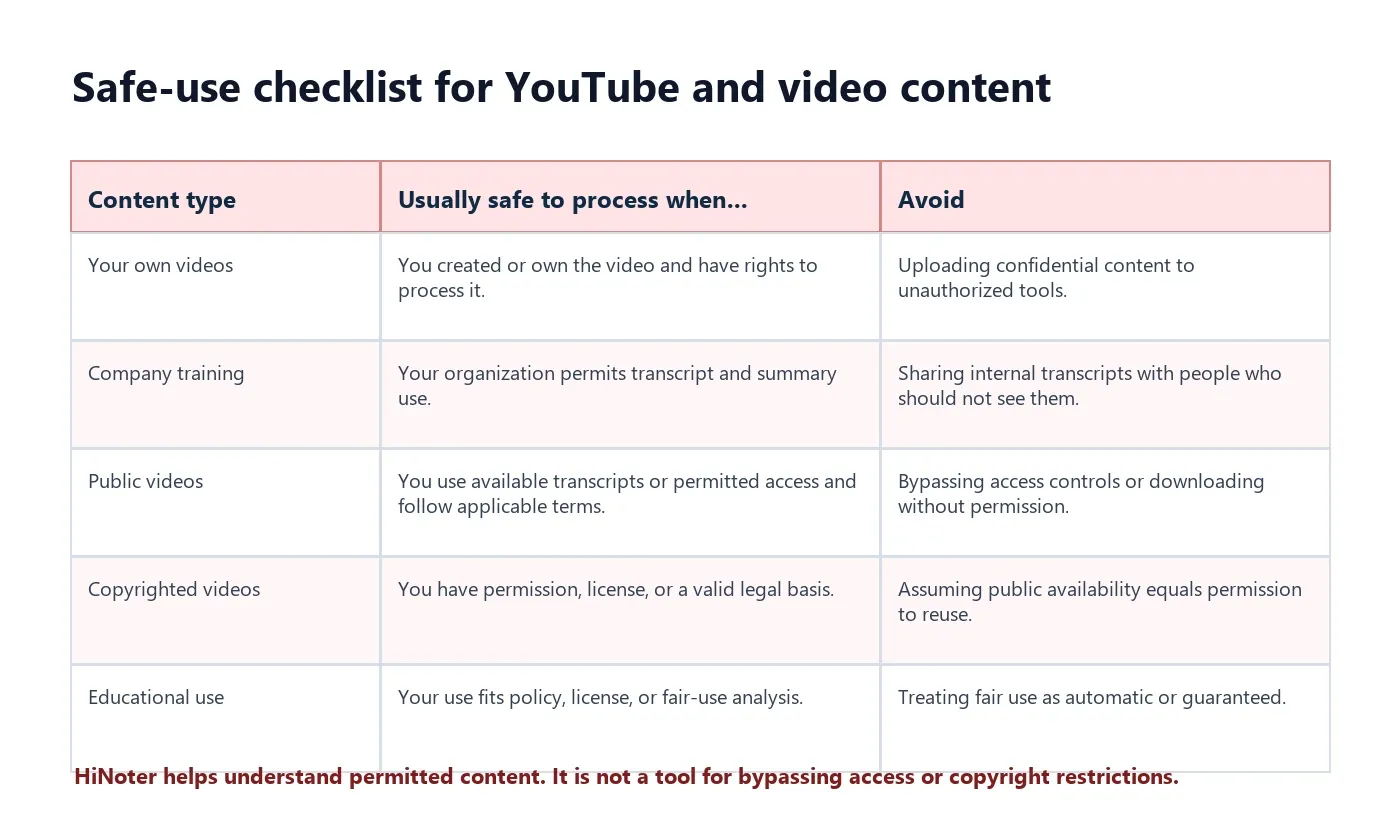
Keep this part visible in your publishing version. YouTube and copyrighted videos need clear boundaries. A transcript tool should help users understand content they can lawfully process. It should not imply that users can download, copy, or repurpose any video without permission.
| Video source | Good use case | Boundary to respect |
|---|---|---|
| Your own YouTube videos | Create transcripts, summaries, outlines, notes, and repurposing briefs | Protect unpublished or confidential material |
| Company-owned training videos | Turn webinars and enablement sessions into searchable notes | Follow internal sharing and data rules |
| Public videos with available transcripts | Study, research, note-taking, or permitted internal reference | Respect YouTube terms and copyright limits |
| Licensed or permitted videos | Summarize content you have rights to use | Keep exports within the license scope |
| Copyrighted third-party videos | Only when permission, license, or legal basis applies | Do not assume public availability means reuse permission |
Transcript vs Summary vs Notes
A transcript, summary, and note are different outputs. Mixing them up creates weak pages and weak workflows.
Transcript: A written record of what was said in the video, usually in chronological order.
Summary: A condensed version of the transcript that explains the main points, topics, and takeaways.
AI notes: Structured outputs built from the transcript, such as chapters, key points, action items, decision logs, mind maps, and Q&A grounded in the source.
| Output | What it is | Best use |
|---|---|---|
| Raw transcript | Text record of spoken content | Search, quote, verify exact wording |
| Chaptered summary | Video broken into sections with key points | Skim long webinars, lectures, podcasts, and demos |
| Action items | Tasks or next steps extracted from video content | Training, project recordings, sales demos, customer calls |
| Mind map | Visual structure of topics and relationships | Study, planning, onboarding, research synthesis |
| AI Chat | Question-answer layer grounded in the source | Ask the video questions without rewatching the full file |
YouTube Transcript Generator Workflow
The safest and most useful workflow begins with permission, then moves from transcript to structured knowledge.
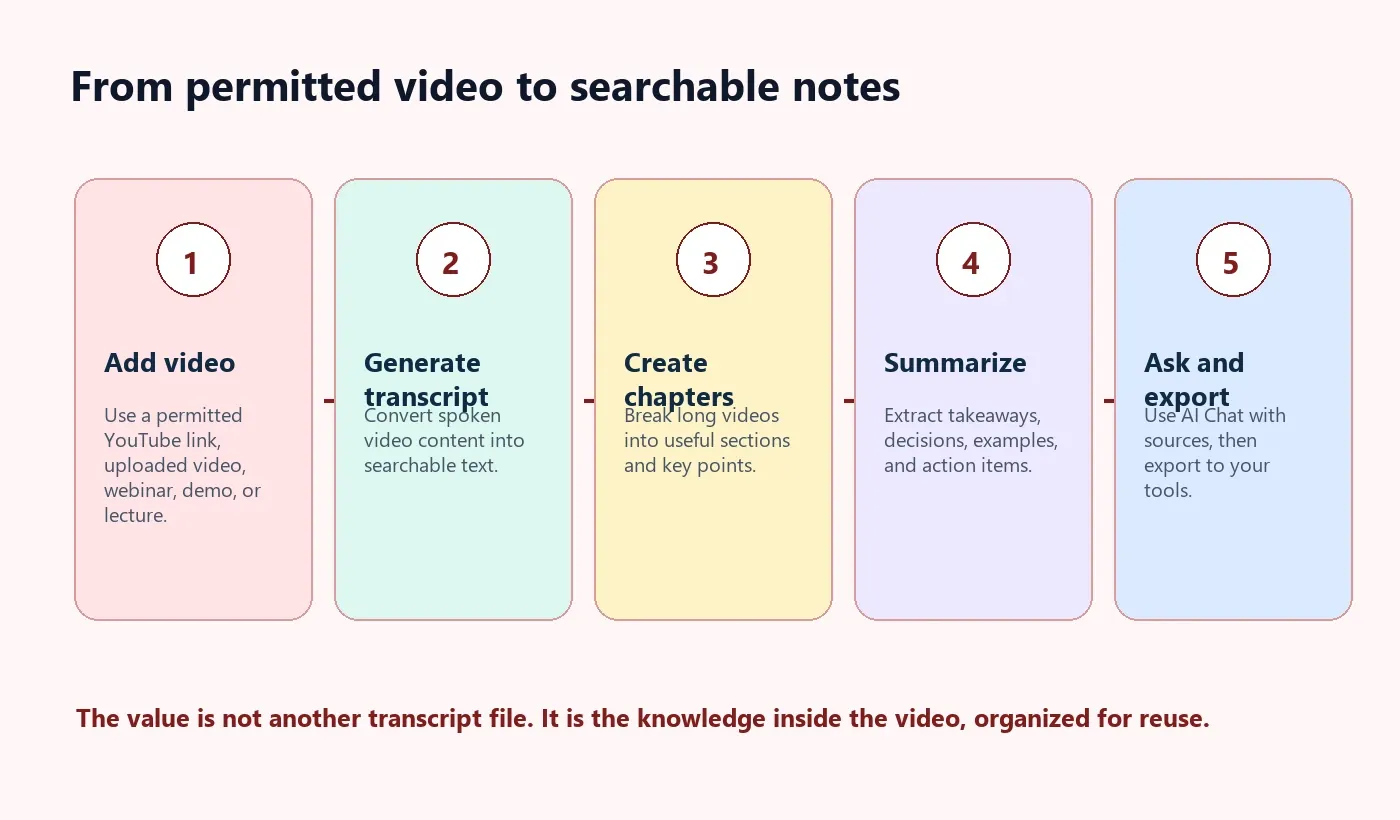
- Confirm you can process the video. Use your own video, permitted content, licensed material, or content you can lawfully use under the applicable context.
- Add the source. Use a permitted YouTube URL, video file, webinar recording, product demo, lecture, or training video.
- Generate the transcript. Convert spoken video content into searchable text with timestamps or chapter context when available.
- Create chaptered summaries. Break long videos into sections so users can skim without losing context.
- Extract key takeaways. Pull out quotes, examples, frameworks, decisions, objections, or process steps.
- Turn useful moments into action. Generate action items, owners, follow-up tasks, study prompts, or content repurposing notes.
- Ask questions with AI Chat. Query the video and trace answers to the transcript or source reference.
- Export to your workflow. Send notes to Google Docs, Notion, Slack, email, or a team knowledge base.
How HiNoter Turns Videos Into Searchable Knowledge
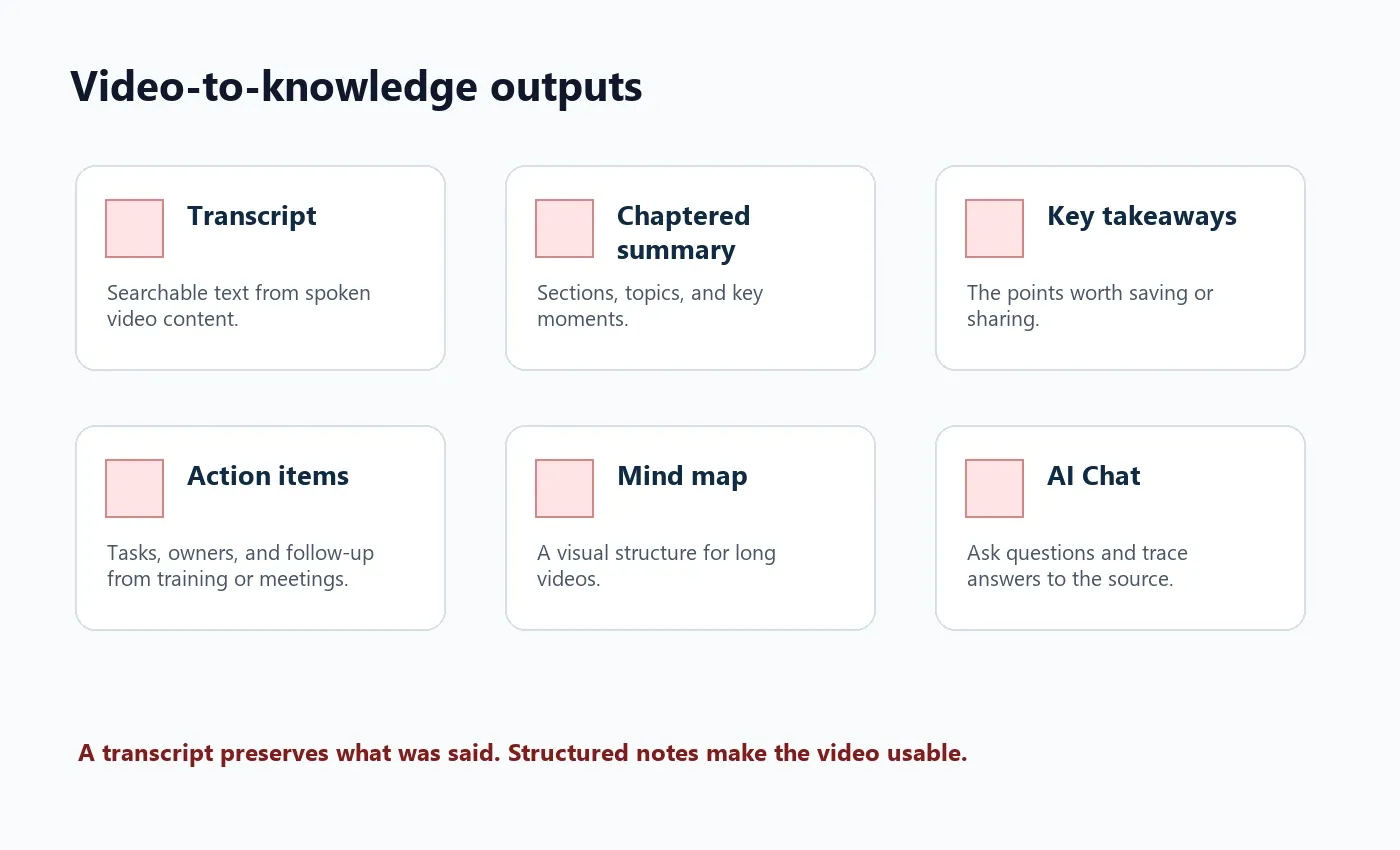
HiNoter is the content-understanding layer for permitted videos. It turns YouTube or video content into a transcript, then organizes the transcript into outputs that people can use: summary, chapters, key points, action items, mind map, exports, and AI Chat with source references.
This matters because video is hard to scan. If a tutorial is 38 minutes long, users may only need the four implementation steps. If a webinar is 55 minutes long, the sales team may only need objections, follow-up questions, and customer language. If a lecture is 90 minutes long, a student may need a chaptered study outline and a mind map.
| HiNoter output | What it gives you | Example use |
|---|---|---|
| Transcript | Searchable text from spoken video content | Find a quote, definition, or exact phrase |
| Chaptered summary | Video sections with short explanations | Skim a lecture, webinar, or podcast faster |
| Key takeaways | The most reusable points from the video | Brief a teammate who will not watch the full recording |
| Action items | Tasks, owners, and follow-up when the video contains commitments | Turn recorded meetings or demos into next steps |
| Mind map | Visual structure of topics, subtopics, and dependencies | Study, planning, onboarding, and research review |
| AI Chat with sources | Ask questions and trace answers to the transcript | Ask "What did the speaker say about pricing risk?" |
Examples by User Type
Different users want different value from the same video. A YouTube summary for a student is not the same as a sales training recap or a creator repurposing brief.
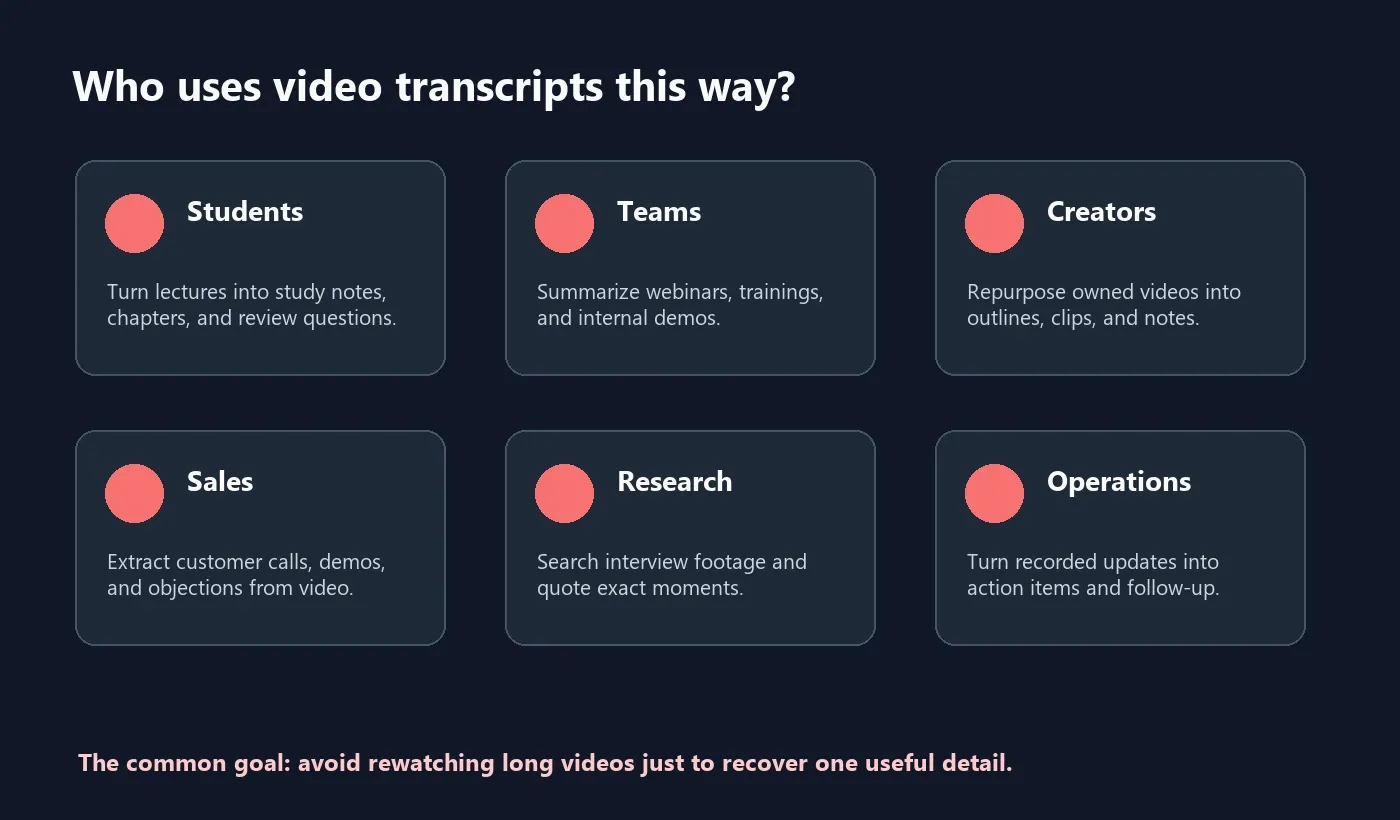
| User | Video type | Best output |
|---|---|---|
| Student | Lecture, course video, tutorial | Transcript, chaptered summary, study notes, mind map |
| Creator | Owned YouTube video, podcast, livestream | Outline, highlights, key quotes, repurposing notes |
| Sales team | Demo, webinar, customer call recording | Objections, key moments, action items, follow-up email points |
| Product team | User interview, recorded walkthrough, training | Themes, feature requests, decisions, source-linked Q&A |
| Operations team | Recorded all-hands, process training, meeting recording | Checklist, action items, owners, deadline reminders |
Supported Inputs and Export Options
HiNoter is useful beyond a single YouTube transcript. Teams often need to combine video with PDFs, audio, meetings, or project notes. A good video-to-knowledge workflow should accept multiple source types and export to the places where people work.
| Input or export | Examples | Why it matters |
|---|---|---|
| Video input | Permitted YouTube links, MP4, MOV, webinars, demos, lectures | Turns spoken video into text and notes |
| Audio input | MP3, WAV, M4A, podcasts, interviews, meeting audio | Extends the workflow beyond video-only sources |
| Document input | PDFs, agenda docs, slides, supporting files | Adds context beside video notes |
| Export | Google Docs, Notion, Slack, email, knowledge base | Moves video knowledge into team workflows |
| Interactive retrieval | AI Chat with source references | Lets users ask the video questions later |
Related HiNoter workflows include video to text, audio to text converter, AI meeting notes, mind map generator, PDF to text, and the HiNoter AI note taker.
Privacy, Copyright, and Practical Boundaries
Video transcripts can contain private, copyrighted, or confidential material. Before generating transcripts or summaries, decide whether the content can be processed, who can access the transcript, and where the notes can be exported.
YouTube's Terms of Service limit what users can do with YouTube content unless YouTube or the rights holder authorizes it. YouTube's copyright help also explains that creators generally own the original work they create. The U.S. Copyright Office describes fair use as a legal doctrine, not an automatic permission slip. In practice: use judgment, follow policies, and do not use tools to bypass access or rights restrictions.
A safe workplace policy can be simple: use HiNoter for videos your team owns, videos your organization has permission to process, and content that your legal or compliance process allows. Share summaries according to the sensitivity of the source.
FAQ
What is a YouTube transcript generator?
A YouTube transcript generator turns spoken content from a permitted YouTube video into searchable text. AI-assisted tools can also create summaries, chapters, key points, action items, mind maps, and source-grounded Q&A.
Can I generate transcripts from any YouTube video?
You should only process videos you own, have permission to use, or can lawfully use under applicable terms and copyright rules. Do not use transcript tools to bypass access controls or rights restrictions.
What is the difference between a transcript and a summary?
A transcript is a text record of what was said in the video. A summary condenses the transcript into the main ideas, key points, decisions, and takeaways.
Can HiNoter summarize YouTube videos?
HiNoter can help turn permitted YouTube or video content into transcripts, summaries, chapters, action items, mind maps, exports, and searchable AI Chat with source references.
Can a YouTube transcript generator create action items?
A basic transcript generator usually produces text only. HiNoter can use the transcript to extract action items when the video contains tasks, owners, deadlines, or follow-up commitments.
What videos are best for transcript summaries?
Webinars, tutorials, lectures, demos, podcasts, interviews, and recorded meetings are strong candidates when you own the content or have permission to process it.