Direct answer: To learn how to transcribe audio to text, upload your audio file, choose or confirm the language, generate a transcript, review key terms and speaker labels, then summarize and export the result. HiNoter is useful when you need more than text: summaries, action items, mind maps, and cited AI answers from the same audio source.
Audio transcription used to mean hours of manual typing or paying a specialist by the minute. Automatic transcription changed the speed, but it did not eliminate the cleanup. Speaker labels can be wrong, names can be misspelled, timestamps can be missing, and raw transcripts are often too long to use. The real business value comes when the transcript is organized into decisions, follow-ups, summaries, and source-linked knowledge.
This guide covers the full workflow: manual transcription, automatic transcription, AI transcription, editing, speaker labels, timestamps, summaries, and export. It is written for teams that record meetings, interviews, lectures, podcasts, sales calls, research sessions, and voice notes.
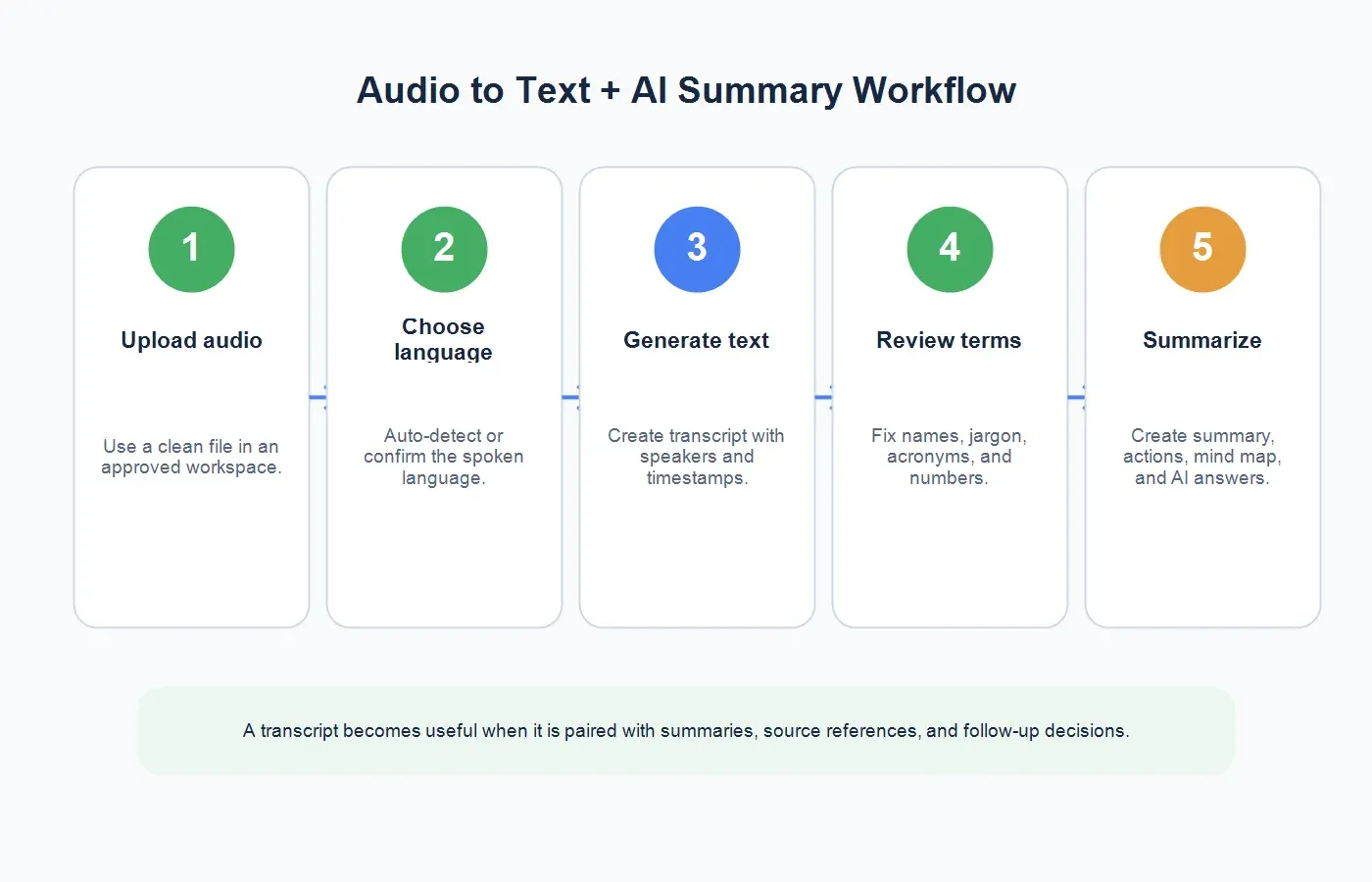
The 5-Step Audio to Text Workflow
Use this process for most recordings. It is simple enough for a quick voice memo and structured enough for business audio that needs to become a searchable record.
| Step | What to Do | Output |
|---|---|---|
| 1. Upload audio | Use a clear, permitted file in an approved workspace. | Source audio ready for transcription. |
| 2. Choose language | Confirm the spoken language or use automatic detection. | Language-aware transcript settings. |
| 3. Generate transcript | Convert speech into text with speakers and timestamps when available. | Editable transcript. |
| 4. Review key terms | Fix names, jargon, acronyms, product terms, numbers, and speaker labels. | Clean transcript. |
| 5. Summarize and export | Create a summary, action items, mind map, and source-linked answers. | Usable notes and shareable outputs. |
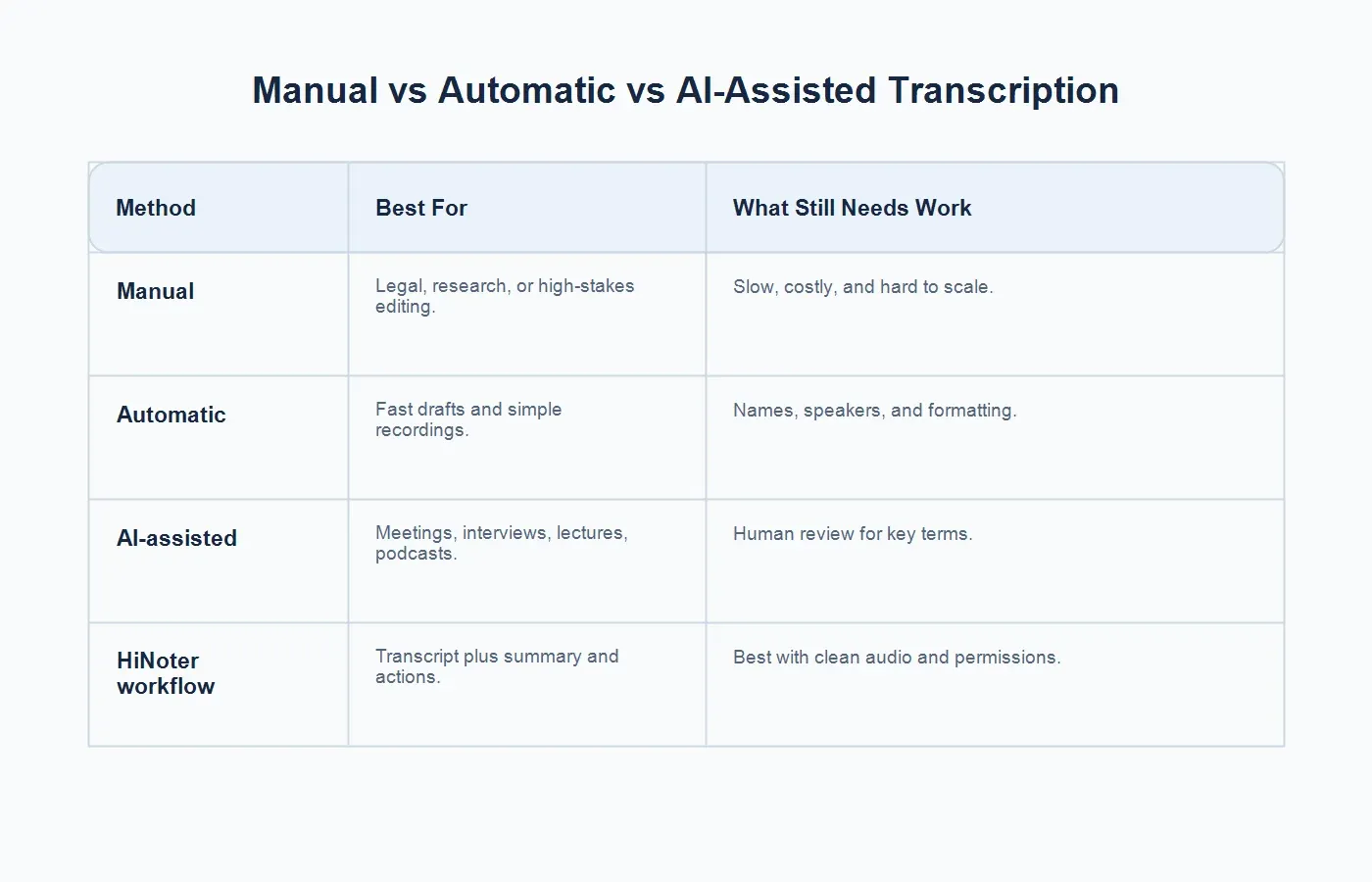
Manual vs Automatic vs AI-Assisted Transcription
There are three common ways to transcribe audio. The right one depends on your budget, accuracy requirements, turnaround time, and whether the output needs to become notes or decisions.
| Method | Best For | What You Get | What Still Needs Work |
|---|---|---|---|
| Manual transcription | Legal review, academic research, edited interviews, and high-stakes content. | A human-created transcript with careful judgment. | Slow turnaround, higher cost, and limited scale. |
| Automatic transcription | Fast drafts, voice notes, clean recordings, and simple single-speaker audio. | Machine-generated text in minutes. | Speaker labels, punctuation, names, and formatting may need cleanup. |
| AI-assisted transcription | Meetings, interviews, podcasts, lectures, and business calls. | Transcript plus summaries, key points, and follow-up structure. | Important terms and decisions still need human review. |
| HiNoter workflow | Teams that need searchable knowledge, not just raw text. | Transcript, summary, action items, mind map, and source-linked AI Chat. | Works best with clear audio and permission to process the recording. |
How Manual Transcription Works
Manual transcription means a person listens to the audio and types what was said. It can be verbatim, which includes filler words and false starts, or clean-read, which removes clutter while preserving meaning. Manual transcription is still useful when nuance matters: legal interviews, qualitative research, documentary production, medical-adjacent material, compliance records, and highly edited publishing.
The drawback is time. Even a skilled transcriber may spend several hours on one hour of difficult audio. If there are multiple speakers, accents, overlapping voices, poor microphones, or technical terminology, the work becomes slower. Manual transcription can be worth it for final publication or high-risk material, but it is too slow for everyday meeting notes and business follow-up.
How Automatic Transcription Works
Automatic transcription uses speech recognition to convert audio into text. It is fast and inexpensive compared with manual transcription. For clean audio with one speaker, the first draft can be impressively useful. For a noisy meeting with overlapping voices and uncommon names, it will need more review.
Google Cloud's speech-to-text best practices emphasize factors such as audio quality, microphone placement, background noise, and choosing the right configuration. Those basics matter in every tool. A great transcription engine cannot fully rescue a recording where people talk over one another from across a room.
Automatic transcription is best treated as a first draft. It gives you searchable text quickly, but you still need to review speaker labels, correct important terms, and decide what the transcript means.
How AI Transcription Goes Beyond Raw Text
AI-assisted transcription adds structure after speech becomes text. Instead of stopping at paragraphs of transcript, it can summarize the conversation, pull key points, identify action items, build a mind map, and support questions with source references. That is why a transcript becomes useful when it is paired with summaries, source references, and follow-up decisions.
With HiNoter's audio to text converter, users can upload audio, generate a transcript, review the text, and turn the result into more organized notes. This is different from a plain speech to text online tool that only produces words. The real value is the workflow that follows the transcript.
Prepare Audio Before You Transcribe
Transcript quality starts before upload. Use the cleanest version of the file. If you have separate speaker tracks, keep them. If the recording begins with five minutes of setup noise, trim it. If you know the speaker names, topic, product terms, customer names, or acronyms, keep that context nearby for review.
For future recordings, improve the input. Use an external microphone when possible, ask speakers to avoid talking over each other, record in a quiet room, and keep the microphone close to the voice. For remote calls, local recording usually produces cleaner audio than compressed call audio. For in-person meetings, one microphone in the middle of a large table is rarely ideal.
Choose the Right File and Export Format
Most transcription tools can handle common formats such as MP3, WAV, M4A, and MP4, but the best format depends on the source and destination. WAV can preserve quality, but files are large. MP3 and M4A are easier to share, but heavy compression can reduce clarity. If the audio came from a video meeting, keep the original file when possible so you can return to the source if the transcript raises questions.
Think about the export before you begin. A journalist may need a clean transcript in DOCX. A researcher may need speaker labels and timestamps. A project manager may need a summary and action item list. A marketer may need quotes, clips, and a blog outline. A legal or compliance team may need the source recording and transcript stored together with access controls. The best transcription workflow starts with the final use case.
For business teams, export formats should be boring and practical: plain text for search, DOCX or Google Docs for editing, PDF for locked review copies, and structured notes for collaboration. If the transcript will feed a knowledge base, keep source references so people can verify where a statement came from.
Add Speaker Labels and Timestamps
Speaker labels make a transcript easier to use. "Speaker 1" and "Speaker 2" are better than a wall of text, but names are better still. For meetings, label speakers by role when names are not available: Customer, Sales Lead, Product Manager, Recruiter, Candidate, Coach, Student. Role labels make summaries and action items easier to understand.
Timestamps are useful when you need to verify a quote, create clips, review a decision, or jump back to a section. A transcript without timestamps can be searchable, but a transcript with timestamps is more auditable. For podcasts, videos, webinars, and interviews, timestamps also support show notes and chapters.
Edit the Transcript Without Rewriting History
Editing a transcript is not the same as rewriting a document. Your goal is to correct errors while preserving meaning. Fix names, dates, numbers, product terms, company names, and technical vocabulary. Remove obvious repeated filler if the transcript is for reading, but keep original phrasing when the exact language matters.
For business use, mark uncertain words rather than guessing. If a decision depends on a number, quote, or commitment, verify it against the audio. If a transcript will be shared outside your team, review it more carefully for privacy, consent, and sensitive information.
Accuracy Tips Before and After Transcription
Accuracy is not one setting. It is the result of the entire recording and review process. Before recording, reduce background noise, ask people to use headphones, keep microphones close, and avoid overlapping speech. If a meeting includes technical terms, prepare a list of product names, acronyms, customer names, and unusual vocabulary. That list becomes the review guide after transcription.
After transcription, review the parts that carry decision weight. In a sales call, check pricing, objections, dates, and promised follow-up. In a research interview, check participant quotes, themes, and any sensitive context. In a project meeting, check owners, deadlines, dependencies, and blockers. In a lecture, check definitions, formulas, references, and named concepts.
Do not spend the same amount of time on every sentence. A transcript can contain small punctuation errors that do not matter, while one incorrect date or speaker label can create a real business problem. Prioritize accuracy where the transcript will influence decisions, publication, customer communication, or legal records.
Summarize Audio After Transcription
Raw transcripts are long. A 45-minute call can produce thousands of words, most of which nobody wants to read end to end. Summaries convert the transcript into a decision-ready record. A good summary should include the purpose, key points, decisions, action items, open questions, and source context.
HiNoter can turn transcripts into structured summaries and action items. For leadership recaps, use a format similar to executive summary examples: context, problem, decision, evidence, and next action. For project meetings, include owners and deadlines. For interviews, include themes and quotes. For classes, include concepts, definitions, and study questions.
Summary Templates by Audio Type
Meeting Summary Template
Use this when the audio comes from a team meeting, client call, or internal sync. Include meeting purpose, key discussion points, decisions made, action items, owners, deadlines, open questions, and source moments that support important decisions.
Interview Summary Template
Use this for research, recruiting, customer interviews, and expert calls. Include participant context, main themes, notable quotes, evidence, contradictions, follow-up questions, and any consent limits around sharing the transcript or quotes.
Lecture or Training Summary Template
Use this for classes, onboarding, webinars, and training recordings. Include learning objective, major concepts, definitions, examples, timestamps, assignments or next steps, and questions that learners should review.
Sales or Customer Call Template
Use this for discovery, demos, renewal calls, and support escalations. Include customer goal, pain points, objections, decision criteria, competitors mentioned, promised follow-up, owner, and due date. This turns the transcript into usable account context rather than a forgotten call record.
Build a Team Knowledge Workflow From Transcripts
A single transcript helps one person. A transcript workflow helps the whole team. Decide where transcripts live, how they are named, who can access them, and which summaries should be shared more broadly. A useful naming format might include date, source type, customer or project, and topic. For example: "2026-07-08 - Customer Interview - Onboarding Pain Points."
Next, decide what gets extracted from each transcript. Meetings may need decisions and actions. Sales calls may need pain points and objections. Research calls may need themes and quotes. Training sessions may need chapters and study notes. HiNoter helps because the output can become more than a document: users can ask AI Chat questions and get answers tied back to the source context.
This matters for memory across teams. A product manager should not have to ask sales for the same customer quote three times. A customer success manager should not have to replay a call to remember the renewal blocker. A new teammate should not have to search a folder of recordings with vague names. Source-linked notes turn audio into reusable organizational knowledge.
How to Choose Audio Transcription Software
Start with the type of audio you process most often. If you mostly transcribe single-speaker notes, speed and price may matter most. If you transcribe meetings, look for speaker labels, timestamps, summaries, and action items. If you process customer calls, privacy, permissions, and team sharing matter. If you publish transcripts, editing and export quality matter.
Ask practical questions: Which file formats are supported? Can it detect or choose language? Can it identify speakers? Does it add timestamps? Can you edit the transcript? Can it summarize the audio? Can it export to the formats your team uses? Can it answer questions with source references? Can admins control access? The best audio transcription software is the one that fits the work after the transcript is generated.
For many business users, HiNoter is strongest when the transcript is only the starting point. It can help create summaries, action items, mind maps, and cited AI answers from the same source. That makes it useful for teams that want decisions and follow-up, not just speech converted into text.
Use Cases for Audio Transcription
Meetings and Client Calls
Meetings need more than a transcript. Teams need decisions, blockers, action owners, and follow-up context. AI meeting notes help connect the spoken discussion to practical next steps.
Interviews and Research
Interview transcripts help researchers recover quotes and patterns. Review consent and privacy rules before sharing transcripts. Use summaries to group findings, not replace source review.
Podcasts and Webinars
Podcast and webinar transcripts can support show notes, quotes, blog drafts, and social posts. If the content is video-based, video to text is often the better workflow because the visual file remains part of the source context.
YouTube and Public Videos
For content you own, have permission to use, or can lawfully process, a YouTube transcript generator can turn the video into searchable text, summaries, and notes.
Common Mistakes to Avoid
Uploading poor audio and expecting perfect text. Transcription quality depends heavily on source quality. Fix the recording setup before blaming the transcript.
Skipping speaker review. A transcript with wrong speakers can create confusion, especially when action items or commitments are involved.
Treating the transcript as the final deliverable. Most business users need a summary, action list, or knowledge entry, not 8,000 words of raw conversation.
Publishing without checking key terms. Product names, medical terms, legal language, acronyms, numbers, and names deserve manual review.
Ignoring permission. Only upload audio you own, are allowed to process, or have permission to use. Sensitive recordings need stricter access controls.
Privacy and Storage Considerations
Audio often contains personal data, customer information, strategy, hiring discussions, or confidential project details. Store recordings and transcripts in approved workspaces. Limit who can access raw files. Delete old recordings when the verified transcript and summary are enough for the original purpose.
For teams, create a basic policy: who may upload recordings, which types of audio are allowed, where transcripts are stored, how long files are kept, and when summaries can be shared more broadly than the raw transcript.
Final Takeaway
Transcribing audio to text is only the first step. Manual transcription gives precision, automatic transcription gives speed, and AI-assisted transcription gives structure. The most useful workflow combines all three ideas: fast text, careful review, and a summary that turns spoken content into decisions and follow-up.
Use HiNoter to transcribe audio and automatically create summaries, action items, mind maps, and cited AI answers. That way, recordings become searchable team knowledge instead of files someone has to replay from the beginning.
FAQs
What is the easiest way to transcribe audio to text?
The easiest way is to upload a clear audio file to an AI transcription tool, generate the transcript, review important terms and speaker labels, then export or summarize the result.
Is automatic transcription accurate?
Automatic transcription can be accurate with clean audio, clear speech, and limited background noise. Accuracy drops when speakers overlap, microphones are far away, audio is compressed, or the recording includes uncommon names and technical jargon.
What is the difference between speech to text and audio transcription?
Speech to text usually refers to converting spoken words into written text. Audio transcription is the broader workflow of converting recordings into usable transcripts, often with speaker labels, timestamps, editing, and summaries.
Can AI summarize a transcript?
Yes. AI can summarize a transcript into key points, decisions, action items, open questions, and follow-up notes. Human review is still important for high-stakes details.
Can HiNoter transcribe audio and create notes?
Yes. HiNoter can transcribe audio and help create summaries, action items, mind maps, and AI Chat answers with source references.