Definition: A PDF to text converter turns PDF content into usable text. With HiNoter, the workflow goes further: upload a PDF, extract text, use OCR when a document is scanned, summarize sections, create key points, convert the document into structured notes, and ask source-linked questions about the content.
Most people do not need another plain text file. They need to understand the document faster. Reports, academic papers, contracts, manuals, white papers, and slide decks often lock important information inside long PDFs. Extracting the text is useful, but extracted text alone can be messy, hard to scan, and detached from the decisions or tasks that teams need later.
That is why a modern PDF workflow should not stop at copy-and-paste extraction. The better output is a searchable knowledge record: clean text where possible, OCR for scanned pages, section summaries, reusable notes, and AI Chat that can answer questions with source references. This supports HiNoter's broader promise: your knowledge should not be limited to meetings or audio files. PDFs, videos, YouTube content, and other source materials can also become structured notes.
What a PDF to Text Converter Should Do
A basic PDF to text converter extracts selectable text from a PDF and exports it into a plain text format. That helps when you need to copy a paragraph, search a report, or reuse content in another document. But it does not automatically explain what the document means, which sections matter, or how the information should be used in a meeting, research brief, or team knowledge base.
HiNoter is designed for the second layer of work. After extraction, it can summarize the document, pull out key points, organize the content into notes, and let you ask questions against the source. That difference matters when a PDF is long, technical, or shared across a team. A 90-page market report, a vendor manual, or a research paper becomes far more useful when the key sections are searchable and explainable.
Text-Layer PDFs, Scanned PDFs, and OCR
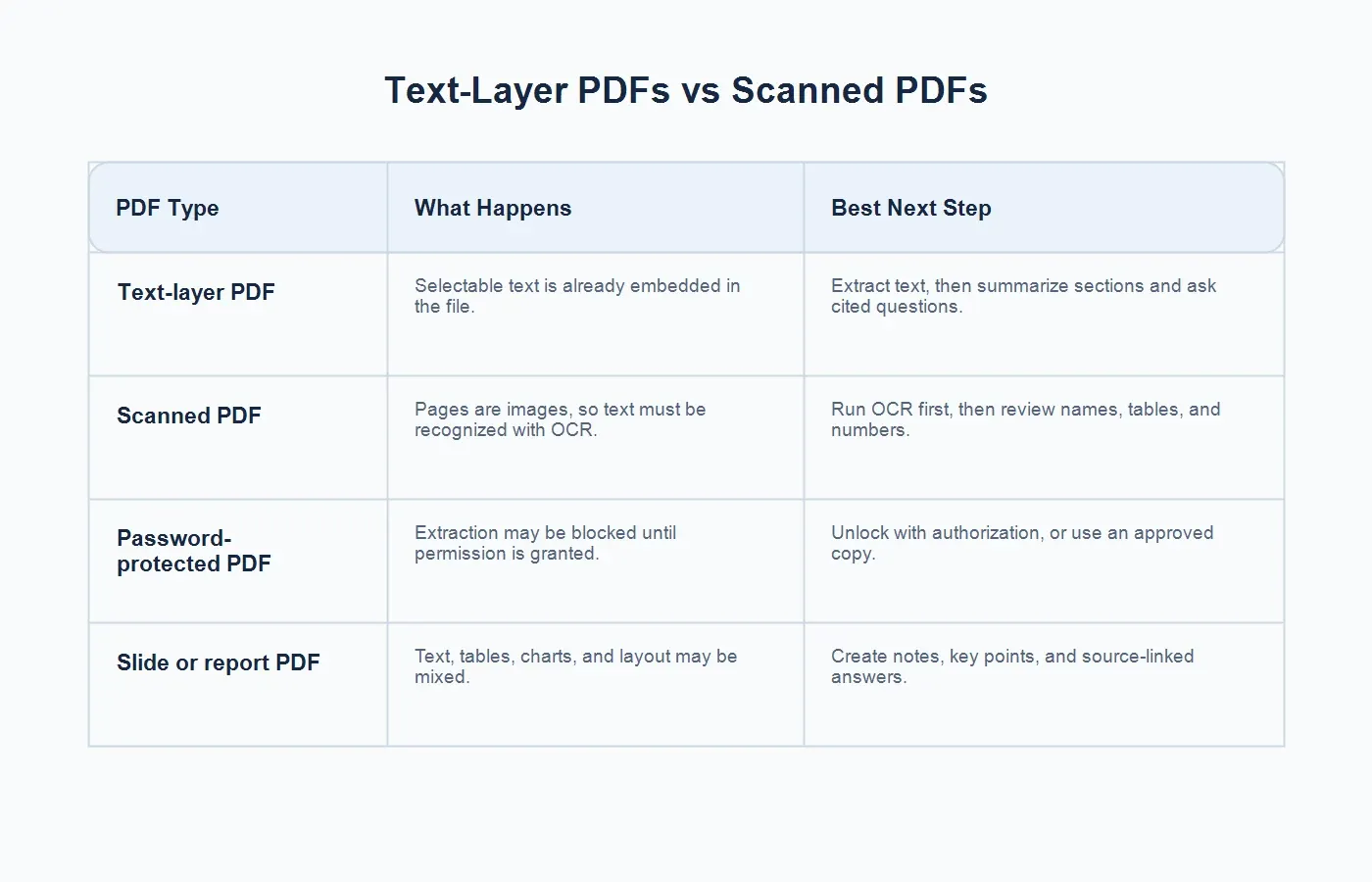
Not every PDF stores text the same way. Some PDFs contain a text layer, which means you can select words, copy paragraphs, and search inside the file. Others are scanned or image-based, which means each page behaves more like a picture. Adobe's OCR documentation explains that scanned documents often need optical character recognition before text can be selected and searched.
OCR, short for optical character recognition, identifies characters in an image and converts them into machine-readable text. It is useful for scanned contracts, printed manuals, photographed documents, and PDFs created from image scans. OCR is powerful, but it is not magic. Poor scans, handwritten notes, complex tables, low contrast, rotated pages, stamps, and unusual fonts can reduce accuracy.
| PDF Type | What Happens | Best Next Step |
|---|---|---|
| Text-layer PDF | Selectable text is already embedded in the file. | Extract text, then summarize sections and ask cited questions. |
| Scanned PDF | Pages are images, so text must be recognized with OCR. | Run OCR first, then review names, tables, and numbers. |
| Password-protected PDF | Extraction may be blocked until permission is granted. | Unlock with authorization, or use an approved copy. |
| Slide or report PDF | Text, tables, charts, and layout may be mixed. | Create notes, key points, and source-linked answers. |
How HiNoter Converts PDF Content Into Notes
The HiNoter workflow is built for people who need answers, not just extracted characters. It is useful for students reviewing papers, analysts reading reports, sales teams studying product documentation, legal and operations teams reviewing policy documents, and managers preparing for meetings.
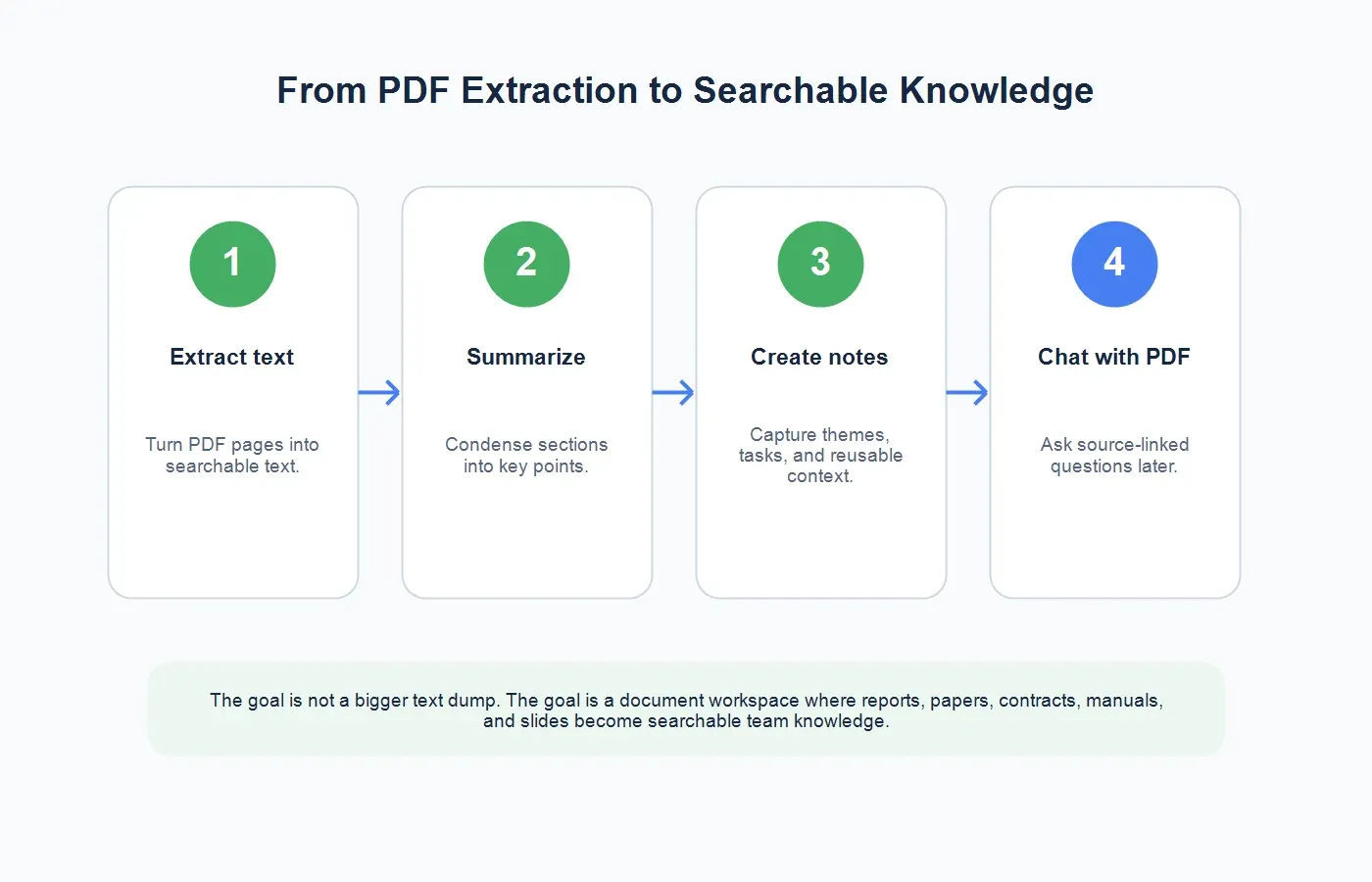
1. Upload the PDF
Start by uploading the PDF to HiNoter's PDF to text workflow. Use files you own, are allowed to process, or are permitted to use under your organization's policy. If the PDF contains confidential business information, personal data, contract terms, or regulated content, confirm that the tool and workspace are approved for that material.
2. Extract Text or Run OCR
If the PDF includes a text layer, extraction is usually straightforward. If the PDF is scanned or image-based, OCR is needed first. After OCR, review critical fields such as names, dates, prices, formulas, table values, citations, and section numbers. These are the details that most often matter in downstream work.
3. Summarize Sections
Long PDFs are hard to use because they mix background, methods, examples, charts, appendices, and conclusions. HiNoter can summarize sections so a reader can understand the document without reading every page line by line. A good PDF summary should identify the purpose, main claims, key findings, assumptions, risks, and next steps.
4. Create Key Points and Notes
Extraction gives you text. Notes give you structure. HiNoter can help convert the PDF into key points, reusable notes, and a clearer outline. That makes the document easier to bring into a meeting, share with a team, or store in a knowledge base. Instead of forwarding a PDF and hoping everyone reads it, you can share the parts that matter.
5. Ask Source-Cited Questions
AI Chat changes how people use dense documents. Rather than searching manually for a paragraph, you can ask, "What are the main risks in this contract?" or "Which findings support the executive summary?" HiNoter can answer with source references, so the answer can be checked against the original document rather than treated as a detached summary.
PDF to Text vs PDF Summary vs PDF Chat
These three workflows are related, but they solve different problems. The right one depends on whether you need raw content, quick understanding, or interactive retrieval.
| Workflow | Best For | HiNoter Output |
|---|---|---|
| PDF to text | Copying, searching, quoting, and reusing document text. | Extracted text and OCR-ready content for scanned files. |
| PDF summary | Understanding long reports, papers, contracts, or manuals quickly. | Section summaries, key points, and structured notes. |
| PDF chat | Asking specific questions and finding source-backed answers. | AI Chat responses with references to the original content. |
Supported PDF Use Cases
Reports and White Papers
Business reports often contain useful findings buried under methodology, charts, and appendix material. A PDF to text converter helps recover the content, but summaries and notes help a team decide what the report means. HiNoter can turn the report into talking points for leadership reviews, campaign planning, or customer strategy meetings.
Academic Papers
Students, researchers, and analysts use PDFs constantly. A paper may include abstract, literature review, methods, results, limitations, and references. Extracting text is only the first step. A better workflow summarizes each section, highlights the central claim, and lets the reader ask questions such as "What evidence supports the conclusion?" or "What limitations did the authors mention?"
Contracts and Policy Documents
Contracts and policy PDFs require care. Do not treat AI output as legal advice, and always review the original language before making decisions. Still, structured notes can help teams locate obligations, renewal dates, termination language, approval requirements, and open questions before a legal or procurement review.
Manuals and Technical Documentation
Manuals are often long, repetitive, and difficult to search when converted poorly. HiNoter can help extract procedures, troubleshooting steps, warnings, and configuration details. Support teams can reuse those notes when answering customer questions or preparing internal training material.
Slides and Meeting Materials
Slide decks saved as PDFs often become pre-read material before meetings. Rather than asking everyone to read the entire deck, a team can create a short summary, key questions, and action items. That is where PDF content connects naturally with AI meeting notes and team knowledge workflows.
Output Examples: What You Can Create
After processing a PDF in HiNoter, the output can be used in several ways. You might create an executive-style summary for a long report, a study note from an academic paper, a contract review checklist, a troubleshooting outline from a manual, or a meeting prep brief from a slide deck.
For example, a product manager could upload a 40-page research report and ask for customer pain points, market trends, and sections that mention onboarding. A student could upload a paper and ask for the hypothesis, methods, limitations, and key terms. A support team could upload a technical manual and ask for the reset procedure, safety warnings, and common error codes.
The strongest output combines structure and source context. A summary tells you the gist. A note organizes the details. A source-linked answer helps you verify the claim. Together, those outputs make the PDF more useful than a raw text export.
When PDF Extraction Gets Messy
PDFs are deceptively simple. A file may look clean on screen while the underlying structure is difficult to extract. Multi-column academic papers can place sentences out of order. Financial reports may split tables across pages. Slide decks can contain text boxes, charts, icons, speaker notes, and embedded images. Scanned PDFs may include skewed pages, shadows, stamps, handwriting, or low-resolution text.
That is why the best PDF to text workflow includes review. After extraction or OCR, check the parts of the document that carry decision-making weight. In a contract, review party names, dates, renewal clauses, termination language, prices, and obligations. In a research paper, check study design, sample size, limitations, and citations. In a manual, review warnings, safety steps, and configuration values. In a report, review chart labels, footnotes, and numeric claims.
HiNoter can reduce the time spent reading and organizing, but it should not replace human review for high-stakes details. The right mental model is assisted reading. Let the tool extract, summarize, and surface likely answers. Then verify important claims against the source references before making decisions.
A Quality Checklist Before You Share PDF Notes
Before sharing extracted notes with a team, run a quick quality check. First, confirm that the document title and version are correct. Teams often work from old PDFs, duplicate downloads, or exported drafts. Second, scan the summary for missing context. A good summary should say what the document is, who it affects, and why it matters. Third, check whether key sections were skipped because they were scanned images, tables, appendices, or footnotes.
Fourth, test a few targeted questions. Ask for the main recommendation, the biggest risk, the required next step, and the section that supports each answer. If the answer cannot point back to the source, treat it as a draft note rather than a verified finding. Fifth, decide how the output should be shared. A legal team may need a restricted note. A sales team may need a short battlecard. A product team may need pain points and feature requests. A leadership team may need an executive summary with supporting evidence.
This review step keeps the workflow practical. The goal is not to create perfect notes automatically. The goal is to get from unread PDF to usable team knowledge faster, while preserving enough source context for people to trust and verify the output.
How PDF Notes Fit Into a Knowledge Base
Many organizations already have useful documents, but the knowledge is scattered. A product manual may live in a shared drive. A customer report may sit in a CRM attachment. A research paper may be saved by one analyst. A vendor contract may be visible only to procurement. Even when everyone has access, people rarely have time to read every PDF before a meeting.
Turning PDFs into notes creates a bridge between static documents and active knowledge. A team can upload a PDF, summarize it, tag the key sections, and ask questions later. Meeting prep becomes easier because the relevant document context can be pulled into the discussion. Follow-up becomes clearer because decisions can reference the source. Onboarding becomes faster because new team members can ask questions instead of hunting through folders.
This is where HiNoter is especially useful alongside meeting and media workflows. A team might use HiNoter to summarize a PDF report before a meeting, capture the meeting notes during the discussion, and later ask AI Chat how the meeting decision relates to the original report. The PDF is no longer a separate attachment. It becomes part of a searchable knowledge trail.
Who Benefits From PDF to Text Plus AI Notes?
Analysts use it to move through reports faster. Students use it to review papers without losing the argument of the text. Sales and customer success teams use it to understand product sheets, competitor briefs, and customer documentation. Operations teams use it to interpret manuals, policies, and process documents. Managers use it to prepare for meetings where several PDFs need to be understood quickly.
The common thread is time. People are not short on documents; they are short on usable context. A PDF to text converter gives access to the words. HiNoter helps turn those words into the summaries, notes, action items, and cited answers that make the information useful in daily work.
Privacy and Permission Considerations
PDFs often contain sensitive information: employee records, customer contracts, pricing, financial data, research interviews, vendor terms, or unreleased product documentation. Before uploading a PDF to any tool, confirm that you have permission to process it and that your organization approves the workspace.
Password-protected PDFs deserve extra caution. A password may indicate restricted distribution or editing rights. Use an authorized copy, and do not bypass access controls. If a document is confidential, restrict who can view the extracted text, summaries, notes, and chat history.
Why HiNoter Is More Than a Text Extractor
Traditional text extraction answers one question: "Can I get the words out of this PDF?" HiNoter is designed for the next question: "Can I understand and reuse this document?" That difference is important for teams drowning in reports, papers, manuals, and meeting materials.
HiNoter can work across more than audio. Meetings, YouTube videos, uploaded videos, PDFs, and other source content can become structured notes. That gives teams a more unified knowledge workflow. Instead of storing meeting notes in one place, PDF summaries in another, and video transcripts somewhere else, the source material can become searchable knowledge.
The result is faster review, cleaner meeting prep, better handoffs, and fewer "where was that mentioned?" moments. Upload a PDF to HiNoter to extract text, summarize key points, create notes, and ask source-linked questions.
FAQs
What is a PDF to text converter?
A PDF to text converter extracts readable text from a PDF. If the PDF is scanned or image-based, OCR may be needed before text can be selected, searched, summarized, or exported.
Can HiNoter extract text from scanned PDFs?
HiNoter's PDF workflow supports OCR for scanned or image-based PDFs. OCR quality depends on the scan, page clarity, layout, language, and the complexity of tables or handwriting.
What is the difference between PDF to text and PDF summarizer?
PDF to text extracts the document's words. A PDF summarizer condenses those words into the main points, sections, decisions, risks, or next steps.
Can I chat with a PDF?
Yes. With HiNoter, you can ask questions about uploaded PDF content and get source-linked answers that point back to the document context.
Can I upload password-protected PDFs?
Only upload PDFs you are authorized to access and process. Password protection may block extraction until you use an approved, accessible copy.