Short Answer
Google Meet transcription turns a Google Meet conversation into written text when transcripts are available for the account, meeting, language, and organization settings. If you need more than raw text, HiNoter can join scheduled Google Meet calls and generate a transcript, AI summary, action items, mind map, and source-linked answers.
| If you need... | Use this workflow | Best fit |
|---|---|---|
| A written record of the call | Native Google Meet transcript when available | Internal reference and searchable text |
| A full video archive | Google Meet recording when permitted | Training, compliance, interviews, or demos |
| Meeting recap and follow-up | HiNoter AI transcript plus summary and action items | Teams that need decisions, owners, due dates, and next steps |
| Notes from many content sources | HiNoter for meetings, audio, video, YouTube, and PDFs | Knowledge work that goes beyond one meeting platform |
What Google Meet Transcription Does, and What It Does Not Do
Google Meet transcription is useful because it gives teams a searchable text record instead of forcing someone to scan a long video. For meeting-heavy teams, that is already a meaningful improvement. A transcript can help you confirm wording, quote a customer accurately, revisit a decision, or share context with someone who missed the call.
But transcription is not the same as meeting intelligence. A transcript is usually chronological. Work is not. Teams need a summary, decisions, blockers, risks, action items, owners, due dates, and a place to ask follow-up questions without rereading every line.
That is the gap HiNoter is built to close. It works as an AI meeting notes and transcription platform: capture the meeting, structure the useful parts, and send the record to the tools where the team already works.
Native Google Meet Transcription: Prerequisites and Permissions
Before promising a transcript to your team, check whether the feature is actually available for the meeting. Google Meet transcript and recording behavior depends on Workspace eligibility, administrator settings, organizer controls, meeting role, and language support. Google's help pages for meeting transcripts, recording a video meeting, and note-taking features should be treated as the source of truth before you set an internal process.
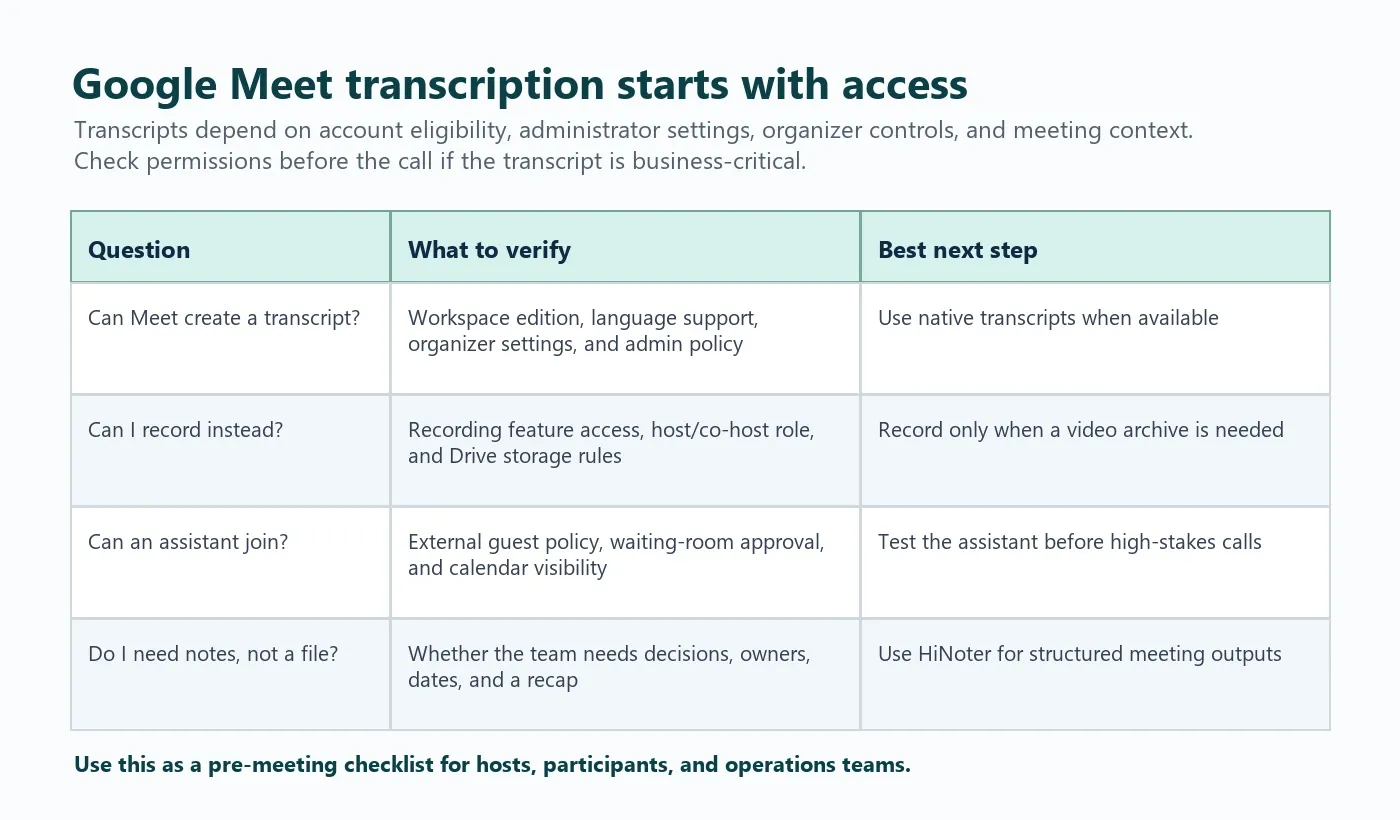
| Permission layer | Why it matters | What to check |
|---|---|---|
| Google Workspace edition | Some Meet features are plan-dependent | Confirm transcripts, recording, and AI note features for your edition |
| Admin settings | Organizations can enable or disable meeting capture features | Ask the admin whether transcripts and recordings are allowed |
| Meeting organizer | The organizer often controls the meeting link and feature access | Make sure the right person owns the event or can manage settings |
| Host or co-host role | In-meeting controls may be restricted by role | Assign co-host access before the call if someone else manages capture |
| Participant status | Participants may not be able to start transcripts or recordings | Ask for permission instead of assuming you can capture the call |
| Language support | Transcript quality and availability can vary by language and feature | Use a multilingual AI workflow when calls include several regions |
How to Use Google Meet Transcription Natively
If native transcripts are available for your meeting, use them when the team needs a written record but does not need a full video archive.
- Open the scheduled Google Meet call with the correct account.
- Confirm that transcripts are allowed for the meeting and organization.
- Tell participants that a transcript will be created when your policy requires notice.
- Start the transcript from the available meeting controls.
- Run the meeting with clear speaker introductions and minimal cross-talk.
- Stop or finish the meeting and wait for Google Meet to process the transcript.
- Open the transcript from the location or notification provided by Google Meet.
This process is helpful, but it still leaves work after the call. Someone has to read the transcript, separate facts from side discussion, extract decisions, and turn action items into follow-up tasks.
Google Meet Transcription vs Recording vs AI Notes
Many teams choose recording by default because it feels safer. The problem is that video files are slow to review. Transcripts are faster, but still not a complete follow-up system. AI notes are useful when the business value is not the archive itself, but the decisions and actions inside the conversation.
| Option | Primary output | Strength | Limitation | Use it when... |
|---|---|---|---|---|
| Google Meet recording | Video file | Preserves the full meeting | Hard to scan and large to store | You need the complete visual record |
| Google Meet transcription | Written transcript | Searchable and easier to quote | Still requires manual review | You need text evidence from the call |
| HiNoter AI notes | Transcript, summary, action items, mind map, AI Chat | Turns discussion into follow-up | Requires permission-aware meeting capture | You need decisions, owners, and next steps quickly |
When Native Google Meet Transcription Is Not Enough
Native transcripts are useful, but they do not solve the whole meeting workflow. If a transcript is 8,000 words long, the team still needs someone to identify what matters. That delay is where decisions disappear into chat threads, private docs, or memory.
HiNoter adds the layer after transcription: it turns the conversation into structured meeting knowledge. The goal is not to replace Google Meet. The goal is to make the meeting useful after it ends.
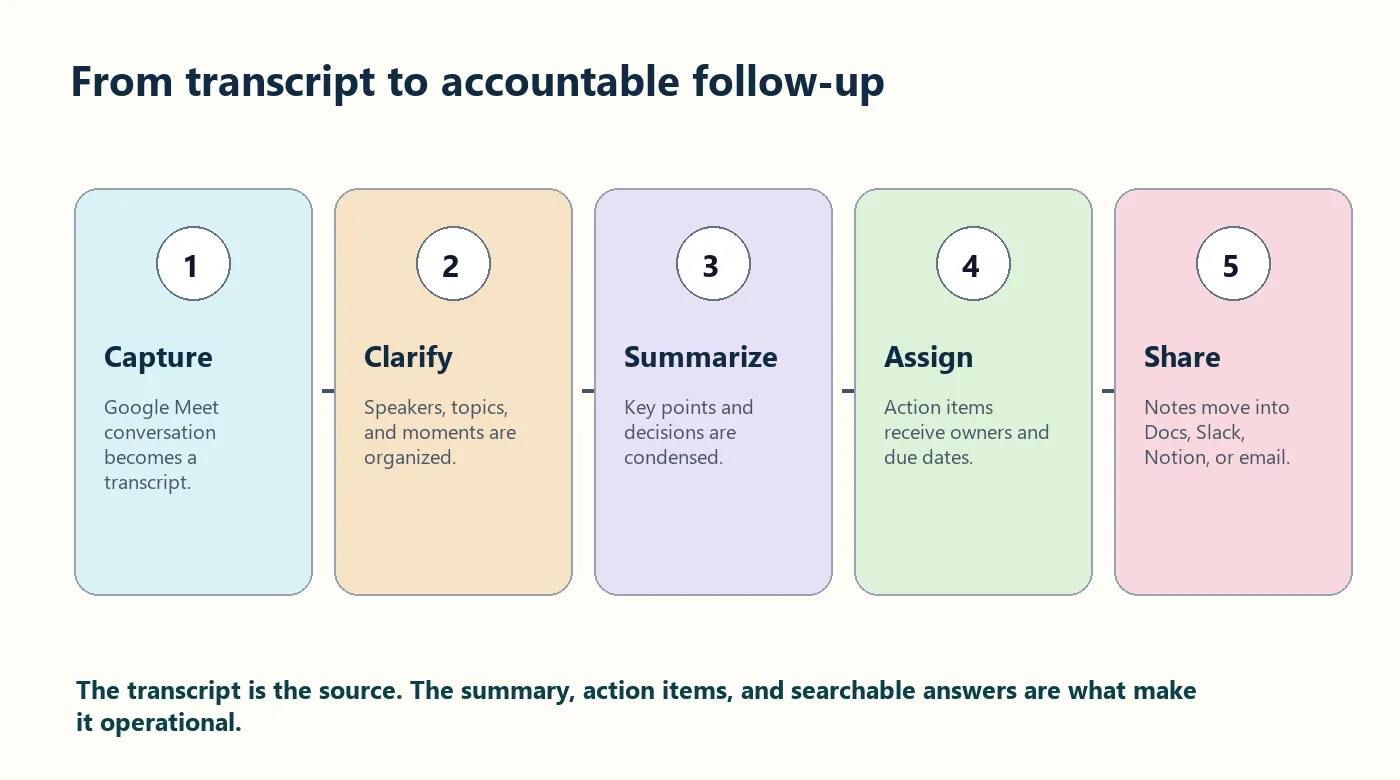
HiNoter workflow for Google Meet transcription
- Connect Google Calendar. HiNoter detects scheduled Google Meet calls so you do not have to start notes manually.
- Let the assistant join. When permitted, the assistant joins the meeting as a visible participant.
- Generate the transcript. Speech becomes a searchable written record.
- Create the useful outputs. HiNoter extracts the summary, decisions, action items, risks, and mind map.
- Export the record. Send the result to Notion, Slack, Google Docs, calendar workflows, or email.
For related pages, see HiNoter's AI meeting assistant, audio to text converter, video to text workflow, AI meeting notes, and Google Meet integration.
What HiNoter Produces From a Google Meet Transcript
A transcript is the source layer. HiNoter adds the working layer: the outputs a manager, sales team, product owner, recruiter, or project lead can act on immediately.
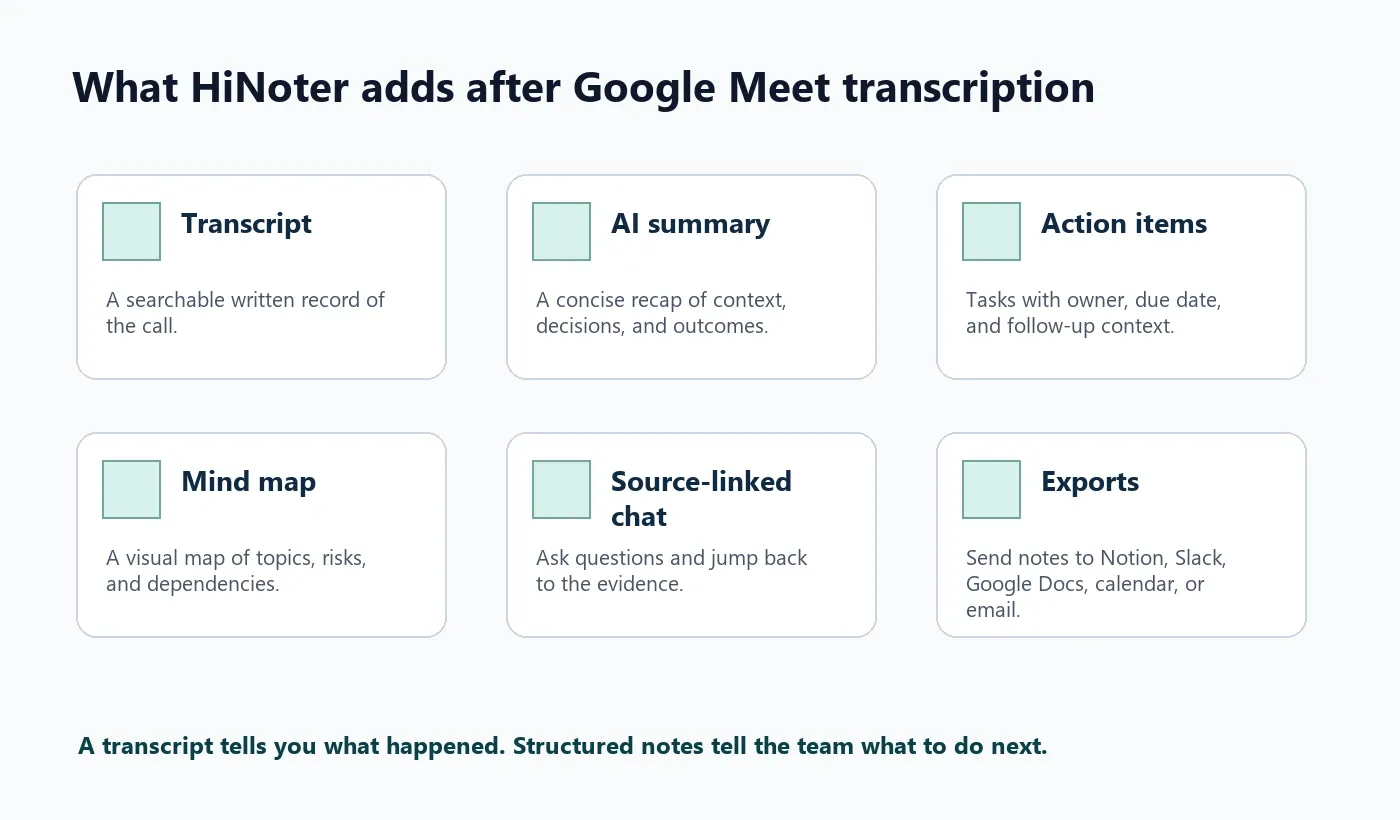
| Output | What it means | Example use |
|---|---|---|
| Transcript | A written record of what was said | Search for exact customer wording |
| AI summary | A concise recap of the meeting | Send an executive-ready update after a call |
| Decisions | Explicit agreements separated from discussion | Confirm launch scope or approval status |
| Action items | Tasks with owner, deadline, and next step | Assign follow-up without rewriting notes |
| Mind map | Visual grouping of topics and dependencies | Understand a complex planning conversation quickly |
| AI Chat with citations | Questions answered from the source material | Ask, "What did the customer say about migration risk?" |
Best Practices for Accurate Google Meet Transcription
Transcript quality depends on both software and meeting behavior. Even strong AI tools perform better when the meeting is run clearly.
- Use a reliable microphone and reduce background noise.
- Ask speakers to avoid talking over one another.
- Have guests introduce themselves before the discussion begins.
- Repeat important numbers, deadlines, and decisions clearly.
- Use a brief closing recap: decisions, owners, due dates, and open questions.
- For multilingual teams, choose a workflow that supports automatic language detection.
HiNoter supports 50+ languages with automatic detection, which makes it a better fit for regional teams that switch between English, Portuguese, Spanish, French, German, or other languages in the same operating rhythm.
Troubleshooting Google Meet Transcription
| Problem | Likely reason | Fix |
|---|---|---|
| Transcript option is missing | Account, Workspace edition, admin policy, or organizer settings do not allow it | Check Google Meet transcript availability with the organizer or admin |
| Participant cannot start transcription | The meeting role does not have permission | Ask the host to start it or approve an AI note-taking workflow |
| Transcript exists but is hard to use | Raw text is too long and lacks structure | Use HiNoter to summarize, extract decisions, and create action items |
| Speakers are unclear | Cross-talk, weak audio, or missing speaker introductions | Improve microphone quality and ask speakers to introduce themselves |
| Recording is available but transcript is not | Feature availability differs between recording and transcripts | Upload the recording to HiNoter to generate transcript and notes |
| Assistant cannot join | External guests or meeting assistants are blocked | Test the calendar event, guest policy, and admission flow before the call |
Privacy and Consent for Meeting Transcripts
Meeting transcripts can contain sensitive information. Treat them as business records, not casual notes. Before transcribing customer calls, hiring interviews, HR discussions, legal meetings, or board updates, confirm your organization's policy and the laws that apply to your participants' locations.
A simple disclosure is usually better than a vague one: "We are using HiNoter to create a transcript, summary, and action items from this meeting. The recap will be shared with attendees after the call." Adjust that language for your legal and compliance process.
Who Should Use HiNoter for Google Meet Transcription?
| Team | Problem | HiNoter fit |
|---|---|---|
| Sales and customer success | Customer commitments get buried in call notes | Extract customer asks, objections, next steps, and follow-up emails |
| Product teams | Decisions spread across calls, docs, and chat | Create summaries, risks, decisions, and source-linked answers |
| Recruiting | Interview notes are inconsistent | Structure interview records and follow-up tasks with consent |
| Operations | Owners and due dates are missed | Turn meetings into action items and export them to team systems |
| Multilingual teams | One person's notes rarely capture every region's context | Use 50+ language support and automatic detection for a shared record |
Try HiNoter when Google Meet transcription needs to become summaries, action items, mind maps, and source-linked team knowledge.
FAQ
What is Google Meet transcription?
Google Meet transcription converts spoken conversation in a Google Meet call into written text when the feature is available for the account, meeting, language, and organization settings. It helps teams search and reference what was said after the call.
Can Google Meet transcribe meetings automatically?
Google Meet can provide transcripts for eligible accounts and supported settings, but availability depends on Workspace edition, administrator controls, organizer settings, and language support. Check Google's current help documentation before relying on it for critical meetings.
What should I do if Google Meet transcription is unavailable?
If native transcription is unavailable, use an approved AI meeting assistant such as HiNoter. It can capture permitted meetings and generate a transcript, summary, action items, mind map, and searchable notes.
Is a Google Meet transcript the same as meeting notes?
No. A transcript is a chronological written record. Meeting notes summarize what matters: decisions, key points, owners, deadlines, risks, and next steps. HiNoter can turn a transcript into structured AI meeting notes.
Can HiNoter summarize an existing Google Meet recording?
Yes, HiNoter can work with supported audio and video sources so teams can convert recordings into transcripts, summaries, action items, mind maps, and source-linked AI Chat instead of rewatching the full file.
Does HiNoter support multilingual Google Meet transcription?
HiNoter supports 50+ languages with automatic detection, which is useful for distributed teams that run calls across countries, accents, and language preferences.