My first Zoom call went badly. This was 2018. I was in a cafe in Lisbon. My mic was on and I didn't know. The first thing everyone heard was me ordering a coffee in terrible Portuguese — "um galão, por favor" — and then the barista yelling my name because I didn't hear him call it. Seven people on the call. Nobody said a word about it. They just talked over the background noise for forty minutes while I sat there wondering why my audio sounded weird.
That was my introduction to how to use Zoom, and honestly, I wish someone had just told me the basics before I embarrassed myself. Zoom holds about 55% of the video conferencing market (Statista, 2024), which means millions of people use it daily, and a lot of them are winging it the same way I was. So this is the guide I wish I'd had. It covers downloading the thing without getting malware, scheduling meetings that don't get crashed by strangers, sharing your screen without showing everyone your Slack messages, recording, transcribing, and the free-versus-paid question that confuses everyone.
Quick note on versions: Zoom rebranded its app to Zoom Workplace in 2024. Current version is 6.x. Same product, new name. If your screen looks slightly different from what I describe, you might be on an older build. The buttons do the same stuff.
What we'll cover:
1. Getting started: download, install, and set up
2. Scheduling and joining meetings
3. In-meeting features: screen share, whiteboard, breakout rooms, and more
4. Recording and transcription
5. Advanced features: webinars, Zoom Phone, AI Companion
6. Free vs. paid plans
7. Common Zoom problems and fixes
8. Frequently asked questions
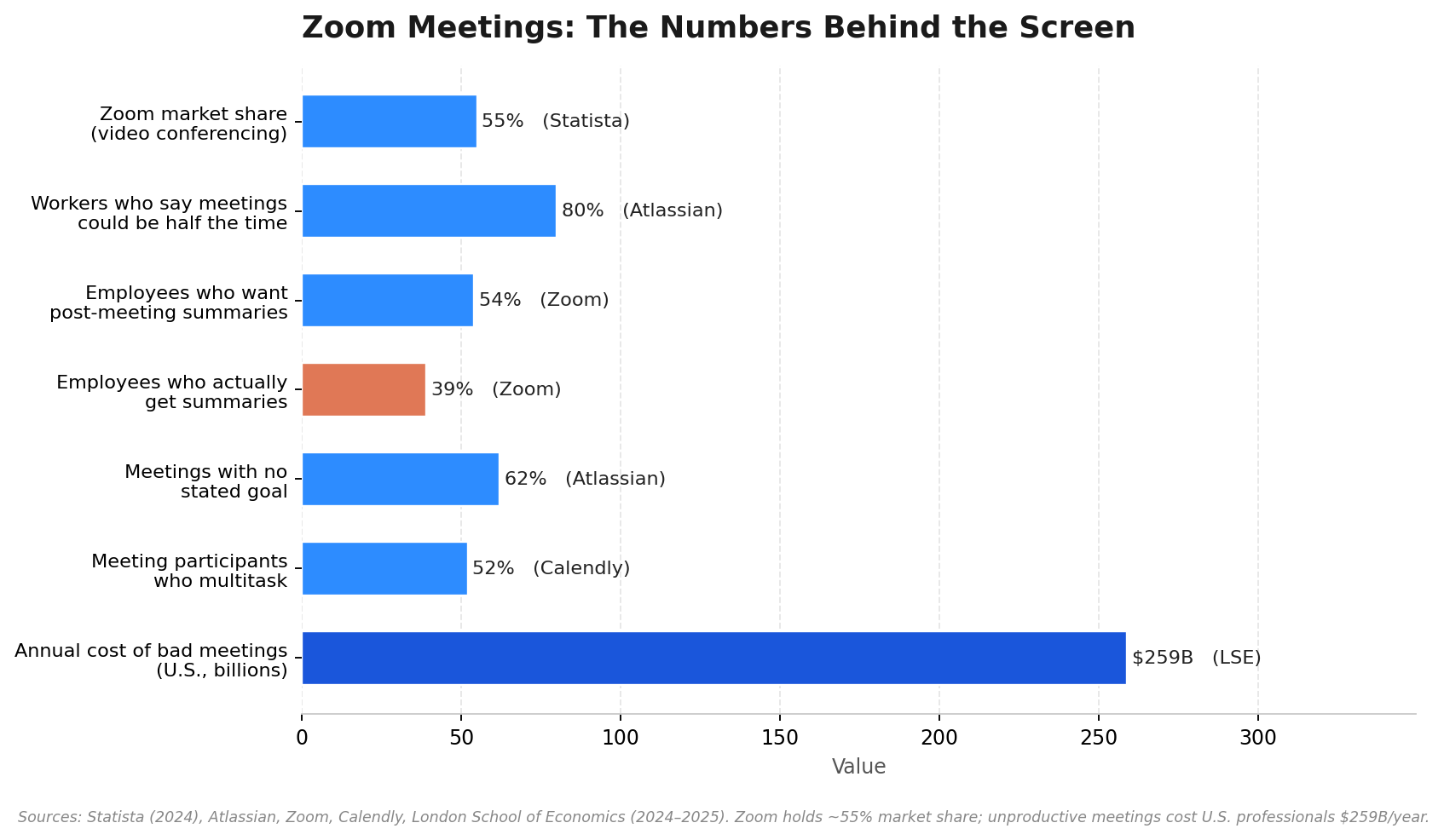
Sources: Statista (2024), Atlassian, Zoom, Calendly, London School of Economics (2024–2025).
Part 1: Getting Started
Setup takes five minutes. The only way to mess it up is downloading from the wrong site.
System requirements
Zoom runs on basically anything made after 2015. The specifics:
Platform | Minimum OS | Notes |
Windows | Windows 10 (64-bit) | Windows 7 still technically works but is unsupported |
Mac | macOS 10.14 (Mojave) or later | Apple Silicon (M1/M2/M3) runs natively |
iOS | iOS 12 or later | iPhone, iPad, and iPod touch |
Android | Android 8.0 or later | Available on Google Play |
Chrome OS | Chrome OS 91+ | Runs as a web app |
Linux | Ubuntu 12.04+, Fedora 21+ | Official client available, features lag behind |
Downloading Zoom safely
Go to zoom.us/download. That's it. That's the whole instruction. Don't Google "download Zoom" and click whatever comes first — there are lookalike sites that bundle adware into the installer. I've cleaned that junk off people's laptops. It's not fun. Bookmark the official URL and use it every time.
The site auto-detects your OS. Windows gets an .exe, Mac gets a .pkg. Run the installer, accept the defaults. On your phone, search "Zoom Workplace" in the App Store or Google Play. Check the publisher says "Zoom Communications, Inc." before installing. Yes, app stores have knockoffs too.
Creating an account
You don't need an account to join meetings. Click the link, type your name, you're in. But to host, sign up at zoom.us/signup — email, or Google/Apple/Facebook if you want one fewer password. Zoom sends a confirmation link to your inbox. Click it, set a password, done. You're on the free Basic plan: unlimited 1-on-1 calls, group meetings capped at 40 minutes, up to 100 people.
Testing your audio and video
Do this once. Open the app, click the Settings gear top-right. Under Video, check you can see yourself. Black screen? The dropdown probably has the wrong camera selected — common if you have a laptop with a built-in camera and an external one plugged in.
Under Audio, click Test Speaker — you should hear a chime. Then Test Mic — talk, and it plays you back. If you sound like you're inside a tin can, that's room echo. Put in earbuds. Any earbuds. A $15 pair from a drugstore beats a $2,000 laptop mic. I'm not exaggerating. The built-in mic picks up the room — the table, walls, keyboard, the fan. Earbuds pick up your voice. It's physics.
Part 2: Scheduling and Joining Meetings
Starting a meeting right now
Open Zoom. Click New Meeting (orange button, camera icon). You're in a meeting by yourself. Click Invite at the bottom. Pick "Copy Invite Link." Paste it wherever. People click it, they show up. Done.
Scheduling a meeting with security on
In 2020, "Zoom-bombing" became a real thing. Strangers guessed meeting IDs, dropped into calls, shared awful stuff. Zoom tightened security after that, but two settings still need to be turned on manually. I'll walk you through them.
Click Schedule (blue calendar icon). Put in the topic, date, time. For duration — and I feel strongly about this — set 25 or 50 minutes instead of the default 30 or 60. Back-to-back meetings with zero buffer between them are soul-crushing. Five minutes of breathing room makes a difference. Try it for a week.
Now the important part. Under Security, check Passcode and Waiting Room. Both. The passcode stops people from guessing your meeting ID. The waiting room puts everyone in a virtual lobby — you see their names and click "Admit" one by one. Don't recognize a name? Don't admit them. It's that simple.
Set video to "Off" for host and participants. Let people choose. Under Calendar, pick Google Calendar or Outlook so the invite lands there automatically. Click Save. Copy the generated invite text — it has the link, meeting ID, and passcode. Send it.
Once everyone's in, you can also lock the meeting (click Security → Lock Meeting). After that, nobody else gets in even with the link. I do this for sensitive meetings. Takes two seconds.
Joining a meeting
Click the link. Zoom opens. That's the whole thing.
No link? Just a Meeting ID and passcode? Open Zoom, click Join, type the ID, type the passcode. Before entering, Zoom lets you test your speaker and mic. Use it. And when you get in? Mute. Immediately. Every time. Like buckling a seatbelt.
Do I need an account to join?
No. Click the link, type your name. You're in. Accounts are for hosting. One exception: some hosts turn on "Require authentication to join" — that means you'd need to log into a Zoom account. Their security choice. Not the default.
Part 3: In-Meeting Features
The bottom of your Zoom window has a toolbar. It hides after a few seconds — move your mouse to bring it back. Everything you need is on that bar.
Screen sharing (don't be that person)
I've seen things shared on Zoom that should never have been shared. Salary spreadsheets. Active Slack DMs. A browser tab with a job application to a competitor — visible to the person's manager and eight colleagues. These are not jokes. They happened. On recorded calls.
Don't be that person. Click Share Screen (green button). A dialog opens with thumbnails of everything you have open. Three options:
· One window — what I use 90% of the time. Only that app is visible. Switch to another app, and participants see "host is paused" instead of your desktop.
· Your whole screen — everything visible. Taskbar, desktop, notifications, every window you tab to. Use this only if you need to demo across multiple apps. Think twice.
· One Chrome tab — just a single browser tab. Great for slide decks.
Before you click Share: close what you don't want seen. Turn on Do Not Disturb. Close email. Then pick your window and click Share.
Stopping matters as much as starting. Done presenting? Click Stop Share at the top of the screen. Leaving screen share running while you check your inbox is how accidents happen.
Virtual backgrounds
Click the arrow next to the video button → Choose Virtual Background. Zoom includes a few stock images. You can add your own with the +. Works best with a plain wall and decent lighting. Without a green screen, the edges around your hair can look ragged — like a local weatherman circa 2008. For client calls, a real tidy background usually looks more professional than a fake one.
Same menu has Touch Up My Appearance. Soft-focus filter. Not dramatic. Takes the edge off bad lighting. I leave it on. Nobody's noticed.
Whiteboard
Zoom's whiteboard used to be bad. It's decent now. Share Screen → Whiteboard tab → Share. Full canvas, drawing tools, text, shapes, sticky notes. Others can annotate too — More on the share toolbar → "Allow Participants to Annotate." Works for quick brainstorming or sketching a process flow.
Reactions, raise hand, polls
Reactions on the toolbar has two things. A Raise Hand button — puts a hand emoji next to your name in the participant list so the host calls on you. Way less disruptive than unmuting to say "I have a question." And emoji reactions — thumbs up, clap, heart — that float over your video tile for a few seconds. They seem silly. They're not. In a 20-person call, a burst of thumbs-up tells the speaker "we're following" without breaking the flow. Without that, a big call turns into a monologue.
Polls: host feature. Set up beforehand in the Zoom web portal (Meetings → your meeting → Edit → scroll to Poll), or create live by clicking Polling during the call. Results show in real time. Share with the group or keep private.
Breakout rooms
I didn't used to like breakout rooms. Then I ran a 35-person workshop and realized you can't have a real conversation with that many people on one call. Breakout rooms fixed it. The host splits everyone into small groups, each in its own sub-meeting with separate audio and video. Good for workshops, retros, training.
Click Breakout Rooms at the bottom. Pick how many rooms (up to 50). Automatically means Zoom divides people randomly. Manually means you drag names yourself. Click Open All Rooms. People get a prompt to join their room.
As host you can hop between rooms (click Join next to any room). There's a Broadcast button that sends a text to all rooms at once. Use it for time warnings. And here's the thing I learned the hard way: always set a time limit before opening rooms. Say "eight minutes, then come back." Broadcast a two-minute warning. Without a stated limit, breakout rooms drift into social hour. People check phones. Energy dies. I've watched it happen. Set the clock.
Time's up? Close All Rooms. Everyone gets a 60-second countdown and comes back to the main session.
Part 4: Recording and Transcription
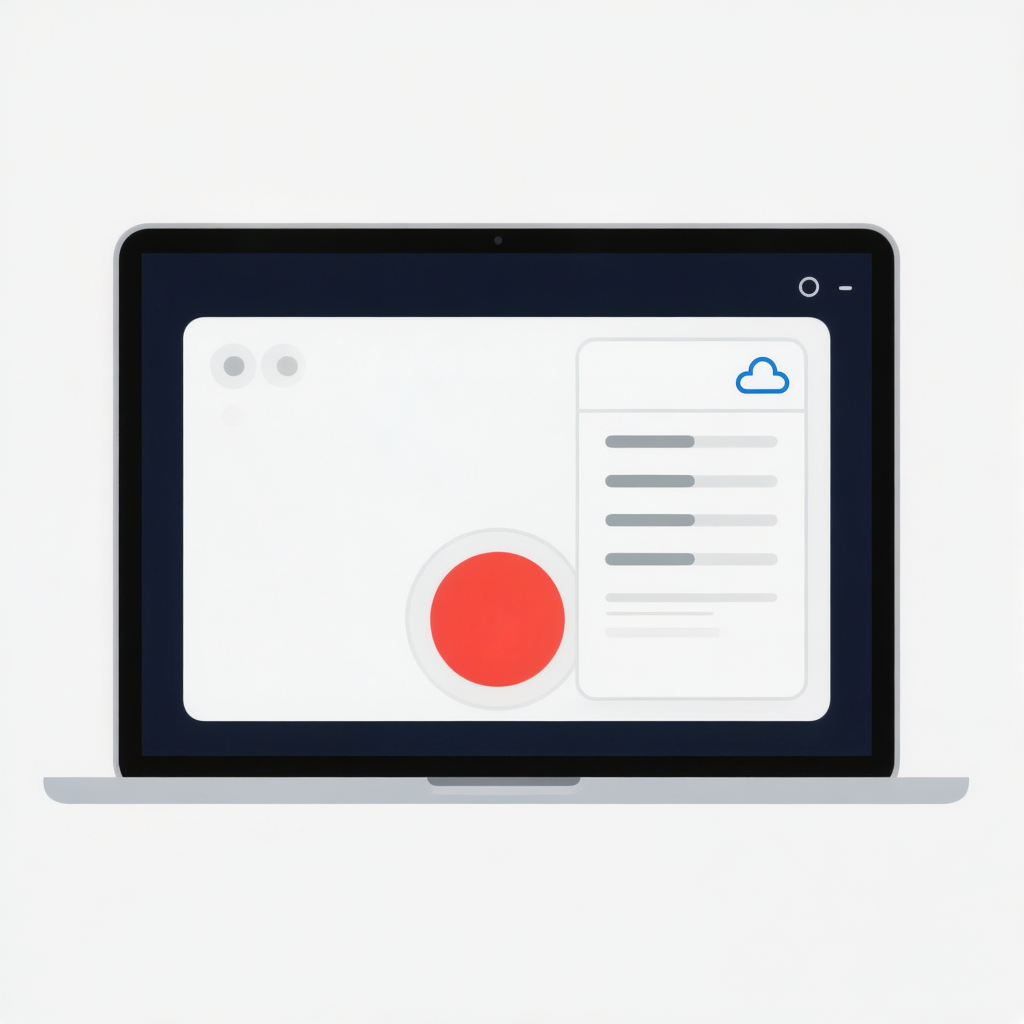
Recording is where free and paid plans split. The differences:
Feature | Local Recording | Cloud Recording |
Available on | All plans (including Free) | Pro and above only |
Where it saves | Your computer (Documents → Zoom) | Zoom's servers; accessed via web portal |
Auto-transcription | No (need third-party) | Yes (Zoom generates a transcript) |
File sharing | Manual (send the file) | Easy (send a link) |
Storage limit | Your hard drive | 5 GB (Pro), unlimited (Enterprise) |
Audio-only option | Yes | Yes |
Recording a meeting
Click Record on the toolbar. Pick Record on this Computer (local, any plan) or Record to the Cloud (Pro+). Red dot appears top-left. Participants see a "recording" notification.
Done? Stop Recording. Or Pause to resume later. Local recordings need a minute or two to process after the meeting ends. Files land in Documents → Zoom → [meeting date and topic]. You get an MP4 (video), M4A (audio), and a chat log text file.
Cloud recordings show up at zoom.us/recording within a few minutes. Share a link, download, or trim.
Built-in transcription — and where it falls apart
Cloud recordings get automatic transcription. Zoom generates a text transcript and can show live captions. Quality? For clear English, measured pace, neutral accent: maybe 85-90%. That sounds decent until the missing 10% includes someone saying "don't" and the transcript reads "do." In a decision meeting, that's the whole ballgame.
Accents, fast talkers, jargon, people overlapping — accuracy drops. Non-English, or calls where people switch languages mid-sentence? The transcript stops being reliable enough to use for anything that matters.
Zoom's AI Companion (next section) can summarize meetings and pull action items from cloud recordings. Better than raw transcripts. Same language limits though. This is why teams working across languages — say, a company with people in the US, Brazil, and Portugal — usually plug in a dedicated AI note taker that handles 50+ languages with auto-detection. You get clean, structured notes whether the call was in English, Portuguese, or both. Some of these tools also transcribe YouTube videos, audio files, and PDFs — so your notes workflow isn't limited to what Zoom's built-in engine handles.
Live captions
Show Captions on the toolbar — it looks like a speech bubble with text lines. Captions appear at the bottom in real time. Click the arrow next to it to change the speaking language or caption size. Hide Captions to turn them off. Same accuracy as transcription — fine for following along, not fine for the official record.
Part 5: Advanced Features
Most people skip these. If you're running webinars, managing phones, or trying to get AI into your meetings, read on.
Zoom Webinars
A webinar is not a meeting. In a meeting, everyone can talk. In a webinar, most people are "attendees" — they watch and listen but can't turn on their camera or unmute unless promoted to "panelist." Broadcast format. Town halls, product launches, training with 100+ viewers.
Paid add-on. $79/month for 500 attendees up to $2,490/month for 5,000. You get registration management, email reminders, attendee reporting, practice mode. Setup: web portal → Schedule a Webinar → configure registration and panelists → send the join link.
Zoom Phone
Cloud phone system in the same app as Zoom Meetings. Dedicated number, call routing, voicemail transcription, make/receive calls from laptop or phone. $10/user/month for US/Canada. If your company already pays for Zoom, replacing a separate phone system with this is one less vendor.
Zoom AI Companion
Zoom's AI assistant. Most-changed feature in the last year. What it does:
· Meeting summaries — after the call, AI writes up key points and action items. Free plan gets a basic version. Paid plans get full summaries with smart chapters.
· Catch-up — joined late? Ask "what did I miss?" and it recaps from the live transcript.
· Whiteboard generation — type a prompt, AI fills the whiteboard with ideas or tables.
· Chat drafting — composes messages in Zoom Team Chat.
· Smart recordings — finds highlight moments and makes short clips.
Basic features on every plan including Free. Advanced stuff needs a paid plan or the AI Companion add-on.
Zoom's AI is English-first. Portuguese, German, Japanese, anything where Zoom's coverage is thinner — accuracy drops, and so does your confidence in the output. Teams needing reliable multilingual notes usually connect Zoom to a dedicated tool — something like an AI meeting assistant that joins automatically, detects the language, and produces structured notes you can hand to your boss without apologizing.
Free vs. Paid Plans
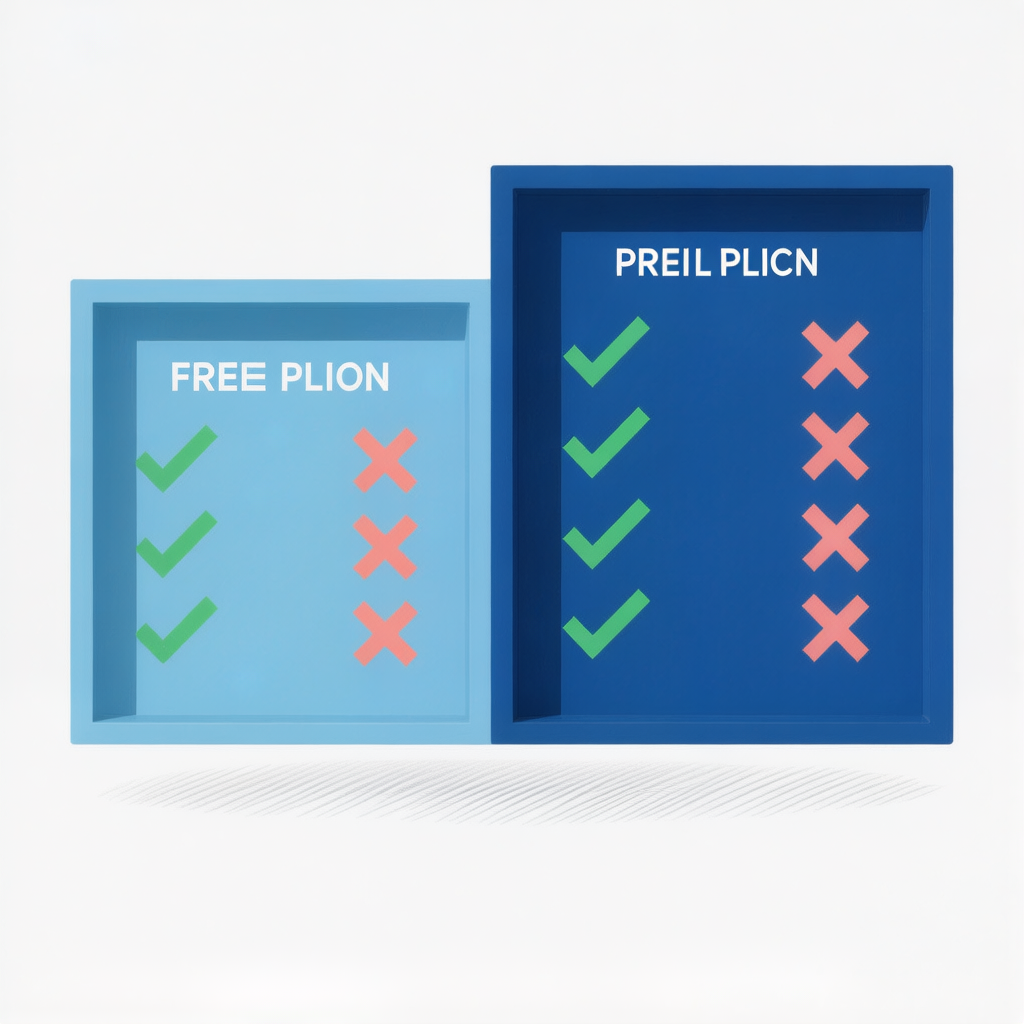
The 40-minute cap is the main reason people upgrade. What each plan includes:
Feature | Basic (Free) | Pro ($14.99/mo) | Business ($19.99/mo) | Enterprise (Custom) |
Group meeting duration | 40 minutes | 30 hours | 30 hours | 30 hours |
1-on-1 meeting duration | Unlimited | 30 hours | 30 hours | 30 hours |
Max participants | 100 | 100 | 300 | 500+ |
Cloud recording storage | ❌ (local only) | 5 GB | 5 GB | Unlimited |
AI Companion (basic) | ✅ Limited | ✅ | ✅ Enhanced | ✅ Full |
Meeting summaries & action items | ❌ | ✅ | ✅ | ✅ |
Custom personal meeting ID | ❌ | ✅ | ✅ | ✅ |
Company branding | ❌ | ❌ | ✅ | ✅ |
SSO (single sign-on) | ❌ | ❌ | ✅ | ✅ |
Managed domains | ❌ | ❌ | ✅ | ✅ |
Cloud recording transcripts | ❌ | ✅ | ✅ | ✅ |
Annual price (per user) | $0 | $149.90/yr | $199.90/yr | Contact sales |
Pricing as of mid-2025. Annual billing saves ~17% vs. monthly. Source: Zoom official pricing.
When to upgrade
Free is fine for casual 1-on-1s and short standups. I know freelancers who've used it for years. You want Pro if: your team meetings regularly hit the 40-minute wall, you need cloud recording with transcription, you want AI summaries, or you're presenting to clients and want a custom meeting ID instead of a random number string.
$149.90/year for Pro. Reasonable for anyone who earns money using Zoom. Business ($199.90/year) is the jump you make when IT gets involved — 300+ participants, SSO, managed domains, branding.
Common Zoom Problems
Ordered by how often I've actually seen them.
Camera not working
Check the physical stuff first. Lots of laptops have a camera shutter — a tiny slider above the lens that's easy to close by accident. If another app is using the camera (FaceTime, Teams, Photo Booth), Zoom can't access it. Close those, restart Zoom.
In Zoom: Settings → Video → check the camera dropdown. "No camera detected" with an external webcam? Unplug it, plug it back in. Windows: Settings → Privacy → Camera → "Allow apps to access your camera" needs to be on. Mac: System Settings → Privacy & Security → Camera → Zoom needs a checkmark.
Nobody can hear me
Nine times out of ten? You're muted. Look at the mic icon bottom-left. Red line through it? Click it. That's the fix.
Definitely unmuted and still silent? Settings → Audio → check the mic dropdown. Click "Test Mic." Input level bar not moving? Wrong device. Switch it. Windows: right-click the speaker icon → Sound Settings → set the right input as default. Mac: System Settings → Sound → Input → pick your mic.
"Your connection is unstable"
Bandwidth can't keep up. Move closer to the router. Plug in Ethernet if you can — wired kills most Wi-Fi issues. Turn off your video (biggest bandwidth hog) and go audio-only. Close streaming, downloads, other calls. If it keeps happening, check your upload speed at fast.com. Zoom needs 1.5 Mbps upload minimum for group video.
Echo or feedback
Someone's on speakers instead of headphones, and their mic is picking up the speaker output. Tell everyone to use headphones or mute when not talking. Other cause: two devices in the same room both joined to the meeting — a laptop and a phone. One needs to leave.
Where's my recording?
Local: Documents → Zoom, in a folder named with the date and topic. Not there? Might still be processing — give it a few minutes after the meeting ends. Cloud: log in at zoom.us/recording. If Zoom crashed during conversion, look for a .zoom file in the Zoom folder. Double-click it — sometimes that restarts conversion.
"Host has another meeting in progress"
One account, one meeting at a time. Need two at once? Get a second license. Or assign an "alternative host" — that person can start and run the other meeting without your login.
Frequently Asked Questions
Is Zoom free?
Yes, with limits. Basic plan is free. Unlimited 1-on-1 calls. Group meetings (3+ people) capped at 40 minutes, 100 participants. Local recording but no cloud recording or AI summaries. Fine for casual use. Work meetings that run long? You'll hit the wall.
Do I need an account to join?
No. Click the link, type your name, you're in. Accounts are for hosting. Some hosts enable "Require authentication" — that means you need to log into a Zoom account. Their choice, not the default.
Why does my meeting end at 40 minutes?
Free plan cap. Three or more people in a meeting, a 40-minute timer starts. Hits zero, meeting ends. 1-on-1 calls are unlimited. To remove it: Pro at $14.99/month or $149.90/year. Pro extends meetings to 30 hours.
Can I use Zoom without the app?
Sort of. Click a meeting link in a browser, Zoom tries to open the desktop app. If it's not installed, you'll see a download prompt — and below it, in smaller text, "Join from your browser." Click that. Web version works but is limited. No virtual backgrounds. Reduced screen sharing. Fine as a fallback, not for daily use.
Where are recordings saved?
Local: Documents → Zoom on your computer. Cloud (Pro+): zoom.us/recording. Share via link or download.
Is Zoom safe?
With the right settings, yes. Turn on passcodes and waiting rooms. Lock the meeting once everyone's in. Restrict screen sharing to host. Do those four things and the risk of unwanted guests is very low. Zoom supports end-to-end encryption for 1-on-1 calls. Group meetings use a different standard that Zoom can technically access — worth knowing for sensitive discussions.
How many people can join?
Basic and Pro: 100. Business: 300. Enterprise: 500+. Large Meeting add-ons push it to 1,000 or 3,000. Webinars go up to 5,000 attendees.
Can I transcribe in other languages?
Zoom's transcription is English-first. Portuguese, Spanish, German, Japanese, mixed-language calls — accuracy drops enough that the transcript isn't reliable for decisions. Teams that need multilingual notes usually use a dedicated transcription tool with auto-detection across 50+ languages. Structured notes you can actually use, not a rough draft you have to fix by hand.
Stop Taking Manual Meeting Notes
HiNoter joins your Zoom meetings automatically, transcribes in 50+ languages, and delivers structured summaries, action items, and mind maps the moment your call ends. No more replaying recordings or scribbling notes.
Wrapping Up
Zoom isn't hard. The curve is an afternoon. Most mistakes — not muting, sharing the wrong screen, forgetting security settings, losing recordings — come from not knowing where the buttons are. Not from the software being complicated. Now you know.
You're going to spend hours in Zoom every week. The numbers say so: 55% market share (Statista), 80% of workers think meetings could be shorter (Atlassian), 54% want post-meeting summaries but only 39% get them (Zoom). Ten minutes learning the tool properly is the most productive thing you'll do all week. Start with muting. Then scheduling with security on. Then single-window screen sharing. The rest is bonus.
About the author: This guide was written by the HiNoter editorial team, which has spent years documenting how distributed teams communicate across continents. We build tools that help teams capture, structure, and act on what gets said in every meeting — automatically joining calls, transcribing across 50+ languages, and delivering structured meeting notes the moment a call ends. Our reporting draws on data from Zoom, Statista, Atlassian, and the London School of Economics.