A Google Meet AI note taker helps eligible teams capture meeting notes, transcripts, summaries, and follow-up without turning every call into a manual admin task. Start with Google's built-in Meet features when your Workspace or Google AI plan, admin settings, host controls, meeting language, and meeting conditions allow them. If notes are blocked, recording was forgotten, or the transcript is too long to review, use permitted source material in HiNoter. HiNoter can turn Google Meet, Zoom, Microsoft Teams, videos, audio, and PDFs into structured notes, action items, mind maps, source-linked AI Chat answers, and synced recaps.
Updated: July 21, 2026. Test context: official Google Meet documentation review, cross-platform documentation review, SERP format sampling, and automated HTML/link QA. Editorial note: confirm current Google Workspace, Gemini, and HiNoter feature limits before publishing plan-specific claims.
Try HiNoter after checking your meeting permissions.
Direct Answer: Google Meet AI Note Taker
A Google Meet AI note taker captures notes or meeting records when your Workspace or Google AI plan, admin settings, host controls, language, and meeting conditions allow it. Use Google Meet's built-in notes, transcripts, or recording first. Use HiNoter when you need structured action items, source-linked answers, and workflow sync.
Google Meet AI Note Taker Prerequisites and Permissions
Google Meet note-taking is not only a button in the meeting window. It depends on product eligibility, admin settings, meeting role, Host Management, meeting language, and whether a feature is available in that meeting. Google documents Gemini-powered note-taking in Take notes for me, transcript behavior in Use transcripts with Google Meet, and recording behavior in record a video meeting.
Google states that "Take notes for me" is available to users with specific Google Workspace or Google AI plans, and that the feature currently works when spoken language is English. Google also says that when Host Management is on, only the host and co-hosts can start and stop note-taking; when Host Management is off, eligible meeting participants can start and stop it. Check the current Google Help page before publishing screenshots or support instructions.
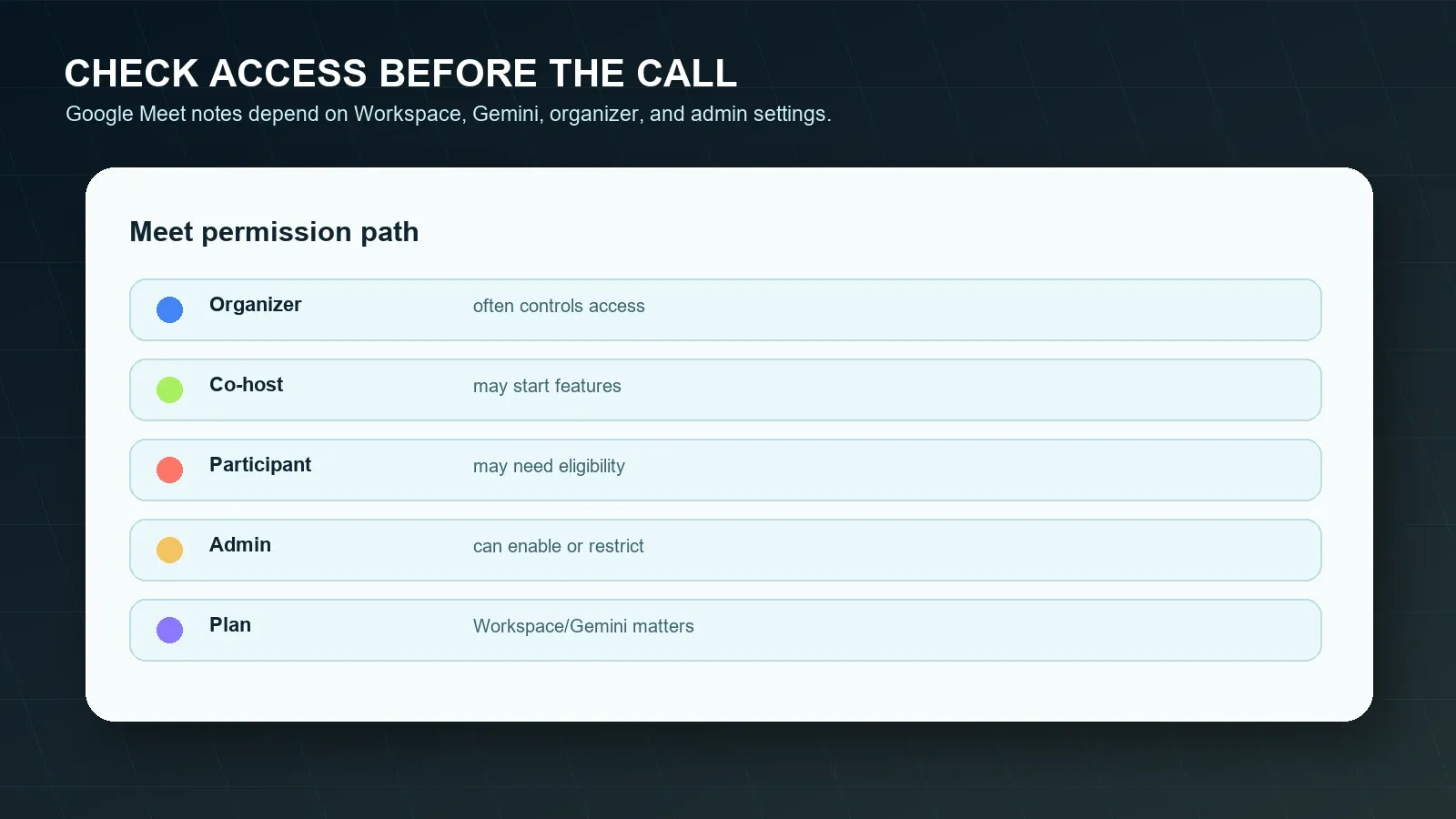
| Need | Typical control point | What to check | Official source |
|---|---|---|---|
| Take notes for me | Workspace or Google AI plan, admin setting, host/co-host, eligible participant. | Plan eligibility, Gemini access, meeting language, Host Management, and whether the notes button appears. | Google Meet notes |
| Meeting transcript | Workspace eligibility and admin/user settings. | Transcript availability, participant notification, storage destination, and organization policy. | Google Meet transcripts |
| Meeting recording | Workspace edition, admin setting, meeting organizer, and co-host controls. | Whether recording is available, who can start it, where it is saved, and who can access it. | Google Meet recording |
| Live captions | User and meeting settings. | Captions can help participants follow the meeting, but captions are not the same as a saved transcript or action-item workflow. | Google Meet transcripts |
| Post-meeting sharing | Organizer, Drive permissions, Calendar attachments, and admin policy. | Who receives the notes, transcript, recording, or recap, and whether external participants can access it. | Google Meet recording |
Official Google Meet Steps for Notes, Transcripts, and Recording
Use Google's official workflow first when the meeting and account allow it. The exact interface can change, so verify current labels inside Google Meet and Google Help before creating product screenshots.
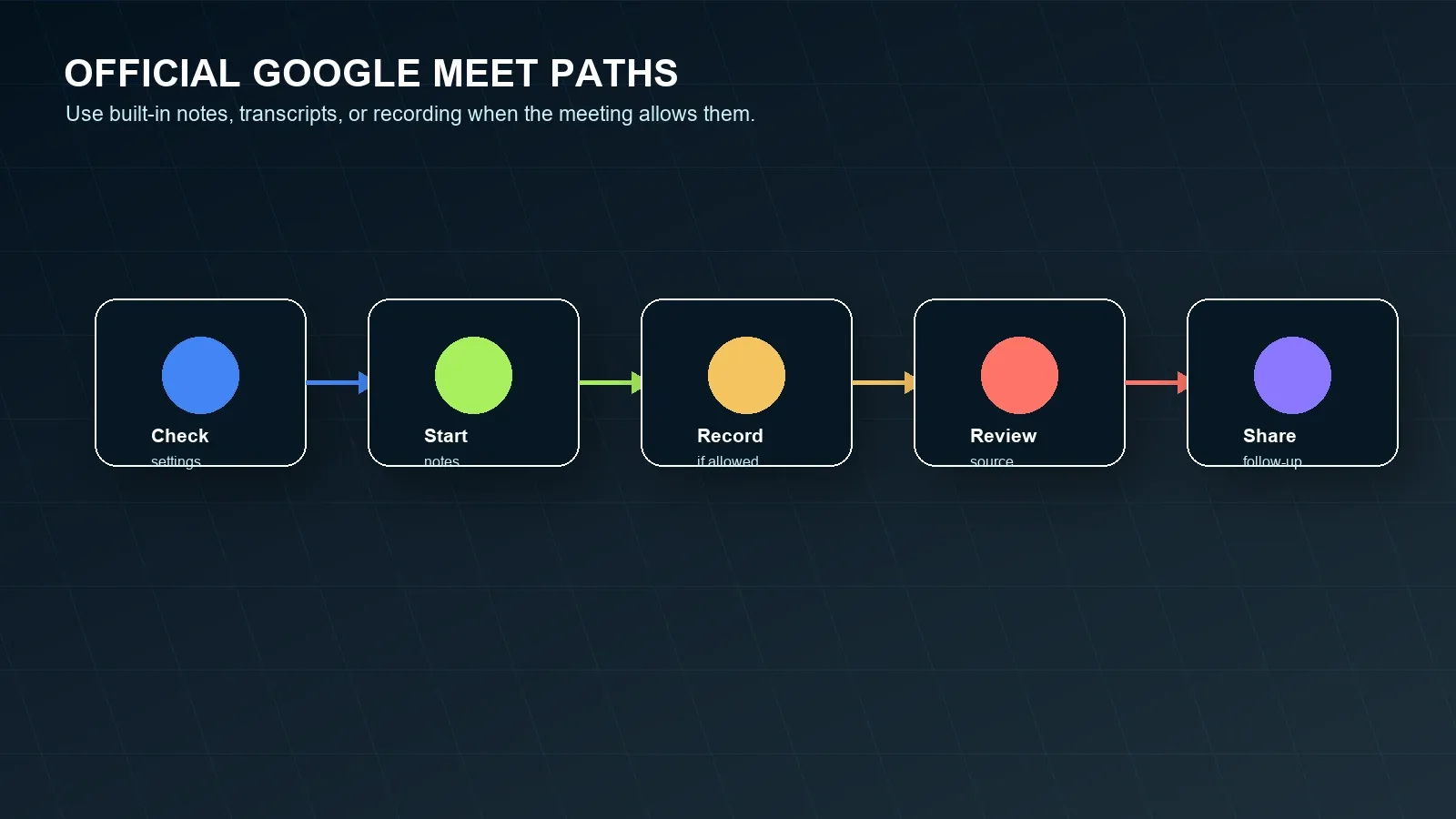
Option 1: Use Take notes for me
- Confirm your organization and account have an eligible Workspace or Google AI plan and that the admin has not disabled the feature.
- Join the meeting in Google Meet and confirm the meeting language and feature availability.
- If Host Management is on, the host or co-host starts Take notes for me. If it is off, an eligible participant may be able to start it.
- After the meeting, review the generated notes and confirm decisions, names, dates, and customer commitments before sharing.
- Move accepted action items into the team's system of record instead of leaving them only in a Google Doc.
Option 2: Use Google Meet transcripts
- Confirm transcripts are available for your Google Workspace edition and enabled for the meeting.
- Start transcription only after any required notice, consent, and policy checks are handled.
- After the meeting, find the transcript in the location Google provides for that meeting workflow.
- Use the transcript for quotes and source evidence, then summarize and extract tasks separately when needed.
Option 3: Record the Google Meet meeting
- Confirm recording is available for your Workspace edition and enabled by your administrator.
- Confirm whether you are the organizer, co-host, or another participant with permission to start recording.
- Start recording only after participant notice and consent requirements are handled.
- Use the recording as source material, but do not assume a video automatically creates accurate tasks, owners, deadlines, and decisions.
Organizer vs Participant: What Changes?
The organizer or co-host usually has the cleanest route to official notes, transcript, and recording. Participants may need eligibility, host permission, or access to the post-meeting document. That distinction matters before the meeting starts, because many teams discover the limitation only after the discussion is over.
| Scenario | If you are the organizer or co-host | If you are a participant |
|---|---|---|
| You want AI notes | Check Take notes for me eligibility and Host Management before the meeting. | Ask whether the organizer will start notes, or confirm whether you are eligible to start them. |
| You want a transcript | Confirm transcript availability and policy before starting. | Ask the organizer for transcript access after the meeting. |
| You want a recording | Confirm recording availability and participant notice before starting. | Ask for organizer permission or a post-meeting recording link. |
| You need source evidence | Store transcript links, timestamps, or meeting notes with the recap. | Request the official notes or transcript before relying on memory. |
| You need action items | Review AI output and assign owners before sharing. | Ask the organizer to confirm owners and deadlines in the recap. |
Conditional Answers for Common Google Meet Note Situations
Use these short answers when the team needs the right next step quickly.
If you are the organizer
Check Workspace or Google AI eligibility, admin settings, Host Management, meeting language, transcript settings, and recording availability before the call. Start the official Meet feature when allowed and review generated notes before sharing.
If you do not have recording permission
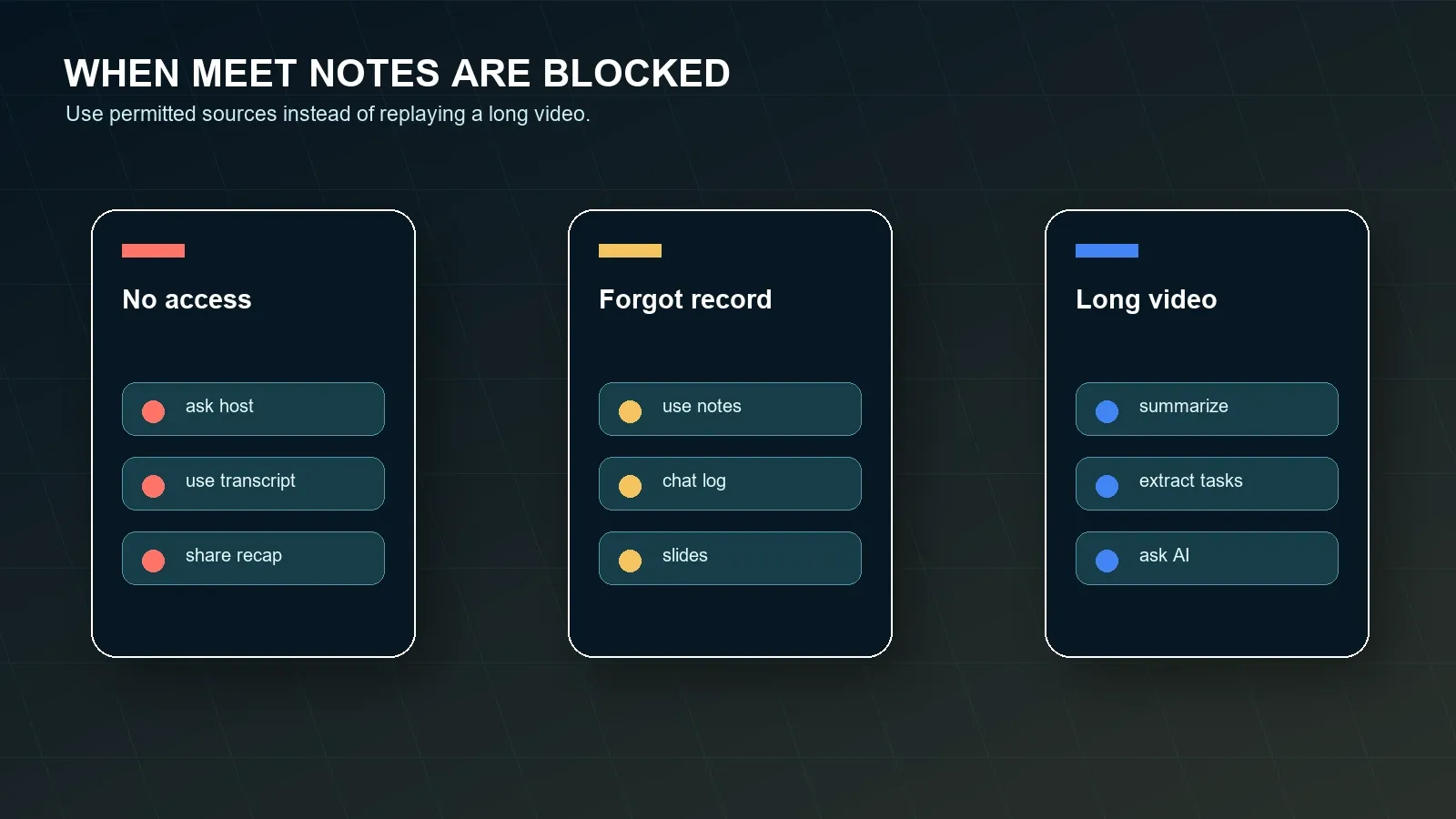
Ask the organizer for recording, transcript, or notes access. Do not bypass access controls. Use permitted chat, slides, Docs, or participant notes only when they are allowed by policy and participant expectations.
If you need notes instead of video
Use notes, transcript, and action-item extraction instead of storing another long recording. HiNoter is useful when the goal is decisions, owners, deadlines, mind map, and searchable source-linked answers.
If the meeting already ended
Look for an approved transcript, notes document, recording, chat history, shared slides, calendar context, or recap email. If the content is permitted, upload it to HiNoter to create structured notes and source-linked Q&A.
Common Google Meet AI Note Taker Problems and Fixes
Most note failures are practical: the account is not eligible, admin policy blocks the feature, Host Management changes who can start notes, the meeting language is not supported, or the team expected action items from a raw transcript. Troubleshoot based on role first.
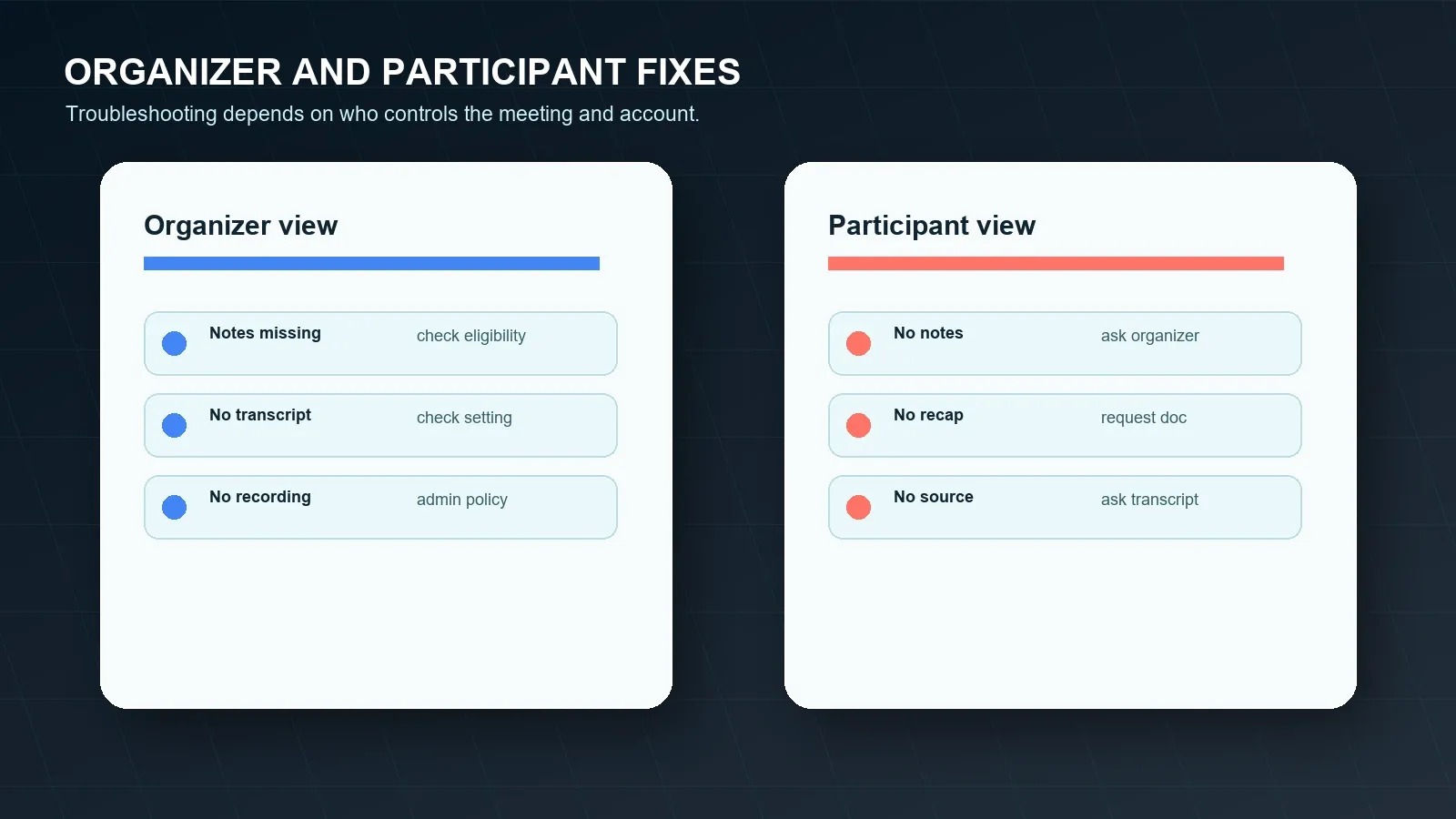
| Problem | Likely cause | Fix |
|---|---|---|
| Take notes for me is missing | Plan, admin setting, language, account eligibility, or meeting condition may block it. | Check Google Help, Workspace admin settings, and whether the meeting language is supported. |
| Participant cannot start notes | Host Management may be on or the participant may not be eligible. | Start notes as host/co-host or adjust meeting settings where policy allows. |
| Transcript is missing | Transcript may not have been started, available, or enabled. | Confirm transcript settings before the next meeting and share the official document after review. |
| Recording is unavailable | Workspace edition, admin setting, organizer role, or policy may block recording. | Use transcript, notes, or permitted files; avoid relying on video when recording is not approved. |
| Summary lacks action items | Meet notes may not produce the team's full task workflow. | Use HiNoter to extract decisions, owners, deadlines, risks, and recap emails from permitted sources. |
| Problem | Likely cause | Fix |
|---|---|---|
| No note-taking button | You may not be eligible or Host Management may reserve control for host/co-hosts. | Ask the organizer to start notes or share the official notes after the meeting. |
| No recording option | You may not have organizer/co-host permission or the edition may not support recording. | Ask for recording access, transcript access, or an approved written recap. |
| No post-meeting document | The feature may not have been started or you may not have access. | Ask the organizer for the notes, transcript, or Drive link. |
| Notes lack source references | The transcript or source material may not be attached to the recap. | Ask for the official transcript before making commitments from memory. |
| External meeting is restricted | Customer or vendor policy may limit recording and AI processing. | Use a written recap and obtain approval before processing external content. |
Alternatives When Google Meet Recording Fails or Is Not Enough
If you cannot record, forgot to start recording, or do not want to watch a long video, use the allowed source that best preserves the meeting outcome. That may be a Meet transcript, notes document, chat history, shared slides, Google Docs notes, calendar context, Zoom transcript, Teams recap, or customer email. HiNoter can organize permitted content into one reviewable workflow.
| Situation | Use this source | HiNoter output |
|---|---|---|
| Google notes exist | Meet notes document. | Action items, owners, risks, recap email, and source-linked questions. |
| Transcript exists | Approved transcript. | Summary, decisions, task extraction, quotes, and searchable AI Chat. |
| Only recording exists | Approved recording or audio/video file. | Transcript, structured notes, mind map, and exports. |
| No recording or transcript | Chat log, slides, Docs, calendar notes, or participant notes. | Meeting notes draft, open questions, risks, and follow-up checklist. |
| Cross-platform meetings | Google Meet, Zoom, Teams, video, audio, or PDFs where permitted. | One searchable meeting knowledge layer. |
How HiNoter Automates Google Meet Meeting Notes
HiNoter is not just a recorder. It is an AI meeting notes and transcription platform that turns meeting and content sources into structured, searchable, source-linked knowledge. For Google Meet-heavy teams, the useful outcome is not another recording. The useful outcome is a reviewed summary, action items, owners, due dates, a mind map, and synced follow-up.
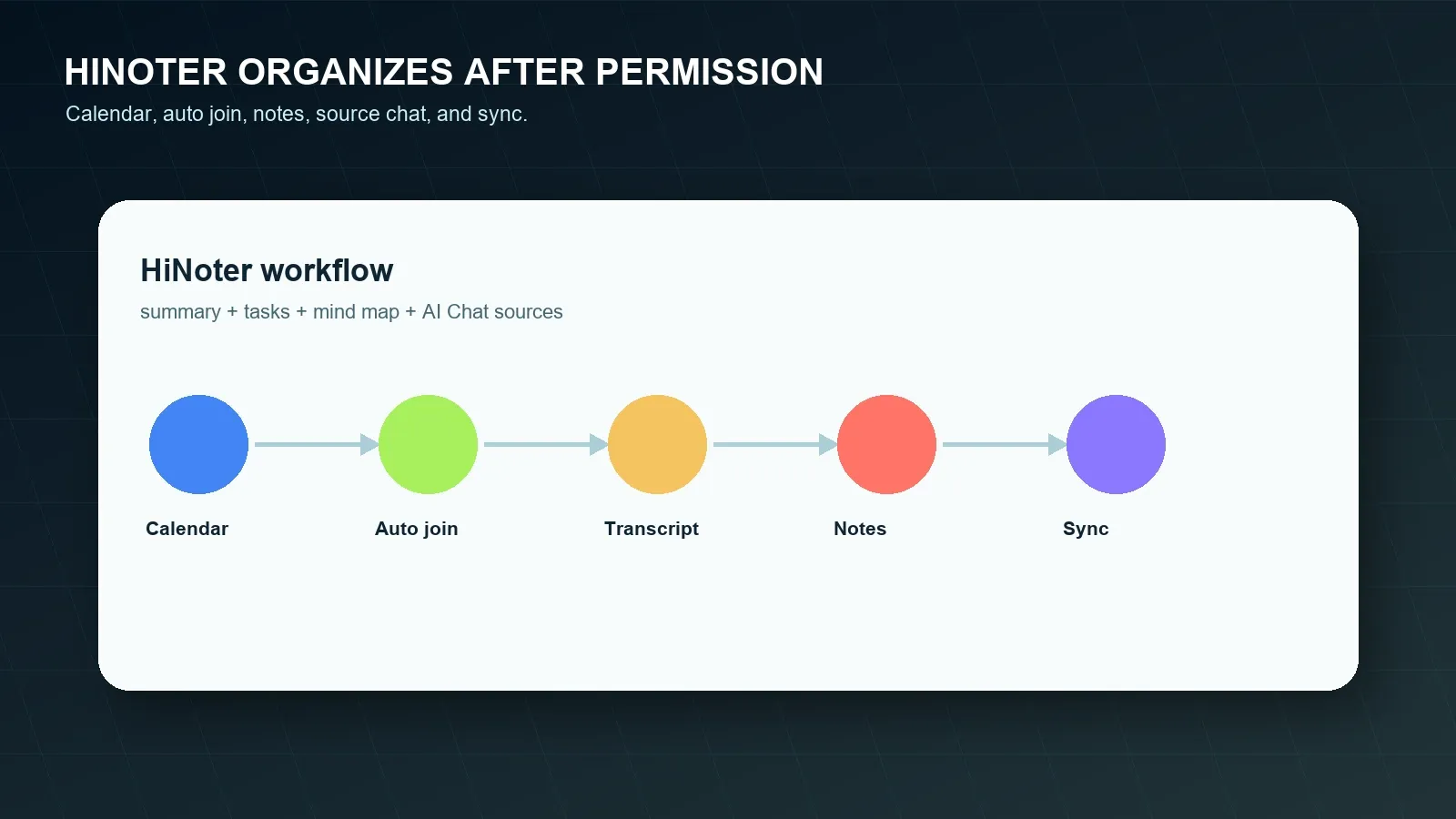
- Connect your calendar. Use HiNoter to prepare for scheduled meetings and reduce the chance that someone forgets the note workflow.
- Capture permitted meetings. Use approved Google Meet, Zoom, Microsoft Teams, audio, video, or transcript sources. See HiNoter pages for Google Meet and Microsoft Teams workflows where relevant.
- Generate structured notes. HiNoter can create a transcript, summary, topic sections, decisions, action items, owners, deadlines, and risks.
- Ask source-linked AI Chat questions. Use AI Chat to ask what was decided, which tasks lack owners, or where a customer requested follow-up, then review source references.
- Sync approved outputs. Send reviewed notes to Notion, Slack, Google Docs, calendar reminders, or email when supported by the workflow.
Sample Outputs: Summary, Action Items, and Recap Email
AI notes are useful only when they create work-ready output. Below are sample outputs a reviewer could expect after processing a permitted Google Meet transcript. They are examples, not claims about any specific live meeting.
SAMPLE ACTION ITEMS
1. Send the customer recap after the Google Meet demo
Owner: Mina
Due: 2026-07-23
Source: Transcript 16:18
Sync: Slack customer channel
2. Confirm whether external Meet recording is allowed
Owner: Priya
Due: 2026-07-24
Source: Transcript 21:42
Sync: Notion policy page
3. Prepare the onboarding FAQ update
Owner: Omar
Due: 2026-07-26
Source: Transcript 27:05
Sync: Google Docs recap
SAMPLE RECAP EMAIL
Subject: Recap: Google Meet onboarding discussion
Thanks everyone. The team agreed to keep the onboarding review date and add one support-risk note before the customer email goes out.
Decisions:
- Keep the July 29 onboarding review date.
- Add a short support expectation note to the customer recap.
Action items:
- Mina sends the customer recap by July 23.
- Priya confirms the external recording policy by July 24.
- Omar updates the onboarding FAQ by July 26.
Sources checked: transcript timestamps 16:18, 21:42, and 27:05.
Google Meet, Zoom, and Microsoft Teams Compared
Teams often use more than one meeting platform, which creates inconsistent notes. Google Meet, Zoom, and Microsoft Teams each have separate permissions, recording rules, transcript behavior, and AI output formats. Use the official docs when writing platform-specific help content: Google Meet notes, Zoom Meeting Summary, Teams live transcription, and Teams meeting recap.
| Platform path | What it can produce | Common limitation | When HiNoter helps |
|---|---|---|---|
| Google Meet Take notes for me | AI-generated meeting notes when eligible and enabled. | Plan, admin, host, language, or meeting conditions can block access. | When you need structured tasks, source-linked Q&A, and sync. |
| Google Meet transcripts or recording | Transcript or video source when available. | Transcript or video is not the same as a reviewed action plan. | When long content needs summary, action items, mind map, and recap. |
| Zoom AI Companion / recording | Meeting summaries, notes, transcripts, or recordings depending on account settings. | Host, participant, admin, and plan conditions vary. | When the team wants the same output format across Zoom and Meet. |
| Microsoft Teams transcription/recap | Transcript, recap, and AI-supported meeting outputs depending on license and settings. | Output can stay inside Teams if no workflow sync exists. | When cross-platform meeting knowledge should be searchable together. |
Compliance, Consent, and Trust
Recording, transcribing, and summarizing meetings can involve personal data, confidential business plans, customer commitments, HR issues, legal terms, or regulated information. Always follow applicable law, Google Meet notices, customer contracts, employer policies, and privacy/security rules. Requirements vary by jurisdiction, industry, meeting type, and participant location.
Use source-backed notes to reduce hallucination risk. A source reference lets reviewers compare an AI answer with the original transcript, recording, document, or timestamp. It does not remove the need for human review. Check names, dates, money, obligations, legal terms, and customer commitments before sharing or syncing. The U.S. Federal Trade Commission and NIST Privacy Framework are useful starting points for privacy and security program design.
When to Choose HiNoter
Choose Google Meet's built-in features when your only need is an official Meet notes document, transcript, or recording and the meeting settings allow it. Choose HiNoter when the team's real need is broader: no manual note-taking, structured summaries, action items, owners, deadlines, mind maps, searchable AI Chat with citations, and sync into the tools where follow-up happens. Start with the Google Meet AI note taker workflow, then confirm current plan and feature details on the HiNoter pricing page and multilingual support page.
Try HiNoter for Google Meet notes and turn your next permitted meeting into reviewed notes, action items, and synced follow-up.
Frequently Asked Questions
Does Google Meet have an AI note taker?
Yes. Google Meet offers Gemini-powered note-taking features such as Take notes for me for eligible Google Workspace or Google AI plans when admin settings, meeting conditions, and language requirements allow it. Availability changes by plan and region, so check current Google documentation before relying on it.
Can a Google Meet participant start AI notes?
Sometimes. If Host Management is off, eligible meeting participants may be able to start note taking. If Host Management is on, Google says only the host and co-hosts can start and stop notes. Always check the meeting role and account eligibility first.
Can Google Meet transcripts replace meeting notes?
A transcript helps with search and quotes, but it is not the same as structured notes. Teams still need summaries, decisions, action items, owners, deadlines, risks, and follow-up destinations. HiNoter can turn permitted transcripts into that workflow.
What should I do if I forgot to record a Google Meet meeting?
Use permitted sources that still exist: transcript, meeting notes, chat history, shared documents, slides, calendar context, or participant notes. Do not bypass access controls. If the content is allowed, HiNoter can organize it after the meeting.
Can HiNoter create action items from Google Meet meetings?
Yes. HiNoter can process permitted meeting content and generate structured notes, summaries, action items, owners, deadlines, mind maps, exports, and source-linked AI Chat answers. Review sensitive details before sharing or syncing the output.
How should teams handle consent for Google Meet AI notes?
Teams should follow applicable law, Google Meet notices, company policy, customer agreements, privacy requirements, and security rules before recording, transcribing, or summarizing meetings. For sensitive meetings, involve legal, HR, compliance, or security stakeholders.