Paste the video Link
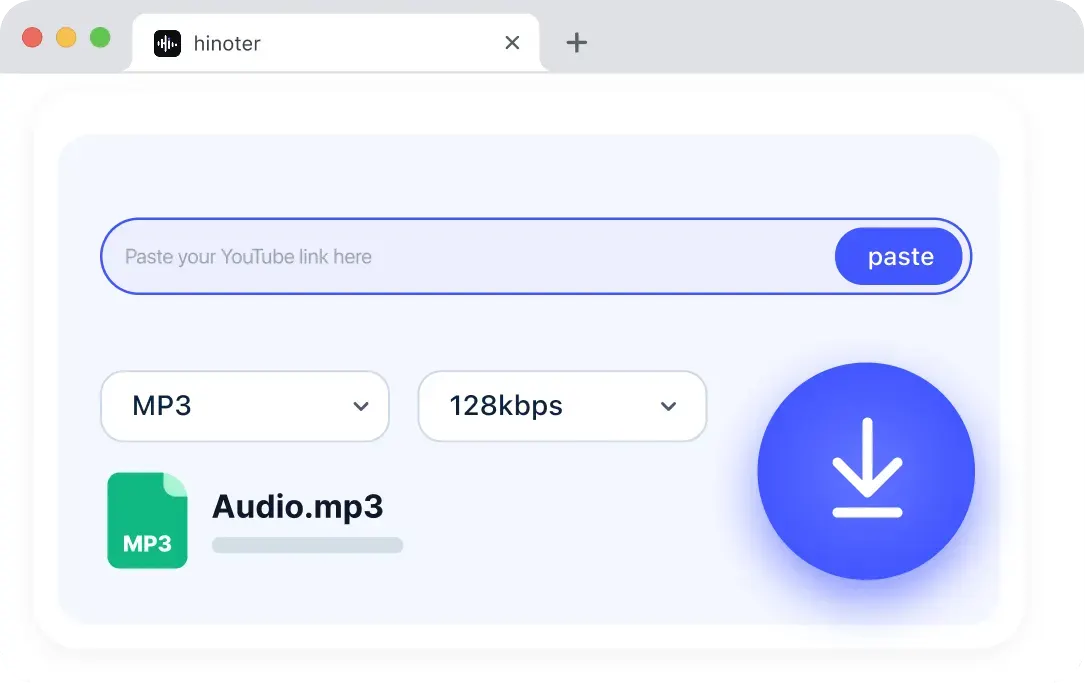
Copy an eligible public video URL and paste it into the download tool. Only download videos you own, have permission to use, or are allowed to save.
Paste your video link herePaste
By clicking "Accept All", you consent to the placement of cookies on your device to improve site navigation, analyse how you use our site, and support our marketing efforts. To learn more see our privacy policy.
Download videos online as MP4, then use HiNoter to transcribe, summarize, and organize the content into AI notes.
Add a supported public source, choose an available format, and save the result you are permitted to use.
Drag a local video file here or choose a file. Max 500MB and up to 30 minutes.
Continue with HiNoter
Open HiNoter App for AI transcription, summaries, meeting notes, and more complete workflows.
Use HiNoter for fast Video Download from eligible public links. Paste a video URL, choose an available MP4 or MP3 output, and save the completed file in your browser without installing software.
HiNoter supports Video Downloading via public links or local files. Paste URLs, select formats, and export videos or audio directly in your browser without installing desktop software.
Use the tool for authorized footage, study materials, and permitted drafts. Files are stored temporarily, making the downloader suitable for occasional quick saves.
Download an eligible video, choose audio when available, then transcribe or summarize the saved file into notes with HiNoter.
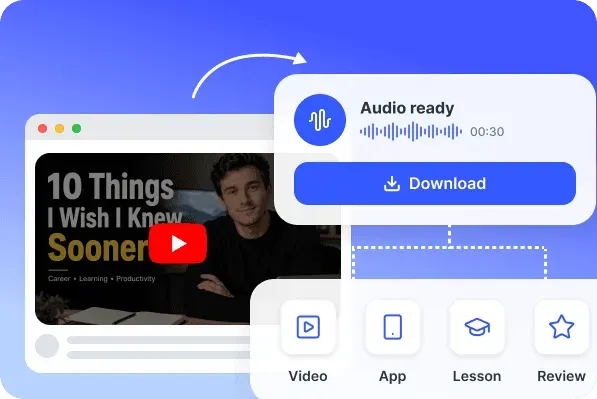
The downloader keeps each step visible: add a source, choose an available output, and save the file without a complicated installation.
Questions phrased as “how to download for videos” or “how to download video for video” lead to the same three steps below.
Copy an eligible public video URL and paste it into the download tool. Only download videos you own, have permission to use, or are allowed to save.
Confirm the detected video and choose an available output format or quality setting.
Download the video result to your device when processing is complete.
Quality options stay clear before you start. A Video Download cannot exceed the quality available from the original source, so HD, Full HD, and 4K choices appear only when supported.
Available quality depends on the original video and supported output settings.
Video Download 4K options appear only when the source video supports 4K and the output is available.
Choose MP4 when you need video, or MP3 when you only need audio for listening, review, transcription, or notes.
If you are asking “how can i Video Download,” the important details are source access, permission, available output, and a clear result state.
HiNoter keeps a Video Download simple, then gives you a clear next step when the authorized file needs to become a transcript, summary, note, or follow-up task.
Move from a saved video into a searchable transcript when you need written text.
Turn permitted video content into structured notes and key points in HiNoter.
Organize video discussions, demos, and recordings inside a clearer workspace.
Continue with language-aware transcription and summaries after uploading authorized files.
Use the free browser tool when you only need a quick file. Open HiNoter Web when the same authorized video should become searchable text, a concise summary, organized notes, or action items for your next step.
Continue in HiNoter Free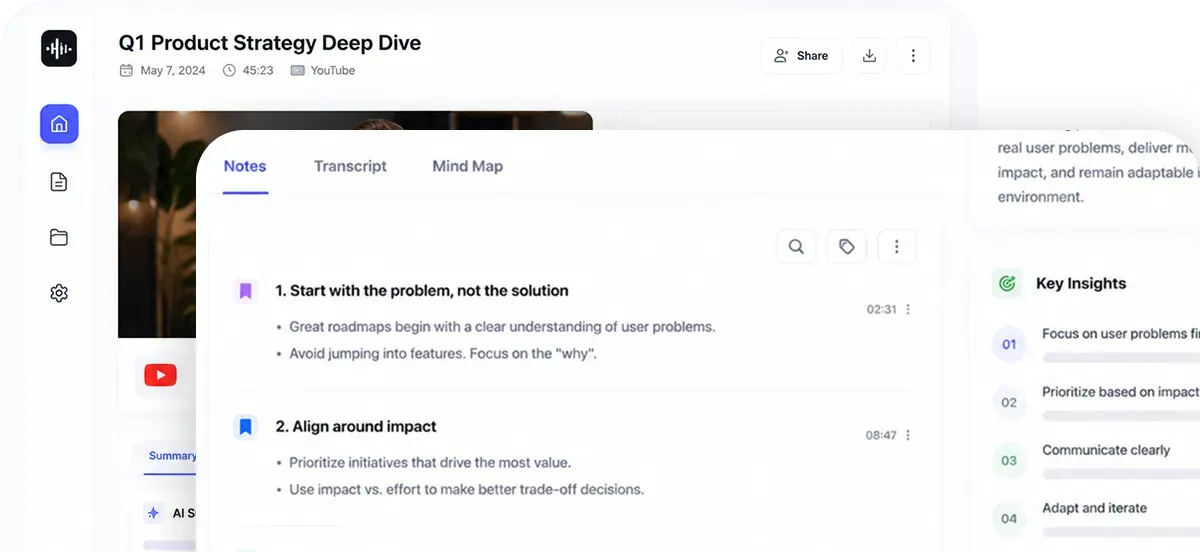
Use a Video Download for permitted content when a project needs reliable access to the source file: team training, campaign review, class study, creator planning, or a workflow where the video later becomes notes, summaries, or a transcript.
Searches such as “how to the download videos” and “download video free” often come from users preparing allowed material for study, review, or internal work.

Product teams can save approved demo recordings for training preparation, flow review, transcript snippets, and structured notes.

Marketing teams can save owned campaign videos for edit comparison, creative review, decisions, and follow-up actions.

Students can keep allowed public recordings for offline lecture review, summaries, and faster access to important sections.
Loved by product teams, marketers, and students who work with authorized videos for review, study, and note-taking.
Our product team saves approved demo recordings so we can review flows before a training session. After the file is ready, we use HiNoter to turn long demos into cleaner notes.
When we own a campaign video, a quick saved copy helps the team compare edits and keep feedback in one place. HiNoter is useful afterward for decisions and action items.
For classes that provide allowed public recordings, I keep a file for offline review and use summaries to find the part I need without rewatching the entire lecture.
Explore more HiNoter tools for speech, audio transcription, video summaries, and AI voice workflows.

Convert written text into natural-sounding audio for listening, drafts, and voiceover workflows.

Create concise summaries and key takeaways from long videos before moving into full HiNoter notes.

Upload common audio files and turn recordings into readable transcript text online.

Need the opposite workflow? Use Speech to Text to turn spoken audio into editable transcript text.

Turn voice recordings into accurate text for meetings, lectures, interviews, and daily notes.

Convert videos to MP3 audio for listening, review, and later transcription.

Extract audio from MP4 files and prepare video recordings for audio review or transcription.

Convert videos into MP4 files for playback, review, and content organization.
Use the downloader directly in a supported browser. You do not need to install an application, add an extension, or sign in before trying an eligible free save task.
If you are learning how to download a video from a video link, start by confirming that the public source is accessible and that you have permission to save it.
Free website tool
The free online flow is designed for a quick file-saving task. Paste a public link, upload a local video, select an available output, and download the result. Results are temporary and remain only while the current page is open.
Continue in HiNoter
When a saved video needs to become searchable information, open HiNoter Web for AI transcription, summaries, notes, and follow-up work. Upload the authorized video again in the HiNoter workspace.
Continue in HiNoter Free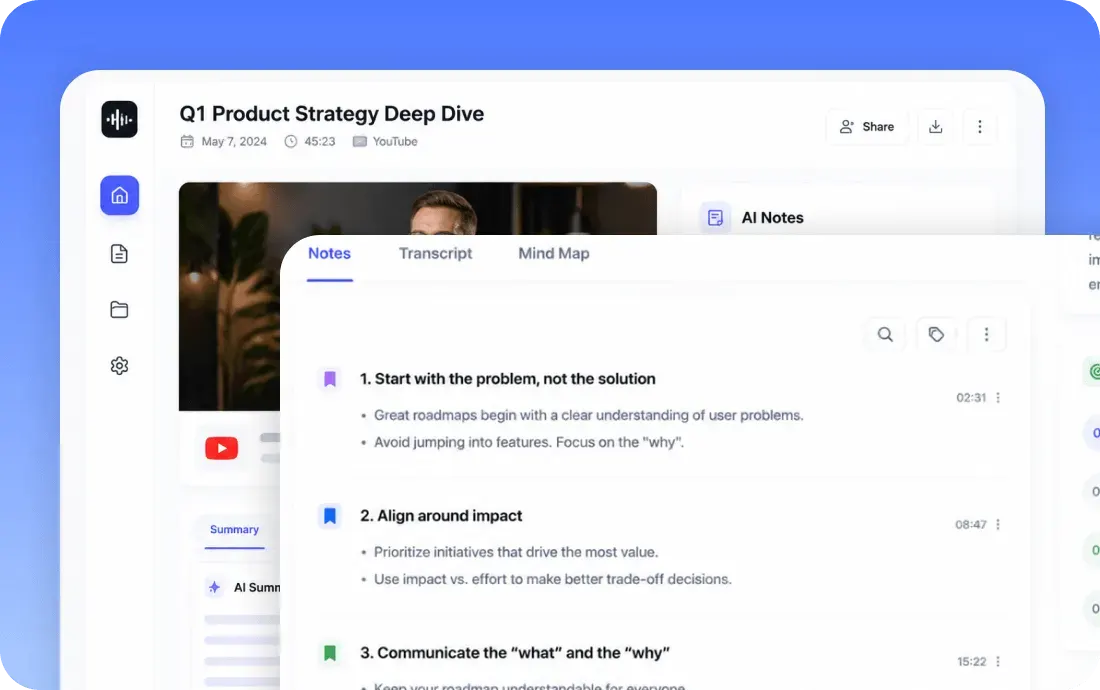
Can't find what you're looking for? Feel free to reach out to our support team.
Video Download means saving an eligible video for offline access or later review. HiNoter supports downloading allowed public videos in available formats and quality options when you own or have permission to use the content.
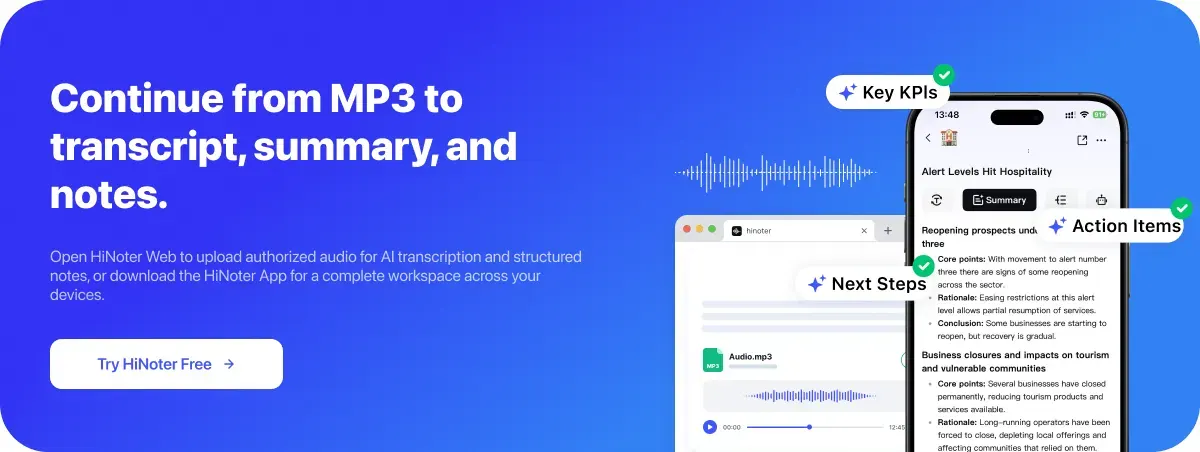
Open HiNoter Web to upload authorized video for AI transcription and structured notes, or download the HiNoter App for a complete workspace across your devices.
Try HiNoter Free