Add an MP4 Video
Upload an eligible MP4 file or supported video source to start the MP4 to MP3 conversion.
By clicking "Accept All", you consent to the placement of cookies on your device to improve site navigation, analyse how you use our site, and support our marketing efforts. To learn more see our privacy policy.
Transform video files into clear MP3 audio with HiNoter. Extract the audio track from MP4 videos and create smaller, easy-to-play audio files for any device.
Drag a local video file here or choose a file. Max 500MB and up to 30 minutes.
Do more with your transcript
Open HiNoter App for AI transcription, summaries, meeting notes, and AI chat.
Use HiNoter as an online MP4 to MP3 converter to extract audio from supported video files. Upload an MP4, choose MP3 output, and download the converted audio result in your browser.
Upload local videos or paste valid links, select parameters, and convert video audio to MP3 online without software installation.
Suitable for personal legal audio extraction. Free Trials are available with a 500MB file cap, compatible with subsequent transcription on HiNoter.
The tool extracts video sound into portable MP3 files for easier playback, sharing, transcription and review.
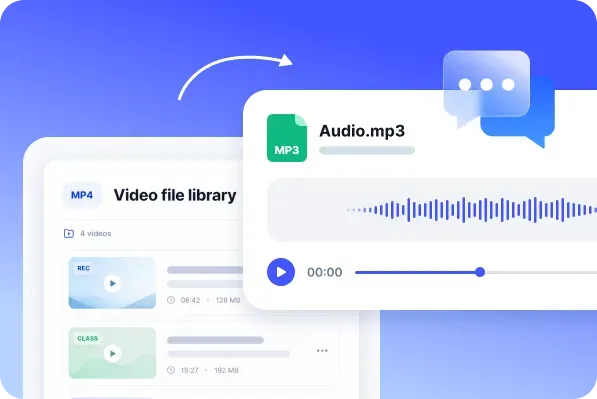
The conversion flow uses three direct steps. You can see what the tool received, which output it will create, and what action is available after processing.
Upload an eligible MP4 file or supported video source to start the MP4 to MP3 conversion.
Select MP3 as the output format and confirm the available conversion settings.
Convert MP4 to MP3 online, then download the extracted audio file for listening, review, transcription, or notes.
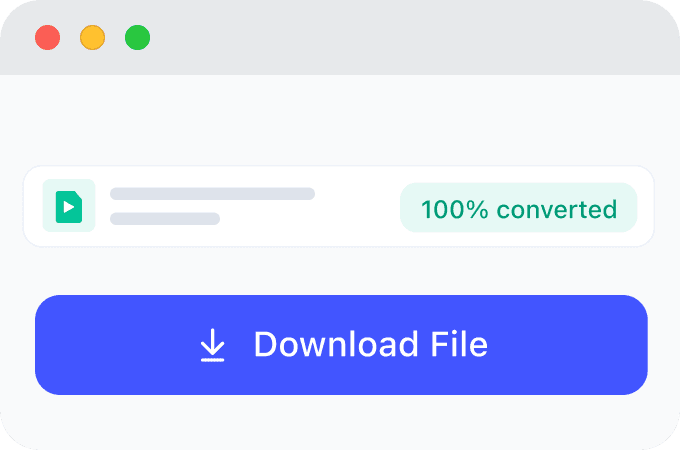
A clear MP3 result depends on the video source. The converter can preserve available audio quality, but it cannot recover detail that was missing from the original recording.
Final audio quality depends on recording environment and video compression. Clear original MP4 yields crisp MP3; poor source sound cannot be enhanced.
MP4 is primary; MOV, MKV, AVI, WEBM also supported. All formats follow the 500MB free upload cap.
Pick Best audio for maximum quality. Bitrate options only adjust export standards and cannot upgrade raw audio quality.
HiNoter clarifies audio quality before conversion. It displays source details, export options, progress and file info for full transparency.
Use this page for a small, clear job: convert one supported video file into an MP3 or MP4 result without installing an app. Limits and permissions stay visible throughout the experience.
Free Trials are available before opening a larger HiNoter workflow.
Process a file online without downloading a converter package, browser extension, or desktop utility.
Paste a supported video page link, or upload a local MP4 file when the source is already on your device.
The converter returns one recognizable file with its name, duration, size, format, and download action.
See Free Trial availability and the 500MB maximum before conversion, instead of discovering the limit at the final step.
MP4 is the primary input, with MOV, MKV, AVI, and WEBM included as common video formats for the converter.
The converted file stays available on the current page until refresh or navigation. It is not saved to your HiNoter workspace.
After a permitted video to MP3 converter task, open HiNoter Web to transcribe audio, summarize content, and create notes.
Responsible use: converting a video does not transfer copyright or usage rights. Please confirm that you own the content, have permission from the rights holder, or are using material under a license or legal exception that permits the action.
The free converter helps with a quick audio extraction. When the extracted audio needs to become searchable, editable, and useful for real work, continue in HiNoter Web for AI transcription, video-to-text, summaries, and follow-up questions
Continue in HiNoter FreeTurn extracted audio into a transcript you can edit, search, and reuse in HiNoter.
AI TranscriptionVideo to TextUpload an authorized video when spoken content needs to become searchable written text.
Explore Video to TextAI Meeting SummarySummarize recorded calls, demos, and discussions into key points and follow-up notes.
Explore AI Meeting SummaryAn MP4 to MP3 conversion is useful when a video file mainly contains spoken content or audio that needs review without the screen. These examples focus on owned, authorized, licensed, or public-domain content.
Loved by teams, creators, and researchers who turn owned video files into portable audio for review and note-taking.
I convert our own product-demo recordings into MP3 before reviewing them with the enablement team. A clean audio file makes it faster to check talking points, prepare a transcript, and turn the session into sales notes.
For podcast planning, I often export rough video drafts as audio first. The MP4 to MP3 workflow gives me a quick listening copy, and then I move into HiNoter when I need summaries, key quotes, and searchable notes.
When a lecture recording is easier to study as audio, I save the MP3 and use it as a reference file. It helps me compare sections, create a transcript, and organize research notes without keeping the video open.
These related tools help users choose the right conversion flow for audio, video, transcription, and content workflows.
Turn an MP4 video file into an audio-only MP3 file when you only need the sound.
Extract audio from supported MP4 files without installing desktop software.
Convert MP4 to MP3 in your browser, then download the temporary audio result.
Upload the MP4 file, choose MP3 output, run the conversion, and save the completed file.
For eligible video sources, convert the video audio into MP3 before using it for listening, review, or transcription.
Explore more HiNoter tools for speech, audio transcription, video summaries, and AI voice workflows.

Convert written text into natural-sounding audio for listening, drafts, and voiceover workflows.

Create concise summaries and key takeaways from long videos before moving into full HiNoter notes.

Upload common audio files and turn recordings into readable transcript text online.

Need the opposite workflow? Use Speech to Text to turn spoken audio into editable transcript text.

Turn voice recordings into accurate text for meetings, lectures, interviews, and daily notes.

Convert videos to MP3 audio for listening, review, and later transcription.

Download supported videos for viewing, research, and AI-assisted note workflows.

Convert videos into MP4 files for playback, review, and content organization.
Use the converter directly in a supported browser without installing an application or extension. Prepare the MP4 source first, then sign in only when you submit the conversion task.
Free website tool
Use the free online flow for one-time audio extraction. Paste a supported link, upload a video file, select an available setting, and download the MP3 or MP4 result. Results remain only while the current page is open.
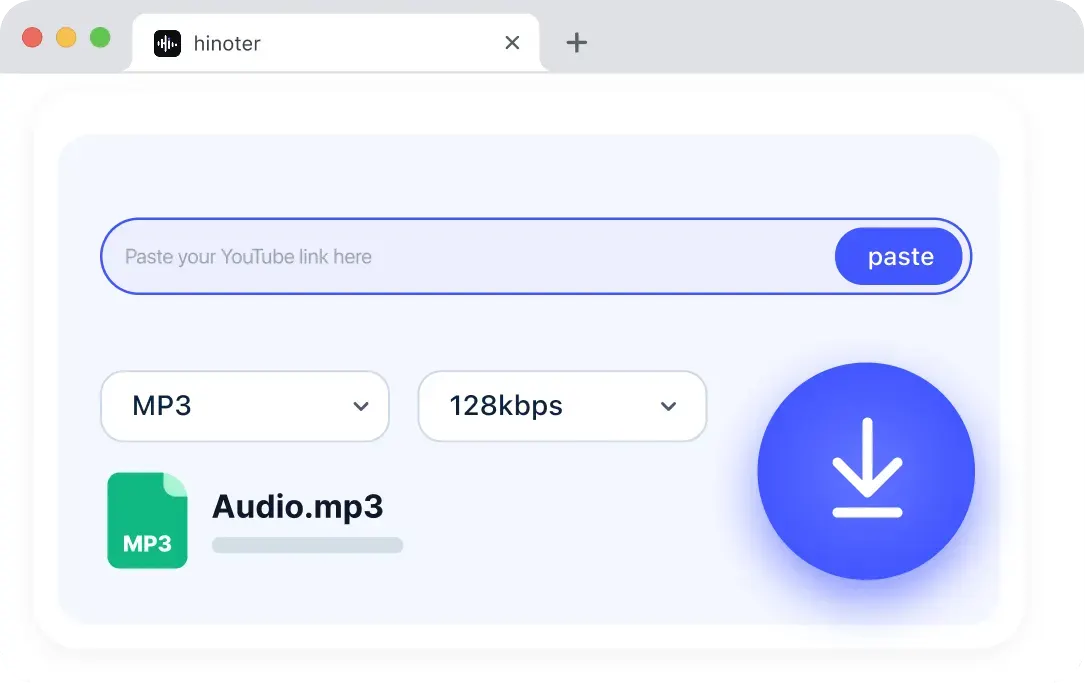
Continue in HiNoter
When an MP3 needs to become searchable information, open HiNoter Web for AI transcription, summaries, notes, and follow-up work. The temporary converter file is not transferred automatically, so users upload the authorized audio again in the HiNoter workspace.
Continue in HiNoter Free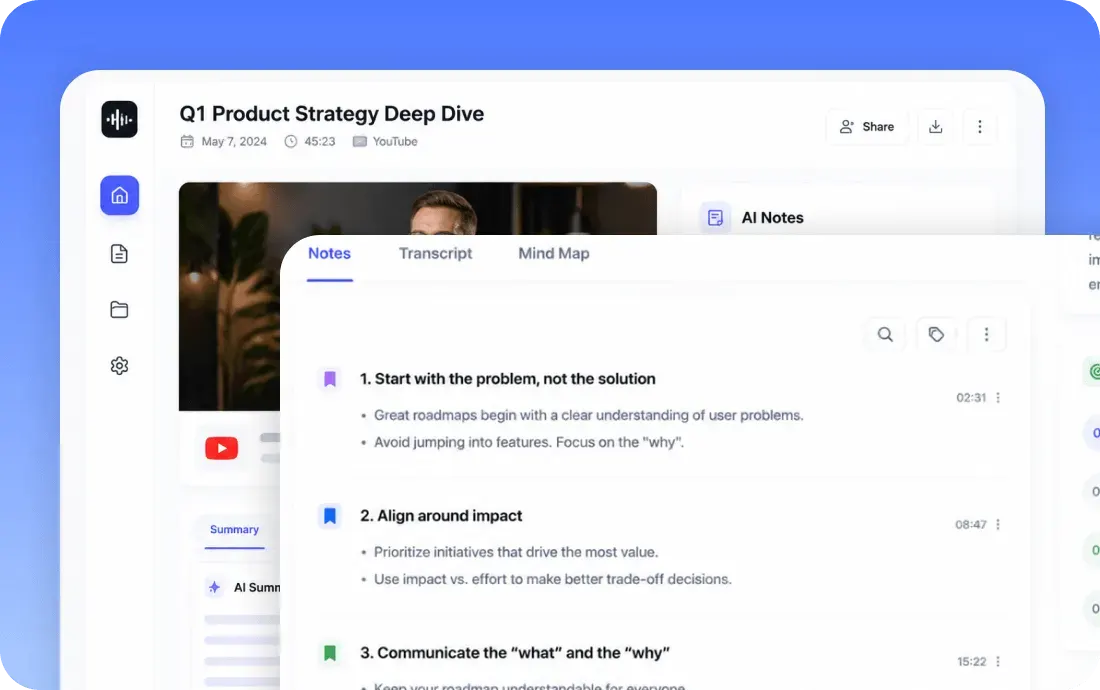
Can't find what you're looking for? Feel free to reach out to our support team.
MP4 to MP3 means extracting the audio from an MP4 video file and saving it as an MP3 audio file. It is useful when you only need the sound from a video, such as a lecture, recording, clip, or voice track.
Open HiNoter Web to upload authorized audio for AI transcription and structured notes, or download the HiNoter App for a complete workspace across your devices.
Try HiNoter Free





 AI Transcription