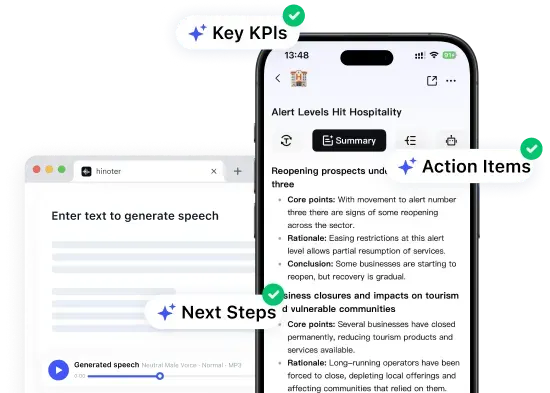
Japanese pronunciation practice
Use an English voice for English scripts, a Japanese voice for language practice, and matching voices for multilingual lessons, training, and product content.
By clicking "Accept All", you consent to the placement of cookies on your device to improve site navigation, analyse how you use our site, and support our marketing efforts. To learn more see our privacy policy.
Convert text to speech free online with HiNoter’s AI voice generator. Create natural-sounding speech instantly using a powerful text to speech tool for videos, apps, and multiple languages.
Create or import content again in the app for more complete workflows.
HiNoter can transform written content from different languages into natural spoken audio. Paste English, Japanese, Spanish, or other supported languages, and the tool automatically matches your input with an available voice option.
AI voice generation workflows make it easier to localize lessons, product tutorials, and narration for global audiences. When comparing audio creation tools, language support, voice quality, and flexible output controls are often more important than a complicated setup process.
Use an English voice for English scripts, a Japanese voice for language practice, and matching voices for multilingual lessons, training, and product content.
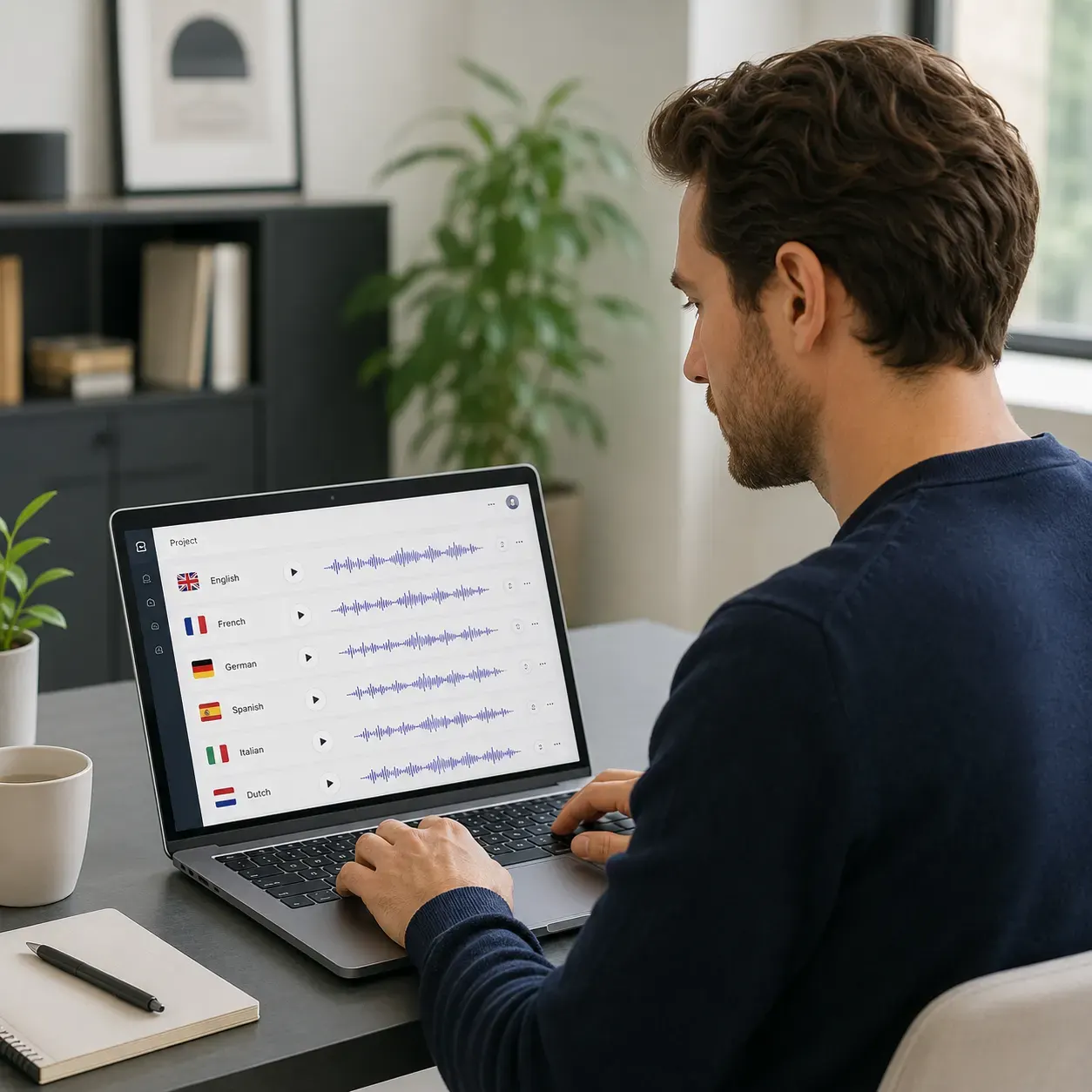
Prepare voice versions of the same message for different audiences. This is useful for app onboarding, help content, product explainers, and internal training.
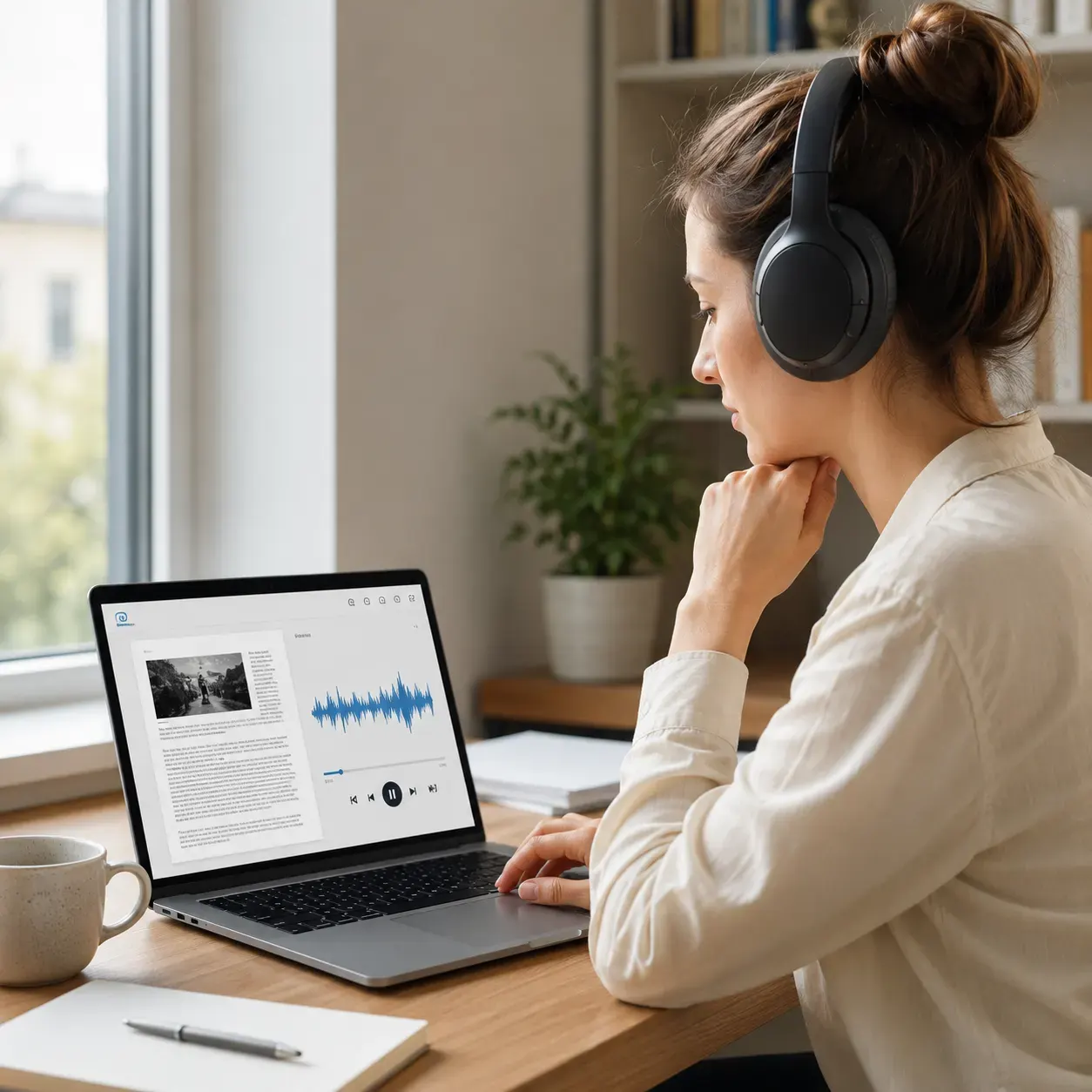
Turn document drafts, notes, and PDF content into audio so users can review written material by listening.
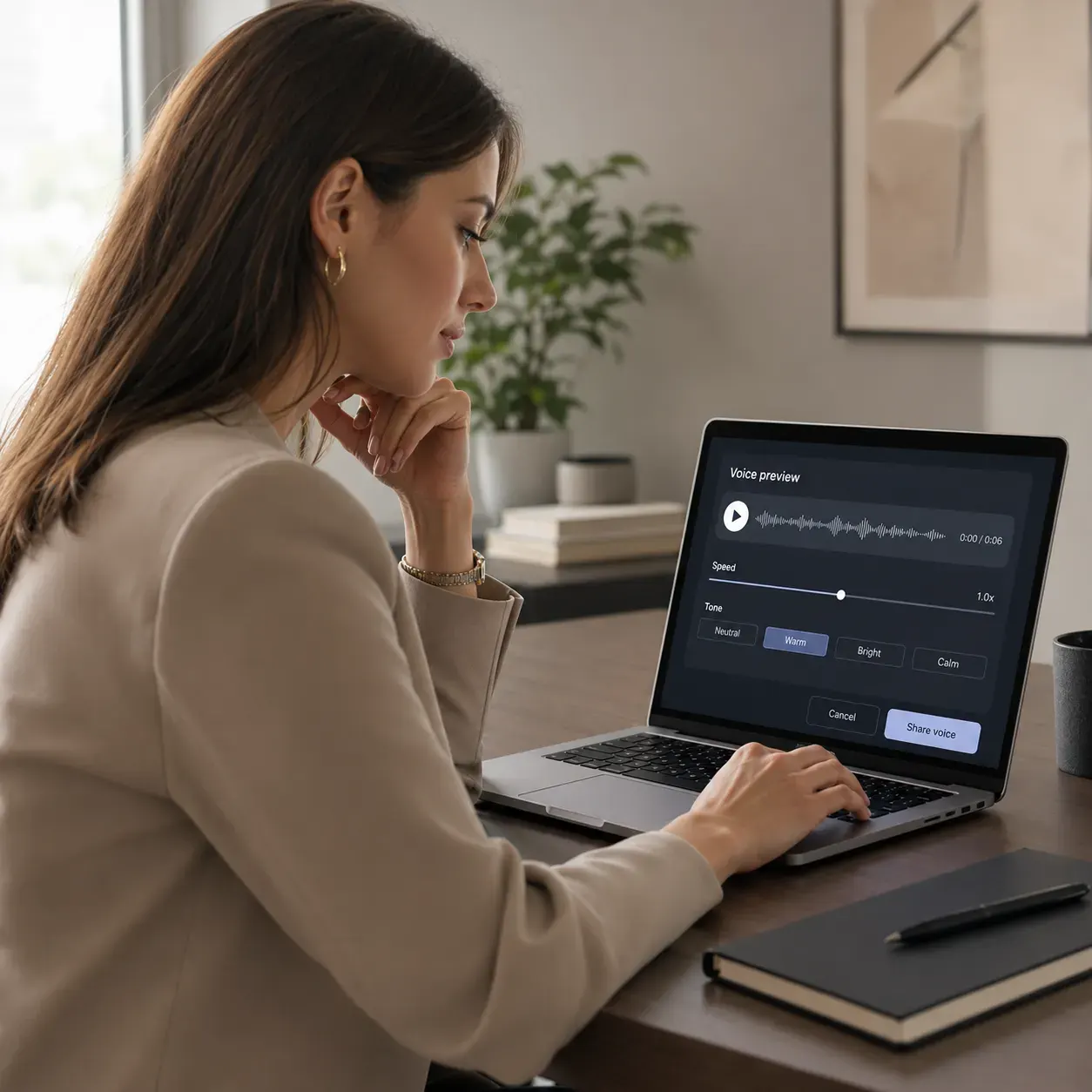
Generate a short sample first, then adjust voice and speed until the pronunciation, pacing, and tone feel right for the audience.
Paste your text, choose a voice, set speed and format, then generate speech in your browser.
Unlike temporary read-aloud tools, HiNoter creates downloadable MP3 or WAV audio for reuse.
Use online text to speech without desktop installation, then continue in HiNoter for scripts, notes, and AI workflows.
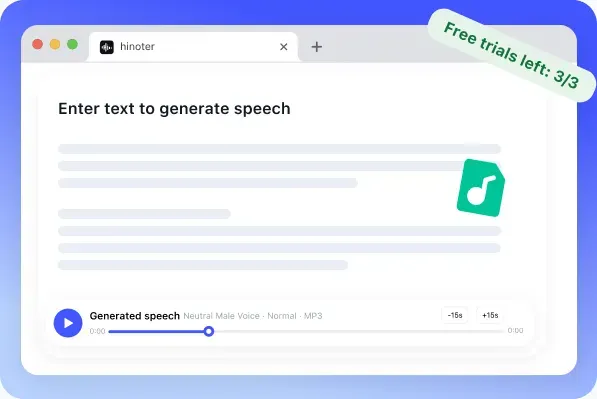
Text to speech converts written words into spoken audio. The system analyzes text, applies pronunciation and punctuation rules, selects an AI voice, and generates natural-sounding audio for accessibility, learning, content review, and everyday listening.
Modern AI voice technology produces clearer pronunciation, smoother pacing, and more natural expression than traditional synthetic voices. A free TTS trial lets you evaluate voice quality before downloading or sharing the final audio.
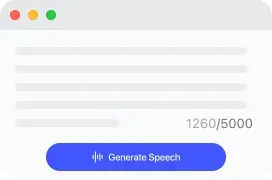
Add a script, paragraph, article excerpt, product message, or study note. The free tool shows the 5,000-character limit before generation.
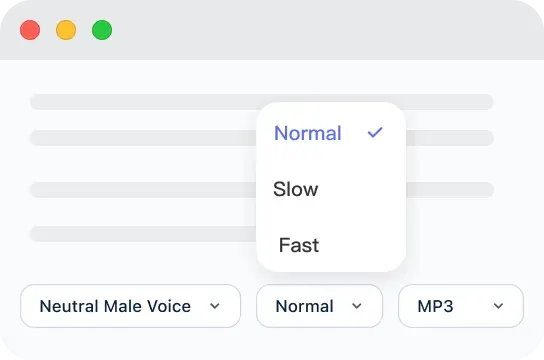
Choose voice style, speed, and output format. The tool detects the input language from the text, so no language dropdown is needed in the first-phase panel.
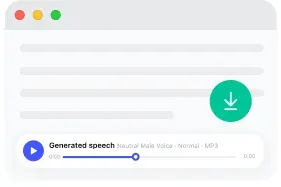
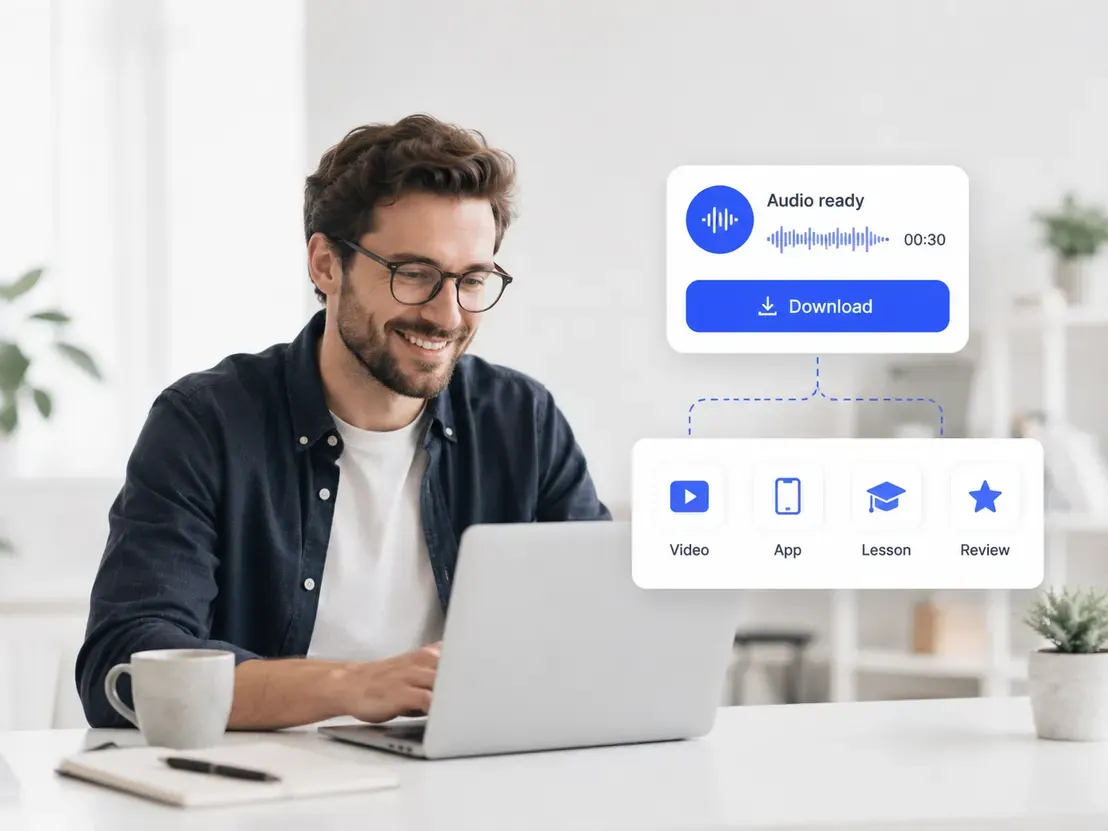
Generate the speech, play the audio result, and download audio as MP3 or WAV for videos, apps, courses, or personal review.
If audio is playing from a device, browser, or document reader, turn it off in that app’s playback or accessibility settings. HiNoter focuses on creating generated audio from written text. For HiNoter generated speech, pause playback, clear the text, or download only the result you want to keep.
Turn off screen readers, spoken content, or accessibility voice features in your device settings when the audio is coming from the system.
Pause read-aloud features in your browser, document editor, PDF reader, or Google Docs when you do not want text read automatically.
For generated speech, pause playback, clear the text, adjust the script, or download the MP3/WAV result when it fits your workflow.

Google text to speech and Google Docs read-aloud features are useful for temporary playback. When you need reusable audio for videos, apps, lessons, or review, create an AI voice file with HiNoter and download it as MP3 or WAV.
If Google changes where read-aloud controls appear, the basic workflow is still the same: choose the text, start playback, and decide whether temporary listening is enough. Use HiNoter when you need a generated audio file that can be saved, shared, or reused.
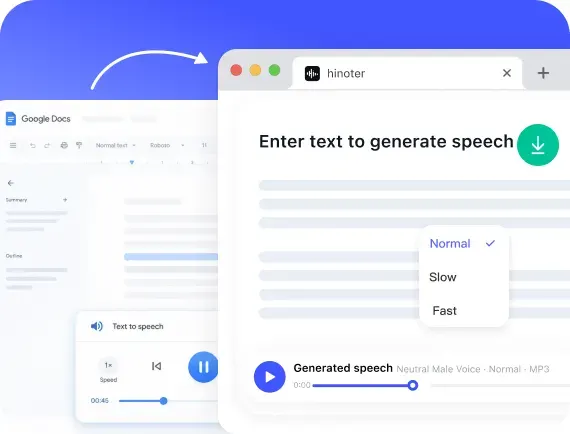
Good AI voice software should do more than speak a sentence. It should help users create voice content for apps, platforms, documents, videos, education, accessibility, and publishing workflows without making the setup feel technical.
Voice generation controls should make voice, speed, and output choices easy to review. A free trial also lets users test a short script before committing to a larger project.
Use AI voices for narration, product messages, learning material, and content drafts.
Convert Audio to TextPick voice style and reading speed so generated audio matches your script and audience.
Use Multilingual SupportDownload MP3 or WAV for editing, video production, app prompts, and review.
Convert Video to TextPlan voice features for apps and platforms where audio improves onboarding or accessibility.
Open Meeting AssistantTurn written copy into natural-sounding audio with an AI voice generation workflow.
AI Meeting SummaryUseful for anyone checking mobile voice tools or testing iPhone listening workflows.
Try HiNoter FreeTry free AI voice generation for short drafts before moving longer scripts into HiNoter.
Create MP3 output or choose WAV when your workflow needs a different file type.
Create YouTube NotesUse the tool when you need to hear copy before publishing, create audio for a video, generate spoken prompts for an app, or turn notes into listening material. A strong workflow starts with clean writing, then adjusts speed and voice until the audio sounds natural.
For a short script, free online text to speech is often enough to test your content before creating the final audio. A reliable TTS converter should make playback, output formats, download options, and usage limits easy to understand.
After a quick listening test, download the generated audio for use in videos, apps, lessons, presentations, or review workflows.

Script becomes narration for product videos and short clips.
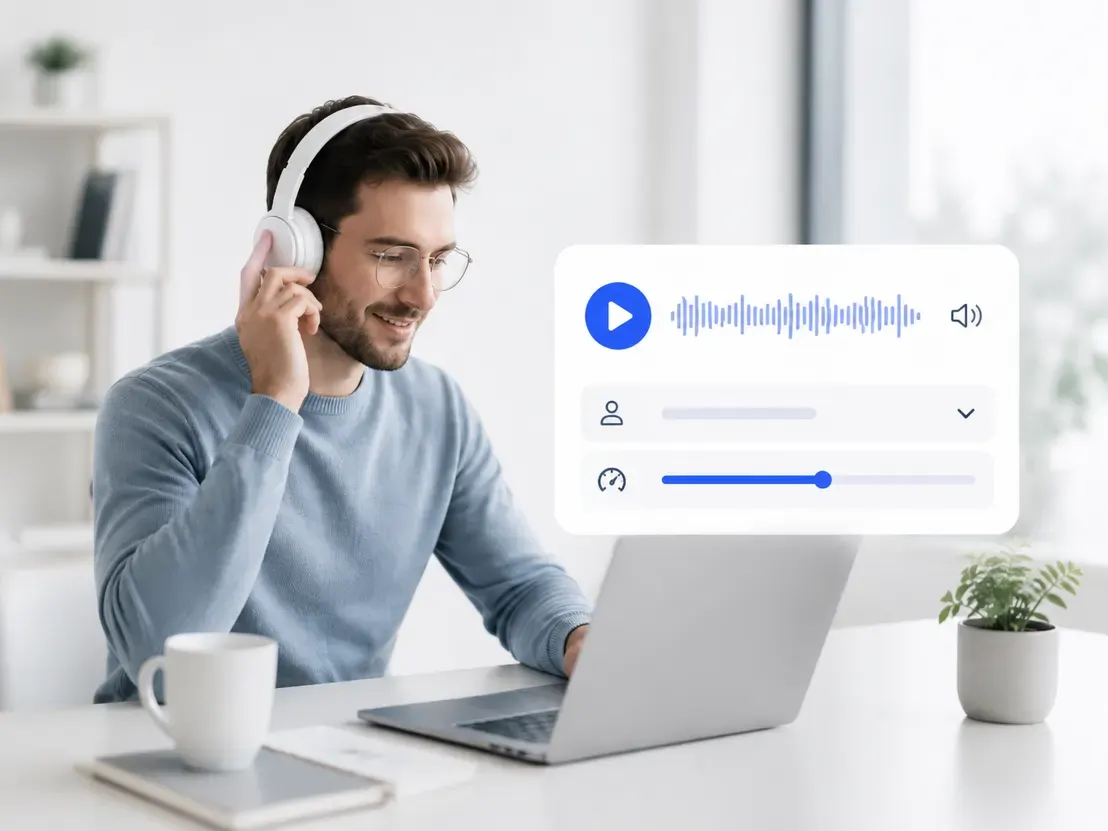
Text becomes onboarding, empty-state, or accessibility audio.
Notes, articles, and documents become audio for review.
Loved by creators, product teams, and students who turn written content into clear, reusable audio.
I paste a product script, listen to the pacing, and export an MP3 before recording the final video.
Our app copy is easier to review when we can hear the prompt in a natural AI voice.
I turn class notes into audio so I can review them while commuting.
A clearer script usually creates better audio. Before generating speech, remove notes that should not be read aloud, keep sentences short, and choose the voice speed that matches where the audio will be used.
Voice quality depends on the script, language, punctuation, selected voice, speed, and pronunciation of names or technical terms.
Use the free preview for a short draft, then listen once before downloading. A small sample helps you check pronunciation without committing a long script.
AI voice generation works best when the script is clean and the voice matches the audience. Preview the result, correct pronunciation, and choose MP3 or WAV before creating the final narration.
Google text-to-speech and document read-aloud features are useful for temporary playback. Use HiNoter when copy from Docs or a PDF needs to become a reusable audio file.
Older voice tools set familiar expectations, while modern AI voices focus on natural pacing, clearer pronunciation, and downloadable output. Comparing the two makes that change especially clear.
A voice app should show its limits before generation. For an iPhone or product-platform workflow, test a short sample and confirm the output format before using the audio.
Dictation tools such as Google Cloud speech-to-text solve the reverse task by turning speech into writing. This page turns written copy into generated audio for listening and reuse, including a text to speech MP3 result when that format is selected.
The free website tool is designed for quick voice generation. Open HiNoter when you want to keep scripts with transcripts, summaries, notes, meeting content, and follow-up work in one place.
Continue in HiNoter FreeExplore more HiNoter tools for speech, audio transcription, video summaries, and AI voice workflows.

Create concise summaries and key takeaways from long videos before moving into full HiNoter notes.

Upload common audio files and turn recordings into readable transcript text online.

Need the opposite workflow? Use Speech to Text to turn spoken audio into editable transcript text.

Turn voice recordings into accurate text for meetings, lectures, interviews, and daily notes.

Convert videos to MP3 audio for listening, review, and later transcription.

Extract audio from MP4 files and prepare video recordings for audio review or transcription.

Download supported videos for viewing, research, and AI-assisted note workflows.

Convert videos into MP4 files for playback, review, and content organization.
Can't find what you're looking for? Feel free to reach out to our support team.
Text to speech, also called TTS or text-to-speech, converts written text into spoken audio. It helps users listen to scripts, documents, app copy, lessons, PDFs, and other digital content without recording a human voice.
Start with a short generated audio sample, then open HiNoter for scripts, summaries, notes, meeting content, and searchable work across web and mobile.
Try HiNoter Free