Direct answer: A Microsoft Teams AI note taker helps teams turn Teams meetings into transcripts, summaries, decisions, tasks, and searchable notes. Teams has native recording, transcription, recap, and Copilot features, but access depends on licenses, admin policy, meeting role, and settings. HiNoter adds a calendar-based workflow for automatic meeting notes and follow-up.
Teams is often where serious work gets decided: customer escalations, project tradeoffs, hiring debriefs, quarterly planning, support reviews, and engineering incident calls. The trouble is not that the conversation never happened. The trouble is that the useful parts scatter into recordings, transcripts, chat threads, Loop notes, private notes, and half-remembered action items.
This page starts with the practical Microsoft Teams question: who can record, who can transcribe, where the files go, what recap can show, and why a participant may not see the same controls as the organizer. Then it shows a simpler HiNoter workflow for teams that need the result of the meeting - summary, tasks, decisions, mind map, exports, and source-linked AI Chat - without rebuilding the meeting from a long recording.
How Microsoft Teams Recording, Transcription, and Recap Work
Microsoft Teams can record meetings, start live transcription, save recordings to OneDrive or SharePoint, and show a meeting recap after a recorded or transcribed event. Microsoft also offers intelligent recap through Teams Premium and Microsoft 365 Copilot, with AI-generated notes, follow-up tasks, speaker markers, topics, chapters, and Copilot prompts when the required license, language, transcription, and policy conditions are met.
That sounds broad, but it is not the same as saying every participant can capture every meeting. Microsoft Support says a Teams meeting recording can be started by someone who has an eligible license, has recording enabled by an IT admin, is not a guest or from another organization, and is in a meeting where the organizer has the cloud recording policy enabled. With Teams Premium or a Copilot license, organizers can also choose who can record and transcribe: organizers and co-organizers, organizers/co-organizers/presenters, or no one.
Live transcription has its own workflow. Microsoft Support explains that during a Teams meeting, live transcription captures what is said in real time with speaker names and timestamps. If you record a meeting, transcription starts automatically. Participants are notified when transcription is running, and the spoken language setting matters for accuracy.
Microsoft Teams AI Note Taker Permission Map
| Role or Situation | What Teams Usually Allows | What Can Block It | Best Next Step |
|---|---|---|---|
| Organizer | Can often manage meeting options, recording access, recap access, and meeting ownership. | Admin policy, licensing, sensitivity labels, or a meeting type that does not support the feature. | Decide before the call whether the team needs recording, transcript, recap, or structured AI notes. |
| Co-organizer | May manage recording-related access and, by default, can often download or delete recordings with organizer permissions. | Policy restrictions, missing license, or limited access to the meeting record. | Assign a meeting record owner so the recap and follow-up do not stall. |
| Presenter or same-org user | May start or stop recording if licensing, admin policy, and organizer settings allow it. | Teams Premium/Copilot options may restrict recording and transcription to organizers and co-organizers. | Confirm the role and recording policy before the meeting starts. |
| External attendee or guest | Can participate, but usually cannot start Teams meeting recordings. | External access limits, guest role, explicit sharing requirements, and privacy expectations. | Ask the organizer for approved recording, transcript, recap, or shared notes access. |
| Recording unavailable | The meeting may still be documented through notes or an approved AI assistant workflow. | Admin policy, license gaps, organizer settings, compliance constraints, or participant consent rules. | Use a notes-first workflow when the goal is decisions and tasks, not a formal video archive. |
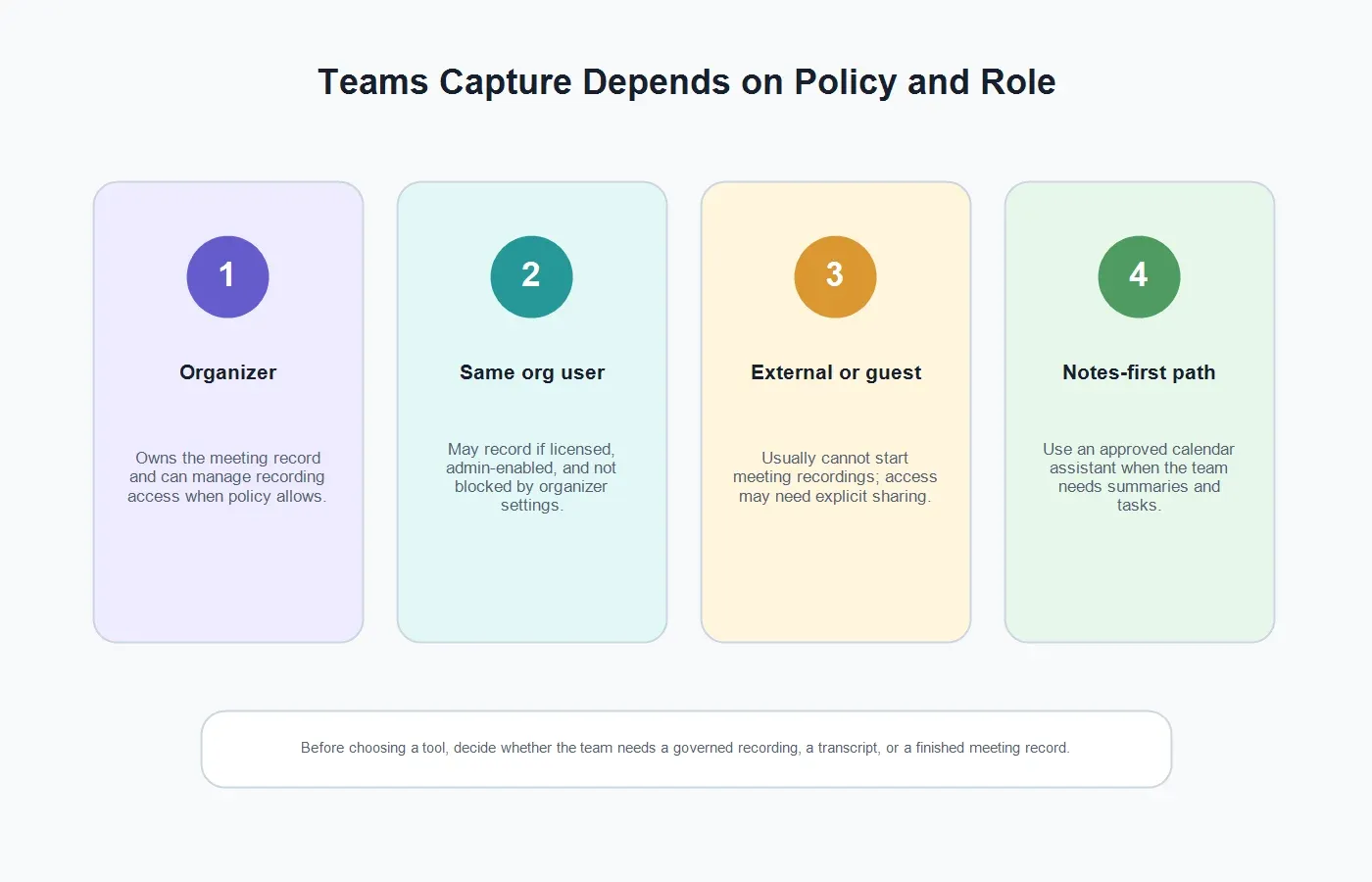
If You Are the Meeting Organizer
If you organize the Teams meeting, treat documentation as part of the meeting design. Before the call, decide who needs the record, where it should live, and whether the output should be a recording, transcript, recap, task list, customer-facing summary, or internal knowledge artifact. This matters because Teams recording and transcript controls are not just participant preferences; they are governed by organizational policy and meeting options.
For native capture, open the meeting controls, choose More actions, then Record and transcribe. Depending on the meeting and your settings, you may start recording, start transcription, or manage who can record and transcribe. Microsoft notes that all participants are notified when a recording starts, and participants may need to consent depending on region and policy.
After the meeting, the recording typically appears in the meeting chat or channel conversation and is stored in OneDrive for work or school or SharePoint. The organizer owns the recording by default, while organizers and co-organizers can usually download or delete it. If your company uses retention, expiration, sensitivity labels, or Microsoft Purview policies, the lifecycle of the recording and transcript may also be governed by those rules.
If You Are a Participant
If you are a participant, do not assume you can record, transcribe, download, or invite a note-taking assistant. A same-organization participant may have more options than an external guest, but those options can still be limited by license, admin policy, organizer settings, Teams Premium controls, and meeting sensitivity labels.
That does not make participants powerless. Ask the organizer to enable the approved recording or transcription, confirm whether the recap will be shared, or invite the team's chosen note-taking assistant. If the company uses HiNoter, the better pattern is to connect the calendar and define meeting-capture rules in advance, rather than improvising with personal notes after the call ends.
If Teams Recording or Transcription Is Unavailable
There are several normal reasons Teams recording or transcription may be unavailable. The organizer or recorder may not have an eligible license. The IT admin may have disabled recording. The organizer may have restricted recording and transcription to a smaller set of roles. The user may be external. The meeting may be governed by sensitivity labels or compliance policies. The meeting may also be a type where a certain recap feature is not available.
When that happens, separate the business goal from the Teams control. If the organization needs a formal recording, solve the Teams policy or license issue with IT. If the team needs a reliable record of decisions, owners, deadlines, and follow-up, an approved AI note taker can be the better path. The key is to notify participants, follow consent rules, and store the output where the right people can find it later.
Microsoft Teams AI Note Taker Workflow With HiNoter
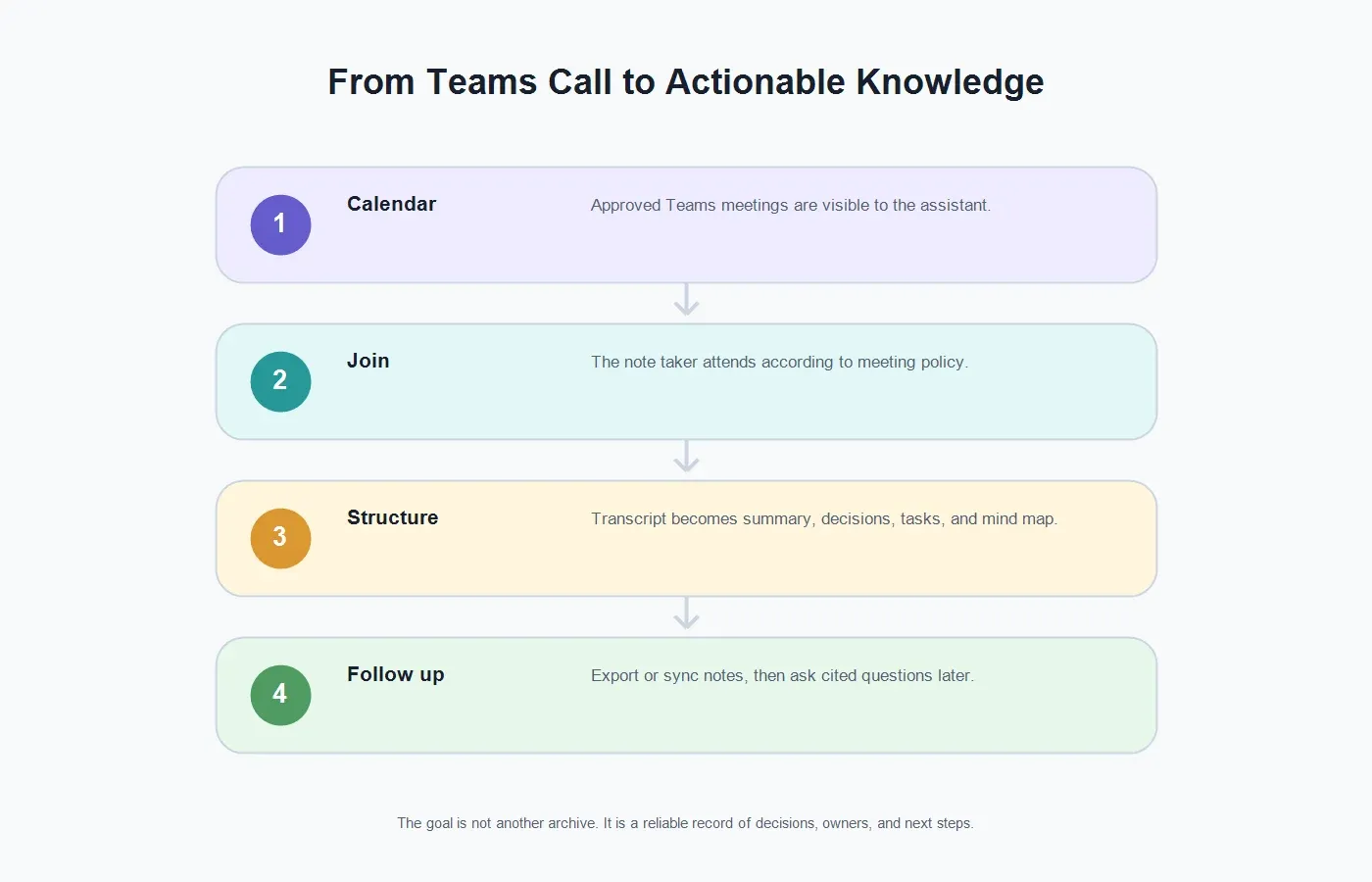
HiNoter is an AI meeting assistant and transcription platform for teams that need structured knowledge from meetings, not just video files. Once the Teams native workflow is clear, HiNoter fits as the notes-first path: connect the calendar, let the assistant join approved meetings, generate the transcript, summarize the call, extract action items, create a mind map, and export or sync the result.
| Step | What Happens | Why It Helps |
|---|---|---|
| 1. Connect your calendar | HiNoter sees scheduled Teams meetings that match your approved capture workflow. | The team does not rely on someone remembering to start a recording. |
| 2. Let the assistant join | The AI note taker joins the Teams meeting according to meeting access, calendar context, and policy. | Participants can stay present instead of assigning a manual notetaker. |
| 3. Generate the transcript | The conversation becomes searchable text that can be reviewed, quoted, and summarized. | Details are easier to recover than they are inside a long recording. |
| 4. Create structured notes | HiNoter produces summary, decisions, action items, owners, follow-up, and mind map. | Managers see what happened without chasing every participant. |
| 5. Sync and ask questions | Notes can move into Notion, Slack, Google Docs, calendar, email, or AI Chat with source references. | The meeting becomes searchable team knowledge instead of a closed archive. |
Teams recap can be useful, especially for organizations already using Teams Premium or Copilot. HiNoter is useful when teams want a consistent meeting-notes layer across sources: Teams calls, other meeting platforms, permitted audio and video, YouTube content, PDFs, webinars, and training material. The workflow is especially practical for cross-functional teams that need the same summary and action-item format no matter where the conversation happened.
Native Teams Capture vs HiNoter Notes Workflow
| Need | Native Microsoft Teams | HiNoter AI Notes Workflow |
|---|---|---|
| Video archive | Strong fit when recording is enabled and the team needs video, screen sharing, or formal replay. | Works as a companion by turning the meeting or permitted file into notes and follow-up. |
| Transcript | Live transcription can include speaker names and timestamps when enabled and supported. | Generates searchable transcript and layers summaries, decisions, tasks, and AI Chat on top. |
| AI recap | Intelligent recap and Copilot depend on license, policy, language support, transcription, and access rules. | AI meeting notes give teams a consistent notes workflow across meetings and files. |
| Cross-language work | Teams transcription language must match the spoken language for accuracy; premium translation features may apply. | Multilingual support helps teams document meetings across 50+ languages. |
| Multi-source knowledge | Primarily centered on the Teams meeting or event record. | HiNoter can also process permitted audio to text and video to text workflows. |
What HiNoter Produces After a Teams Meeting
Transcript
A transcript is the source layer. It lets the team search the meeting, verify wording, and recover context that a short recap might omit. This is useful for sales objections, customer commitments, product tradeoffs, legal-sensitive phrasing, and interview answers.
Summary
A good meeting summary is not a soft paragraph that says everyone aligned. It should explain why the meeting happened, what changed, what was decided, what remains open, and what needs to happen next. HiNoter structures the summary so a manager can understand the meeting without watching the recording.
Action Items and Owners
Teams chats often contain follow-up promises, but promises are easy to bury. HiNoter can surface candidate action items, owners, due dates, and follow-up messages so the team has a starting point for accountability after the meeting.
Mind Map
Some Teams meetings do not move in a straight line. Customer calls branch into onboarding, pricing, security, procurement, and product gaps. Product meetings branch into dependencies, risks, design options, and launch criteria. A mind map gives readers a fast way to understand the shape of the conversation.
AI Chat With Source References
The best post-meeting questions are specific: "What did the customer say was blocking rollout?" "Which deadline did the team accept?" "Who owns the security review?" HiNoter AI Chat helps users ask questions of their notes and see source-linked answers, so the meeting record becomes a working knowledge base.
Best Use Cases for a Microsoft Teams AI Note Taker
Project and Engineering Syncs
Engineering meetings generate decisions that matter later: scope changes, launch risks, owners, dependencies, and accepted tradeoffs. A recording may preserve the conversation, but the project team needs a clean decision trail and task list. HiNoter helps convert the meeting into a record that can be reviewed in the project workspace.
Customer Success and Support Escalations
Escalation calls often produce fast-moving commitments: who will test the fix, who will send the sample file, who will update the customer, and when the next checkpoint happens. A Teams recap may help, but the account team still needs a shareable summary with owners and deadlines.
Sales and Account Reviews
Sales teams need a reliable way to capture pain points, stakeholders, objections, competitor mentions, budget timing, and next steps. A Microsoft Teams AI note taker can reduce the end-of-day cleanup that happens after back-to-back calls.
Hiring Panels and Internal Reviews
Hiring panels need consistent evidence, not scattered impressions. With proper notice and policy alignment, structured notes help reviewers compare candidate answers, decisions, concerns, and next steps without relying on memory.
Training, Enablement, and Webinars
Internal trainings and webinars often become valuable only after someone turns them into reusable content. Upload a permitted recording to HiNoter or let the assistant capture the session when appropriate, then generate chaptered notes, summaries, action items, quotes, and a searchable knowledge entry.
Troubleshooting Teams Notes and Recording Problems
I cannot record a Teams meeting
Check your role, license, organizer settings, and admin policy. Microsoft notes that recording requires eligible licensing and admin enablement, and guests cannot record meetings. If you are outside the organization, ask the organizer to run the approved capture workflow.
The transcript is missing or inaccurate
Confirm that transcription was enabled and that the spoken language matches the language set for the meeting. Microsoft Support says transcription accuracy depends on the meeting spoken language. If people switch languages or the wrong language is selected, the transcript may be less useful.
The recap is not visible to everyone
Access can depend on whether the person was invited, whether they are in the organization, whether access is limited, and whether sensitivity labels or sharing settings restrict the recap. For external stakeholders, create a reviewed summary rather than sending raw internal material by default.
The recording exists, but nobody reviews it
This is the normal archive problem. A recording may satisfy documentation requirements, but it does not automatically create follow-up. Use HiNoter to turn the approved source into a summary, tasks, decisions, and searchable notes.
The meeting was not recorded
If no recording or transcript exists, you may not be able to recover the full conversation. Prevent the problem by assigning meeting ownership before the call or by using a calendar-based assistant that joins approved meetings automatically.
Privacy, Consent, and Internal Policy
Meeting capture should be visible and predictable. Microsoft Teams notifies participants when recording starts, and Microsoft Support notes that depending on region, permission may be required before recording people. Treat AI notes the same way: tell participants what is being captured, who can access the notes, where they will be stored, and how long they will be retained.
For rollout, write a simple internal rule. Define which meeting types can use AI notes, who can invite the assistant, whether external calls require extra notice, which meetings are excluded, and where final summaries should live. The policy does not need to be long. It just needs to remove ambiguity before the meeting starts.
For sensitive work, check with legal, security, HR, or compliance teams before recording or using an AI note taker. Some meetings should have a formal recording, some should have a reviewed summary, and some should have no automated capture at all. The right choice depends on risk, audience, and purpose.
When to Use Teams Recap and When to Use HiNoter
| Scenario | Use Teams Recording or Recap | Use HiNoter |
|---|---|---|
| You need a Microsoft-native archive | Yes. Use Teams recording, transcript, and recap when policy and licensing support it. | Use as a companion to create structured notes from the approved source. |
| You need immediate decisions and tasks | Useful if recap and AI notes are available and accessible to the right people. | Yes. Generate summary, decisions, action items, owners, and mind map after the meeting. |
| You work across multiple platforms | Teams covers the Teams meeting record. | Better when knowledge comes from Teams, Zoom, Meet, audio, video, YouTube, or PDFs. |
| You want source-backed Q&A | Copilot may help when your organization licenses and enables it. | AI Chat with source references helps users ask questions of their meeting notes later. |
| Recording is blocked | Work with IT or the organizer if a formal video record is required. | Use only with proper notice and permission when the approved goal is structured notes. |
How to Roll Out a Teams AI Note Workflow
Start with four meeting types: project syncs, customer escalations, sales calls, and leadership updates. For each one, define the expected output. A leadership update may need an executive summary. A project sync needs action items and owners. A customer call needs commitments and risks. A sales call needs objections, buying signals, and follow-up.
Next, connect the calendar and decide who reviews the output. Automation should remove manual note-taking, not remove accountability. The meeting owner should quickly review the summary, confirm tasks, remove anything that should not be shared, and send the recap to the right workspace.
Finally, make notes useful where work already happens. Send tasks to the team channel, decisions to the project doc, customer commitments to the account workspace, and durable insights to the knowledge base. HiNoter helps because the meeting output is already structured, searchable, and ready to export or discuss.
Final Take
Microsoft Teams gives organizations strong native meeting capture options, especially when recording, transcription, recap, Teams Premium, and Copilot are enabled. But the native path is still governed by licenses, policies, roles, language settings, and access controls. It also leaves many teams with the same practical problem: a useful conversation becomes a long asset that someone still has to review.
A Microsoft Teams AI note taker should close that gap. Connect your calendar to HiNoter, let the assistant join approved Teams meetings, and receive a transcript, summary, action items, mind map, and source-linked AI Chat after the call. The meeting becomes an accountable record of what happened, what changed, and who owns the next step.
CTA: Try HiNoter for your next Microsoft Teams meeting. Connect your calendar, stay present in the conversation, and get automatic notes, summaries, tasks, and mind maps without rebuilding the meeting from memory.
FAQs
What is a Microsoft Teams AI note taker?
A Microsoft Teams AI note taker is software that captures or processes Teams meeting content and turns it into transcripts, summaries, decisions, tasks, and searchable notes. HiNoter can join approved scheduled meetings and generate structured outputs after the call.
Can an AI note taker join Microsoft Teams meetings automatically?
Yes, when the tool, calendar, meeting access, participant notice, and organization policy allow it. HiNoter can connect to your calendar and join scheduled Teams meetings so the team does not rely on a manual notetaker.
Do I need to record Teams to get AI notes?
Not always. Native Teams recap and transcript features depend on recording or transcription, but a dedicated notes workflow may work through an approved assistant joining the meeting or from a permitted file uploaded afterward.
Who can record or transcribe a Microsoft Teams meeting?
It depends on license, admin policy, meeting role, and organizer settings. Microsoft Support says eligible same-organization users may record when policy allows, while guests and people from another organization generally cannot start meeting recordings.
What if Teams recording is disabled?
First determine whether the block is a license issue, admin policy, organizer restriction, sensitivity label, or compliance rule. If the goal is a formal archive, work with IT. If the goal is meeting notes, use an approved AI note workflow with notice and permission.
Can HiNoter create tasks and summaries from Teams calls?
Yes. HiNoter can generate transcripts, summaries, action items, owners, follow-up, and mind maps from supported meeting sources. It also supports AI Chat with source references so teams can ask questions of their notes after the meeting.