Short Answer
Microsoft Teams transcription converts a Teams meeting conversation into written text when transcription is enabled by meeting policy and available to the organizer or participants. If you need follow-up, not just text, HiNoter can turn Teams calls into transcripts, AI summaries, action items, mind maps, and source-linked meeting notes.
| If your situation is... | Do this first | Best next step |
|---|---|---|
| You are the organizer or co-organizer | Check whether transcription or recording is available in meeting controls | Start transcript, then use HiNoter for summary and action items |
| You are a participant | Ask the organizer whether transcription is allowed | Use an approved AI note-taking workflow if policy permits |
| Transcription is blocked | Ask IT to check Teams meeting policy and account eligibility | Use HiNoter when a compliant assistant workflow is allowed |
| You already have a recording | Keep it as archive evidence | Convert it into transcript, summary, decisions, and tasks |
How Microsoft Teams Transcription Works
Microsoft Teams can create live transcripts during meetings so attendees can read what was said, often with speaker names and timestamps. Microsoft also notes that meeting recordings can start transcription automatically, and that transcript availability depends on meeting and organizational settings.
That makes Teams transcription useful for accessibility, review, and accountability. It also creates a practical problem: a transcript is still a long document. Teams that need decisions and follow-up have to turn the transcript into a work record.
Use the official Microsoft pages for live transcription in Teams meetings, recording a Teams meeting, and Teams admin guidance for transcription and captions as the source of truth for current feature behavior.
Microsoft Teams Transcription Permissions
Teams transcription is not just a button. It sits behind admin policies, organizer controls, meeting roles, storage settings, and privacy expectations. If transcription is critical for a customer call, legal review, interview, or board meeting, confirm access before the call starts.
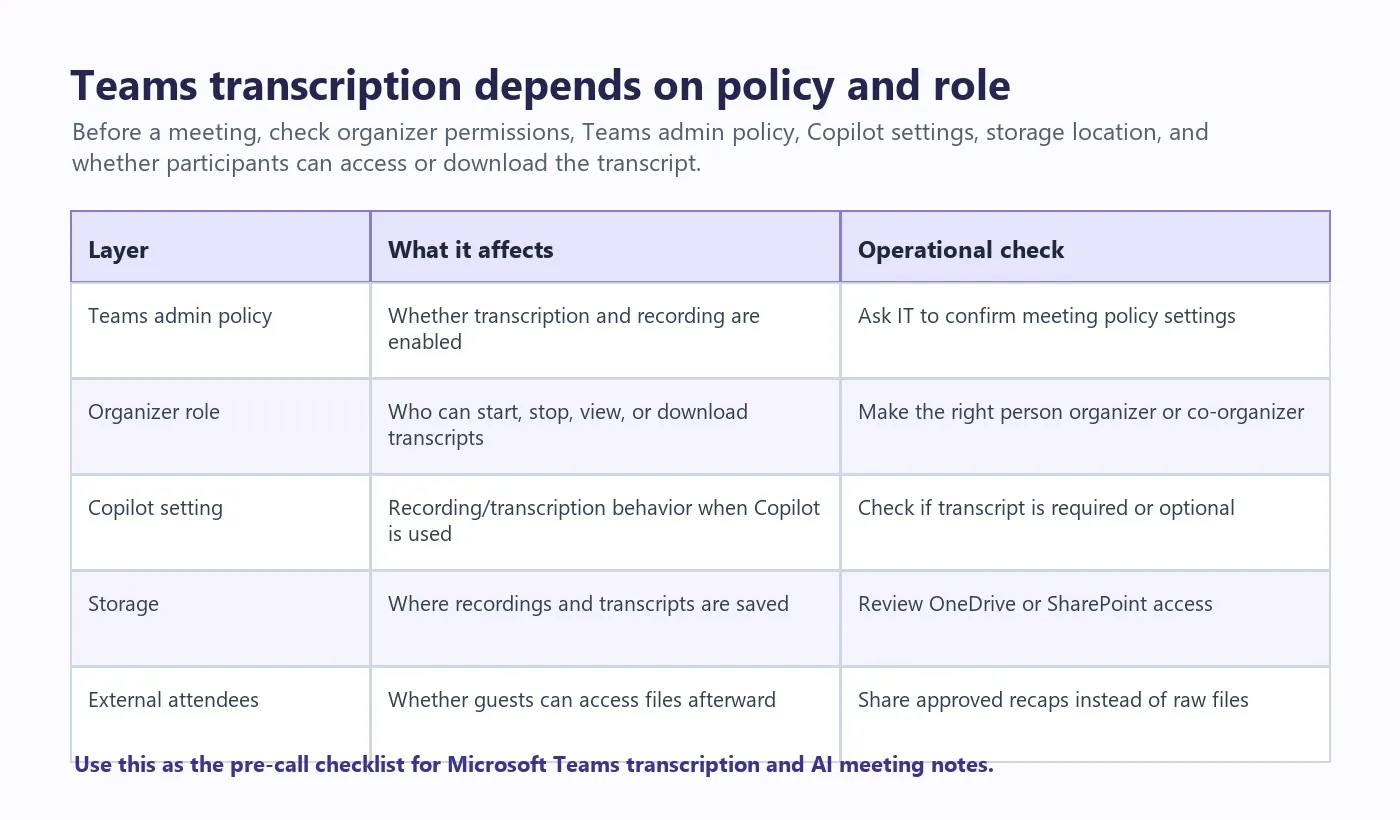
| Permission factor | Why it matters | What to verify |
|---|---|---|
| Teams meeting policy | Admins can enable or disable transcription and recording behavior | Ask IT whether transcription is allowed for your user group |
| Organizer or co-organizer role | These roles usually have more control over meeting capture | Make the meeting owner or operator a co-organizer before the call |
| Participant role | Regular participants may not be able to start or download transcripts | Ask the organizer for access or an approved recap |
| Copilot configuration | Teams Copilot and transcription settings may affect each other | Check whether Copilot requires transcript capture for the meeting type |
| Storage and sharing | Recordings and transcripts are usually tied to OneDrive or SharePoint access | Confirm who can view, download, or share the final files |
| Guest and external users | External attendees may not receive the same file access | Send a compliant recap instead of raw transcript files when needed |
How to Start Transcription in Microsoft Teams
If your organization allows transcription, the native Teams workflow is usually simple. The friction appears when the wrong person owns the meeting link or when the feature is disabled by policy.
- Join the Microsoft Teams meeting with the correct work or school account.
- Confirm that attendees are aware transcription or recording may be used.
- Open the meeting controls and look for transcription or recording options.
- Start transcription if the option is available to your role.
- Speak clearly, avoid cross-talk, and use speaker names when assigning work.
- Stop transcription at the end of the meeting if needed.
- Review the transcript from the meeting recap, chat, OneDrive, or SharePoint location provided by Teams.
If the transcript option is missing, do not treat it as a user error. It may be blocked by policy, account eligibility, meeting type, or role. That is why the best teams decide their capture workflow before the meeting, not after.
Microsoft Teams Transcription vs Recording vs AI Meeting Notes
A Teams recording preserves the call. A transcript makes it searchable. AI meeting notes make it actionable. These are related outputs, but they are not interchangeable.
| Option | Primary output | Strength | Limitation | Best for |
|---|---|---|---|---|
| Teams recording | Video file | Full visual archive | Slow to review and large to store | Training, interviews, demos, compliance review |
| Teams transcript | Written conversation | Searchable and easier to quote | Still chronological and long | Reference, accessibility, wording confirmation |
| HiNoter AI meeting notes | Transcript, summary, actions, mind map, cited AI Chat | Turns discussion into follow-up | Requires permission-aware capture | Managers, sales, product, operations, multilingual teams |
When Microsoft Teams Transcription Is Not Enough
The transcript tells you what happened. It does not automatically answer the questions your team asks five minutes later: What did we decide? Who owns the migration plan? What deadline did the customer mention? Which risk did legal flag?
This is where HiNoter fits naturally after the native Teams workflow. HiNoter is an AI meeting notes and transcription platform built to turn conversations into structured knowledge.
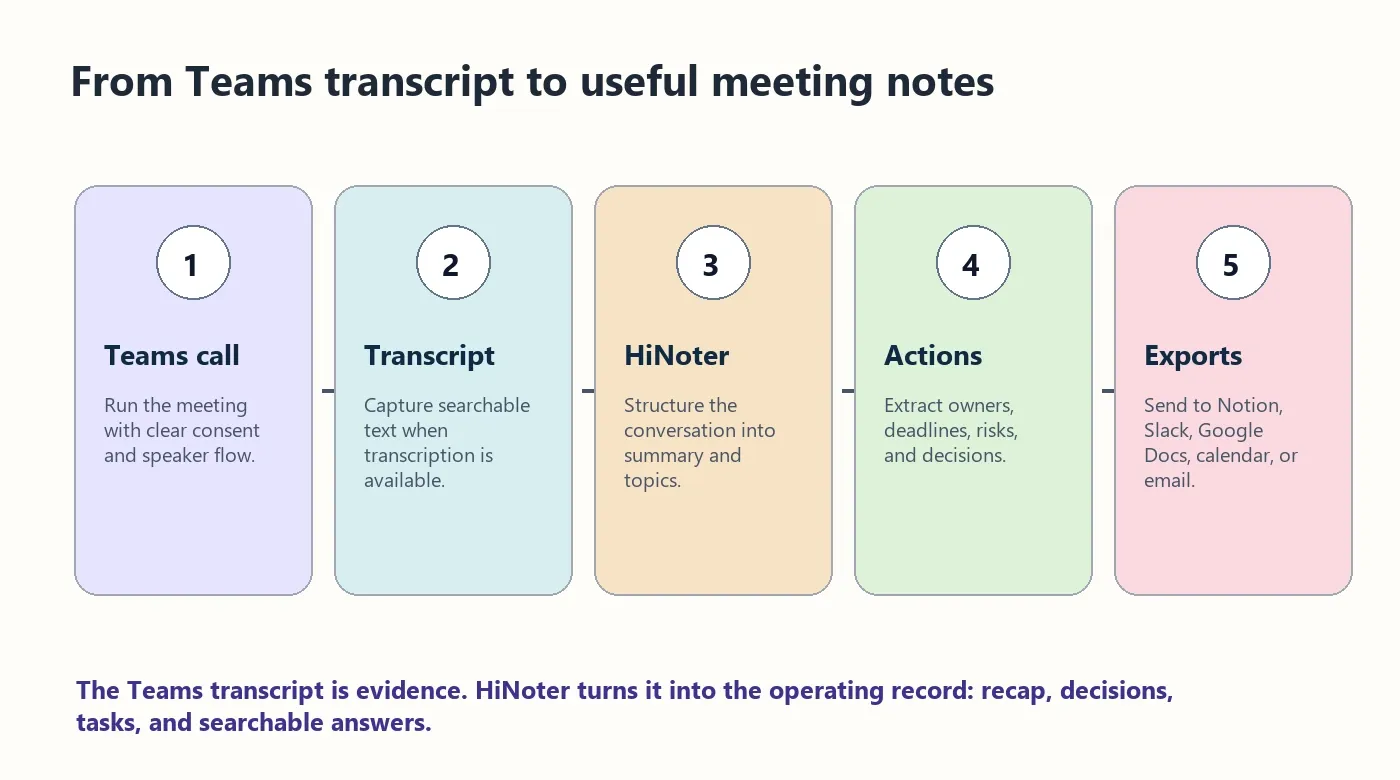
HiNoter workflow for Teams meetings
- Connect your calendar. HiNoter detects scheduled meetings so notes do not depend on someone remembering to press record.
- Let the assistant join when permitted. The assistant can participate in approved meeting workflows.
- Generate the transcript. Speech becomes searchable text instead of scattered memory.
- Structure the meeting. HiNoter creates summaries, decisions, action items, risks, and mind maps.
- Export the record. Send the output to Notion, Slack, Google Docs, email, calendar follow-ups, or your knowledge base.
For related HiNoter workflows, see the AI meeting assistant, audio to text converter, video to text workflow, mind map generator, and multilingual meeting notes.
What HiNoter Produces From a Teams Meeting
HiNoter is most useful when a Teams transcript is too much text and not enough structure. It keeps the source record useful while giving teams a faster route to action.
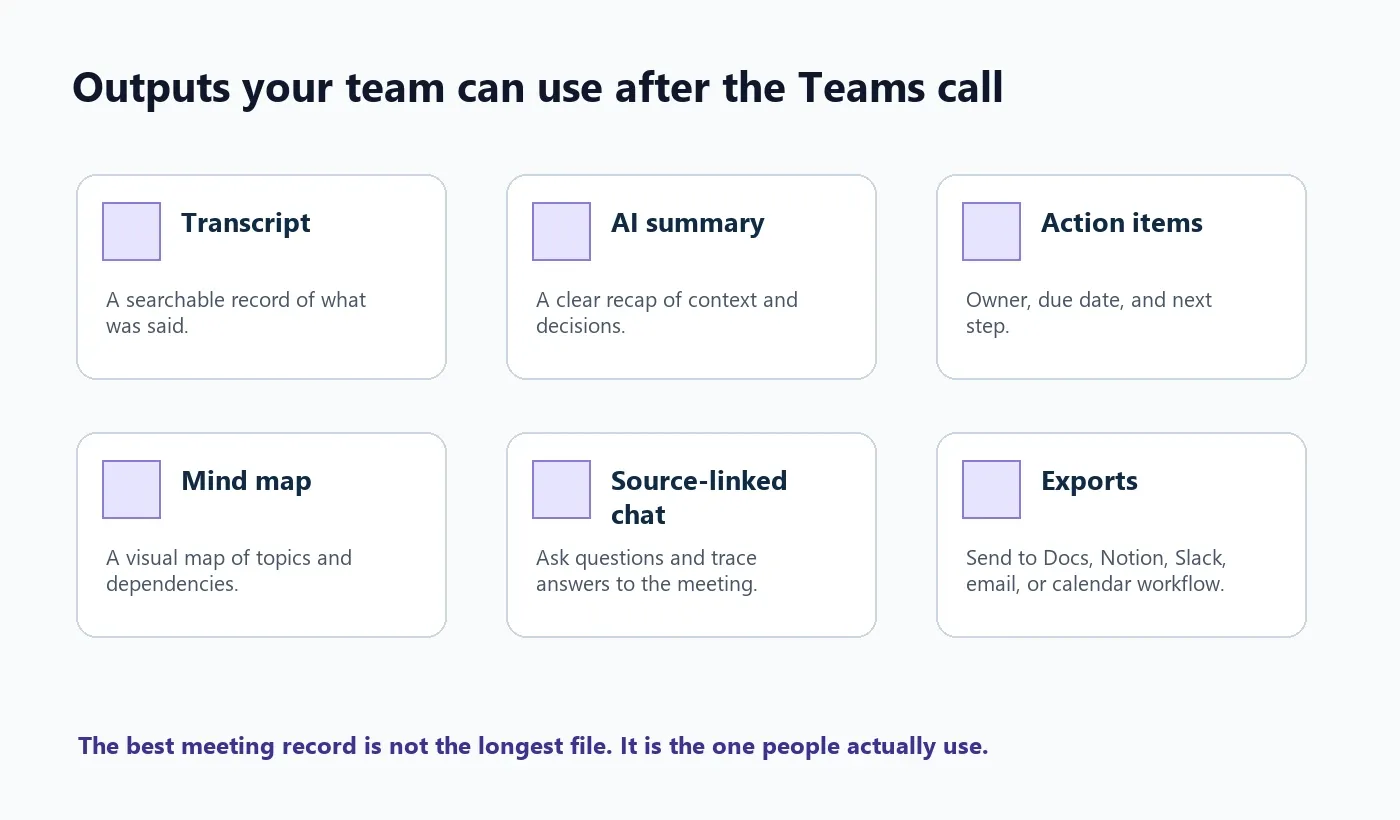
| Output | What it does | Example use |
|---|---|---|
| Transcript | Creates a searchable written record | Find exact wording from a customer or stakeholder |
| AI summary | Condenses the meeting into key points and outcomes | Send a recap to executives or absent teammates |
| Decisions | Separates agreements from discussion | Confirm scope, approval, or launch timing |
| Action items | Extracts tasks with owner and deadline | Move follow-up into the team's operating system |
| Mind map | Shows topics, risks, and dependencies visually | Understand complex planning meetings faster |
| AI Chat with citations | Answers questions with source references | Ask what finance, legal, or a customer said about a topic |
Best Practices for Better Teams Transcripts
Transcript quality is part technology, part meeting discipline. Small habits make a large difference.
- Use a good microphone and reduce background noise.
- Ask people to avoid talking over one another.
- Have external guests introduce themselves.
- Name owners and due dates out loud.
- Repeat important decisions before moving on.
- End with a thirty-second recap of decisions, actions, and open questions.
- For multilingual teams, choose a workflow that supports automatic language detection.
HiNoter supports 50+ languages with automatic detection, which makes it useful for global teams that use Microsoft Teams across English, Portuguese, Spanish, French, German, and other languages.
Troubleshooting Microsoft Teams Transcription
| Problem | Likely cause | Fix |
|---|---|---|
| Transcription button is missing | Meeting policy, license, account, or role does not allow it | Ask IT to check Teams transcription policy and user eligibility |
| Participant cannot download transcript | Download rights may be limited to organizer or co-organizer | Ask the organizer for an approved recap or file access |
| Transcript is inaccurate | Cross-talk, poor microphone quality, accent mix, or background noise | Improve audio and use HiNoter to structure the transcript after capture |
| Recording exists but no one watches it | Video is too long for practical review | Use HiNoter to generate summary, decisions, and action items |
| Assistant cannot join | Guest policy, lobby setting, or external app restriction blocks it | Test the meeting link and admission flow before important calls |
| Action items are missing | The team never stated owners or deadlines clearly | Close each meeting with owner, task, and due-date recap |
Privacy and Consent Notes
Teams transcripts and recordings can contain sensitive customer data, employee information, hiring notes, security details, and financial context. Treat them as business records. Before transcribing or using an AI meeting assistant, follow your organization's privacy policy and the legal requirements in the regions where participants are located.
A practical meeting notice can be simple: "We are using transcription and HiNoter to create meeting notes, action items, and a recap. The notes will be shared with attendees after the call." For legal, HR, healthcare, education, or financial meetings, use your approved language.
Who Benefits Most From Teams Transcription Plus HiNoter?
| Team | Common Teams meeting problem | HiNoter value |
|---|---|---|
| Sales | Customer objections and next steps get buried in recordings | Extract commitments, risks, follow-up email drafts, and action items |
| Product | Decisions scatter across Teams chat, docs, and meetings | Summarize decisions and make them searchable with source citations |
| Operations | Owners and due dates are missed | Turn discussions into structured tasks and recaps |
| Recruiting | Interview notes vary by interviewer | Create consistent, consent-aware records and follow-ups |
| Global teams | One meeting may involve several regions and languages | Use multilingual capture and a shared knowledge record |
Try HiNoter when Microsoft Teams transcription needs to become summaries, action items, mind maps, and source-linked team knowledge.
FAQ
What is Microsoft Teams transcription?
Microsoft Teams transcription converts a Teams meeting conversation into written text, usually with speaker attribution and timestamps when the feature is available and enabled by meeting policy. It helps teams search, quote, review, and share meeting content after the call.
Who can start transcription in Microsoft Teams?
Transcription access depends on Teams meeting policy, organizer settings, participant role, and account eligibility. Organizers and co-organizers usually have more control than regular participants, but your organization's admin settings are the final gate.
What should I do if Microsoft Teams transcription is unavailable?
If Teams transcription is unavailable, ask the organizer or IT admin to confirm policy settings. If your organization allows it, use an approved AI meeting assistant such as HiNoter to create transcripts, summaries, action items, and searchable notes.
Is a Teams transcript enough for meeting follow-up?
No. A transcript is useful for reference, but follow-up requires decisions, owners, due dates, and next steps. HiNoter turns meeting content into structured notes, action items, mind maps, and source-linked AI Chat.
Can HiNoter summarize an existing Teams recording?
HiNoter can work with supported audio and video sources, so teams can convert long recordings into transcripts, summaries, action items, mind maps, and cited answers instead of rewatching the full file.
Does HiNoter support multilingual Teams meetings?
HiNoter supports 50+ languages with automatic detection, which helps distributed teams create one shared record across regions, accents, and languages.