Direct answer: A Zoom AI note taker helps teams capture Zoom meetings and turn them into transcripts, summaries, decisions, action items, and searchable notes. Native Zoom recording and AI Companion can help when permissions allow them; HiNoter adds a calendar-based workflow that can auto-join scheduled meetings and deliver structured notes after the call.
Zoom meetings are easy to join and surprisingly easy to lose. A project decision lands in minute 47, a customer mentions the real blocker while screen sharing, or a hiring panel agrees on next steps in the last two minutes. If nobody owns the notes, the recording becomes a long file that everyone promises to watch later and almost nobody does.
This guide starts with the practical Zoom question: who can record, where transcripts come from, what AI Companion can summarize, and what to do when those settings are unavailable. Then it shows the HiNoter workflow for teams that want the useful part of the meeting - transcript, summary, action items, mind map, exports, and source-backed AI Chat - without manually starting, stopping, downloading, and rewriting every call.
How Zoom Recording, Transcripts, and AI Notes Work
Zoom offers computer recording, cloud recording, cloud recording transcripts, and AI Companion meeting summaries, but they do not behave like one universal note-taking switch. The exact experience depends on the account type, admin settings, host permissions, meeting controls, storage policies, client version, and whether the host enables the right features before or during the meeting.
Zoom's official support documentation says computer recordings are saved locally and are available with all Zoom accounts, while cloud recordings are available with paid accounts and stored in Zoom Cloud. Cloud recordings can include MP4 video, M4A audio, and chat text files. Audio transcription is a separate cloud recording feature: it automatically transcribes cloud recording audio and provides a VTT transcript after processing when the account, cloud recording, and transcription settings are enabled.
Zoom AI Companion meeting summary is different from a recording transcript. It can generate an AI-written meeting summary and send it after the meeting, but the feature must be available on the account and enabled by owners, admins, or the relevant user settings. Zoom also notes that participants can request a meeting summary, but the host or an eligible admin may need to start or enable the feature.
Zoom AI Note Taker Permissions at a Glance
| Role or Situation | What You Can Usually Do | What to Check First | Best Next Step |
|---|---|---|---|
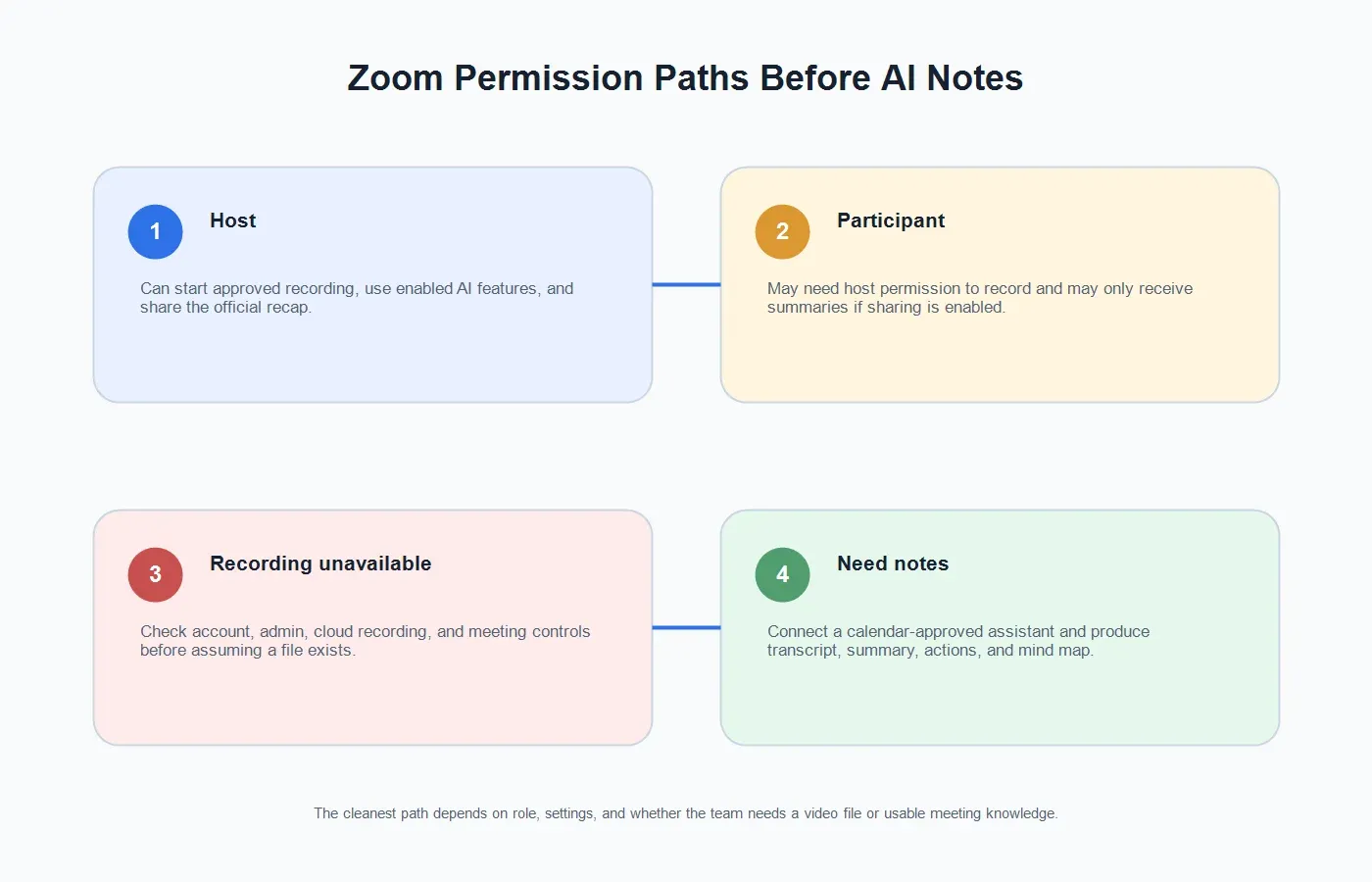
| Host | Start a local or cloud recording if the account and meeting settings allow it. | Recording setting, cloud recording eligibility, AI Companion availability, and sharing rules. | Use native recording when the team needs the video file; use HiNoter when the team needs structured notes. |
| Co-host | May be able to start cloud recording when the account and meeting permissions allow it. | Host controls, account license, and whether recording is enabled for the meeting. | Confirm responsibility before the call so recording and note delivery are not missed. |
| Participant | Can join and contribute; may need host permission to record locally. | Whether the host grants recording privileges and whether recording is appropriate for the meeting. | Ask the host before recording or using any AI note-taking assistant. |
| Recording unavailable | You may still be able to capture notes through an approved assistant workflow. | Admin restrictions, account plan, host role, meeting notice, and consent requirements. | Use HiNoter with the right calendar access and meeting permissions when the goal is notes, not video storage. |
If You Are the Host
If you host the Zoom meeting, decide what the team actually needs before the meeting starts. A recording is useful when someone must review screen share details, preserve training footage, or maintain a formal archive. A transcript is useful when the team needs searchable text. An AI note workflow is useful when people mainly need a concise recap, decisions, tasks, owners, and follow-up.
For native Zoom recording, start the meeting, click the recording control, and choose the available recording option. If cloud recording is enabled, you may be able to record to the cloud; otherwise, the available option may be local computer recording. On mobile, Zoom's support documentation states that local recording is not available on iOS or Android, while cloud recording requires an eligible paid account, host or co-host privileges, and cloud recording enabled.
For AI Companion meeting summary, check whether the feature is enabled for your account, group, and user settings. Zoom's support materials describe account owner and admin controls for enabling or disabling meeting summary, plus optional settings such as automatic summary start, sharing by email, retention, use of meeting chat messages, and custom disclaimers.
If You Are a Participant
If you are not the host, do not assume you can record or bring in a note-taking assistant. In Zoom, a participant may need the host to allow recording privileges. That permission should be explicit, especially for customer calls, recruiting interviews, research sessions, medical or financial discussions, and any meeting that includes people outside your company.
Participants can still make the meeting more accountable. Ask the host to turn on the approved recording, enable the approved AI summary, or invite the team's chosen note-taking assistant. If the team uses HiNoter, the cleanest approach is to connect the calendar and let the assistant join scheduled meetings according to the team's policy, rather than improvising after the call has already started.
If Zoom Recording Is Unavailable
Recording may be unavailable for ordinary reasons: the host is not licensed, cloud recording is disabled, the admin locked recording settings, the user is on a device that does not support the desired recording type, or nobody with the right permissions is present. It may also be unavailable for policy reasons, such as a customer contract, internal privacy rule, or meeting type that should not be recorded.
When recording is unavailable, separate the goal from the method. If the team needs a legal archive of the video, solve the Zoom recording issue with the admin or host. If the team needs the substance of the meeting - what was decided, what was promised, and what happens next - an approved AI note taker may be the better workflow. The important part is to notify participants and follow your organization's consent, privacy, and data handling rules.
Zoom AI Note Taker Workflow With HiNoter
HiNoter is an AI meeting assistant and meeting notes platform built for teams that need more than a meeting file. After the native Zoom path is understood, the HiNoter workflow is simple: connect the calendar, let the assistant join the scheduled call when appropriate, and receive structured notes after the meeting.
| Step | What Happens | Why It Helps |
|---|---|---|
| 1. Connect your calendar | HiNoter reads scheduled meeting context so it knows when an approved Zoom call is happening. | The team does not rely on someone remembering to start a manual recording. |
| 2. Let the assistant join | The AI note taker joins the meeting according to your calendar, permission, and meeting policy. | Participants can focus on the conversation instead of typing notes. |
| 3. Generate the transcript | The meeting is converted into searchable text with speaker-aware structure where available. | People can recover details without rewatching the full Zoom recording. |
| 4. Create structured outputs | HiNoter produces summary, decisions, action items, owners, follow-up, and mind map. | The useful record is ready for managers, project teams, sales, support, and recruiting. |
| 5. Sync and ask questions | Notes can be exported or synced to tools such as Notion, Slack, Google Docs, calendar, and email. | Meeting knowledge moves into the places where the team already works. |
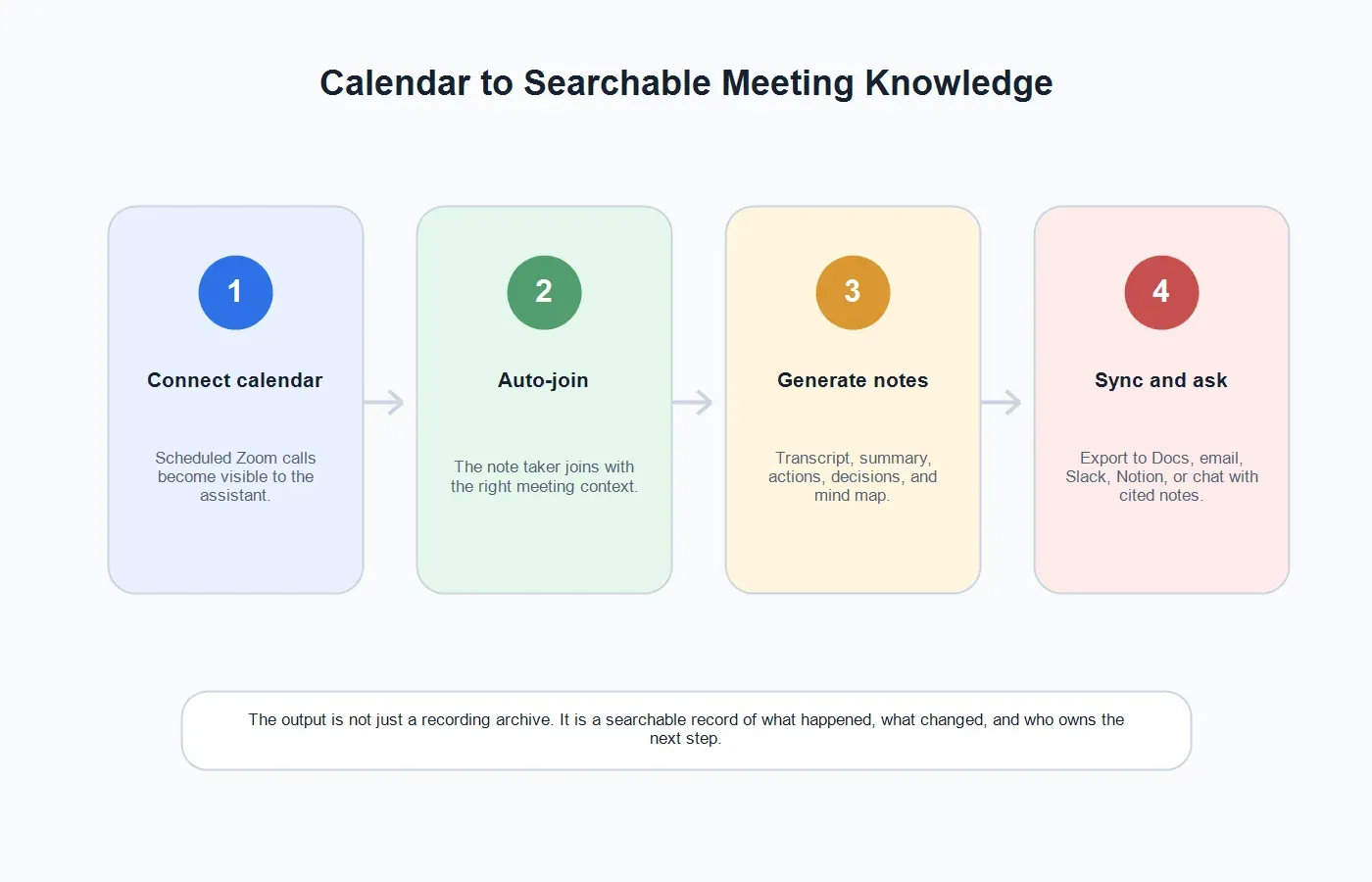
The difference is small during the meeting and large afterward. A recording asks someone to review a file. A transcript asks someone to read a long document. AI meeting notes give the team a concise first draft of what matters, with the transcript still available when the source needs to be checked.
What HiNoter Produces After a Zoom Meeting
A strong Zoom AI note taker should not stop at raw speech-to-text. HiNoter is designed to turn meeting content into reusable team knowledge, especially for teams that move across Zoom, Google Meet, videos, PDFs, audio files, and multilingual conversations.
Transcript
The transcript gives the team searchable meeting text. It helps when someone needs the exact wording of a customer objection, an interview answer, a technical explanation, or a decision rationale. If you already have a lawful audio or video file, the audio to text workflow can also turn recordings into text after the call.
Summary
The summary should be short enough for a manager to read and specific enough to preserve meaning. It should answer: why the meeting happened, what changed, what was decided, what remains open, and what the team should do next.
Action Items
Action items are where many meeting notes fail. A useful item needs a task, an owner, a due date or expected timing, and enough context for the owner to act. HiNoter can surface candidate tasks and owners so the team can confirm the final follow-up quickly.
Mind Map
Mind maps are useful when the conversation branches across topics: customer needs, product risks, objections, dependencies, and open questions. They make a dense call easier to scan without forcing every reader into the transcript.
AI Chat With Source References
After the meeting, the best question is often not "Where is the recording?" but "What did the customer actually say about pricing?" or "Which deadline did engineering commit to?" HiNoter's AI Chat helps users ask questions of their notes and see source-linked answers, turning meeting notes into a working knowledge base instead of a static archive.
Native Zoom Path vs HiNoter Notes Path
| Need | Native Zoom Recording or Transcript | HiNoter AI Notes Workflow |
|---|---|---|
| Preserve video | Good fit when the team needs screen share, training footage, or a formal video archive. | Useful as a companion, but HiNoter is focused on notes and knowledge rather than replacing the video file. |
| Get searchable text | Cloud recording transcripts can provide timestamped VTT files when enabled and processed. | Creates searchable notes from meetings and other permitted sources, with summaries and follow-up layered on top. |
| Know what changed | Requires someone to read the transcript or watch the recording unless AI summary is available and sufficient. | Highlights decisions, blockers, owners, and next steps so managers do not chase every participant. |
| Support multilingual teams | Zoom transcript and summary language behavior depends on feature support and settings. | Multilingual support helps teams work across 50+ languages and reduce manual notetaker assignment. |
| Reuse content beyond meetings | Mostly centered on the Zoom meeting asset. | HiNoter can also process permitted media through workflows such as video to text, making webinars, demos, and training clips reusable. |
Best Use Cases for a Zoom AI Note Taker
Sales Calls
Sales teams need objections, commitments, pain points, competitors, buying committee names, and next steps. A Zoom recording may be useful for coaching, but the account team usually needs a crisp recap in the CRM, Slack channel, or handoff document. HiNoter can help turn the meeting into a structured follow-up so reps do not rely on memory after back-to-back calls.
Customer Success and Support Reviews
Customer calls often contain the real reason an implementation is stuck. The problem may be a permissions issue, training gap, data import blocker, or unclear ownership. A Zoom AI note taker helps preserve the decision and next step so the support, success, and product teams see the same context.
Recruiting and Interview Panels
Recruiting teams need consistent notes, not scattered impressions. With proper notice and consent, structured notes can help panelists compare evidence against the role requirements and reduce the risk of forgetting specific candidate answers.
Product and Engineering Meetings
Roadmap and incident meetings create decisions that matter later. Teams need to know what tradeoff was accepted, which dependency is blocking progress, and who owns the next investigation. A transcript alone is too heavy; a structured summary with source context is more useful.
Training, Webinars, and Internal Enablement
Recorded training sessions can turn into reusable knowledge. Upload the permitted video or audio to HiNoter, then create a transcript, chaptered notes, summary, action items, and a mind map. Teams can reuse the material without asking everyone to rewatch the full recording.
Troubleshooting Zoom Notes and Recording Problems
I cannot see the Zoom record button
Check whether you are the host or co-host, whether recording is enabled for the account, and whether the meeting owner or admin has restricted recording. If you are a participant, ask the host to grant recording privileges or use the organization's approved note-taking workflow.
The cloud transcript did not appear
Zoom audio transcription requires a supported account, cloud recording enabled, and audio transcription enabled. Zoom's support documentation also notes that transcripts may take additional time to process after the cloud recording becomes available. If the prerequisites are met but the option is missing, Zoom recommends contacting support.
The recording exists, but nobody wants to watch it
This is the normal meeting archive problem. The recording contains the answer, but the answer is trapped inside a long timeline. Upload the lawful recording to HiNoter or let HiNoter join future calls so the team receives notes, decisions, action items, and searchable source context automatically.
I forgot to start recording
If no one recorded, there may be no video file to recover. Prevent the problem by assigning meeting ownership before the call or using a calendar-based assistant that joins scheduled meetings according to policy. The important habit is deciding the capture workflow before the meeting begins.
Participants are uncomfortable with recording
Respect that signal. Explain what will be captured, who will access it, how long it will be retained, and whether the team can use lighter documentation instead. For sensitive calls, align with legal, security, HR, or customer requirements before using any recording or AI assistant.
Privacy and Consent Best Practices
Meeting capture is not only a tool decision. It is also a trust decision. Tell participants when a meeting is being recorded, transcribed, or summarized. Follow the laws and workplace rules that apply to the participants' locations and the type of conversation. For external calls, make the notice plain and give people a chance to object or choose another documentation method.
For internal rollout, create a simple policy that answers five questions: which meetings can use AI notes, who can invite the assistant, how participants are notified, where notes are stored, and who can access or delete them. That policy makes adoption smoother because people know what the tool is doing and why.
Also review vendor data handling. Zoom's AI support materials state that customer audio, video, chat, screen sharing, attachments, and similar communications-like content are not used to train Zoom's or third-party AI models. For any third-party note-taking product, including HiNoter, teams should review the product's current privacy, security, and retention settings before using it for sensitive content.
When to Use Zoom Recording and When to Use HiNoter
| Scenario | Use Zoom Recording | Use HiNoter |
|---|---|---|
| You need the full video archive | Yes. Record the meeting when permissions, policy, and storage allow it. | Use as a companion to create searchable notes and summaries from the recording. |
| You need decisions and follow-up fast | Only if someone reviews the recording or transcript quickly. | Yes. Generate summary, decisions, action items, owners, and mind map after the call. |
| You cannot record natively | Resolve account, admin, or host restrictions first if a formal video record is required. | Use only with proper permission and notice when the approved goal is meeting notes. |
| You run many meetings per week | Recordings can pile up and become hard to search. | Calendar-based capture helps every meeting produce consistent, structured output. |
| You work across Zoom, Meet, video, audio, and PDFs | Zoom only covers the Zoom meeting asset. | HiNoter is better when the knowledge source may be a meeting, video, audio file, YouTube content, or PDF. |
How to Roll Out a Zoom AI Note Taker for a Team
Start with recurring meetings, not every meeting. Choose one sales call review, one customer success call, one project sync, and one leadership update. Define the expected output for each meeting type: executive summary for leadership, action items for project syncs, objections and follow-up for sales, and blockers for customer success.
Next, connect the calendar and decide who owns the meeting record. The owner does not have to type notes, but they should review the output for accuracy, remove anything that should not be shared, and send the recap to the right audience. This preserves accountability while still eliminating the worst part of manual note-taking.
Finally, decide where the notes go. A recap that lives only in someone's inbox will be forgotten. Send customer summaries to the account workspace, project decisions to the project doc, action items to the right channel, and evergreen knowledge to the team knowledge base. HiNoter supports the workflow by turning the meeting into structured material that can be synced, exported, searched, and discussed.
Final Take
Zoom already gives teams several ways to capture meetings, but the native path is permission-dependent and recording-centered. That is fine when the goal is a meeting archive. It is not enough when the team needs to know what happened, what was decided, and who owns the next step.
A Zoom AI note taker should make meetings lighter, not create another file to manage. Connect your calendar to HiNoter, let the assistant join approved Zoom meetings, and receive the transcript, summary, action items, mind map, and source-linked AI Chat after the call. The meeting becomes searchable knowledge instead of a disappearing conversation.
CTA: Try HiNoter for your next scheduled Zoom meeting. Connect your calendar, stay present in the call, and get automatic notes, summaries, action items, and mind maps without rebuilding the meeting from memory.
FAQs
What is a Zoom AI note taker?
A Zoom AI note taker is software that captures or processes Zoom meeting content and turns it into transcripts, summaries, decisions, action items, and searchable notes. Some tools work through native Zoom features; others, such as HiNoter, can join scheduled meetings through a calendar-based assistant workflow.
Can an AI note taker join Zoom meetings automatically?
Yes, when the tool, calendar, meeting permissions, and organization policy allow it. HiNoter can connect to your calendar and join scheduled meetings so the team does not rely on someone manually starting a recording or writing notes.
Do I need to record Zoom to get AI notes?
Not always. Native Zoom transcripts are tied to cloud recording, but a dedicated AI note-taking workflow may generate notes through an approved assistant joining the meeting or from a permitted recording uploaded afterward. Always follow notice, consent, and company policy.
Who can record a Zoom meeting?
The host can usually start recording when recording is enabled. Co-hosts and participants may have limited recording ability depending on account settings, license, meeting controls, and whether the host grants recording privileges. Cloud recording generally requires an eligible paid account and enabled cloud recording settings.
What if Zoom recording is disabled?
First, check whether the restriction is technical, administrative, or policy-based. If the team requires an official video archive, work with the host or Zoom admin. If the goal is structured meeting notes, use an approved note-taking assistant with clear participant notice and permission.
Can HiNoter create action items and mind maps from Zoom calls?
Yes. HiNoter can generate transcripts, summaries, action items, owners, follow-up, and mind maps from supported meeting sources. It also supports AI Chat with source references so teams can ask questions of their notes after the meeting.