Direct answer: Zoom transcription converts meeting speech into searchable text, usually through Zoom cloud recording audio transcription when the account, host, and settings allow it. A transcript is useful, but teams often need more: summaries, decisions, action items, mind maps, exports, and source-linked answers that turn meeting content into usable knowledge.
A Zoom transcript can save hours of rewatching, but it rarely solves the whole problem by itself. A transcript tells you what was said. It does not automatically tell the sales manager which commitment changed, the project lead which blocker matters, or the customer success team which follow-up needs an owner before Friday.
This guide explains the practical Zoom transcription path first: prerequisites, permissions, cloud recording, transcript files, host and participant limits, and common issues. Then it shows how HiNoter turns Zoom meetings into structured notes, summaries, action items, mind maps, and source-backed AI Chat so the transcript becomes the beginning of the workflow, not another document to clean up.
How Zoom Transcription Works
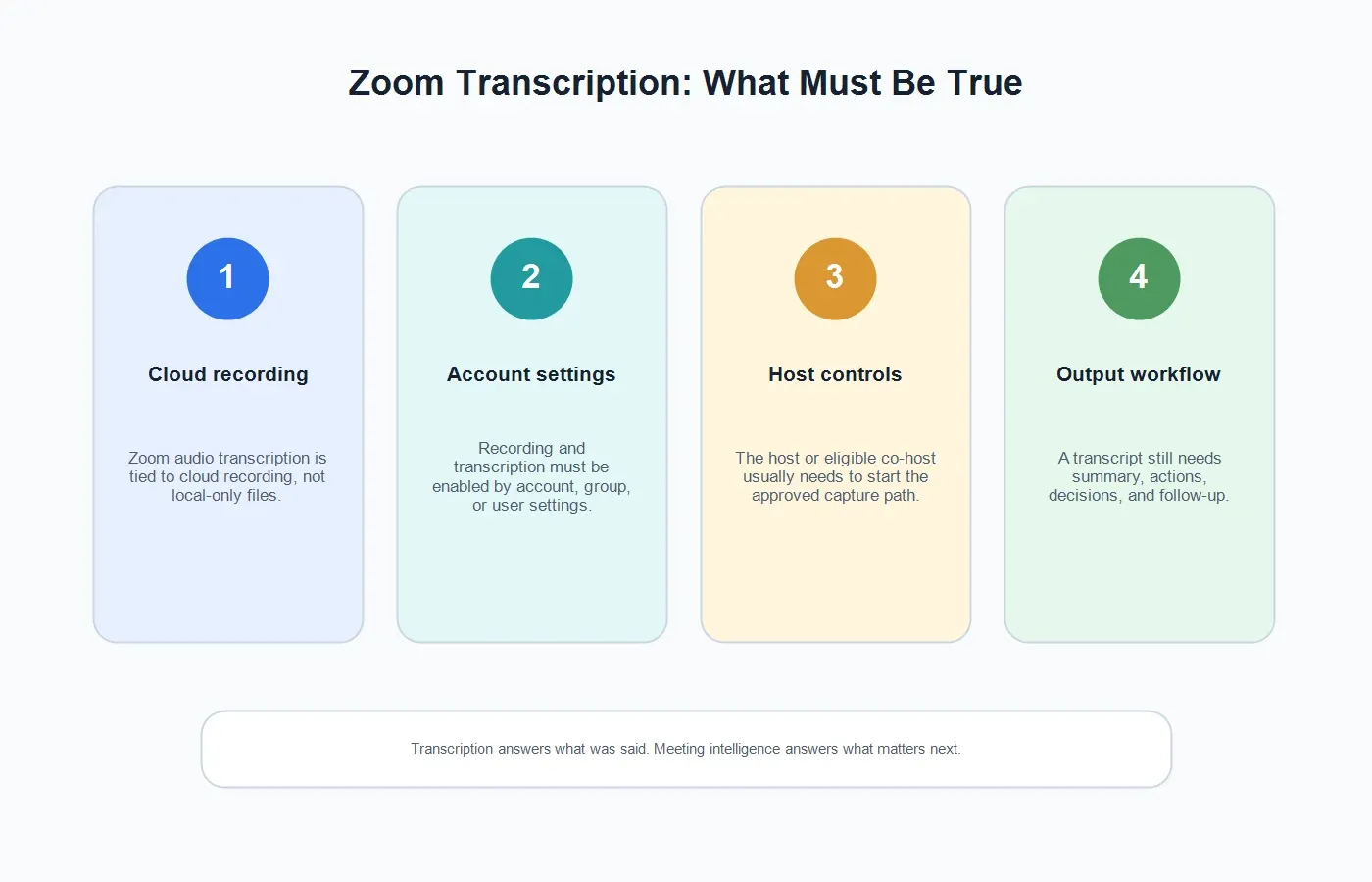
Zoom's native audio transcription is connected to cloud recording. Zoom Support states that audio transcripts are generated automatically after a cloud recording finishes, when audio transcription is enabled. The transcript is processed as a VTT file and appears alongside the cloud recording after processing. Account owners and admins can enable the setting at the account, group, or user level, and users can view or edit the completed transcript from the recording details.
This matters because local computer recordings and cloud recordings are not the same workflow. Zoom's recording documentation explains that computer recordings are saved locally and are available to all Zoom users, while cloud recordings are stored in Zoom Cloud and are available to paid users. Cloud recordings may include video, audio, chat text, and transcripts depending on settings, plan, and processing. If a team wants Zoom's native transcript, the cloud recording and audio transcription path needs to be available before the meeting.
Zoom also offers AI Companion meeting summaries for eligible accounts and enabled settings. Meeting summary is different from transcription: it creates a generated recap, not a verbatim record. Some teams use both. The transcript preserves source detail; the summary helps people understand what happened quickly.
Zoom Transcription Prerequisites and Permissions
| Requirement | What It Means | What Can Go Wrong | Best Next Step |
|---|---|---|---|
| Cloud recording | Native Zoom audio transcription is tied to cloud recording, not local-only recording. | The host records locally, or the account does not support cloud recording. | Use cloud recording when you need Zoom's transcript, or use HiNoter for an approved notes workflow. |
| Audio transcript setting | The account, group, or user setting must allow audio transcription. | The transcript option is disabled or locked by an admin. | Check Zoom recording settings before the meeting, not after the file is missing. |
| Host or eligible co-host | The person with the right role usually starts the recording or approved capture workflow. | A participant expects a transcript but has no recording permission. | Assign meeting ownership before the call begins. |
| Processing time | Transcripts appear after Zoom processes the cloud recording. | The video appears before the transcript, causing people to assume transcription failed. | Wait for transcript processing, then check recording details. |
| Consent and policy | Participants should know when recording, transcription, or AI notes are being used. | Legal, HR, customer, or regional rules may restrict capture. | Give clear notice and follow your organization's policy. |
If You Are the Zoom Host
If you are the host, decide the capture method before the meeting starts. For Zoom's native transcription, confirm that cloud recording and audio transcription are enabled for your account. Start the meeting, choose the recording option that records to the cloud, and let Zoom process the recording after the call. Once processing finishes, the transcript should be available with the cloud recording if the feature is enabled and supported.
Hosts should also decide what the team will do after the transcript exists. A raw transcript is usually too long for managers, customers, and teammates who missed the meeting. For internal meetings, the transcript may need a decision summary and task list. For customer calls, it may need commitments, risks, questions, and a follow-up email. For training sessions, it may need chaptered notes and a knowledge-base entry.
If your organization uses AI Companion, check whether meeting summary is enabled and who receives the summary. If your organization uses HiNoter, decide whether the better workflow is to let HiNoter auto-join the scheduled meeting and produce structured notes directly.
If You Are a Participant
If you are a participant, do not assume you can create a Zoom transcript yourself. A participant may need host permission to record locally, and Zoom's cloud transcription depends on the host's cloud recording path and account settings. If you need a transcript, ask the host or meeting owner before the call starts.
For external calls, be especially clear. A customer, candidate, contractor, or partner should know whether the meeting is being recorded, transcribed, or summarized by an AI assistant. Even when the tool makes transcription easy, trust comes from telling people what is happening and why.
If Recording or Transcription Is Unavailable
Zoom transcription can be unavailable for ordinary technical reasons: cloud recording is not enabled, audio transcription is disabled, the account does not have the right plan, an admin has locked the setting, the host recorded locally, or the meeting owner forgot to start recording. It can also be unavailable for policy reasons, such as customer contracts or sensitive HR discussions.
If the organization needs an official video record, solve the Zoom recording problem with the host or admin. If the team mainly needs usable meeting knowledge, use an approved notes-first workflow. HiNoter can help by connecting to the calendar, joining approved meetings, creating a transcript, and delivering the summary, action items, decisions, and mind map without making a teammate rebuild the meeting afterward.
Zoom Transcription Workflow With HiNoter
HiNoter is an AI meeting assistant and transcription platform for teams that need more than raw text. The core workflow is simple: connect your calendar, let the assistant join approved Zoom meetings, generate a searchable transcript, and turn that transcript into structured notes that people can act on.
| Step | What Happens | Why It Helps |
|---|---|---|
| 1. Connect your calendar | HiNoter sees approved scheduled meetings and understands the meeting context. | The team does not rely on someone remembering to start transcription manually. |
| 2. Auto-join the meeting | The assistant joins the Zoom call according to meeting access and company policy. | Participants can stay present instead of typing notes. |
| 3. Generate the transcript | The conversation becomes searchable text that can be reviewed and cited. | Important details are easier to recover than they are inside a recording timeline. |
| 4. Create summaries and tasks | HiNoter produces a concise summary, decisions, action items, owners, follow-up, and mind map. | The meeting output becomes useful for managers, customers, and project teams. |
| 5. Sync and ask questions | Notes can move to Notion, Slack, Google Docs, calendar, email, or AI Chat with source references. | The transcript becomes searchable team knowledge instead of a static file. |
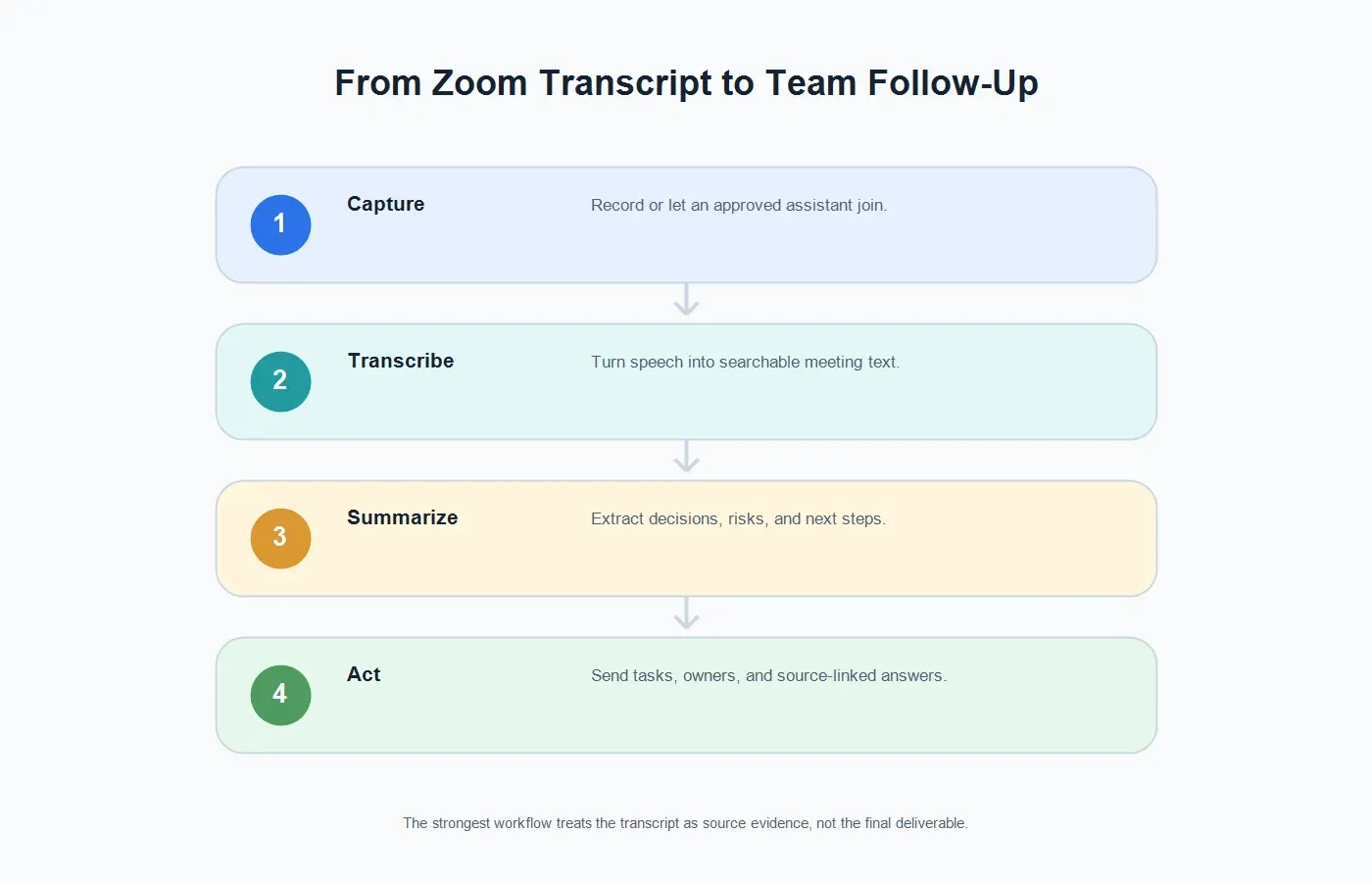
This is the difference between transcription and a complete meeting workflow. AI meeting notes keep the transcript available as evidence, but make the first thing people see a readable summary, a decision trail, and a list of next steps.
Native Zoom Transcript vs HiNoter Meeting Notes
| Need | Native Zoom Transcription | HiNoter Workflow |
|---|---|---|
| Verbatim meeting text | Strong fit when cloud recording and audio transcription are enabled. | Creates searchable text and keeps it connected to structured notes. |
| Fast meeting summary | Requires someone to read the transcript unless AI summary is available and sufficient. | Generates concise summaries designed for follow-up and review. |
| Action items | The transcript may contain tasks, but someone must find and rewrite them. | Extracts candidate action items, owners, due dates, and follow-up messages. |
| Multilingual teamwork | Language support depends on Zoom features, account settings, and meeting context. | Multilingual support helps teams work across 50+ languages. |
| Non-meeting files | Mostly centered on Zoom cloud recordings. | HiNoter also supports permitted audio to text and video to text workflows. |
What Teams Usually Need After a Zoom Transcript
Summary
A summary should not simply compress the transcript. It should explain why the meeting happened, what changed, what decisions were made, what remains unresolved, and what the team should do next. That is the part most readers actually need.
Decisions
Decision capture is where many transcripts fall short. A transcript may contain the decision, the reasoning, the objection, and the approval, but those details are scattered across the conversation. HiNoter can help surface the decision line and preserve the source context underneath it.
Action Items
Good action items need a task, owner, timing, and context. "Follow up" is not enough. A useful Zoom transcription workflow should produce concrete next steps, such as who sends the recap, who fixes the blocker, who checks the contract, and when the next milestone happens.
Mind Map
Mind maps are useful when a transcript covers many branches: customer objections, implementation blockers, product requests, pricing concerns, security review, and timeline risk. A visual map helps readers scan the conversation without reading every line.
AI Chat With Source References
After a meeting, people often ask narrow questions: "What exactly did the customer say about procurement?" "Which date did we agree on?" "Who owns the data import?" HiNoter AI Chat helps users ask those questions and get source-linked answers from the meeting notes.
Use Cases for Zoom Transcription
Sales Calls
Sales teams need more than a transcript. They need buying signals, objections, stakeholders, competitors, budget timing, and next steps. HiNoter can turn a Zoom transcript into a usable account recap without forcing the rep to clean up notes after a full day of calls.
Customer Success Calls
Customer calls often contain implementation blockers and promises that must be remembered precisely. A transcript preserves the detail, while a structured summary gives success, support, product, and engineering teams the same view of what changed.
Recruiting and Interviews
With proper notice and policy alignment, Zoom transcription can help hiring teams preserve candidate answers and reduce reliance on memory. Structured notes make it easier to compare evidence across interviewers.
Research Interviews
Researchers often need exact phrasing, but teams need insights. A transcript keeps the raw evidence, while summaries and mind maps help product, marketing, and leadership teams understand patterns across sessions.
Training and Webinars
A webinar transcript is useful, but a chaptered summary, action list, and knowledge-base entry are easier to reuse. Upload permitted recordings to HiNoter or let the assistant capture approved sessions so the recording becomes searchable training material.
Troubleshooting Zoom Transcription
The Zoom transcript did not appear
Check whether the meeting was recorded to the cloud, whether audio transcription was enabled, and whether processing has completed. Zoom's transcript may take longer to appear than the recording itself.
The meeting was recorded locally
Native Zoom audio transcription is tied to cloud recording. If you recorded locally, use an approved transcription workflow after the meeting by uploading the lawful audio or video file to a tool such as HiNoter.
A participant needs the transcript
Transcript access may depend on recording ownership, sharing settings, and company policy. Do not forward raw transcripts externally by default. Review the content and share the appropriate summary or transcript based on the audience.
The transcript is too long to use
This is common. Long transcripts are searchable, but they are not readable meeting records. Convert the transcript into summary, decisions, action items, owners, and a follow-up message.
Recording is not allowed
Respect the restriction. If the meeting cannot be recorded or transcribed, use an agreed manual summary or another compliant documentation method. If AI notes are allowed but video recording is not, explain the capture method clearly and follow policy.
Privacy and Consent Best Practices
Recording and transcription should be visible to participants. Tell people when a meeting is being recorded, transcribed, or summarized with AI. Follow the laws, workplace rules, customer contracts, and regional consent requirements that apply to the meeting participants.
For internal rollout, write a short policy that answers five questions: which meetings can be transcribed, who can start or invite the assistant, how participants are notified, where transcripts and notes are stored, and when content should be deleted. The policy makes adoption smoother because people know what is happening before the call starts.
For sensitive content, review tool settings and data handling. Zoom states in its AI support materials that customer communications-like content such as audio, video, chat, screen sharing, and attachments is not used to train Zoom's or third-party AI models. Teams should still review current vendor privacy, security, and retention settings before using any transcription or AI notes product for confidential meetings.
When to Use Native Zoom Transcription and When to Use HiNoter
| Scenario | Use Native Zoom Transcription | Use HiNoter |
|---|---|---|
| You need a transcript tied to the Zoom cloud recording | Yes, when cloud recording and audio transcription are enabled. | Use as a companion when the transcript needs summaries and tasks. |
| You need action items immediately | Only if someone reviews the transcript quickly. | Yes. Generate actions, owners, follow-up, decisions, and mind map. |
| You missed the cloud recording setup | The native transcript may not be available. | Upload a lawful recording or use calendar-based capture for future meetings. |
| You work across multiple content sources | Zoom transcription mainly covers Zoom cloud recordings. | HiNoter supports meetings, audio, video, YouTube content, PDFs, and team knowledge workflows. |
| You need source-backed questions after the meeting | The transcript can be searched manually. | AI Chat lets users ask questions and trace answers back to the source notes. |
Final Take
Zoom transcription is valuable because it gives teams a searchable record of what was said. But for most business workflows, the transcript is only the raw material. The value appears when the transcript becomes a summary, decision trail, task list, mind map, and searchable knowledge base.
If your team already uses Zoom cloud recording and audio transcription, keep using it where it fits. If you need a more complete meeting workflow, connect your calendar to HiNoter, let the assistant join approved Zoom meetings, and receive the transcript, summary, action items, mind map, and source-linked AI Chat after the call.
CTA: Try HiNoter for your next Zoom meeting. Connect your calendar, stay focused on the conversation, and get automatic transcription, summaries, action items, and mind maps without rebuilding the meeting from a recording.
FAQs
What is Zoom transcription?
Zoom transcription is the process of converting Zoom meeting audio into text. Native Zoom audio transcription is typically generated from cloud recordings when the account and settings support it.
Does Zoom transcribe meetings automatically?
Zoom can automatically transcribe cloud recording audio when audio transcription is enabled. The transcript appears after the cloud recording is processed.
Can I get a transcript from a local Zoom recording?
Native Zoom audio transcription is tied to cloud recordings. If you have a lawful local recording, you can upload the audio or video file to an approved transcription tool such as HiNoter.
Who can start Zoom transcription?
The native path usually depends on the host or eligible meeting owner starting cloud recording and having audio transcription enabled. Participants should ask the host before recording or using any AI note-taking assistant.
What if Zoom transcription is unavailable?
Check cloud recording, audio transcription settings, account plan, admin locks, and processing status. If the goal is structured notes rather than a formal Zoom transcript, use an approved assistant workflow with participant notice.
Can HiNoter summarize a Zoom transcript?
Yes. HiNoter can turn Zoom meeting content or permitted recordings into transcripts, summaries, action items, owners, mind maps, and source-linked AI Chat answers.