Short Answer
To blur your background in Zoom, open Zoom settings, go to Backgrounds & Effects or Video & Effects, and choose Blur. During a meeting, click the arrow next to Start Video or Stop Video, open background settings, and select Blur my background.
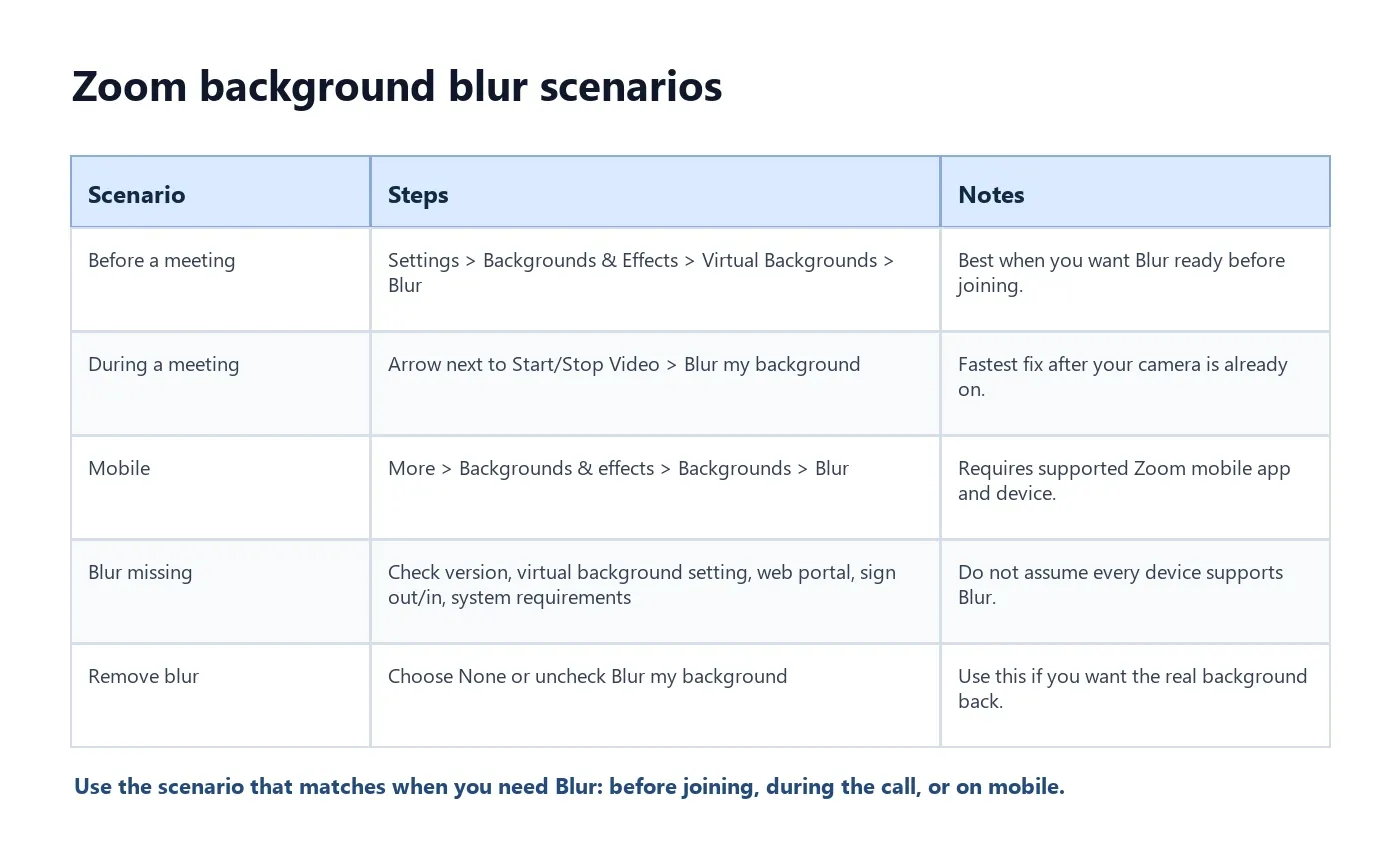
| Scenario | Steps | Notes |
|---|---|---|
| Before a meeting | Profile picture > Settings > Backgrounds & Effects > Virtual Backgrounds > Blur | Zoom says this setting can apply to future meetings. |
| During a meeting | Arrow next to Start/Stop Video > Blur my background | Fastest option when your camera is already on. |
| Mobile | More > Backgrounds & effects > Backgrounds > Blur | Requires a supported iOS or Android device. |
| Blur missing | Update Zoom, enable Virtual Background, sign out/in, check system requirements | Not every device or admin setup supports it. |
What Zoom Background Blur Means
Zoom background blur is a virtual background effect that softens the area behind you while keeping your face visible. Instead of replacing your background with a photo or video, Blur obscures the real room behind you.
Zoom describes blurred background as a privacy-friendly alternative when a custom virtual background is unavailable or not appropriate. It is useful for hiding a cluttered room, reducing visual distractions, taking calls from a coffee shop, or keeping a meeting professional when you do not have time to clean up the space behind you.
Blur is not guaranteed on every device. Zoom's support documentation ties blurred background to virtual background requirements, including app version, device capability, and system requirements. If the option is missing, troubleshoot settings and compatibility before assuming the app is broken.
How to Blur Background in Zoom Before a Meeting
Use this method when you want your background blurred before you join a meeting. It is the cleanest option if you know you are about to take a call from a bedroom, shared office, hotel, or busy public space.
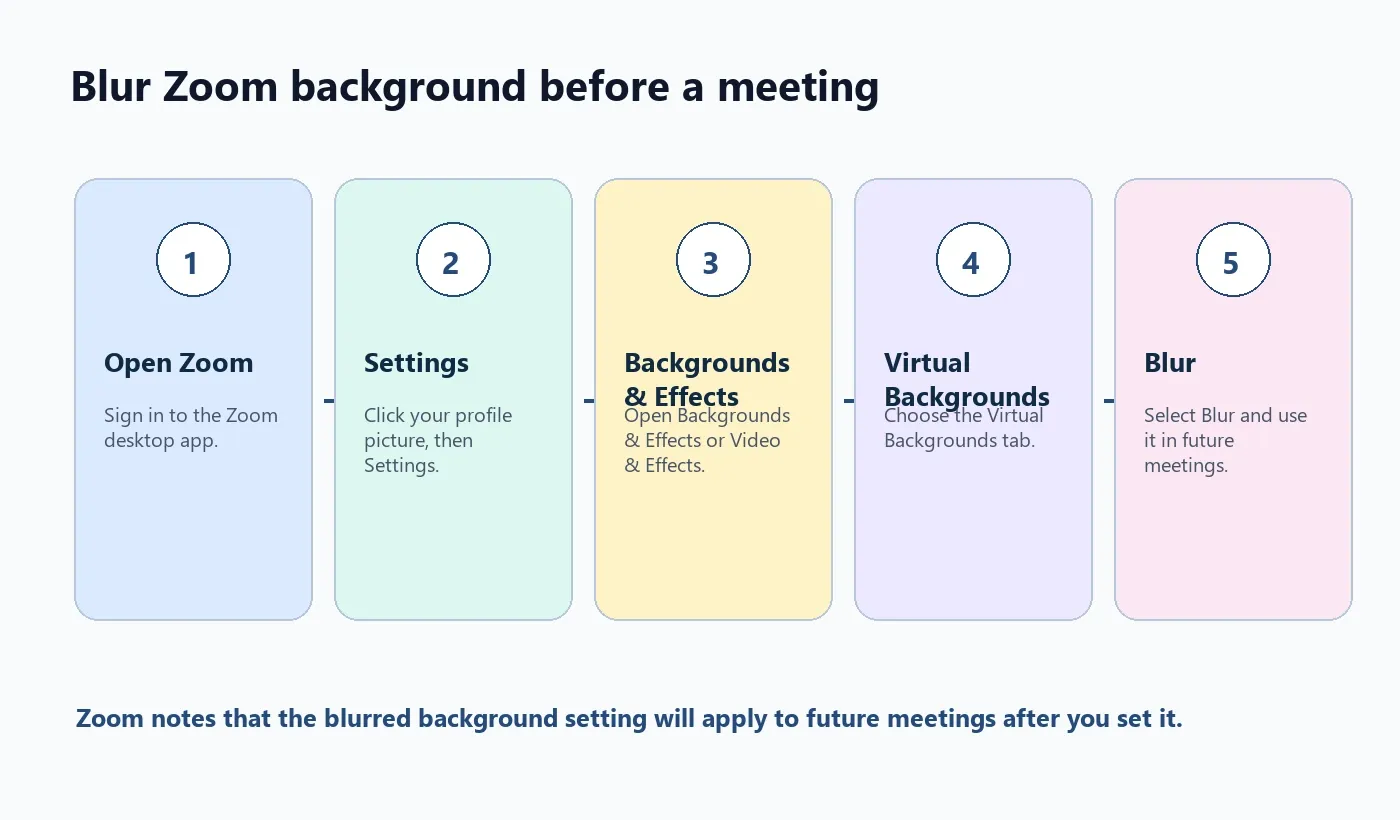
- Open the Zoom desktop app and sign in.
- Click your profile picture.
- Choose Settings.
- Open Backgrounds & Effects or Video & Effects, depending on your Zoom version.
- Open the Virtual Backgrounds tab.
- Select Blur.
- Join your meeting with the background already blurred.
Zoom's support page notes that after you set up blurred background, that virtual background is used for future meetings. If you later want the real background back, choose None.
How to Blur Background During a Zoom Meeting
If you are already in the meeting and notice your background is distracting, you do not need to leave the call.
- Move your cursor over the Zoom meeting window.
- Find Start Video or Stop Video in the lower-left corner.
- Click the small arrow next to the video button.
- Choose Blur my background.
- If you want to turn it off later, use the same menu and remove the checkmark or choose None.
This is the fastest path when you join a call from a messy room or suddenly realize private documents, family members, or room details are visible behind you.
How to Blur Background in Zoom on Mobile
Zoom also supports blurred background on mobile when the Zoom app and device meet the requirements.
- Join a Zoom meeting or webinar from the Zoom mobile app.
- Tap More in the meeting controls.
- Tap Backgrounds & effects.
- Open the Backgrounds tab.
- Tap Blur.
- Return to the main meeting window.
Zoom's official requirements list supported Android and iOS device conditions. If Blur does not appear on mobile, check the app version, operating system, and device support.
Why the Blur Option Is Missing in Zoom
If you cannot find Blur, there are several common explanations. Zoom's blurred background feature is connected to virtual background support, so a missing option may come from account settings, app version, administrator rules, or hardware limitations.
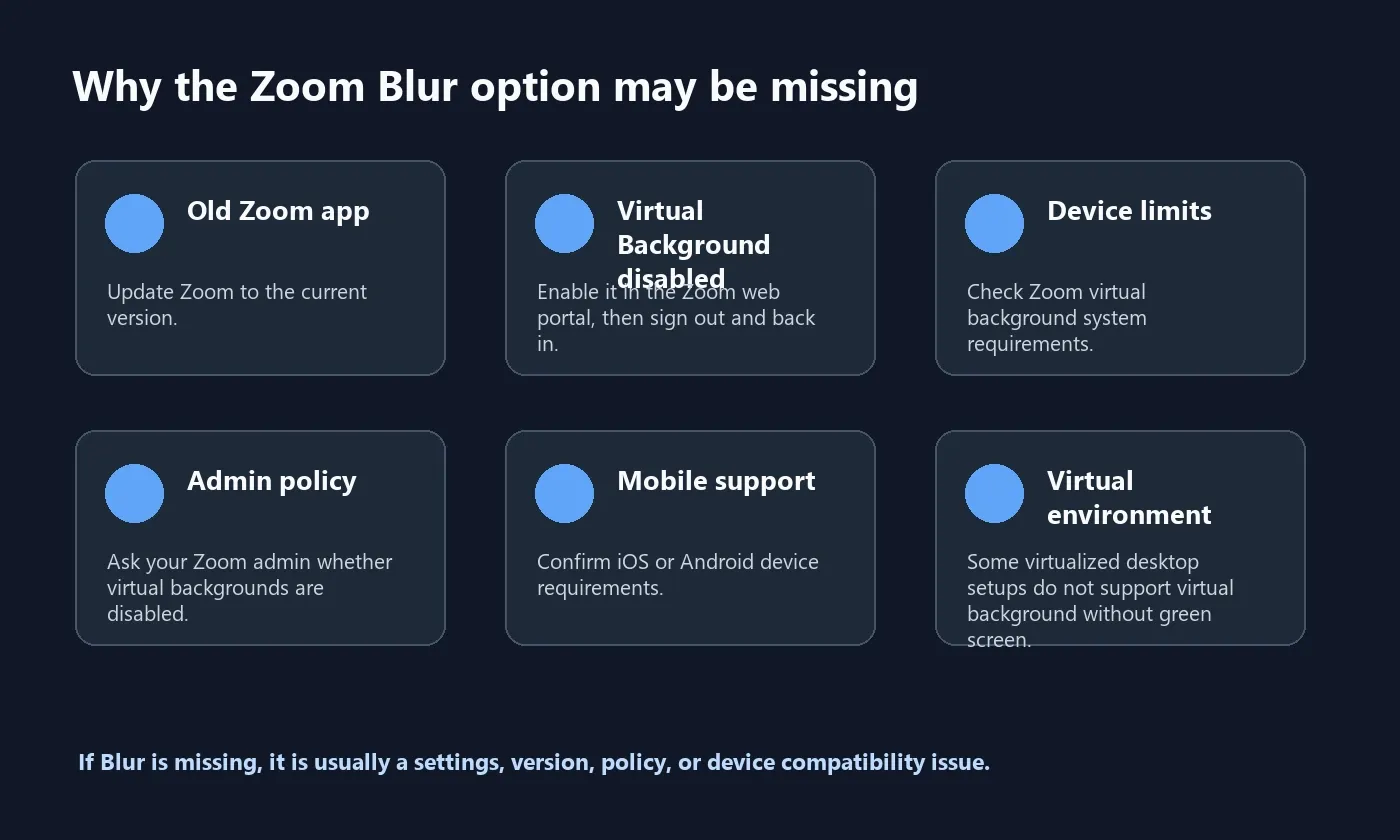
| Problem | Likely reason | Fix |
|---|---|---|
| No Blur option | Zoom app may be outdated | Update the Zoom desktop or mobile app and check again. |
| No Virtual Background tab | Virtual Background may be disabled in the Zoom web portal | Enable it in the web portal, then sign out of the desktop app and sign in again. |
| Blur disabled by workplace | Admin policy may restrict virtual backgrounds | Ask your Zoom administrator to check account or group settings. |
| Blur appears on one device but not another | The device may not meet Zoom system requirements | Compare your device with Zoom virtual background system requirements. |
| Mobile Blur missing | Unsupported device, older app, or OS limitation | Update Zoom and confirm iOS or Android requirements. |
| Virtual desktop issue | Zoom notes virtual background without a green screen is not supported in some virtual environments | Use a local desktop app or a supported device if possible. |
Zoom Blur Background Troubleshooting Checklist
- Update Zoom. Use the latest available Zoom app for your device.
- Check account settings. If Virtual Background is off in the web portal, enable it if you have permission.
- Sign out and back in. Zoom's support page says this may be needed after enabling the Virtual Background tab in the web portal.
- Check system requirements. Zoom's virtual background requirements also apply to blurred background.
- Ask your admin. Work or school accounts may restrict virtual backgrounds.
- Test before important calls. If your interview, sales call, or webinar starts in five minutes, verify Blur before joining.
Is Blur Different From a Virtual Background?
Yes. Blur is part of Zoom's virtual background options, but it behaves differently from choosing a custom image or video. A virtual background replaces what is behind you. Blur keeps your real background but softens it so details are harder to see.
| Option | What it does | Best for |
|---|---|---|
| Blur | Softens the real background behind you | Privacy, clutter, quick professional cleanup |
| Image background | Replaces your background with an image | Branded calls, events, consistent visual setting |
| Video background | Replaces your background with a moving video | Creative events, but requires more system resources |
| No effect | Shows your real environment | When your space is clean and privacy is not a concern |
Make Your Zoom Meetings More Professional
Blurring your background helps your meeting look cleaner. It protects visual privacy, hides clutter, and reduces distractions. But professional meetings also need clear notes, decisions, and follow-ups.
That is where HiNoter fits naturally. Background blur solves the visual side of remote work. HiNoter solves the information side: automatic Zoom meeting notes, summaries, action items, mind maps, and searchable AI notes so you can focus on the conversation instead of typing notes.
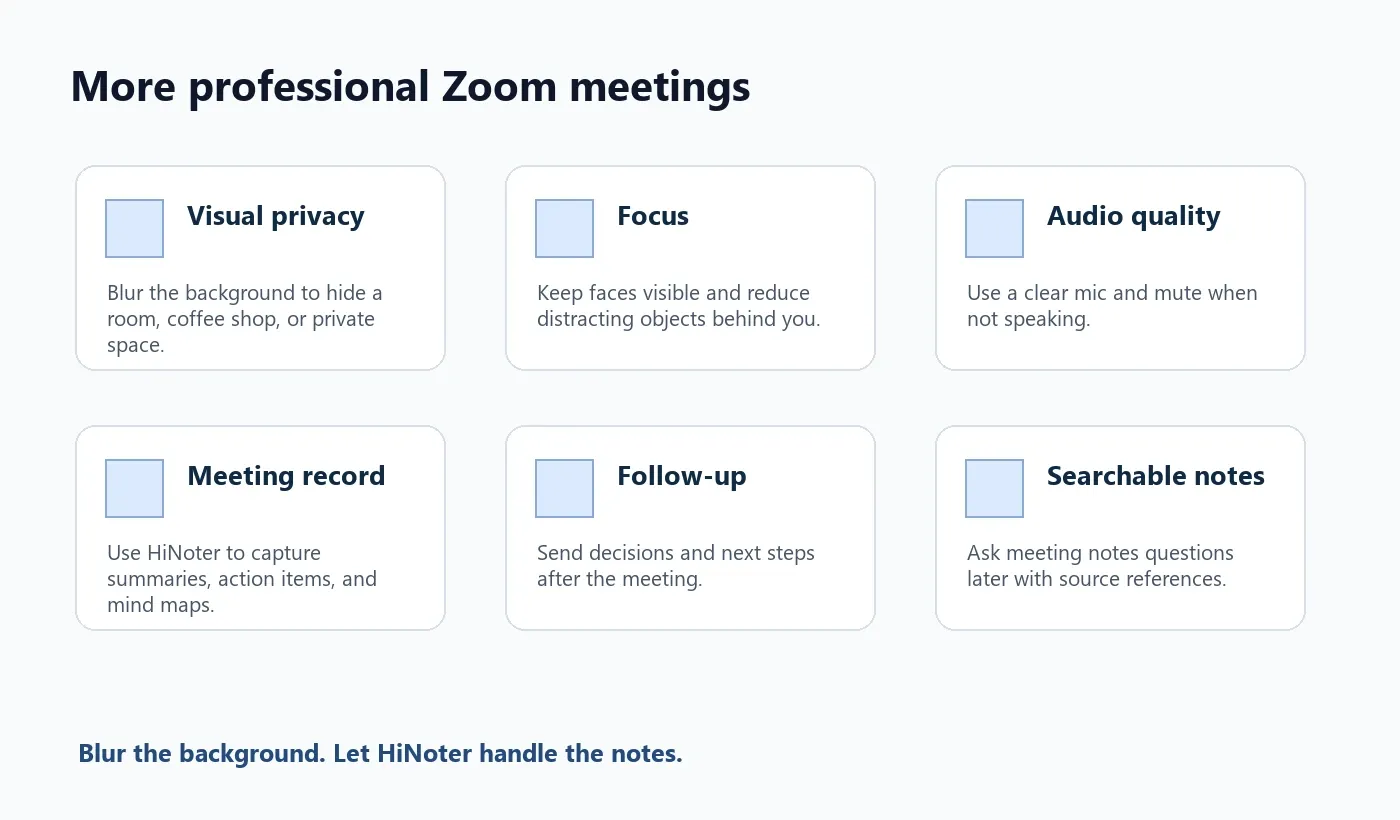
Try HiNoter for automatic Zoom meeting notes. Blur the background. Let HiNoter handle the notes.
Useful related pages include AI meeting notes, AI meeting assistant, audio to text converter, mind map generator, and multilingual meeting notes.
FAQ
Can I blur my background during a Zoom meeting?
Yes, if your account settings, Zoom app version, and device meet the requirements. During a meeting, click the arrow next to Start Video or Stop Video and choose Blur my background.
Why can't I find Blur in Zoom?
Blur may be missing because Zoom is outdated, Virtual Background is disabled in the web portal, an admin has restricted the feature, you need to sign out and back in, or the device does not meet Zoom's virtual background requirements.
Is Blur different from a virtual background?
Zoom background blur is a virtual background effect that softens the area behind you while keeping your face visible. Instead of replacing your background with an image or video, it obscures the real background.
Can I blur my Zoom background on mobile?
Yes, on supported iOS and Android devices. In a Zoom meeting, tap More, choose Backgrounds & effects, open the Backgrounds tab, and select Blur.
Does Zoom Blur work on every computer?
No. Zoom's virtual background system requirements also apply to blurred background. Older devices, restricted accounts, unsupported mobile devices, or virtual desktop environments may not show the Blur option.
Can I turn off Zoom background blur?
Yes. Open the same background settings and choose None, or use the in-meeting video menu to remove the Blur option.