Direct answer: To record Zoom meeting and transcribe it, use Zoom cloud recording with audio transcription enabled, start recording as the host or eligible co-host, wait for processing, then review the transcript. If you need summaries, decisions, tasks, and searchable notes, connect HiNoter so an approved assistant can join and structure the meeting automatically.
Recording a Zoom meeting is the easy part when the right account settings are already in place. The hard part is what happens afterward. A one-hour call becomes a video file, the transcript arrives later, and someone still has to find decisions, rewrite tasks, send follow-up, and answer questions from people who missed the meeting.
This guide explains the native Zoom path first: who can record, what cloud recording changes, how native audio transcription works, what participants can and cannot do, and why transcripts sometimes fail to appear. Then it shows the HiNoter workflow for teams that want the meeting output - transcript, summary, action items, mind map, exports, and source-linked AI Chat - without assigning a human notetaker.
Record Zoom Meeting and Transcribe: The Native Zoom Path
Zoom's native transcription path is built around cloud recording. Zoom Support explains that computer recordings are saved locally and are available to all Zoom users, while cloud recordings are stored in Zoom Cloud and are available to paid users. Audio transcription is a cloud recording feature: when it is enabled, Zoom processes the cloud recording audio and generates a VTT transcript that appears with the recording after processing.
That distinction matters. If the host records only to the computer, Zoom's native cloud transcript may not be generated. If the host records to the cloud but audio transcription is disabled, the transcript may not appear. If the account owner or admin has locked recording or transcription settings, the meeting host may not be able to turn them on during the call.
Zoom AI Companion meeting summary is a separate feature. It can generate a recap for eligible accounts when enabled, but it is not the same as a verbatim transcript. Teams often need both layers: a transcript for evidence and a summary for fast review.
Before You Record: Prerequisites and Permissions
| Requirement | What to Check | Why It Matters | Best Next Step |
|---|---|---|---|
| Host or eligible co-host | Confirm who owns the meeting and who can start recording. | Participants may not be able to record without permission. | Assign meeting capture responsibility before the call. |
| Cloud recording | Make sure recording to the cloud is available and enabled. | Native Zoom audio transcripts are tied to cloud recordings. | Use cloud recording when you need Zoom's transcript file. |
| Audio transcript setting | Check account, group, or user settings for audio transcription. | If the setting is disabled or locked, the transcript may not be created. | Ask the Zoom admin before the meeting if the option is missing. |
| Participant notice | Tell attendees when recording, transcription, or AI notes are used. | Consent and privacy rules vary by location and meeting type. | Use a clear recording notice and follow company policy. |
| Post-meeting workflow | Decide who reviews the transcript and where notes will be shared. | A transcript alone does not create tasks or decisions. | Use HiNoter when the team needs structured notes and follow-up. |
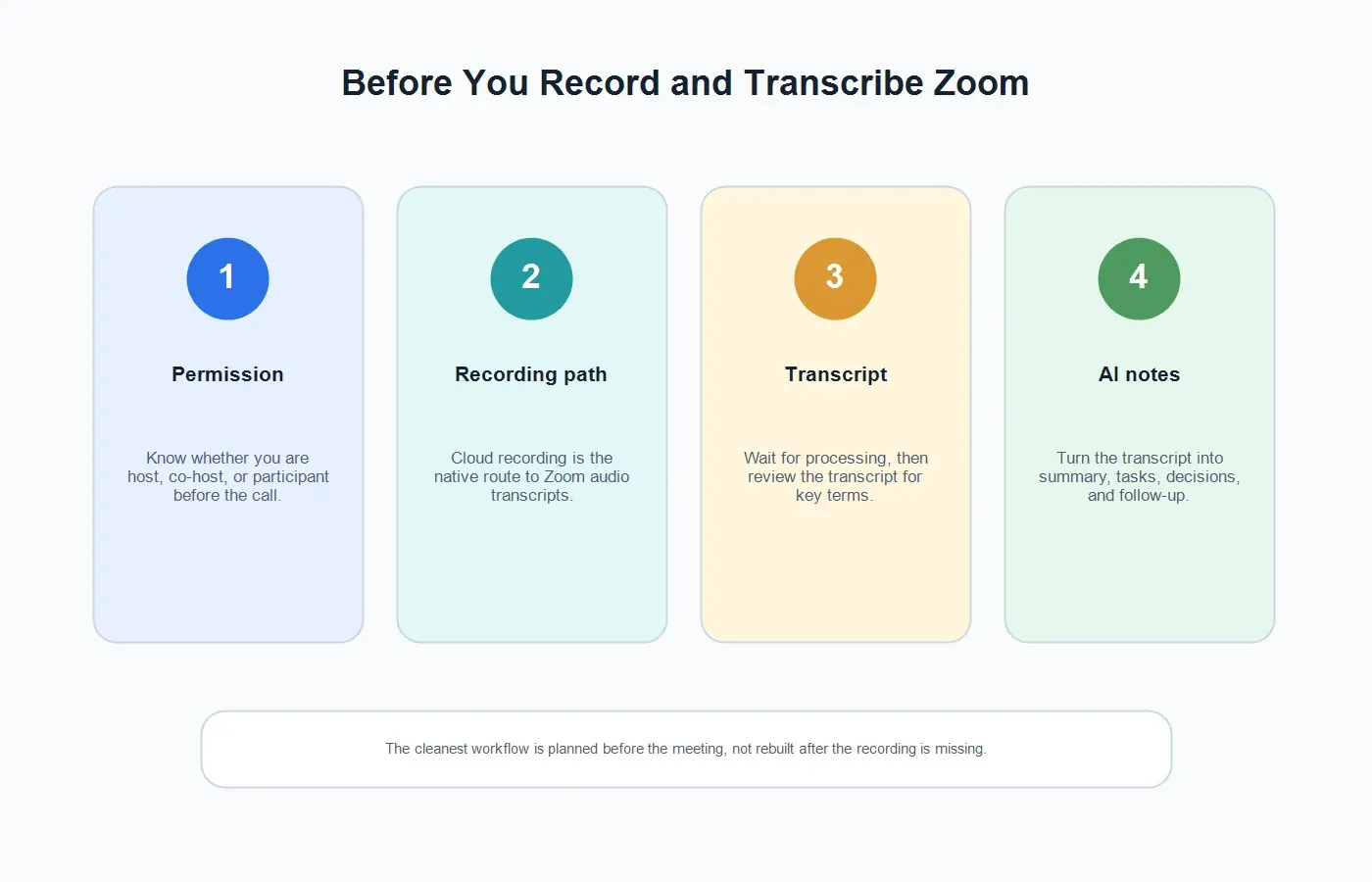
How to Record a Zoom Meeting and Get a Transcript
Use this workflow when your goal is a native Zoom cloud recording transcript. The exact buttons may vary by Zoom client, admin policy, and account type, but the sequence is stable.
1. Confirm the meeting owner and recording settings
Before the meeting starts, confirm who is host or co-host and whether cloud recording is enabled. If you are in a company workspace, check whether an admin has locked recording settings. Do not wait until the last five minutes of a customer call to discover that the person who needs the transcript cannot start recording.
2. Enable audio transcription for cloud recordings
Zoom Support says audio transcription can be enabled at the account, group, or user level. When enabled, Zoom generates a transcript from cloud recording audio and stores it as a VTT file with the recording. If the setting is missing or locked, ask the account owner or admin to review recording settings.
3. Start the Zoom meeting and notify participants
Tell participants that the meeting will be recorded and transcribed. This is especially important for interviews, customer calls, advisory sessions, support escalations, and any meeting with people outside your organization. Use the meeting invitation, opening script, or in-meeting notice to make the capture method clear.
4. Start cloud recording
During the meeting, the host or eligible co-host starts recording and chooses the cloud recording option when available. If only local recording is available, the native Zoom transcript may not be created. For mobile users, Zoom's support materials note that local recording is not available on iOS or Android, while cloud recording requires the right account and permissions.
5. Wait for Zoom processing
After the meeting ends, Zoom processes the cloud recording. The transcript may take longer than the video to appear. Check the recording details after processing and download or review the transcript according to your company's sharing rules.
6. Turn the transcript into meeting output
Before sharing the transcript broadly, review it for sensitive content, names, technical terms, and accuracy. Then convert it into a readable summary, decision list, action items, owners, due dates, and follow-up message. This is where many teams move from native Zoom transcription to HiNoter.
If You Are the Host
If you are the host, your job is not only to click record. You own the capture plan. Decide whether the team needs a formal video archive, a transcript, a quick summary, action items, or all of the above. A training call may need a video. A sales call may need transcript evidence plus a CRM-ready recap. A project sync may only need decisions and owners.
If the meeting is recurring, create a repeatable habit. Confirm cloud recording and transcription settings once, then decide where the output goes after each call. If your team uses HiNoter, connect the calendar so approved meetings can be captured and summarized automatically instead of depending on the host's memory.
If You Are a Participant
If you are not the host, ask before recording or using an AI note-taking assistant. Zoom participants may need host permission to record locally, and cloud recording depends on the host's account and meeting settings. For external meetings, the safest pattern is to ask the organizer to use the approved capture method and share the proper summary afterward.
You can still make the meeting more accountable. Ask who owns the notes, whether the transcript will be shared, and where action items will be tracked. A quick question at the start often prevents an hour of cleanup later.
If Recording Is Unavailable
Recording may be unavailable because the account does not support cloud recording, the admin disabled it, the host is not eligible, the meeting owner forgot to start recording, or the conversation should not be recorded for policy reasons. Do not try to work around a restriction that exists for privacy or compliance.
If the team needs an official video archive, solve the Zoom recording issue with the host or admin. If the team only needs a reliable written record, use an approved notes workflow. HiNoter can join scheduled meetings with the right calendar and meeting permissions, then generate the transcript, summary, action items, mind map, and source-linked AI Chat.
AI Transcription and Notes Workflow With HiNoter
HiNoter is an AI meeting assistant and transcription platform for teams that need the usable record of a meeting, not just a recording. It can auto-join approved scheduled meetings, generate a transcript, and turn the conversation into structured notes after the call.
| Step | What Happens | Why It Helps |
|---|---|---|
| 1. Connect your calendar | HiNoter sees approved scheduled Zoom meetings and meeting context. | The team does not rely on someone remembering to start notes manually. |
| 2. Let the assistant join | The assistant joins the meeting according to access, notice, and company policy. | Participants can focus on the conversation instead of typing notes. |
| 3. Generate the transcript | The meeting becomes searchable text that can be reviewed and cited. | Details are easier to recover than they are inside a video timeline. |
| 4. Create structured notes | HiNoter creates summary, decisions, action items, owners, follow-up, and mind map. | The output is ready for managers, project teams, sales, support, and recruiting. |
| 5. Sync and ask questions | Notes can move to Notion, Slack, Google Docs, calendar, email, or AI Chat with source references. | The meeting becomes searchable team knowledge instead of another file. |
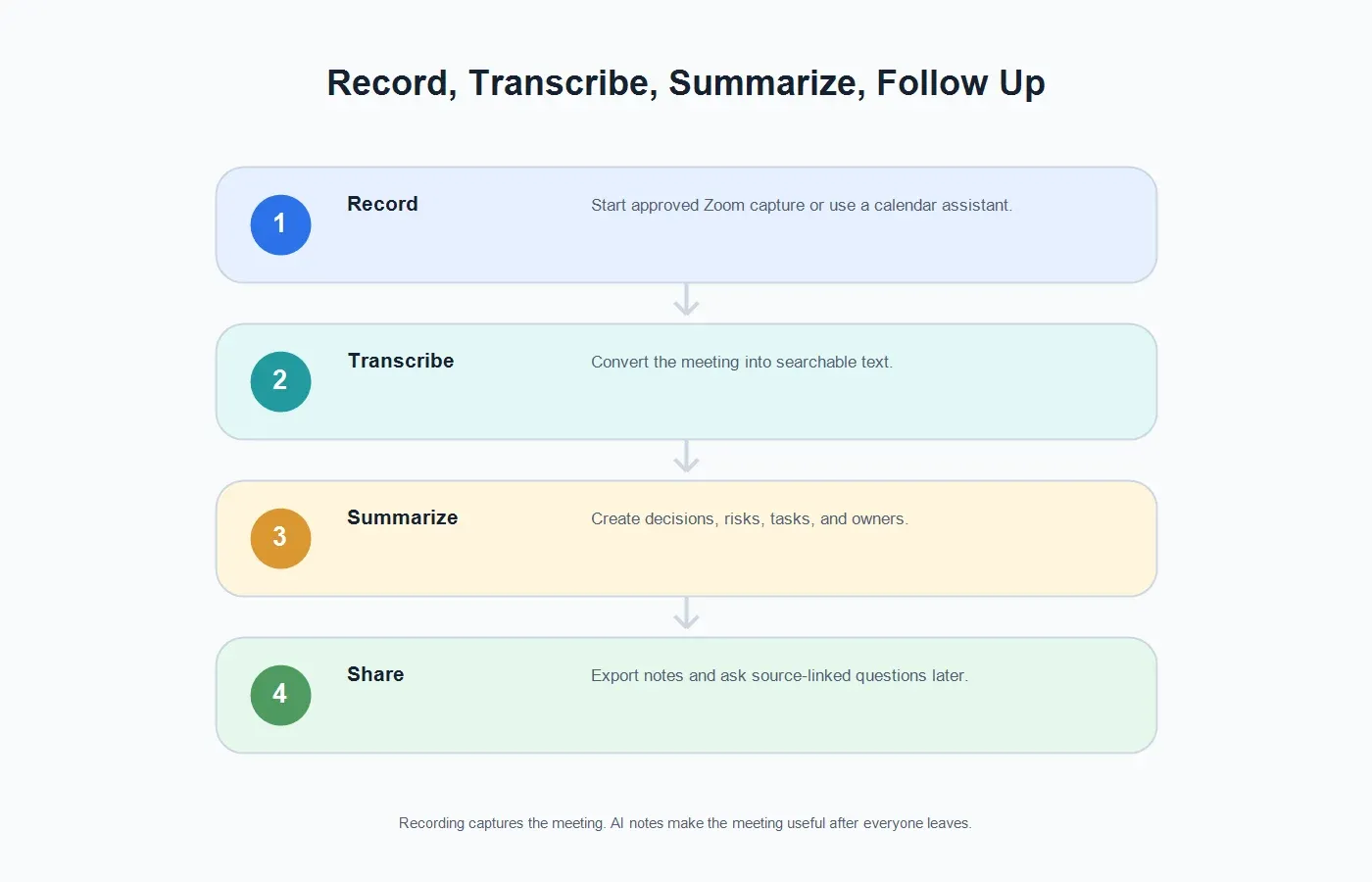
The main advantage is that AI meeting notes start where raw transcription usually stops. The transcript remains available as source evidence, while the first view gives people a usable summary and task list.
Native Zoom Recording vs HiNoter AI Notes
| Need | Native Zoom Recording and Transcript | HiNoter AI Workflow |
|---|---|---|
| Formal video archive | Best when the team needs the full meeting video, screen share, or replay. | Useful as a companion when the archive needs summaries and tasks. |
| Searchable transcript | Works when cloud recording and audio transcription are enabled. | Creates searchable text and connects it to structured notes. |
| Action items | Tasks may be hidden inside the recording or transcript. | Extracts action items, owners, due dates, decisions, and follow-up. |
| Multilingual teams | Language support depends on Zoom feature behavior and meeting settings. | Multilingual support helps teams document conversations across 50+ languages. |
| Other source files | Primarily centered on Zoom meeting assets. | HiNoter also supports permitted audio to text and video to text workflows. |
What to Do After the Transcript Is Ready
Review key terms and names
Even strong transcripts can miss names, product terms, acronyms, and noisy cross-talk. Review anything that affects a customer commitment, hiring decision, legal point, technical fix, or deadline.
Write the summary around decisions
A meeting summary should not read like a short transcript. It should explain why the meeting happened, what changed, what was decided, what remains open, and what action is required.
Extract action items with owners
Every action item needs a task, owner, and timing. "Follow up" is too vague. "Maya sends the revised onboarding checklist by Friday" is useful.
Share the right version
Internal teams may need the transcript and source context. External stakeholders may need only a reviewed summary and commitments. Do not forward raw transcripts by default.
Troubleshooting
I cannot record the Zoom meeting
Check whether you are the host or eligible co-host, whether recording is enabled, and whether your admin has locked the setting. If you are a participant, ask the host to use the approved recording or notes workflow.
The transcript did not appear
Confirm that the meeting was recorded to the cloud and that audio transcription was enabled before recording. Then allow time for Zoom to process the transcript.
I recorded locally and still need a transcript
Native Zoom audio transcription is tied to cloud recordings. If you have a lawful local recording, upload the file to an approved transcription workflow such as HiNoter.
I forgot to start recording
If no one recorded or captured the meeting, the full conversation may not be recoverable. Prevent this by assigning meeting ownership or using calendar-based assistant capture for future meetings.
The transcript is too long
That is normal. Use the transcript as source material, then convert it into summary, decisions, action items, owners, and a follow-up message.
Privacy and Consent Best Practices
Recording and transcription should be visible to participants. Tell people when a meeting is being recorded, transcribed, or summarized by AI. Follow the laws, company policies, contracts, and regional consent requirements that apply to everyone in the meeting.
For internal rollout, write a short policy that answers five questions: which meetings can be recorded or transcribed, who can start capture, how participants are notified, where transcripts and notes are stored, and who can access or delete them. This is especially important for customer calls, recruiting, HR, legal, finance, healthcare, and security-sensitive meetings.
Zoom states in its AI support materials that customer communications-like content such as audio, video, chat, screen sharing, and attachments is not used to train Zoom's or third-party AI models. Teams should still review current privacy, retention, and security settings for every recording, transcription, or AI notes tool they use.
When to Use Each Workflow
| Scenario | Use Native Zoom | Use HiNoter |
|---|---|---|
| You need the official cloud recording | Use Zoom cloud recording and audio transcription. | Use HiNoter afterward if the recording needs summary and tasks. |
| You need notes without manual cleanup | Zoom may provide transcript or AI summary depending on settings. | Use HiNoter to generate transcript, summary, actions, and mind map. |
| You cannot use cloud recording | Work with the host or admin if a formal record is required. | Use an approved assistant workflow only when policy allows notes capture. |
| You have many meetings per week | Recordings can pile up and become hard to review. | Calendar-based capture creates consistent meeting output automatically. |
| You need to ask questions later | Search the transcript manually. | Use AI Chat with source references to ask about decisions, owners, and context. |
Final Take
The best way to record a Zoom meeting and transcribe it is to plan the capture path before the call. Confirm the host, enable cloud recording and audio transcription, notify participants, record to the cloud, wait for processing, and review the transcript before sharing.
If your team needs more than a transcript, HiNoter gives you the next layer: automatic meeting attendance, transcript, summary, action items, mind map, exports, and source-linked AI Chat. The meeting becomes a reliable knowledge asset instead of a long recording someone has to decode.
CTA: Try HiNoter for your next Zoom meeting. Connect your calendar, let the assistant join approved calls, and get the transcript, summary, action items, and mind map automatically after the meeting.
FAQs
How do I record a Zoom meeting and transcribe it?
Use Zoom cloud recording with audio transcription enabled. The host or eligible co-host starts cloud recording, Zoom processes the recording after the meeting, and the transcript appears with the cloud recording when processing is complete.
Can Zoom transcribe a local recording?
Native Zoom audio transcription is tied to cloud recordings. If you have a lawful local recording, upload it to an approved transcription tool such as HiNoter.
Can a participant record and transcribe a Zoom meeting?
A participant may need host permission to record locally, and cloud recording depends on the host's account and settings. Participants should ask the host before recording or using an AI note-taking assistant.
Why did my Zoom transcript not show up?
The meeting may have been recorded locally, audio transcription may have been disabled, the account may not support the feature, or Zoom may still be processing the recording.
Do I need recording if HiNoter joins the meeting?
Not always. If your organization permits assistant-based note capture, HiNoter can join approved scheduled meetings and generate transcripts, summaries, action items, and mind maps without relying on a manual recording step.
Can HiNoter summarize a Zoom recording?
Yes. HiNoter can process supported meeting sources and lawful recordings to create transcripts, summaries, action items, owners, mind maps, and source-linked AI Chat answers.