A permissions-first guide for hosts, co-hosts, participants, and teams that need decisions instead of another forgotten video file.
How to Record a Zoom Meeting and Get AI Notes
Direct answer To record a Zoom meeting, click Record in the Zoom meeting controls. If you are the host or co-host, you can usually start recording. If you are a participant, ask the host for recording permission before using Zoom's built-in recorder. Use computer recording for a local file, cloud recording for browser sharing on eligible paid accounts, and an AI note taker when the team needs a transcript, summary, action items, and searchable answers after the call. |
Teams often ask how to record a Zoom meeting because the recording feels like the safest way to preserve what happened. The problem is what happens after the red dot disappears. A recording can prove the conversation took place, but it does not assign the follow-up, summarize the decision, translate context for teammates in another region, or answer a question two weeks later.
This guide separates the two jobs. First, it explains the official Zoom recording paths: host controls, participant permission, computer recording, and cloud recording. Then it shows a cleaner operating model for meeting-heavy teams: let HiNoter join the Zoom meeting or process the recording so the team receives structured notes, a transcript, action items, a mind map, and source-linked AI Chat without rewatching the entire call.
Quick Decision Guide: What Should You Do?
If you are... | Use this path | Why |
Host or co-host | Click Record in Zoom; choose computer/local or cloud if enabled. | You have the meeting controls needed to start and stop the official recording. |
Participant with permission | Ask the host to allow local recording, then record to your computer. | Zoom's built-in recording controls depend on host permission for participants. |
Participant without permission | Ask for permission or request an approved meeting notes workflow. | Secret recording can violate policy, trust, and local consent laws. |
Free user | Use computer recording on desktop, or use approved AI notes instead of cloud recording. | Zoom cloud recording is tied to eligible paid accounts. |
Manager needing follow-up | Record only if needed, but capture AI notes and actions as the main deliverable. | The useful output is usually the decision log, owner list, and next-step record. |
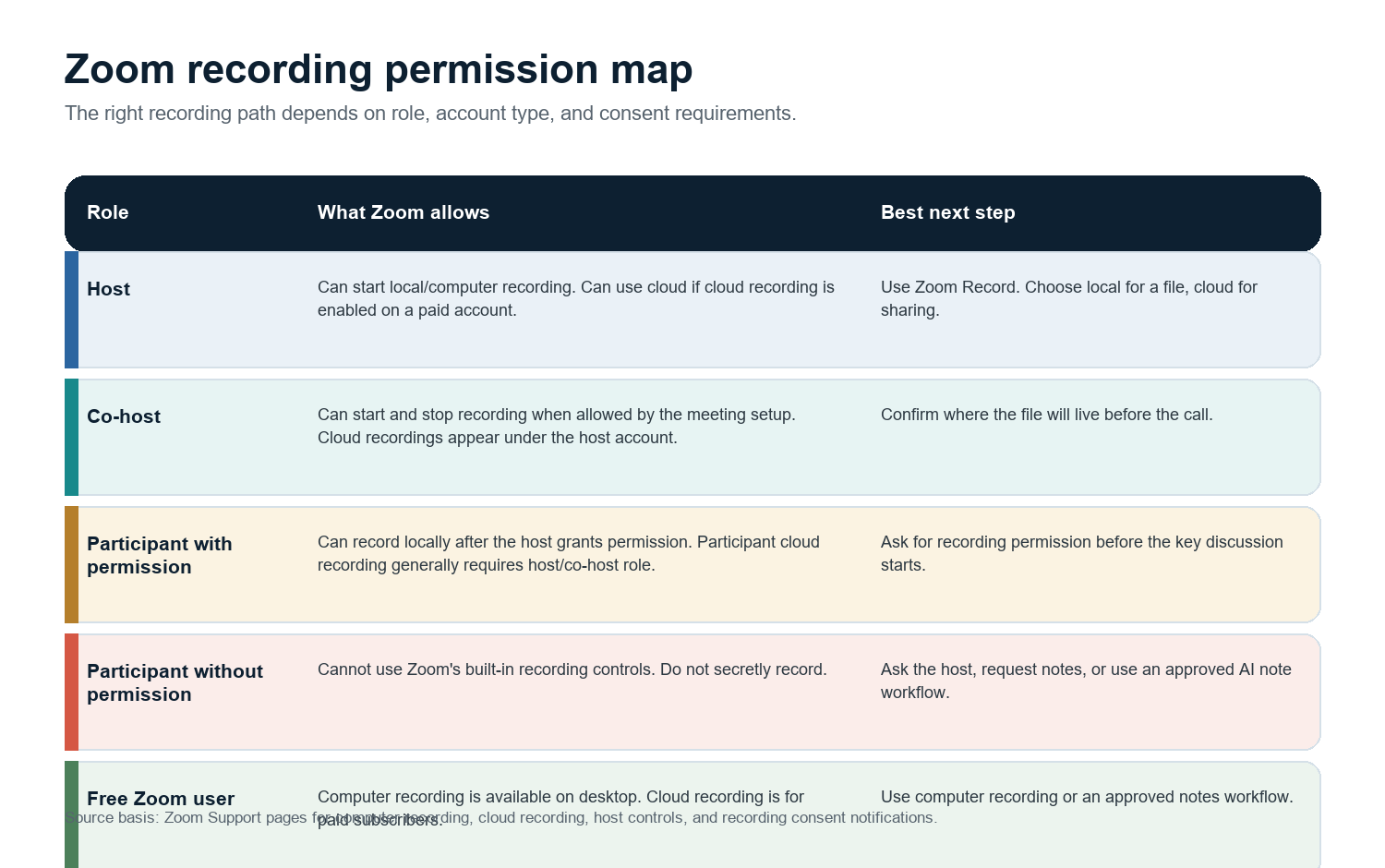
Zoom Recording Permissions: Host, Co-host, and Participant Rules
Zoom recording is role-based. The cleanest rule is this: hosts and co-hosts can start official recordings, while participants need the host to grant recording permission. Zoom Support also notes that computer recording is available to free and paid subscribers, while cloud recording is automatically enabled for paid subscribers and requires a licensed user on a Pro, Business, or Enterprise account.
That distinction matters for team workflows. A participant may be able to take notes, contribute to chat, or use an approved meeting assistant, but they should not assume they can save a Zoom recording through the app. If the meeting is sensitive, external, regulated, or cross-border, treat permission as part of the meeting setup rather than an afterthought.
Permission Table
Role or account state | Can record in Zoom? | Important limitation | Recommended workflow |
Host | Yes | Must choose the right recording destination and settings. | Start recording or use automatic recording; tell participants. |
Co-host | Usually yes | Cloud recordings are associated with the host's account. | Confirm ownership and sharing before the meeting. |
Participant | Only with host permission | No built-in recording control unless permission is granted. | Ask the host or use approved notes. |
Free Zoom user | Computer recording on desktop | No cloud recording on the free plan. | Use local file plus AI notes if needed. |
Paid licensed user | Computer and cloud options | Admin settings may restrict recording. | Use cloud when sharing and retention matter. |
How to Record a Zoom Meeting as Host or Co-host
For a standard meeting, the host path is straightforward:
1. Start or join the Zoom meeting as the host or co-host.
2. Tell participants that the meeting will be recorded, especially if the conversation includes customers, candidates, students, patients, or regulated information.
3. Click Record in the meeting controls. If the button is under More, open More and choose Record.
4. Choose Record on this Computer for a local computer recording, or Record to the Cloud if your account supports cloud recording.
5. Pause or stop recording from the recording controls when needed.
6. After the meeting, wait for Zoom to process the recording. Local files are saved on the recording user's computer; cloud recordings are managed in the Zoom web portal.
If you regularly forget to press Record, use Zoom's automatic recording setting for meetings where recording is appropriate. Do not turn it on blindly for every meeting. Automatic recording is convenient for webinars and training, but it can create unnecessary retention and consent risk for informal internal calls.
Local Recording vs Zoom Cloud Recording
Local, or computer, recording saves the meeting to a device. Cloud recording saves video, audio, and chat text to Zoom's cloud for browser playback, download, and sharing. Neither option is automatically a meeting summary. The table below is the practical difference.
Factor | Computer/local recording | Zoom cloud recording |
Availability | Available to free and paid subscribers on supported desktop setups. | Available to eligible paid subscribers when enabled. |
Storage | Saved on the recording user's computer. | Stored in Zoom's cloud under the host account. |
Sharing | Requires upload or file transfer. | Easier to share with a browser link and access settings. |
Best for | Private reference, backup files, quick personal capture. | Webinars, training, stakeholder review, distributed teams. |
Main limitation | Harder to share and search at scale. | Plan, storage, retention, and admin settings matter. |
AI notes fit | Upload the file to HiNoter if you need transcript and summary. | Use the cloud recording link or let HiNoter join the call when permitted. |
How Participants Can Record or Capture Notes Without Breaking Trust
If you are a participant, the correct answer is conditional: ask the host to grant recording permission, make you a co-host, or share the official recording afterward. If that request feels awkward, ask for a meeting notes workflow instead of a private recording. A simple line works: 'Could we capture notes and action items for this meeting so the team has a reliable follow-up record?'
When you cannot record, you still need the outcome. That is where an AI meeting assistant is often better than a personal recording file. With permission and the right meeting settings, HiNoter can join scheduled Zoom meetings and produce a transcript, structured summary, action items, and mind map. If the host shares a recording later, the file can also be uploaded for transcription and summarization.
Recording Is Not the Same as Meeting Intelligence
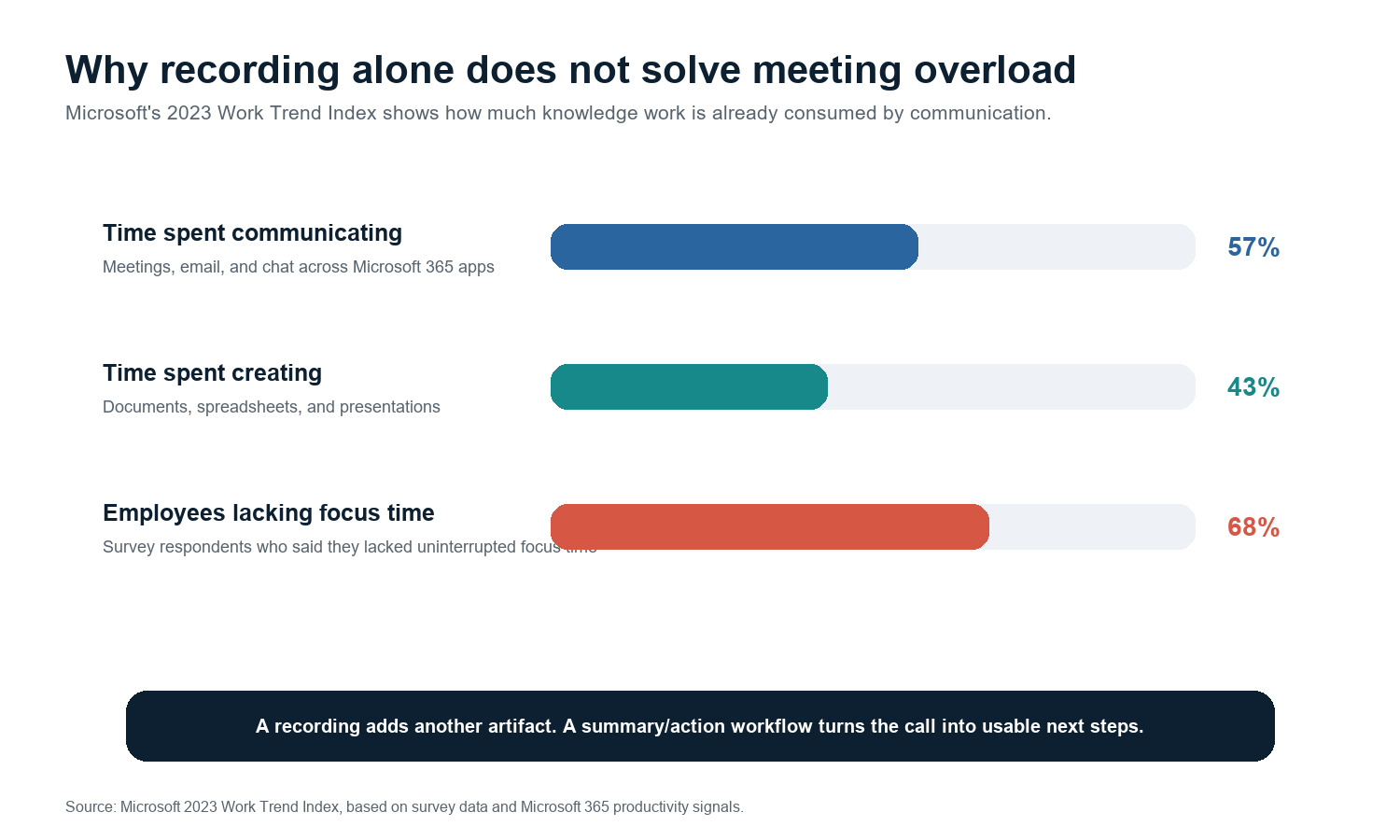
Microsoft's 2023 Work Trend Index reported that the average employee spends 57% of time communicating in meetings, email, and chat, and only 43% creating in documents, spreadsheets, and presentations. The same research found that 68% of employees say they do not have enough uninterrupted focus time during the workday. For a team already buried in communication, saving another hour-long video is not the same as reducing the work.
A useful meeting system should answer four questions quickly: What was decided? Who owns the next step? Where is the evidence? What should people who missed the call read first? A Zoom recording can answer those questions only after someone rewatches or scrubs the file. AI notes answer them in the format people actually use.
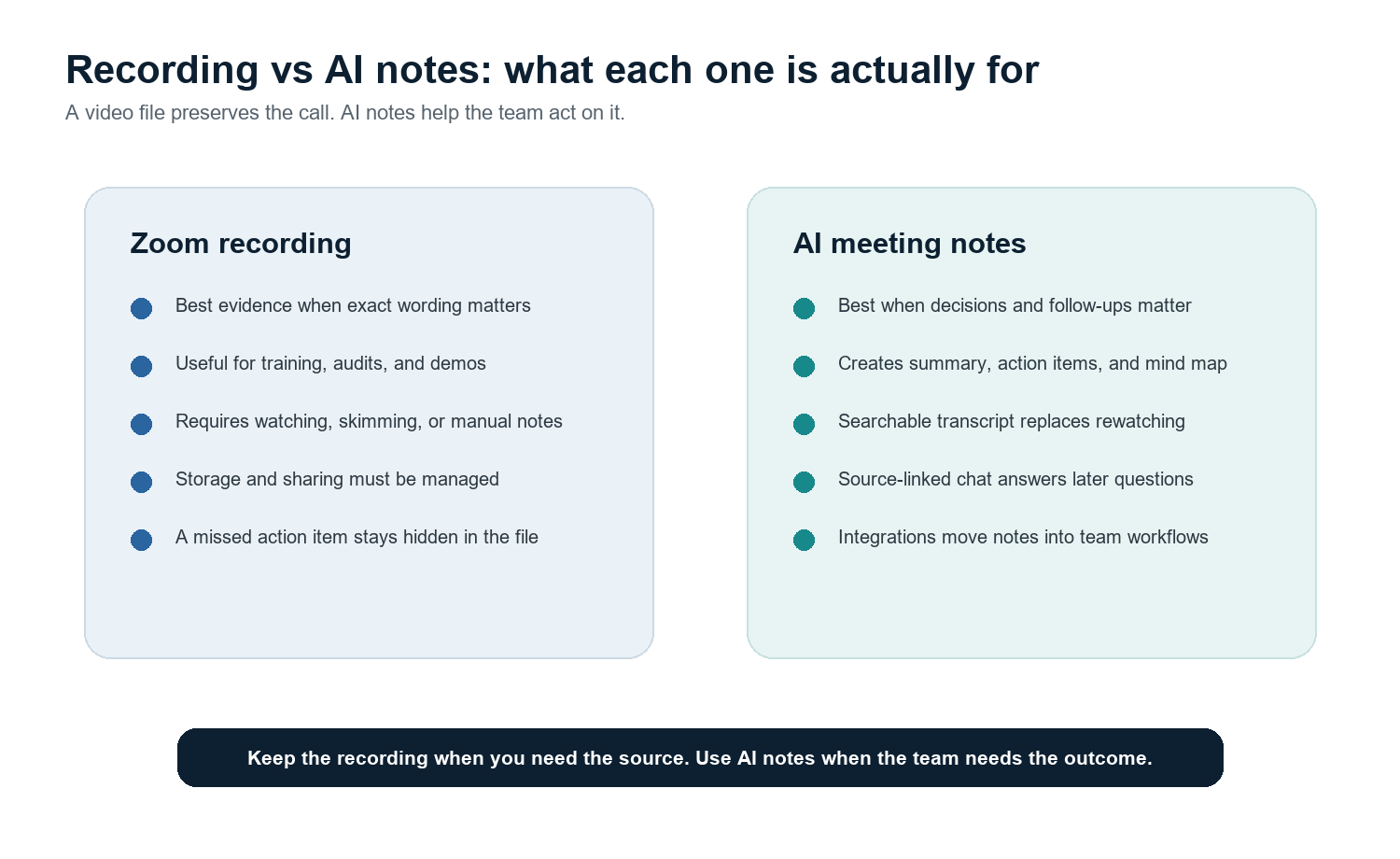
Best Workflow: Record When Needed, Then Turn the Call Into AI Notes
The strongest workflow is not 'record everything and hope people watch it.' It is a pipeline: schedule the call, get consent, capture the conversation, generate notes, distribute the summary, and track action items. HiNoter fits this layer because it is designed as an AI meeting assistant and meeting knowledge base, not just a recorder.
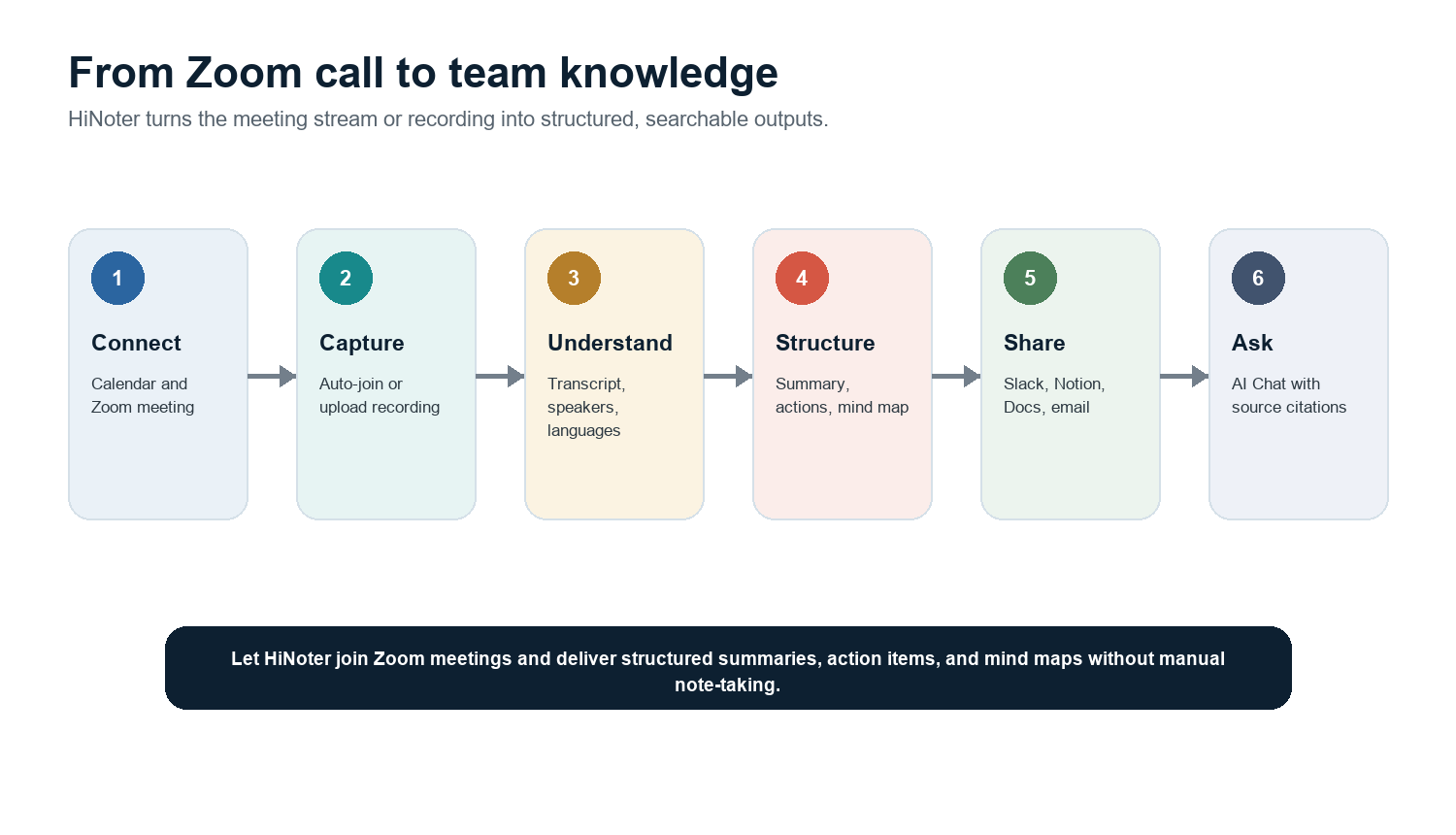
A practical HiNoter workflow looks like this:
7. Connect your calendar and choose the Zoom meetings that need automatic notes.
8. Let HiNoter join the meeting when permitted, or upload the Zoom recording after the call.
9. Review the transcript and structured summary rather than rewatching the full video.
10. Use the action item list to assign owners and deadlines.
11. Open the mind map when the team needs a fast visual of topics and relationships.
12. Ask follow-up questions in AI Chat and check source citations before making a decision.
13. Share outputs to Notion, Slack, Google Docs, email, or the team's preferred follow-up channel.
Quotable takeaway A Zoom recording preserves the meeting. AI meeting notes turn the meeting into a decision record, action plan, and searchable knowledge base. |
Privacy, Consent, and Compliance Notes
Recording rules are not only product settings. In many jurisdictions and organizations, consent, notice, retention, and data access are policy or legal issues. Zoom states that meeting participants are notified when a meeting is being recorded, and its consent prompts give participants a way to agree or leave. Your company may require more: a verbal notice, written agenda language, customer-specific terms, or limits on who can view recordings.
Use this short host script when you need a plain-language notice:
Recording notice script Before we begin, I want to let everyone know this meeting will be recorded and summarized for internal follow-up. The notes will be used to capture decisions and action items. If you have concerns, please say so now or message me privately. |
Troubleshooting: Why Can't I Record a Zoom Meeting?
Problem | Likely reason | Fix |
No Record button | You are a participant or recording is disabled by host/admin settings. | Ask the host for permission or co-host status. |
Cloud option missing | Your account does not have cloud recording enabled or eligible licensing. | Use computer recording or ask the licensed host to record to cloud. |
Cannot find local file | Zoom may still be converting, or the save location changed. | Check Zoom's recording settings and local recording folder. |
Only recorded the wrong view | Local recordings capture the meeting as the recorder sees it. | Set the desired layout before recording or use cloud layout options. |
Recording exists but nobody watches it | The asset is too long and not structured for follow-up. | Generate transcript, summary, action items, and searchable notes. |
FAQ
Can you record a Zoom meeting as a participant?
Yes, but only when the host grants permission for Zoom's built-in local recording, or when you are made co-host with the required controls. Without permission, ask for access to the official recording or use an approved meeting notes workflow.
Can free Zoom users record meetings?
Free Zoom users can use computer recording on supported desktop setups. Cloud recording is for eligible paid accounts, so free users generally need local recording, host-shared cloud recordings, or an approved note-taking workflow.
Is Zoom cloud recording better than local recording?
Cloud recording is better for browser sharing, central storage, and distributed teams. Local recording is better for quick personal files or backups. Neither is automatically better than AI notes when the real need is decisions, action items, and searchable context.
What should I do if I forgot to record the Zoom meeting?
Ask whether another host or co-host recorded it, check whether automatic recording was enabled, and reconstruct the action items from chat, calendar context, and participant notes. For future meetings, use an AI meeting assistant so the summary and action items are generated automatically.
Can HiNoter summarize Zoom recordings?
Yes. HiNoter can help teams turn meetings and recordings into transcripts, structured summaries, action items, mind maps, and source-linked AI Chat. It is most useful when the team needs to act on the meeting instead of storing another video file.