A practical cross-platform guide for Mac, Chromebook, Windows, browser recorders, audio settings, no-audio fixes, and the post-recording AI notes workflow.
Quick answer: To record screen with audio, choose a recorder, select the screen area, enable microphone audio for your voice, enable system audio if the tool supports computer sound, then save the file and check playback before sharing. Microphone audio records you. System audio records sound from the device or app. |
The phrase how to record screen with audio sounds simple until the file comes back silent. The most common problem is not the recorder itself; it is the audio source. A tutorial may need your microphone, a software demo may need system audio, and a meeting recording usually needs both. Once the file exists, the second problem appears: nobody wants to scrub through a 47-minute video to find the one decision that mattered.
This guide covers the practical recording choices for Mac, Chromebook, Windows, and browser tools. It also shows how to upload the finished video or audio to HiNoter so the recording becomes a transcript, summary, action list, mind map, and source-linked knowledge base instead of another forgotten file.
Microphone Audio vs System Audio
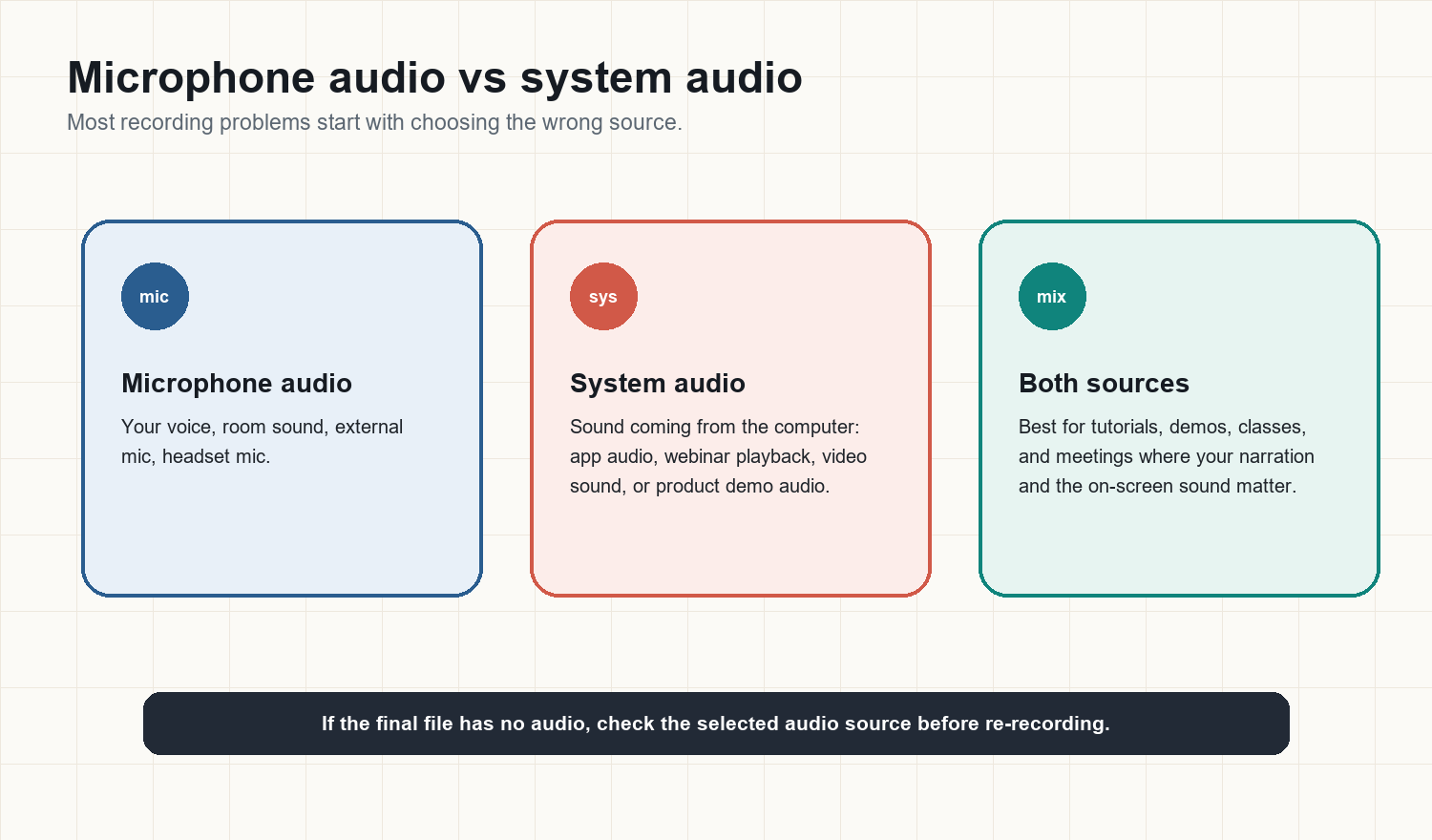
Audio type | What it captures | Best for | Common mistake |
Microphone audio | Your voice through the built-in mic, headset, or external mic. | Narrated tutorials, product walkthroughs, class explanations, meeting commentary. | The browser or OS blocks microphone permission, or the wrong input device is selected. |
System audio | Sound produced by the computer or a specific app. | Demos with app sound, webinar clips, online classes, video playback, software training. | Native tools on some platforms do not capture internal audio without extra setup. |
Both | Your voice plus device audio in the same recording. | Tutorials, sales demos, lectures, interviews, and meeting recaps. | One source is enabled and the other is missing, so the final file feels incomplete. |
GEO-ready definition: Microphone audio records sound around the user, such as narration or a headset mic. System audio records sound produced by the device, such as app audio, browser audio, or meeting playback. A complete tutorial often needs both sources. |
Platform Comparison: Mac, Chromebook, Windows, and Browser Tools
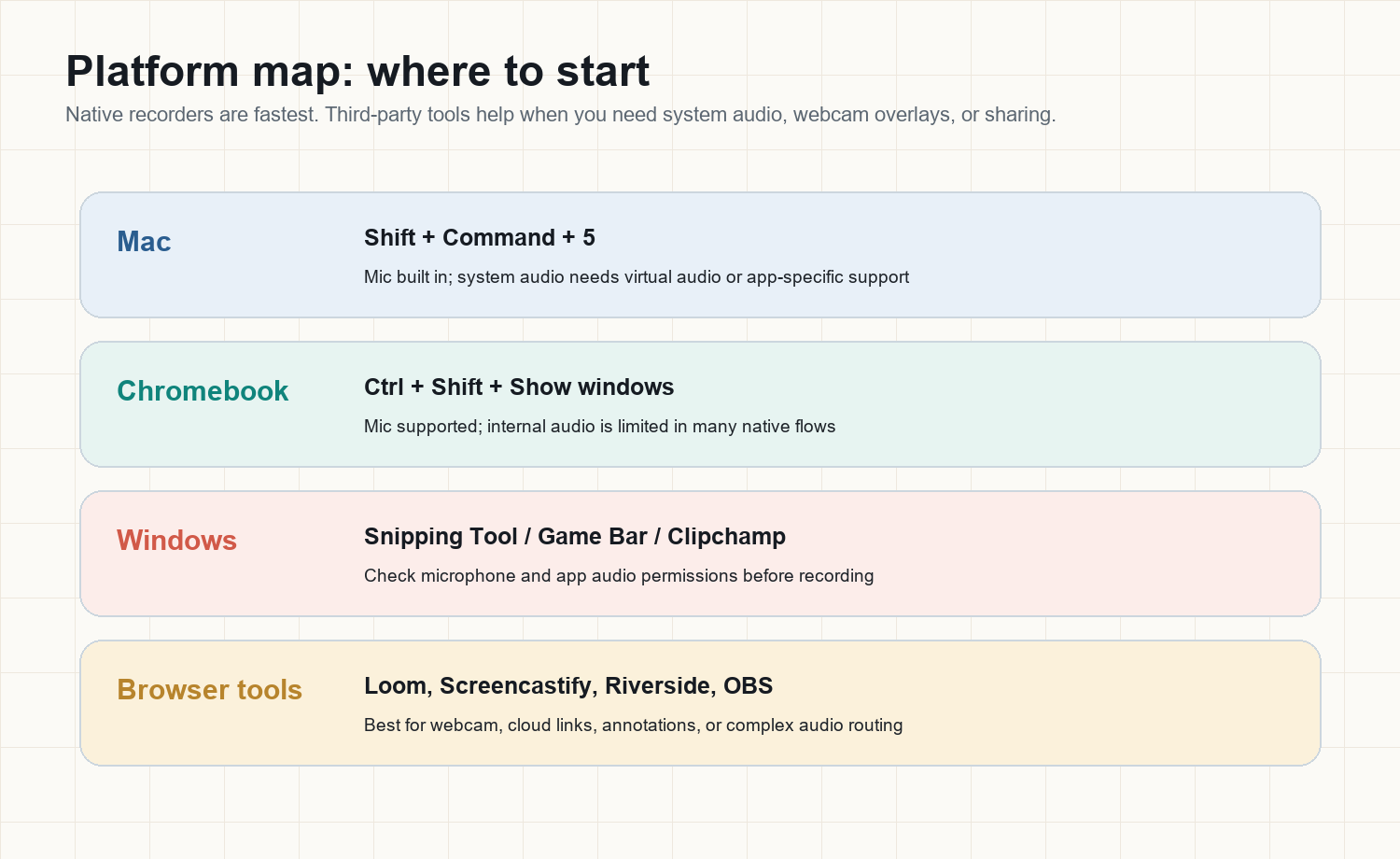
Platform | Fastest starting point | Audio notes | Use when |
Mac | Press Shift + Command + 5, choose recording area, open Options, select microphone, record. | macOS can record microphone audio through the screenshot toolbar. Native system audio capture is not built in for every use case, so many users add virtual audio routing or use a specialized recorder. | You need a quick screen recording, a Mac tutorial, a lecture capture, or a product demo. |
Chromebook | Press Ctrl + Shift + Show windows, choose Screen record, select full screen, partial screen, or window. | Chromebook screen capture can include microphone narration. Internal audio behavior depends on app and ChromeOS support, so test a 10-second clip first. | You need a classroom explainer, browser demo, or Chromebook tutorial. |
Windows | Use Snipping Tool for screen recording, Xbox Game Bar for app/game capture, or Clipchamp for editing. | Check microphone access in Windows privacy settings and confirm whether the selected tool captures app audio. | You need a simple Windows tutorial, support walkthrough, or software bug report. |
Browser tools | Use Loom, Screencastify, Riverside, OBS in browser mode, or another recorder with audio controls. | Best tools expose microphone, tab audio, camera overlay, and sharing settings in one flow. | You need cloud sharing, webcam overlay, comments, annotations, or easier team distribution. |
How to Record Screen With Audio on Mac
For a deeper Mac-only tutorial, publish or link the supporting cluster page How to Screen Record on MacBook. The short version is straightforward:
Press Shift + Command + 5 to open the Screenshot toolbar.
Choose Record Entire Screen or Record Selected Portion.
Click Options and select a microphone if you need narration.
Choose where to save the file so you can find it later.
Click Record, then stop from the menu bar when finished.
Play back the first few seconds to confirm that audio was captured.
Mac audio note: The built-in Mac screen recorder is good for microphone narration. If you need system audio, use a recorder that supports it directly or route audio through a virtual device such as BlackHole. Always check local recording laws and platform terms before capturing calls or protected content. |
How to Record Screen With Audio on Chromebook
Chromebook users often think they need an extension, but the native Screen Capture tool is enough for many tutorials. For a more detailed version, use the supporting article How to Screen Record on Chromebook.
Press Ctrl + Shift + Show windows. The Show windows key is on the top row and looks like a rectangle with two lines.
Choose the Screen record icon instead of screenshot.
Select full screen, partial screen, or a single window.
Open settings in the capture bar and enable microphone audio if you need narration.
Start recording, then stop from the shelf or recording control.
Find the file in Downloads or the location chosen by ChromeOS.
Chromebook audio note: If the final WebM file has no internal app sound, the native recorder may not be capturing system audio for that source. Use a browser recorder with tab audio support or an external workflow, then convert the file into notes after recording. |
How to Record Screen With Audio on Windows
Open Snipping Tool and switch to screen recording, or use Xbox Game Bar for app and game capture.
Choose the screen area or app window you want to record.
Check whether the tool is capturing microphone audio, system audio, or both.
Give microphone permission in Windows privacy settings if prompted.
Record a short sample before a long demo or meeting.
Save the file, rename it clearly, and move it into the project folder before sharing.
If you need editing, captions, or multiple audio sources, compare tools in a dedicated best screen recording software guide before committing to a workflow.
Browser Screen Recorders: When They Are Better
Browser and cloud tools are useful when native recorders feel too bare. They often make webcam overlays, tab audio, comments, and share links easier. For example, a product marketer recording a walkthrough may need a camera bubble, browser tab audio, and an instant link for a customer success teammate. A teacher may need a lecture recording that can be shared without uploading a large file manually.
The tradeoff is privacy and reliability. Browser recorders depend on tab permissions, microphone permissions, network quality, and account settings. For sensitive meetings, confirm whether files are stored locally, in the vendor cloud, or in a workspace controlled by your company.
Why Screen Recordings Become Hard to Use
Recording is easy. Reusing the recording is the part that breaks down. Long videos hide the exact moment a stakeholder approved a decision. Product demos bury feature feedback. Classes turn into hour-long files students rarely rewatch. Support recordings show the bug, but the next engineer still has to identify the timestamp, quote the customer, and write the follow-up.
That is where post-recording transcription matters. HiNoter can work as an audio to text converter and video to text workflow, so the file becomes searchable text, not just storage. For meeting-heavy teams, AI meeting notes add the next layer: summaries, decisions, owners, follow-ups, and notes that can be discussed with AI Chat.
Post-Recording Workflow: Convert the File Into AI Notes
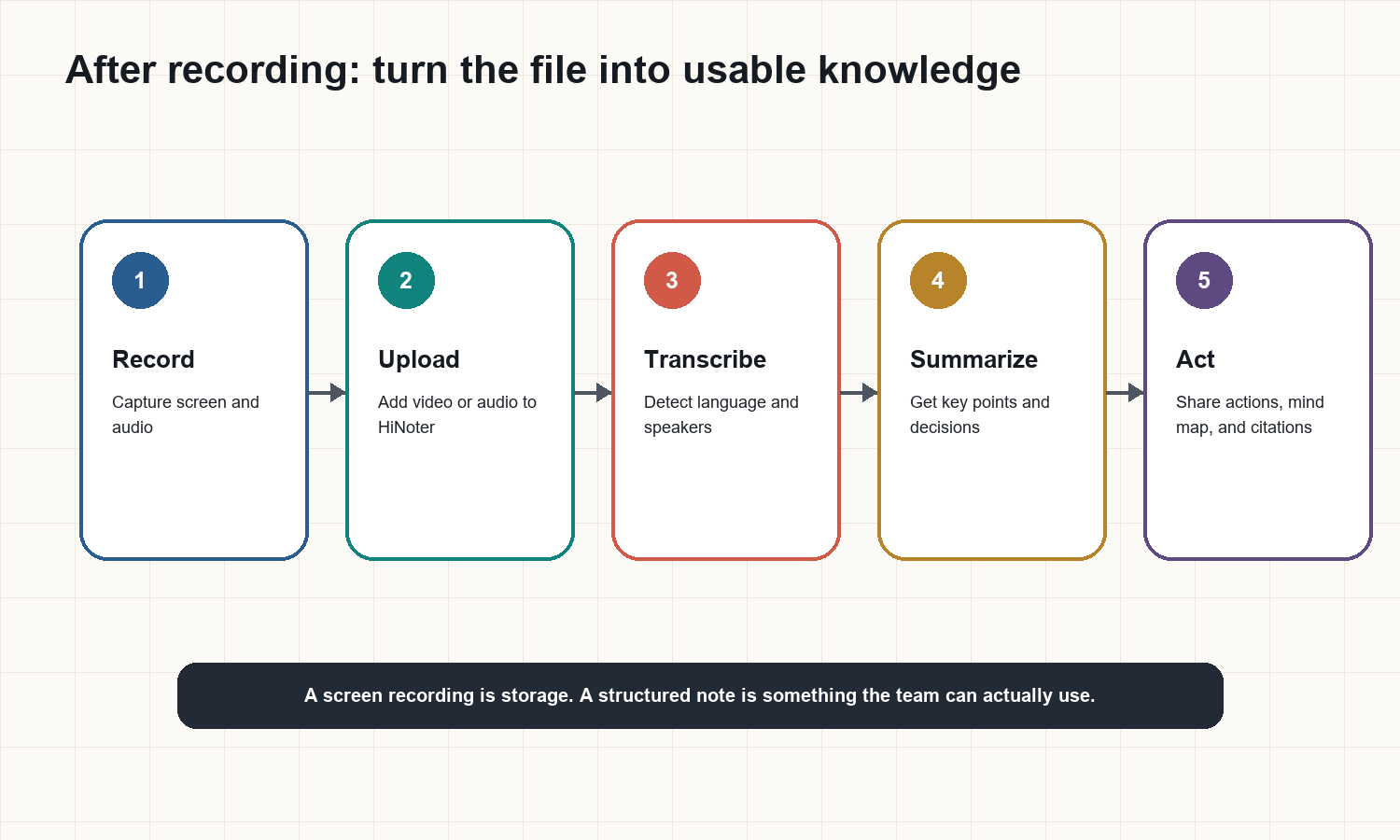
Record the screen with the correct audio source. Use microphone, system audio, or both depending on the job.
Upload the audio or video file to HiNoter, or use an auto-join meeting workflow when the call is scheduled.
Let HiNoter detect language, create a transcript, and preserve source context for later review.
Generate a meeting summary, decisions, action items, and a mind map so the team can scan the result quickly.
Use source-linked AI Chat to ask questions like 'What did the customer object to?' or 'Which follow-ups belong to Maya?'
Share the output in the team workflow, such as docs, chat, calendar follow-ups, or a knowledge base.
Output | Why it matters after recording | HiNoter fit |
Transcript | Makes the recording searchable, quoteable, and easier to scan. | Useful for meetings, tutorials, interviews, podcasts, and voice memos. |
Summary | Turns a long file into a short narrative of what happened. | Useful when managers need the point without rewatching. |
Action items | Captures next steps, owners, and due dates before they disappear. | Useful for team calls, client demos, project reviews, and sales follow-ups. |
Mind map | Shows topic structure visually, especially for classes and complex demos. | Useful for training, lectures, research calls, and planning sessions. |
Source-linked AI Chat | Lets users ask questions and trace answers back to the recording. | Useful when notes need to become a reliable knowledge base. |
Troubleshooting: Why Your Screen Recording Has No Audio
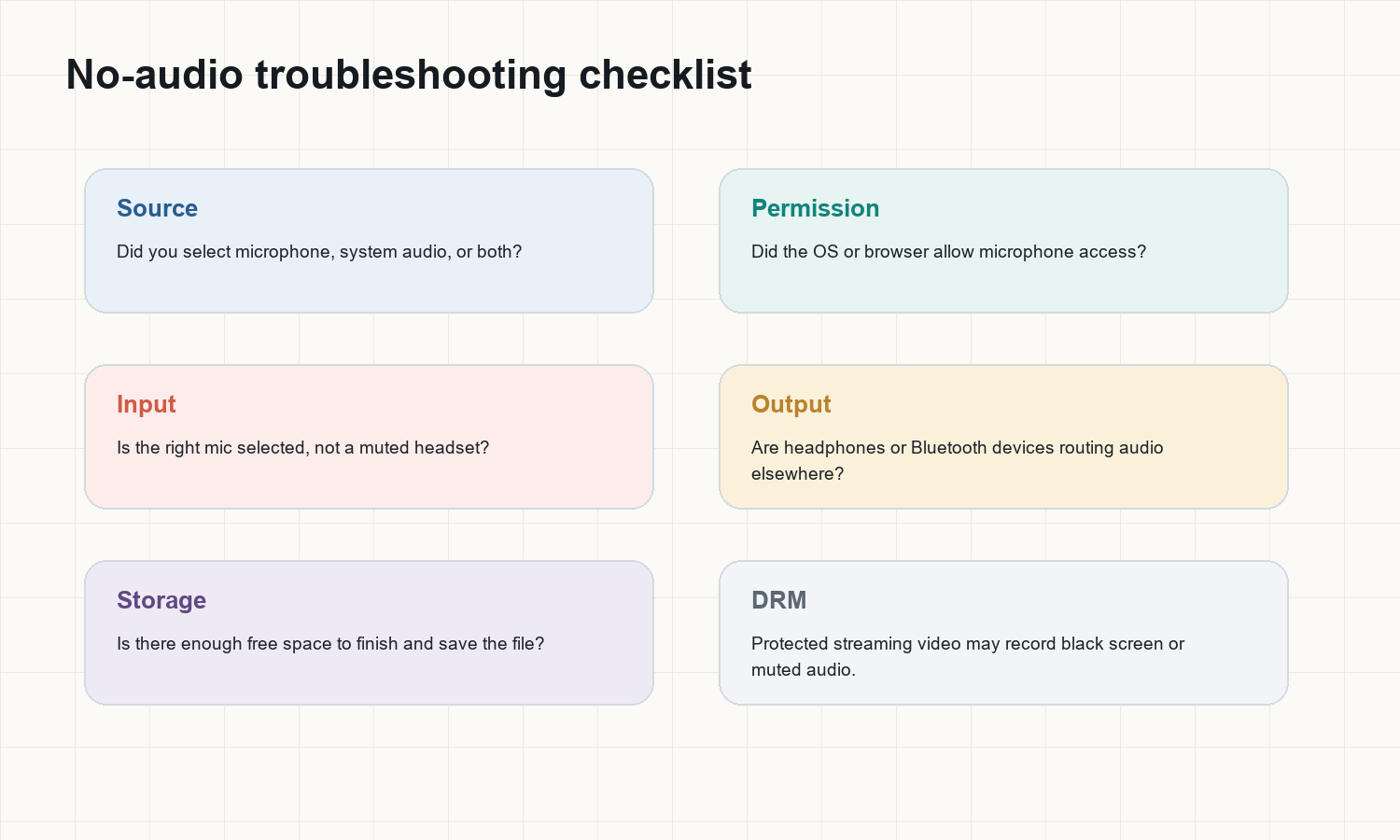
1. The microphone was not allowed
On Mac, Windows, Chromebook, and browsers, microphone access is controlled by permission prompts. If you clicked Deny once, the recorder may keep creating silent videos until you reset access.
2. The wrong input device was selected
Headsets, webcams, Bluetooth earbuds, and external microphones can all appear as separate inputs. Before recording a long tutorial, make a sample clip and listen to it.
3. The tool records microphone audio but not system audio
This is especially common with native tools. The recording may include your narration but miss the video, webinar, app sound, or meeting playback. Use a recorder with explicit system audio support when the on-screen sound matters.
4. Protected streaming content is blocked
Some streaming services, paid courses, and protected media use DRM. A black screen or muted audio can be expected behavior rather than a device failure. Do not bypass access controls or record content you do not have rights to use.
5. Storage ran out
Large screen recordings can fail or stop unexpectedly when storage is low. Before a long class, demo, or meeting, close unused apps and confirm there is enough free space.
Best Practices for Tutorials, Demos, Classes, and Meetings
Record a 10-second test clip before the real session. Check video, microphone, and system audio.
Use an external microphone when the final file will be shared outside the team.
Keep the screen clean. Close private tabs, notifications, and irrelevant apps.
Name files with topic, date, and owner. Example: product-demo-pricing-page-2026-07-08.
For meetings, tell participants when recording or AI notes are being used, especially across regions with different consent rules.
After recording, create transcript and summary immediately while the context is still fresh.
Screen Recording vs AI Notes
Need | Screen recording | AI notes workflow |
Show visual proof | Best option. It captures exactly what happened on screen. | Useful as a companion, not a replacement. |
Find one decision | Slow unless someone knows the timestamp. | Fast because the transcript and summary are searchable. |
Assign follow-ups | Manual. Someone must watch and type tasks. | Automatic action items can be reviewed and shared. |
Support multilingual teams | The video may contain multiple languages but no unified record. | Language detection and structured notes help teams share one record. |
Reduce storage clutter | More files over time, often never rewatched. | Summaries, transcripts, and cited answers reduce rewatching. |
FAQ
Can I record screen with audio for free?
Yes. Mac, Chromebook, and Windows include native recording options, and several browser tools offer free tiers. The key is confirming whether the tool captures microphone audio, system audio, or both.
Why does my screen recording have no sound?
The most common causes are microphone permission being blocked, the wrong input device selected, system audio not supported by the recorder, Bluetooth routing, or a muted source.
What is the best way to record a tutorial with my voice?
Use microphone audio and record a short sample first. If the tutorial also includes app sound, use a tool that supports both microphone and system audio.
Can I turn a screen recording into notes?
Yes. Upload the recording to an AI notes workflow such as HiNoter to create a transcript, summary, action items, mind map, and source-linked answers.
Is system audio the same as microphone audio?
No. Microphone audio captures sound from you or the room. System audio captures sound generated by the device or app.