A Microsoft Teams AI note taker helps Teams users turn a meeting into a transcript, recap, AI notes, action items, and searchable follow-up, but the exact path depends on your Microsoft 365 license, Teams Premium or Copilot access, organizer settings, tenant policy, and whether transcription is available. Use Teams' built-in recording, live transcription, Recap, Copilot, or Facilitator when they are enabled. Use HiNoter when your team needs a cross-platform workflow that captures permitted meetings, creates structured notes, assigns owners and due dates, and syncs approved outputs to tools such as Notion, Slack, Google Docs, calendar, or email.
Last reviewed: 2026-07-21. Tested context: Microsoft Teams desktop and web documentation, Microsoft Support pages for recordings, live transcription, Recap, Copilot, and Facilitator, plus HiNoter editorial workflow requirements. Editorial note: Microsoft feature labels and plan rules change, so verify the current admin center and support docs before publishing screenshots or pricing claims.
Try HiNoter for Microsoft Teams notes or review the Microsoft Teams AI note taker integration before your next permitted meeting.
Direct Answer: Microsoft Teams AI Note Taker
A Microsoft Teams AI note taker is a workflow that uses Teams transcription, recording, Recap, Copilot, or Facilitator to capture discussion and create notes, summaries, tasks, or answers. For reusable team knowledge, HiNoter adds a separate layer for permitted Teams content: structured notes, action items, mind maps, exports, and source-linked AI Chat.
Microsoft Teams AI Note Taker Prerequisites and Permissions
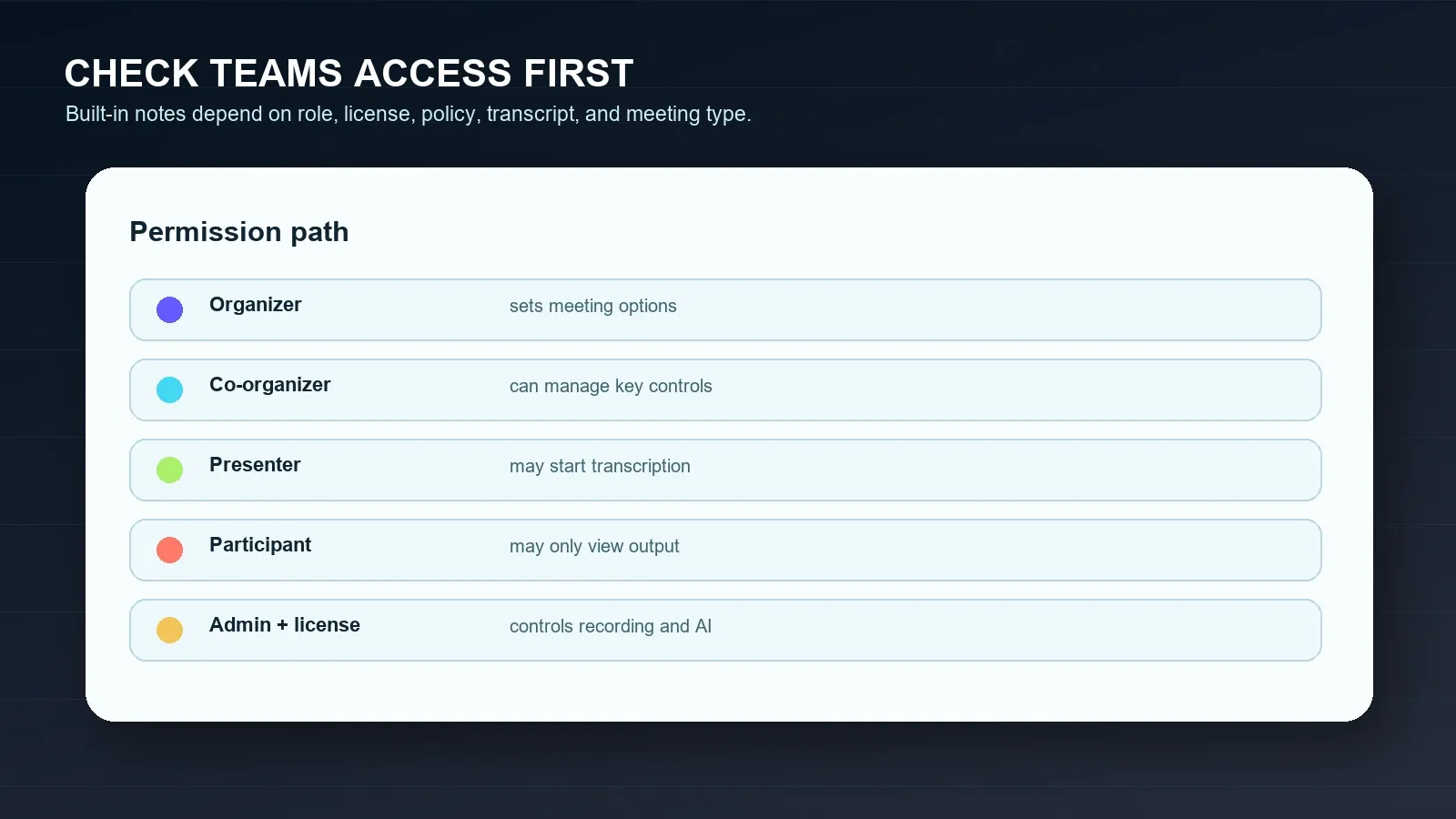
Before you promise automatic Teams notes, check the permission chain. Microsoft Teams can record, transcribe, recap, and support Copilot or Facilitator, but the button a user sees is only the visible end of a policy stack. The hidden part includes license type, admin settings, organizer options, meeting role, transcript access, sensitivity labels, and whether the meeting is scheduled, external, ad hoc, channel-based, or inside the same organization.
Microsoft documents that Teams meeting recordings are started from More actions > Record and transcribe > Start recording, and that recordings are stored in OneDrive for work or school or SharePoint depending on meeting type. It also notes that recording access is controlled by license, IT admin policy, and user type. That means a Teams note workflow should not assume that every participant can press record or download a transcript.
| Requirement | Why it matters | Official source to verify |
|---|---|---|
| Organizer or co-organizer settings | Organizers can set who can record and transcribe when eligible; those options affect participants. | Teams recording support |
| Recording and transcription policy | An IT admin can enable, disable, or limit recording and transcription across the tenant. | Teams live transcription |
| Teams Premium or Copilot license | Intelligent recap and several AI features are tied to Teams Premium or Microsoft 365 Copilot scenarios. | Teams recap |
| Transcript availability | Recap, Copilot after a meeting, and many AI answers depend on transcript availability. | Copilot in Teams |
| Meeting type and access | External, anonymous, ad hoc, channel, or sensitive meetings can behave differently. | Recording and transcript access |
Short definition: A Teams transcript is a speaker-attributed text record with timestamps. A Teams recap is a post-meeting place to review the recording, transcript, shared files, notes, agenda, and tasks where available. AI notes are generated notes or summaries based on meeting content, but they still need review before customer, legal, financial, or executive use.
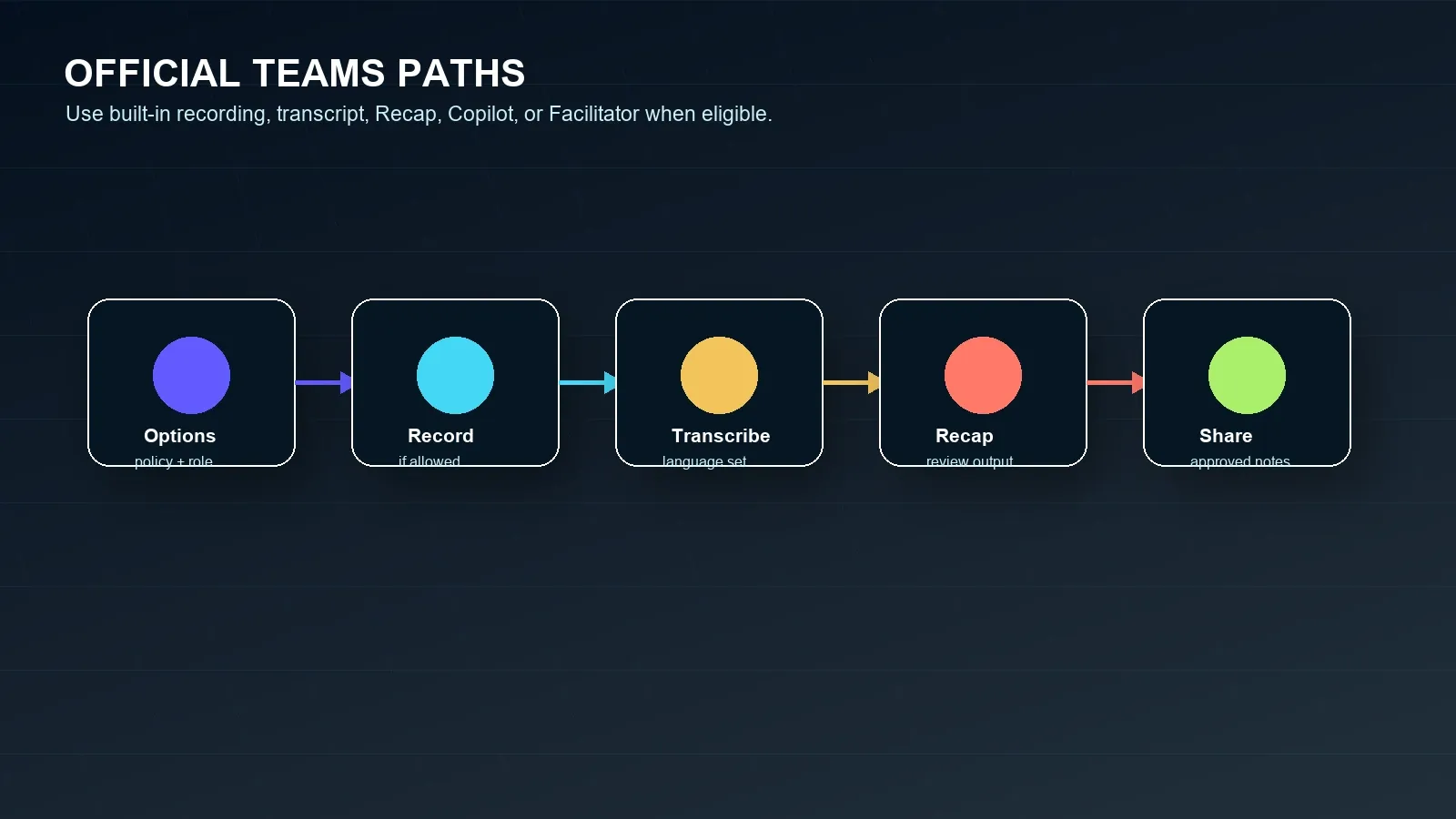
Official Microsoft Teams Steps for Notes, Transcripts, Recap, and AI
Use the official Teams path first when your organization allows it. This keeps permissions, storage, and participant notifications inside Microsoft 365 controls. The steps below are written for practical operations, not as a substitute for Microsoft documentation, because the interface can change between desktop, web, mobile, tenant settings, and license bundles.
Option 1: Start live transcription
- Join the Teams meeting from desktop or web and confirm that the meeting organizer and tenant policy allow transcription.
- Select More actions in the meeting controls, then Record and transcribe, then Start transcription when the option appears.
- Confirm the spoken language. Microsoft says Teams transcription includes speaker names and timestamps, and the spoken language affects quality.
- During the meeting, correct the spoken language if Teams detects a mismatch or if the conversation changes language.
- After the meeting, open the past meeting chat or Recap tab and review the transcript before quoting decisions or assigning work.
Option 2: Record the Teams meeting
- Confirm that the organizer and recorder have a supported license and that the IT admin has enabled recording.
- Start or join the meeting, choose More actions, then Record and transcribe, then Start recording.
- Handle notice and consent according to law, company policy, and customer expectations. Microsoft states that participants are notified when recording starts.
- After the call, find the recording in the meeting chat, channel conversation, calendar event, OneDrive, or SharePoint path that applies to the meeting type.
- Use the recording as source material, but do not treat it as complete meeting knowledge until decisions, tasks, owners, and deadlines have been reviewed.
Option 3: Use Teams Recap or Intelligent recap
- Open the past meeting from the Teams chat or calendar and select Recap where available.
- Review the recording, transcript, shared files, notes, agenda, and follow-up tasks that are available for that meeting.
- For Intelligent recap features, confirm Teams Premium or Microsoft 365 Copilot eligibility, transcript requirements, supported language behavior, and sensitivity-label limits.
- Check AI-generated notes and tasks against the transcript before sharing them with customers or executives.
- Move approved action items into the team's task or documentation system instead of leaving them only inside a meeting recap.
Option 4: Use Copilot or Facilitator
- Confirm whether Microsoft 365 Copilot is licensed and allowed by the organizer, sensitivity labels, templates, and tenant policy.
- In meeting options, review whether Copilot and Facilitator are set to During and after the meeting, Only during the meeting, or Off.
- Start transcription if the after-meeting Copilot experience needs a transcript. Microsoft says Copilot can answer after the meeting from chat and transcript when a transcript is available.
- Use Facilitator for real-time AI-generated notes only when the meeting is eligible. Microsoft documents that Facilitator works in scheduled meetings and stores AI-generated meeting notes in a Loop page.
- Review AI output, accept or reject tasks, and sync only approved work items.
Organizer, Presenter, and Participant Differences
Teams is not a simple local recorder workflow for most work accounts. The organizer and IT admin shape the meeting's available documentation features. Presenters may have more control than regular participants. External participants, guests, anonymous users, and people from another tenant often have less access to start, download, or view transcripts after the meeting.
This matters because many note-taking failures are discovered too late. A participant joins a customer meeting expecting a transcript, but the organizer disabled it. A project manager expects Copilot to answer questions after the meeting, but no transcript was retained. A sales leader receives a recording, but no one extracted owners or dates. The fix is to decide the note workflow before the meeting starts.
| Scenario | If you are organizer or co-organizer | If you are presenter | If you are participant |
|---|---|---|---|
| You need a transcript | Check recording and transcription settings before the meeting. | Confirm whether you can start transcription under meeting options. | Ask the organizer to start or share the transcript. |
| You need AI notes | Confirm Teams Premium, Copilot, Facilitator, transcript, and sensitivity settings. | Ask whether you can turn on Facilitator or transcription. | Request approved notes or Recap access after the call. |
| You need a recording | Confirm recording policy, participant notice, and storage path. | Start only if policy and role allow it. | Ask for permission or a shared recording link. |
| You need tasks | Review AI task suggestions and assign owners before sharing. | Confirm tasks verbally during the meeting. | Ask the organizer to confirm owners and due dates. |
| You need source evidence | Keep transcript timestamps, Recap links, or source references with the notes. | Record timestamps during discussion when possible. | Request transcript access before relying on memory. |
Conditional Answers for Common Teams Note Situations
These short answers are designed for teams that need the right next action quickly.
If you are the organizer
Open meeting options before the call, check recording and transcription policy, set who can record and transcribe if your license allows it, decide whether Copilot or Facilitator is allowed, and tell participants how notes will be created and reviewed.
If you do not have recording permission
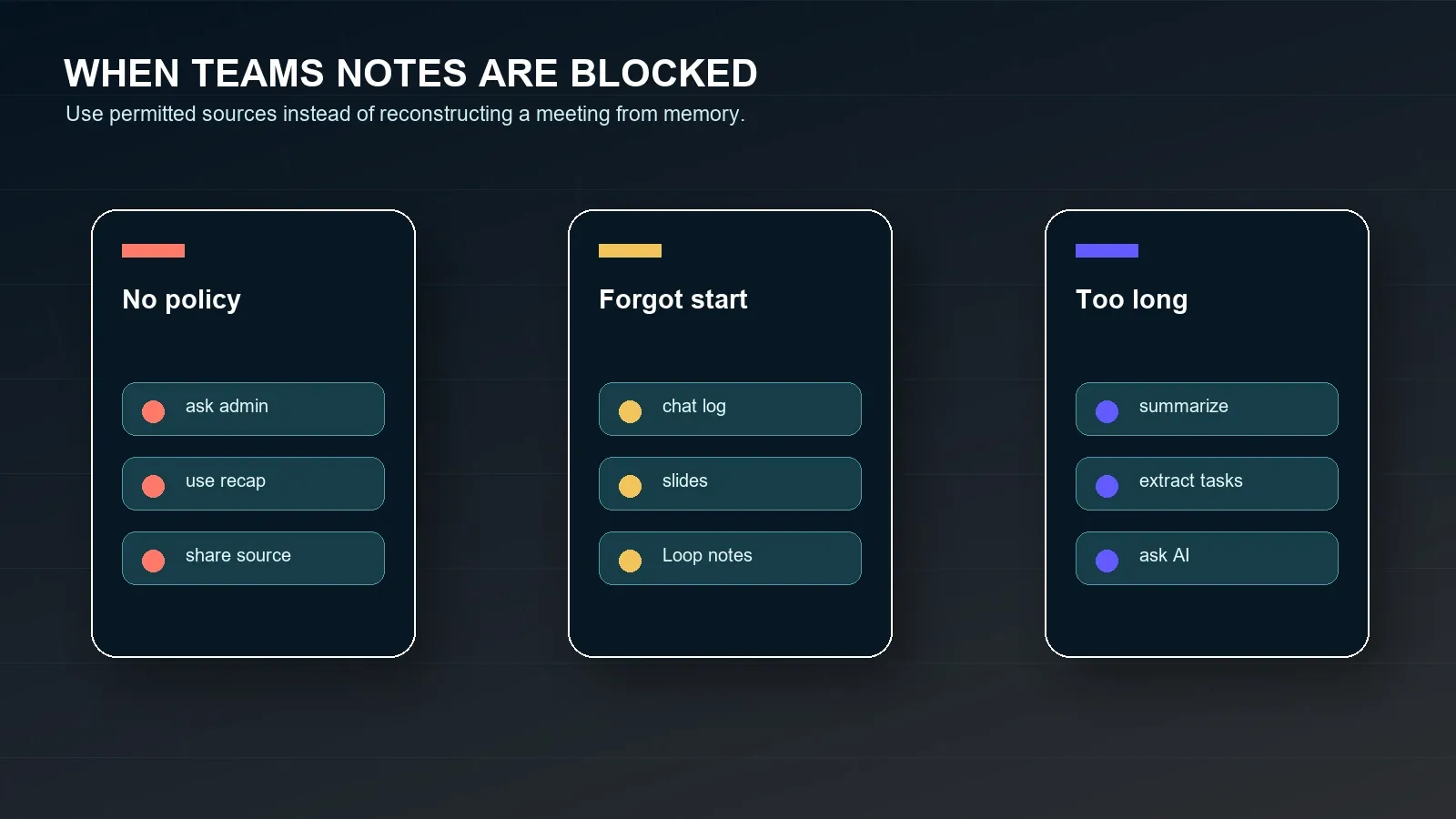
Ask the organizer, co-organizer, or IT admin for the correct recording, transcript, Recap, or written-notes path. Do not bypass access controls. Use permitted chat, Loop notes, slides, or approved recap content instead.
If you only need notes, not video
Prioritize transcript, recap, decisions, action items, owners, deadlines, and source-linked answers over storing another long video. HiNoter is useful when the meeting outcome needs to move into team tools.
If the meeting already ended
Look for Recap, transcript, recording, chat history, Loop notes, shared slides, calendar context, or a recap email. If the content is allowed for processing, upload it to HiNoter to create structured notes and source-linked Q&A.
Common Teams AI Note Taker Problems and Fixes
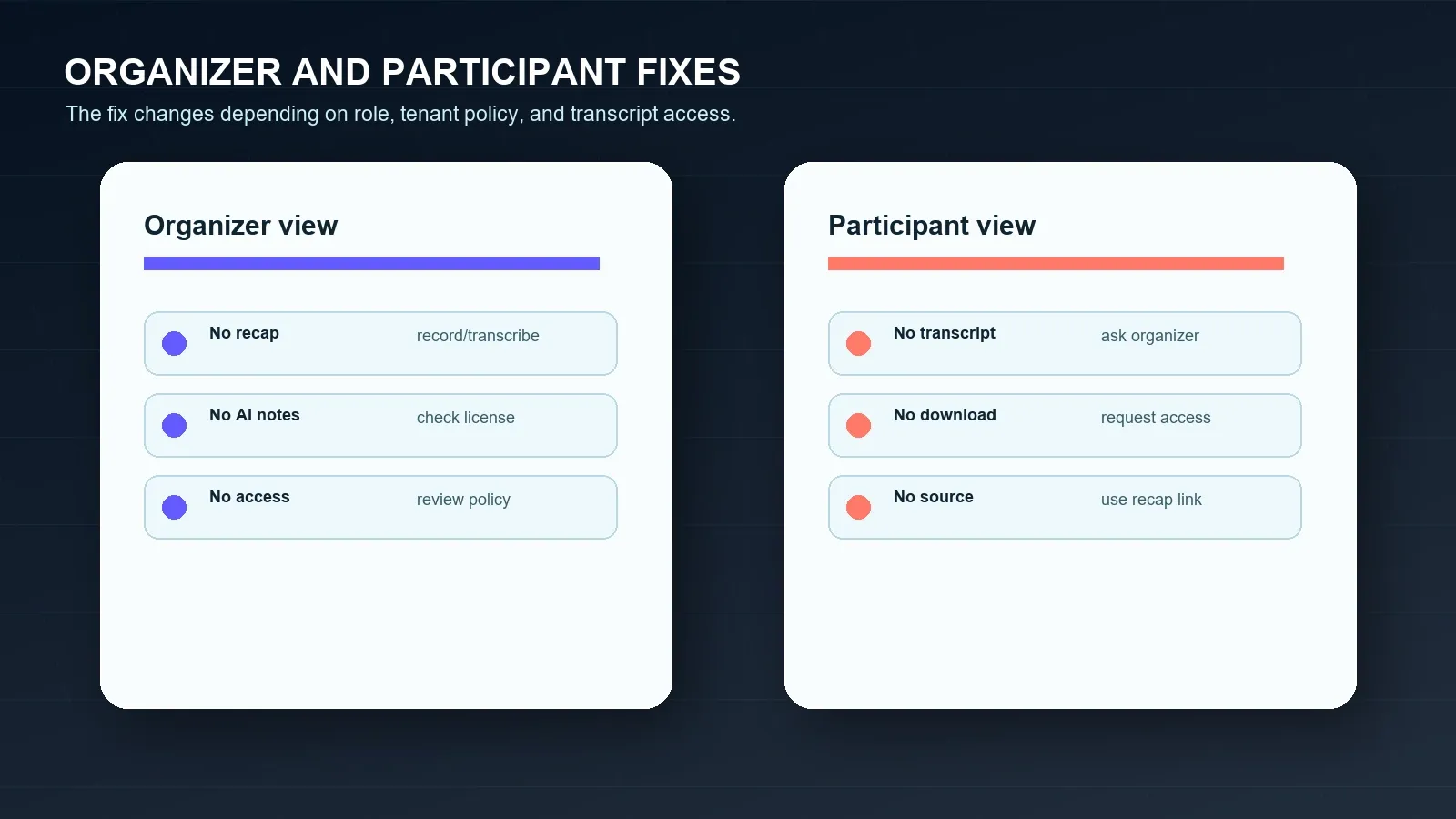
Teams note problems usually come from permissions, meeting type, or expectations. The button may be missing because the user is external, the organizer limited who can record and transcribe, Copilot is off, Facilitator is unavailable for the meeting type, a sensitivity label blocks export, or an admin policy restricts recording. The output may also exist but be insufficient: a transcript is searchable text, but it does not automatically become a reviewed task list.
| Problem | Likely cause | Fix |
|---|---|---|
| Start recording is missing | License, admin policy, meeting role, or meeting type may block recording. | Check Teams recording policy, organizer options, and whether the user is guest or external. |
| Start transcription is missing | Transcription may be disabled by policy or restricted by organizer settings. | Confirm transcription policy and who can record and transcribe before the meeting. |
| Recap is empty or incomplete | The meeting may not have been recorded or transcribed, or content was not available. | Record or transcribe eligible meetings and keep shared files in the meeting context. |
| Copilot is unavailable after the meeting | No transcript may be available, or Copilot may have been set to Only during the meeting. | Use a transcript-retaining option when after-meeting questions are needed. |
| AI notes cannot be shared | Sensitivity labels or access rules may restrict export or forwarding. | Respect the restriction and use an approved internal recap path. |
| Problem | Likely cause | Fix |
|---|---|---|
| No recording or transcription button | You may not have the role, license, org membership, or policy access. | Ask the organizer to start it or share an approved transcript after the meeting. |
| No transcript after the meeting | You may be external, anonymous, from another tenant, or not granted access. | Request transcript or Recap access rather than reconstructing details from memory. |
| AI notes are too generic | The output may be a broad recap, not a work-management system. | Extract decisions, owners, deadlines, risks, and open questions in HiNoter or a structured note workflow. |
| The wrong language was transcribed | The spoken language setting may not match the meeting discussion. | Ask the initiator or organizer to correct the spoken language during the meeting. |
| External meeting is sensitive | Customer, vendor, legal, HR, or regulated content may restrict AI processing. | Use written approvals and policy checks before processing or syncing content. |
Alternatives When Recording or Transcript Fails
If Teams recording fails, transcription is blocked, or the meeting ended without a usable transcript, do not force the workflow back into video. Start with the source you are allowed to use. That may be a Teams Recap, meeting chat, Loop notes, shared slides, agenda, attendance report, approved transcript, customer email, Google Docs notes, Zoom transcript, Google Meet transcript, audio file, or written recap.
The key is permission plus structure. A lawful and approved source is only the raw material. The team still needs a summary, decisions, risks, open questions, action items, owners, due dates, and a place to ask follow-up questions later. This is where a separate knowledge layer matters.
| Situation | Use this permitted source | HiNoter output |
|---|---|---|
| Transcript exists | Approved Teams transcript. | Summary, decisions, task extraction, quotes, and searchable AI Chat. |
| Recap exists | Teams Recap with transcript, notes, or shared files. | Action items, owners, risks, recap email, and source-linked questions. |
| Only recording exists | Approved recording or audio/video file. | Transcript, structured notes, mind map, and exports. |
| No recording or transcript | Chat, Loop notes, slides, agenda, calendar details, and participant notes. | Meeting notes draft, open questions, risks, and follow-up checklist. |
| Cross-platform meetings | Teams, Zoom, Google Meet, audio, video, YouTube, or PDFs where permitted. | One searchable knowledge layer across content sources. |
How HiNoter Automates Microsoft Teams Meeting Notes
HiNoter is an AI meeting notes and transcription platform, not just a recorder. It turns permitted meetings, YouTube videos, PDFs, videos, and audio into structured, searchable, source-linked knowledge. For Teams-heavy organizations, that is useful because the conversation often starts in Teams but the work moves to Slack, Notion, Google Docs, calendars, email, CRMs, or project tools.
Use HiNoter when the goal is not simply "capture the call." The goal is to stop manual note-taking, stay present, and still leave with a reviewed transcript, summary, decisions, action items, owners, due dates, mind map, exports, and AI Chat answers with citations to the source material.
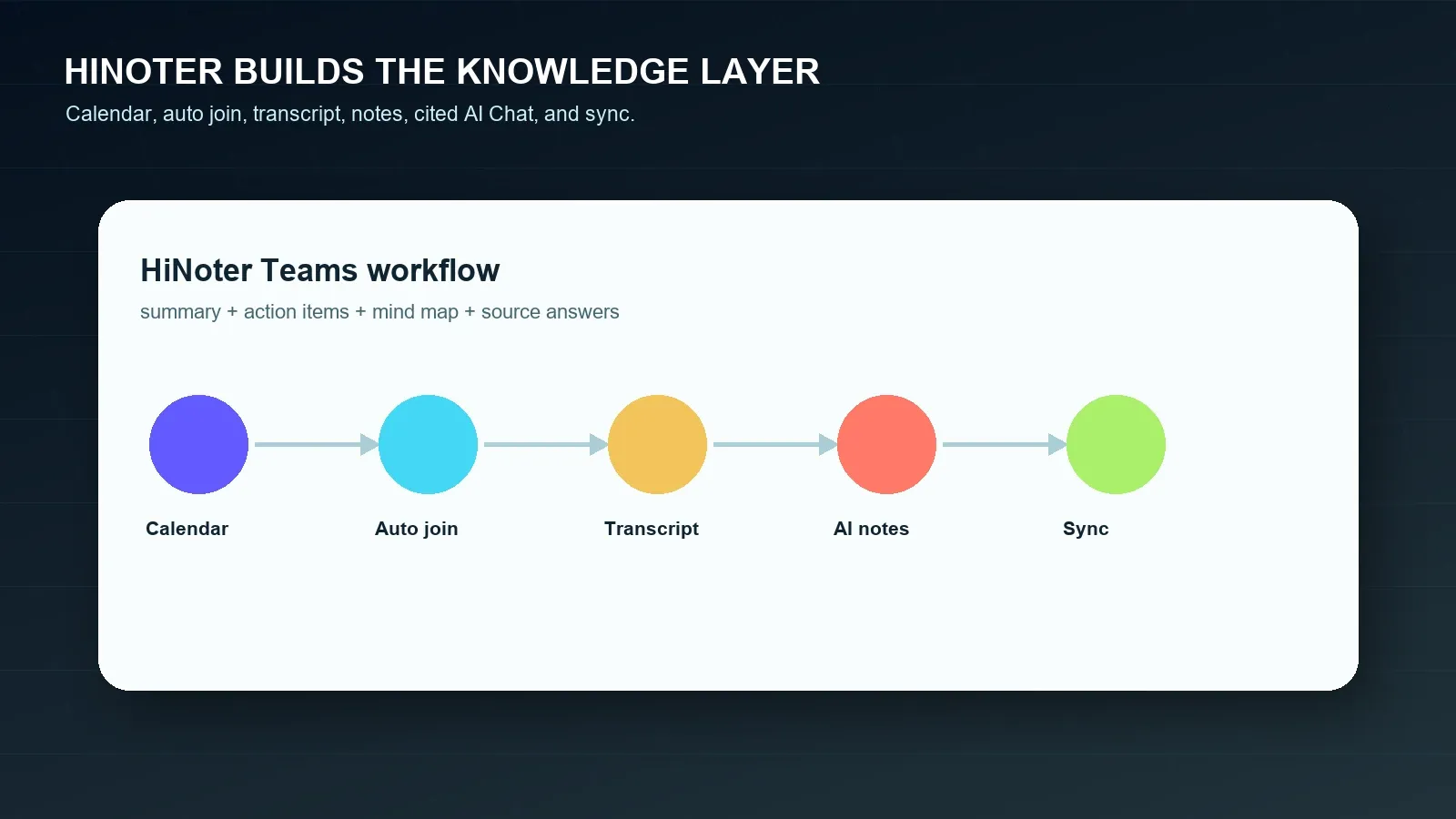
- Connect your calendar. Prepare the note workflow before the meeting so a person does not have to remember every recording, transcript, and recap step manually.
- Capture permitted meetings. Use approved Microsoft Teams, Zoom, Google Meet, audio, video, transcript, or document sources. Start from HiNoter's Microsoft Teams workflow and compare related Google Meet and Zoom pages if your team uses several platforms.
- Generate structured notes. HiNoter can create a transcript, summary, topic sections, decisions, action items, owners, deadlines, and risks.
- Use AI Chat with citations. Ask AI Chat what was decided, which tasks lack owners, which deadlines were mentioned, or where a customer requested follow-up. Review the cited source before acting.
- Sync approved output. Send reviewed notes to Notion, Slack, Google Docs, calendar reminders, or email when supported by the workflow.
What a Useful Teams Note Output Looks Like
The difference between raw capture and usable knowledge is visible in the output. A raw transcript helps with search and quotes. A work-ready note package tells the team what happened, why it matters, who owns the next step, when it is due, and which source supports the claim. Below are sample outputs for a permitted Teams transcript. They are editorial examples, not claims about a specific live meeting.
SAMPLE ACTION ITEMS
1. Confirm the renewal-risk language for the customer recap
Owner: Mina
Due: 2026-07-24
Source: Transcript 18:42
Sync: Slack customer channel
2. Validate whether external Teams transcription is allowed
Owner: Priya
Due: 2026-07-25
Source: Transcript 23:10
Sync: Notion compliance page
3. Prepare the Q3 onboarding plan in Google Docs
Owner: Omar
Due: 2026-07-27
Source: Transcript 31:05
Sync: Google Docs recap
SAMPLE RECAP EMAIL
Subject: Recap: Microsoft Teams customer onboarding review
Thanks everyone. The team agreed to keep the July 31 onboarding milestone, add one renewal-risk note to the customer recap, and confirm whether the external call transcript can be shared with the partner team.
Decisions:
- Keep the July 31 onboarding milestone.
- Add a short risk note about support coverage during rollout.
- Use a written recap until transcript sharing is approved.
Action items:
- Mina sends the customer recap by July 24.
- Priya confirms the transcription policy by July 25.
- Omar prepares the onboarding plan by July 27.
Sources checked: transcript timestamps 18:42, 23:10, and 31:05.
| Workflow | Strength | Common limitation | Best fit |
|---|---|---|---|
| Manual notes | Human judgment and context during discussion. | Distracts the note taker; misses details; tasks often lack owners or due dates. | Small informal meetings where one person can own the recap. |
| Teams recording/transcript/Recap | Native Microsoft 365 storage, participant notifications, transcript, and recap path. | Depends on license, admin policy, organizer settings, meeting type, and transcript availability. | Teams-only organizations that want native records inside Microsoft 365. |
| HiNoter knowledge layer | Cross-platform capture, transcript, summary, actions, mind map, exports, and source-linked AI Chat. | Requires permission to process the source and human review before sharing sensitive output. | Teams that need reusable knowledge across meetings, video, audio, YouTube, PDFs, and documents. |
Microsoft Teams, Google Meet, and Zoom Compared
Teams that use only Microsoft 365 may be comfortable with native Teams Recap and Copilot. Many companies, however, still meet customers, vendors, agencies, and candidates across Teams, Google Meet, and Zoom. Each platform has a different policy model, role model, storage path, transcript behavior, and AI output. A cross-platform note layer helps standardize the reviewed result even when the meeting platform changes.
| Platform path | What it can produce | Common limitation | When HiNoter helps |
|---|---|---|---|
| Microsoft Teams Recap, Copilot, Facilitator | Transcript, recap, AI notes, tasks, Copilot answers, or Loop notes when eligible. | License, policy, transcript, sensitivity label, and role conditions can block access. | When the team needs structured tasks, source-linked Q&A, and sync beyond Teams. |
| Google Meet notes or transcripts | AI notes, transcripts, or recordings depending on Workspace, Gemini, admin, and host settings. | Output can stay in a Google document and still require task cleanup. | When Meet and Teams notes should follow the same format. |
| Zoom AI Companion or recording | Meeting summaries, notes, transcripts, and recordings depending on account settings. | Host, participant, admin, and plan conditions vary. | When Zoom recordings need the same knowledge workflow as Teams calls. |
| HiNoter multi-source workflow | Transcript, summaries, action items, mind maps, exports, and cited AI Chat from permitted sources. | Needs clear permission and review process. | When teams want searchable knowledge across meetings, videos, PDFs, audio, and YouTube. |
Compliance, Consent, and Trust
Recording, transcribing, and summarizing meetings can involve personal data, confidential business information, customer commitments, HR issues, legal terms, security incidents, or regulated content. Requirements vary by location, industry, organization, meeting type, participant role, retention setting, and contract. Teams itself may notify participants when recording or transcription starts, but a notification is not a complete compliance program.
Use first-party platform controls whenever possible: Teams meeting options, tenant policy, sensitivity labels, recording and transcript access settings, and the Microsoft 365 storage path. Then add human review. AI notes can be useful, but names, dates, money, obligations, legal language, medical information, employment decisions, and customer commitments should be checked against the source. The FTC privacy and security guidance and the NIST Privacy Framework are useful public references for privacy and security program design.
Source-linked answers reduce risk because a reviewer can compare the AI answer against the transcript, recording, chat, document, or timestamp. They do not remove the need for human judgment. Build a simple policy: define which meetings can be recorded, which can be transcribed, which can be processed by AI, who can access the output, where notes can be synced, and how long records should be retained.
When to Choose HiNoter for Teams Notes
Choose native Microsoft Teams features when your team only needs an official Teams transcript, recording, Recap, Copilot answer, or Loop note, and the organization's Microsoft 365 settings allow it. Choose HiNoter when the real job is broader: zero manual note-taking, multi-source capture, 50+ language workflows through multilingual support, structured summaries, action items, owners, deadlines, mind maps, exports, and source-linked answers that are searchable across meetings and content.
HiNoter works especially well for teams that meet in Teams but still need to reuse knowledge in another system. Sales teams need next-step emails. Product teams need decisions and open risks. Customer success teams need onboarding tasks. Executives need concise summaries. Recruiting teams need consistent candidate debriefs. Operations teams need policies and meeting history searchable together. The point is not to replace judgment; it is to remove the repetitive admin that happens after every call.
Start with the AI meeting notes workflow, compare the meeting assistant category page, and confirm current plan details on HiNoter pricing. Then try the workflow on a low-risk internal meeting before rolling it out to customer, legal, HR, or regulated conversations.
Try HiNoter for Microsoft Teams notes and turn your next permitted meeting into reviewed notes, action items, and synced follow-up.
Frequently Asked Questions
Does Microsoft Teams have an AI note taker?
Yes. Microsoft Teams can provide AI-supported notes through features such as Recap, Intelligent recap, Copilot, and Facilitator when the meeting, license, transcript, admin policy, and participant role allow it. Availability changes by plan and tenant policy, so verify current Microsoft documentation before relying on a workflow.
Who can start transcription in a Teams meeting?
Microsoft says organizers, co-organizers, presenters, and in some cases people from the same organization can start or stop transcription, depending on the organizer settings and tenant policy. External participants and anonymous users generally have less access. Organizers can manage recording and transcription permissions when eligible.
Can I use a Microsoft Teams AI note taker without recording?
Sometimes. Copilot and Facilitator can work during a meeting under certain settings, and Microsoft documents options where Copilot can be available only during the meeting. For reusable after-meeting notes, transcript availability usually matters because the transcript becomes the source for recap, AI answers, and later review.
What should I do if Teams recording or transcription is blocked?
Ask the organizer or IT admin to confirm the recording, transcription, Copilot, and access policy. Do not bypass access controls. Use permitted sources such as Recap, meeting chat, Loop notes, slides, approved transcript files, or a written recap, then review any AI-generated output before sharing.
Can HiNoter summarize Microsoft Teams meetings?
Yes. HiNoter can process permitted meeting content and create a transcript, summary, action items, owners, due dates, mind map, exports, and source-linked AI Chat answers. It is useful when teams want the same reviewed output across Microsoft Teams, Zoom, Google Meet, audio, video, YouTube, and PDFs.
How should teams handle consent for Teams AI notes?
Teams should follow applicable law, Microsoft notices, company policy, customer agreements, retention rules, privacy requirements, and security controls before recording, transcribing, or summarizing a meeting. For sensitive HR, legal, healthcare, finance, or customer meetings, involve the right compliance stakeholders before processing content.