A PDF to text converter extracts readable text from a PDF so you can copy, search, summarize, and reuse it. For scanned PDFs, OCR reads text from images. HiNoter goes further by turning extracted PDF content into summaries, key points, meeting prep notes, and source-linked AI Chat answers.
What Is a PDF to Text Converter?
A PDF to text converter is software that takes content locked inside a PDF and turns it into editable, searchable text. The job sounds simple until you meet the real-world PDFs people actually use: scanned contracts, exported slide decks, academic papers with footnotes, manuals with columns, board reports full of tables, and image-heavy documents where the words are technically part of a picture.
For a student, the goal may be to pull key ideas out of a research paper. For a product manager, it may be to turn a customer report into meeting prep. For a legal, support, or operations team, the goal may be to find the exact sentence that answers a question without rereading fifty pages. Raw text extraction is useful, but it is only the first step. The real value comes when the extracted content becomes structured, summarized, cited, and reusable.
That is where HiNoter fits naturally. HiNoter is an AI meeting notes and transcription platform, but it is not limited to meetings. Teams can use it to process PDFs, audio, video, and permitted online content in one workspace. A report can become a summary. A manual can become searchable Q&A. A PDF used before a meeting can become preparation notes, questions, risks, and follow-up tasks.
PDF to Text Converter Workflow: From Static File to Useful Notes
The cleanest workflow is not simply "upload a PDF and copy the text." A better PDF workflow separates extraction from understanding. First, the tool identifies whether the document has selectable text or requires OCR. Then it extracts the content, keeps enough structure to preserve meaning, and lets you summarize, query, or export the result.
| Step | What happens | Why it matters |
|---|---|---|
| 1. Upload the PDF | Add a report, paper, manual, contract, slide deck, or class handout you are allowed to process. | The source file stays connected to the resulting notes and answers. |
| 2. Detect the PDF type | The system checks whether the PDF has a text layer or needs OCR. | Different PDF types require different extraction methods. |
| 3. Extract text | Selectable text is pulled directly; scanned text is read through OCR. | You get content that can be searched, copied, reviewed, and summarized. |
| 4. Clean and structure | Sections, headings, tables, references, and page context are preserved where possible. | Clean structure reduces misread summaries and broken notes. |
| 5. Summarize and ask | HiNoter creates summaries, key points, meeting prep notes, and source-linked AI Chat answers. | The PDF becomes usable knowledge, not just extracted text. |
If you are building a repeatable team process, connect the PDF workflow with your broader note system. For example, teams that already use AI Chat for meeting knowledge can use the same source-linked questioning pattern for PDF content. A manager can ask what changed between two customer reports. A student can ask for the core argument in a paper. A support lead can ask where a manual explains a configuration rule.
OCR, Text-Layer PDFs, and Scanned PDFs Explained
Not all PDFs store words in the same way. Some PDFs include a real text layer, which means you can select words with your cursor. Others are scans or photos of pages, which means the document contains images that happen to show text. A PDF to text converter needs to handle both, or the output will feel unreliable.
What Is OCR?
OCR stands for optical character recognition. OCR reads text from an image, scan, or photo and converts the visible characters into machine-readable text. It is useful for scanned PDFs, photographed pages, older forms, paper contracts, and image-based slide exports.
OCR quality depends on the source. Clear scans, straight pages, high contrast, readable fonts, and minimal handwriting produce better results. Crooked pages, low-resolution images, stamps, shadows, complex tables, and mixed languages can create errors. A good workflow makes review easy instead of pretending every scanned document is perfect.
What Is a Text-Layer PDF?
A text-layer PDF already contains machine-readable text behind the visual layout. You can usually select, copy, and search the words inside the file. Text-layer PDFs often come from exports out of Google Docs, Microsoft Word, design tools, reporting platforms, or publishing systems.
These files are usually easier to convert than scans, but they still have edge cases. Multi-column layouts may extract in the wrong reading order. Headers and footers may repeat. Tables may break into confusing fragments. Footnotes, citations, and sidebars may land in places that make the extracted text hard to read. That is why a useful PDF workflow should include cleanup, section summaries, and source checking.
Scanned PDFs vs Text PDFs: What to Expect
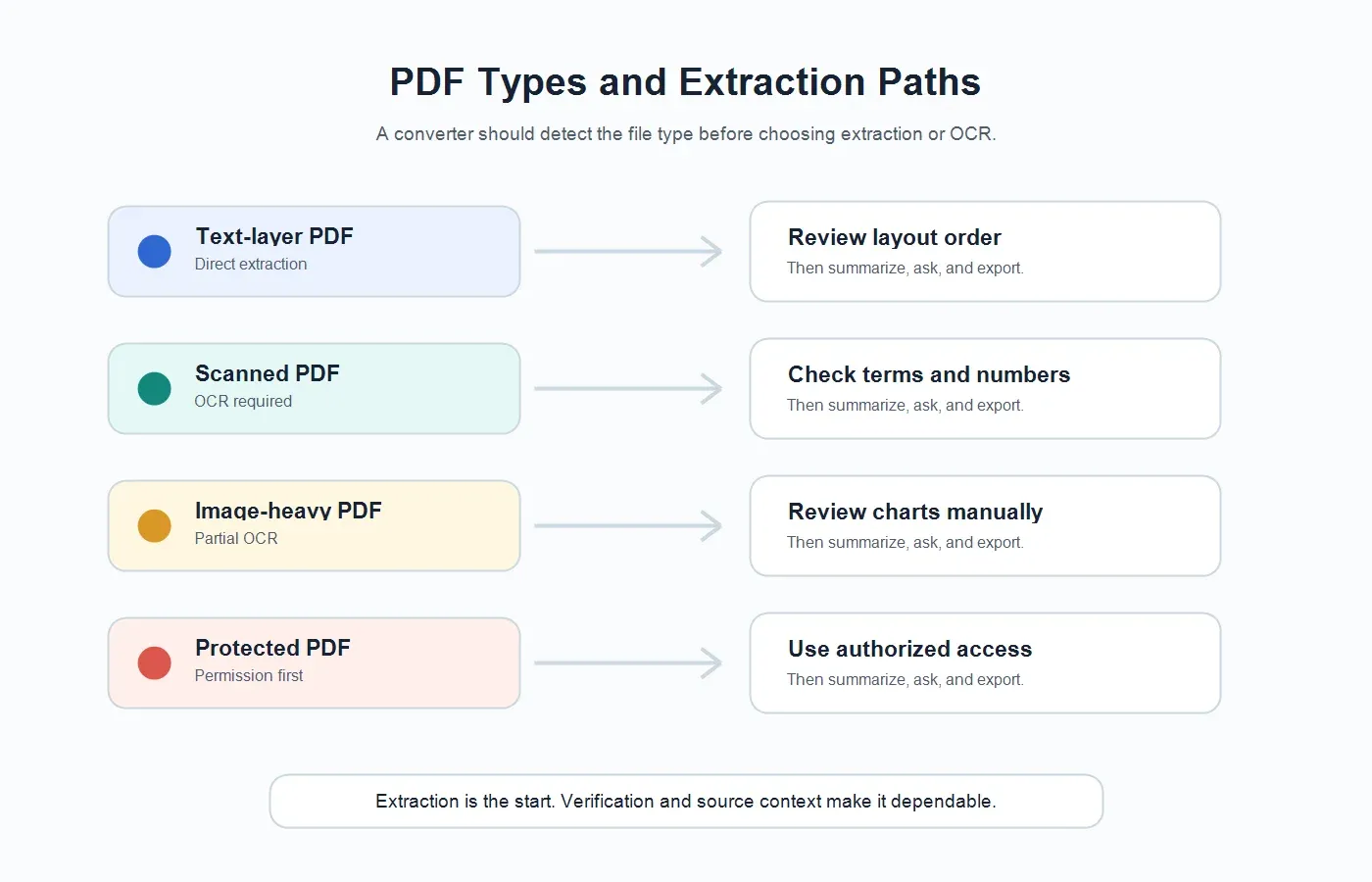
Before you judge a converter, identify the PDF type. The same tool can feel excellent on a clean text-layer report and messy on a photographed contract. This table gives a practical view of what usually happens.
| PDF type | How text is found | Common limitation | Best HiNoter workflow |
|---|---|---|---|
| Text-layer PDF | The converter extracts embedded selectable text. | Columns, headers, footers, and tables can appear out of order. | Extract text, summarize by section, then ask source-linked questions. |
| Scanned PDF | OCR reads words from page images. | Accuracy depends on scan quality, contrast, skew, and font clarity. | Run OCR, review critical terms, then create notes and key points. |
| Image-heavy PDF | Text may be embedded in charts, screenshots, or slide images. | Charts and diagrams may require human review for full meaning. | Extract visible text, summarize the narrative, and flag visual-heavy sections. |
| Password-protected PDF | Access depends on permission and file restrictions. | Some files cannot be processed until unlocked by an authorized user. | Use only documents you can lawfully access, then process the permitted file. |
| Table-heavy PDF | Text extraction reads cells, labels, and values where possible. | Complex tables can lose row and column relationships. | Extract text, review numbers, and ask targeted questions with source context. |
Why Extracted Text Alone Is Usually Not Enough
Many PDF tools stop at the moment they produce text. That is helpful if your only goal is copying a quote or indexing a file. It is less helpful when the PDF is twenty pages of research, a dense market report, a policy document, a contract, or a training manual. You still have to read the extracted text, decide what matters, find the claims worth citing, and turn the document into something your team can use.
For knowledge workers, the deeper problem is not access to words. It is signal. Which sections matter? What are the risks? What questions should we bring into the meeting? Which claims need verification? What changed since the last version? What action should someone take after reading this?
HiNoter is useful here because it treats PDF text as source material for structured knowledge. The PDF can become an executive summary, a research brief, a set of meeting prep notes, a topic map, or a searchable Q&A space. If you already use HiNoter as an AI meeting notes workflow, PDF processing becomes part of the same knowledge loop instead of a separate document chore.
PDF to Text vs PDF Summary vs PDF Chat
These outputs solve different jobs. A raw transcript of the PDF is not the same as a summary, and a summary is not the same as a source-grounded chat answer. Teams get better results when they pick the output that matches the decision they need to make.
| Output | What it gives you | Best use case |
|---|---|---|
| Extracted text | The readable words from the PDF, with cleanup where possible. | Copying quotes, searching the document, archiving text, or preparing a source file. |
| PDF summary | A shorter explanation of the main ideas, findings, risks, or recommendations. | Understanding a report quickly before a meeting, class, or review. |
| Key points | Bulleted takeaways organized by topic, section, or decision relevance. | Briefing a manager, preparing a team update, or creating study notes. |
| Meeting prep notes | Questions, agenda items, risks, and decisions suggested from the PDF content. | Turning a customer report, contract, or research paper into a focused discussion. |
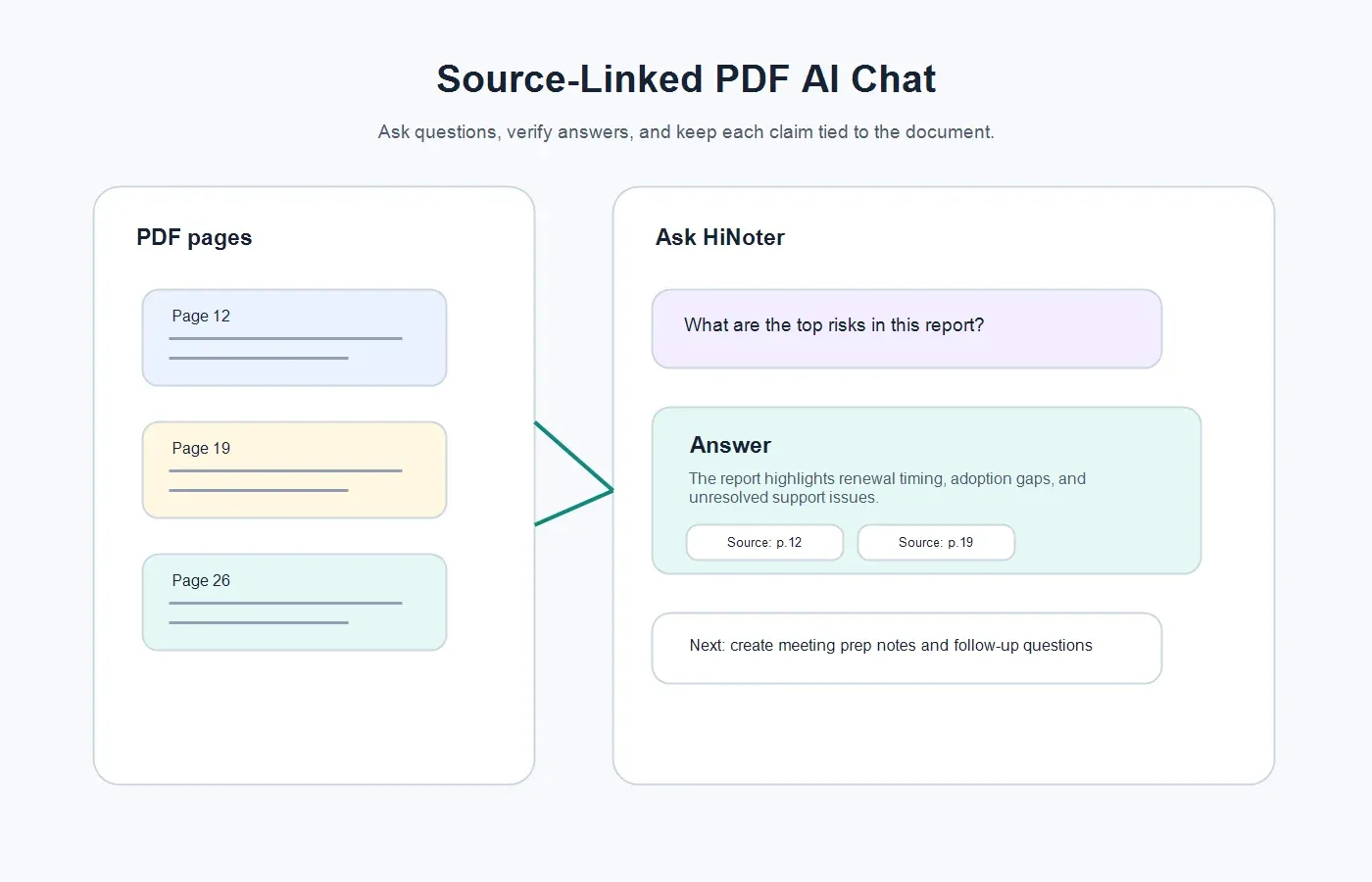
| Source-linked AI Chat | Answers grounded in the PDF, with references back to the source content. | Asking precise questions without rereading the full document. |
If the source is a recorded webinar or training session rather than a PDF, HiNoter can also support video and audio workflows. For related content types, see video to text and audio to text. The important point is consistency: one team workspace can handle meetings, documents, videos, and voice content instead of scattering knowledge across separate tools.
How HiNoter Turns PDFs Into Team Knowledge
HiNoter works best when the PDF is part of a real workflow. A static file becomes useful when it helps someone prepare, decide, explain, or follow up. Here is the practical path.
1. Upload a PDF You Are Allowed to Process
Start with a PDF you own, created, received for work, or are otherwise permitted to use. This matters for contracts, course materials, paid reports, customer documents, and copyrighted research. A tool should help you understand documents you can lawfully access; it should not be used to bypass access restrictions or reuse content without permission.
2. Extract Text or Run OCR
HiNoter identifies the readable content and prepares it for review. If the PDF has a text layer, extraction can be direct. If it is scanned, OCR helps recover visible text. For critical documents, review names, dates, figures, clauses, citations, and any section where formatting may affect interpretation.
3. Generate a Section Summary
A good PDF summary should not flatten the document into generic statements. It should preserve the structure of the source: problem, evidence, recommendation, risk, limitation, and next step. For a report, that might mean summarizing the executive overview, findings, methodology, and recommendations separately. For a contract, it might mean separating obligations, deadlines, renewal terms, and open questions.
4. Create Key Points and Meeting Prep
Once the content is extracted, HiNoter can turn it into practical notes. A product team might ask for customer pain points. A sales team might ask for buying signals or objections. A student might ask for thesis, evidence, and definitions. A manager might ask for the decisions needed in the next meeting. This is where the PDF moves from reading material to usable team context.
5. Ask Source-Linked Questions
Source-linked AI Chat is the difference between a confident answer and a trustworthy answer. Instead of receiving a loose AI response, the user can ask a question and trace the answer back to the PDF content. This is especially important for research, compliance, technical manuals, customer commitments, and leadership reports.
Example: Turning a Customer PDF Report Into Meeting Prep
Imagine a customer success manager receives a quarterly business review PDF before a renewal call. The document includes product adoption charts, support history, open risks, budget notes, stakeholder comments, and next-quarter goals. Extracting the text is useful, but it does not tell the manager how to run the meeting.
With HiNoter, the same PDF can become a concise preparation brief. The manager can ask: What are the top renewal risks? Which product requests appear more than once? What commitments did the customer make? Which questions should we ask on the call? What should be sent to the account team before the meeting?
The resulting notes might include a one-paragraph executive summary, three risks, five questions for the customer, a timeline of commitments, and a short handoff for the internal team. After the meeting, HiNoter can connect the live discussion with the PDF context, so the report does not sit in a folder while the actual decisions move into private notes or chat threads.
Example: Summarizing a Research Paper Without Losing the Source
Students, analysts, and researchers often need more than a paragraph summary. They need to know the research question, the method, the sample, the main finding, the limitations, and the claims worth citing. A raw PDF to text converter may recover the words, but it will not automatically decide which parts matter for a literature review, briefing, or presentation.
A more useful workflow is to extract the text, summarize each major section, list the key terms, identify the strongest evidence, and ask follow-up questions with references. For example: What is the paper's central claim? What evidence supports it? What assumptions should be questioned? Which paragraph defines the main concept? Which section explains limitations?
Because HiNoter supports source-linked answers, the user can keep the summary connected to the original content. That makes the output easier to verify and easier to reuse in class notes, research memos, or team documents.
Common PDF Extraction Problems and How to Handle Them
PDFs are built to preserve visual layout, not always to make text extraction easy. When results look messy, the problem is often the source format, not simply the converter. Here are the issues worth checking before you rely on the output.
| Problem | What you may see | How to improve the result |
|---|---|---|
| Low scan quality | Missing words, wrong characters, or broken lines. | Use a clearer scan, improve contrast, and review important terms manually. |
| Multi-column layout | Text from one column may mix with another. | Summarize by section and verify reading order before sharing. |
| Complex tables | Rows and columns may lose relationships. | Review numbers and labels, then ask specific questions about the table. |
| Headers and footers | Repeated page text may clutter the extraction. | Clean repeated material before creating final notes. |
| Protected file | The converter may not access content. | Use only an authorized version of the document and respect file restrictions. |
Quality Checklist Before You Share PDF Notes
AI can accelerate the process, but document notes still deserve review. Before you share a PDF summary with a team, check the items that can change the meaning of the document.
- Confirm the document title, date, author, version, and source.
- Review names, product terms, acronyms, numbers, deadlines, and citations.
- Check whether the PDF was scanned, text-based, table-heavy, or image-heavy.
- Ask whether the summary preserves the document's structure and limitations.
- Verify key claims against source references before using them in decisions.
- Separate facts from interpretation, recommendations, and open questions.
- Export final notes to the workspace where the team already works.
For many teams, the last step is where document work breaks down. Someone reads the PDF, creates a private summary, and sends a message that never becomes durable team knowledge. HiNoter can help close that gap by exporting structured notes into team systems such as Notion and Google Docs, so the output can live where people plan, write, and follow up.
What to Use a PDF to Text Converter For
A PDF to text converter is useful whenever the content is valuable but trapped in a static format. The best use cases are not only about conversion; they are about reducing the time between receiving a document and using its information well.
Reports and Executive Briefings
Leadership reports often contain more detail than busy readers can absorb before a meeting. Extracting the text lets you build a concise summary, identify recommended decisions, and prepare questions for the discussion. HiNoter can turn a long PDF into a brief that highlights the problem, evidence, recommendation, risk, and next step.
Contracts and Policy Documents
Contracts and policy PDFs require careful reading. AI should not replace legal review, but it can help organize the first pass: obligations, renewal dates, exceptions, open questions, and terms that need human attention. Source-linked answers are especially useful here because the reader can verify every important point against the original text.
Research Papers and Class Notes
Academic PDFs are dense by design. Students and researchers can use text extraction plus AI summaries to identify definitions, methods, claims, evidence, and limitations. Instead of copying paragraphs into a separate note app, the user can turn the paper into structured study notes and ask follow-up questions.
Manuals and Support Knowledge
Support teams often deal with manuals, product guides, setup instructions, and troubleshooting PDFs. A searchable PDF chat workflow can help agents locate the right answer faster, especially when source references show where the instruction came from. The final output can be reused in internal documentation or customer response drafts.
Meeting Prep and Follow-Up
Some PDFs are not the final deliverable; they are context for a meeting. A customer report, vendor proposal, board packet, product spec, or project review can be converted into prep notes before the call. After the meeting, HiNoter can connect the PDF context with the actual discussion, summary, decisions, and action items.
Privacy and Permission Guidelines
Before uploading any PDF into a converter or AI tool, confirm that you are allowed to process it. This is especially important for confidential contracts, employee records, healthcare documents, financial reports, customer data, paid research, course materials, and copyrighted content. Use company-approved workflows for sensitive documents, and remove information that does not need to be processed.
A practical privacy habit is to classify the file before upload. Ask whether it is public, internal, confidential, regulated, or customer-provided. Then decide who should have access to the extracted text, summary, chat answers, and exports. The tool should reduce busywork without creating a new uncontrolled copy of sensitive information.
For teams, permissions should be as intentional as the notes themselves. A PDF summary used for meeting prep may belong in a shared project workspace. A contract analysis may belong only with legal and account owners. A research summary may be fine for a broader team. The right workflow depends on the content, not just the convenience of the converter.
When a PDF Converter Should Become an AI Knowledge Workflow
Use a simple converter when you only need to copy text. Use an AI knowledge workflow when the document will influence a decision, meeting, project, class, customer relationship, or internal process. The moment someone asks "what does this mean?" or "what should we do next?" raw extraction is not enough.
HiNoter is designed for that second category. It can take the document content, summarize it, identify key points, prepare meeting notes, and support source-linked AI Chat. The same workspace can also handle meeting recordings, videos, audio, and notes, so the PDF becomes part of a larger knowledge record rather than a one-off conversion.
If you need more than text, HiNoter turns PDF content into extracted text plus summary, key points, meeting notes, exports, and searchable Q&A. Upload a permitted PDF, review the extracted content, and use the output to prepare, decide, teach, brief, or follow up with less manual work.
FAQs About PDF to Text Converter Workflows
What is the best way to convert a PDF to text?
The best method depends on the PDF type. If the PDF has selectable text, direct extraction is usually fastest. If it is scanned or image-based, use OCR. For business or research work, use a workflow that also summarizes sections and keeps source references available for review.
Can a PDF to text converter read scanned documents?
Yes, if it includes OCR. OCR can read text from scanned pages and images, but quality depends on scan clarity, font readability, page angle, contrast, and whether the file contains handwriting, stamps, or complex layouts.
What is the difference between PDF extraction and PDF summarization?
PDF extraction pulls words out of the file. PDF summarization explains the main points in shorter form. Extraction helps you access the text; summarization helps you understand the content faster.
What is source-grounded PDF chat?
Source-grounded PDF chat lets you ask questions about a PDF and receive answers tied back to the source content. This is useful when you need to verify where an answer came from instead of relying on a generic AI response.
Can HiNoter summarize PDF files?
HiNoter can help turn PDF content into structured summaries, key points, notes, and source-linked AI Chat answers. It is especially useful when PDFs need to become meeting prep, research notes, internal documentation, or team knowledge.
Should I review AI-generated PDF summaries?
Yes. Review critical details such as numbers, dates, names, legal terms, citations, obligations, and recommendations. AI summaries are helpful for speed, but important decisions should stay connected to the source document.