A direct cancellation walkthrough, plus what to do with videos you legally own or have permission to summarize.
The short answer
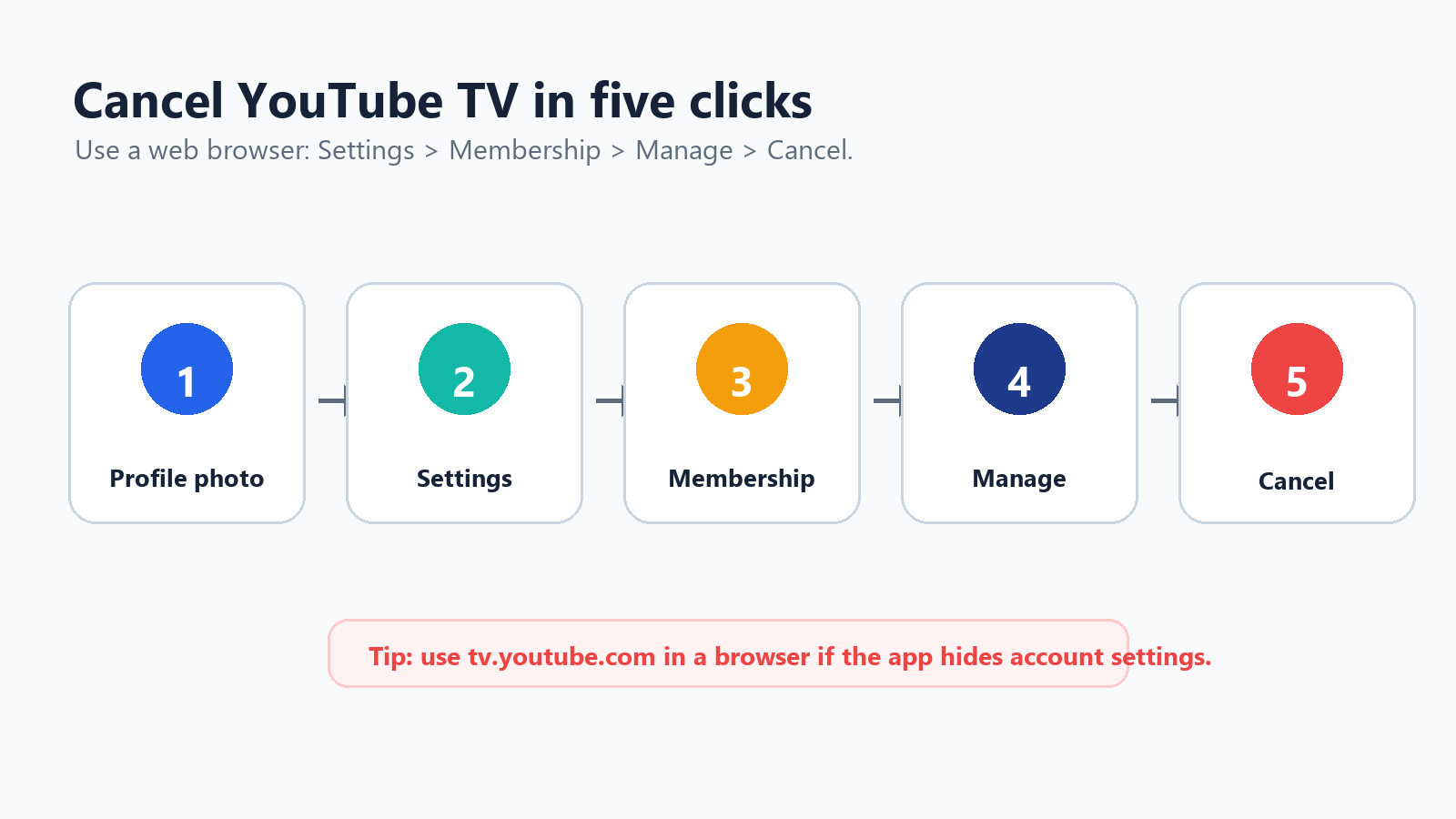
To cancel YouTube TV, go to Settings > Membership > Manage > Cancel membership > Cancel.
Use tv.youtube.com in a browser if the app makes account settings hard to find.
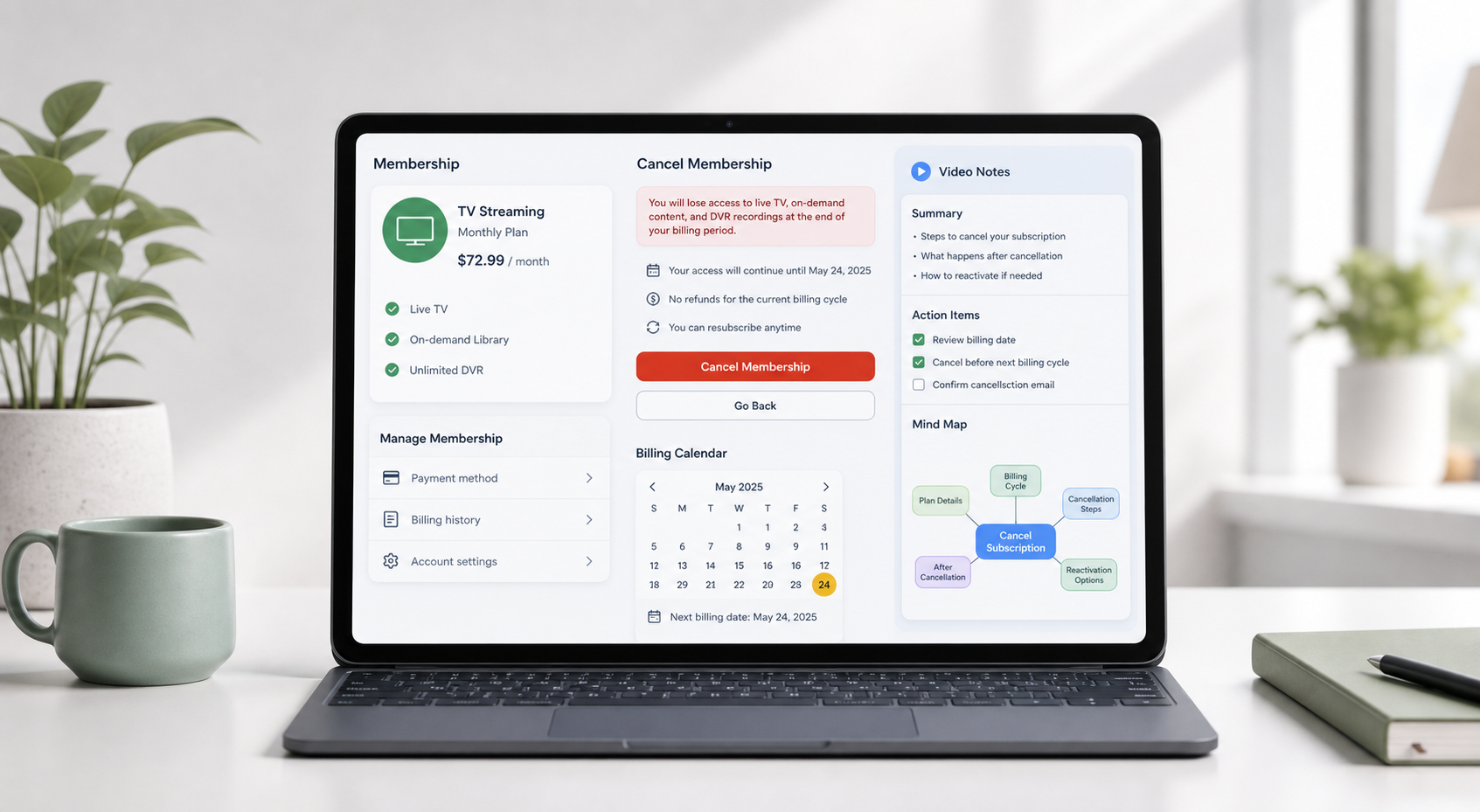
Google/YouTube TV Help lists the cancellation path and says access usually continues until the end of the payment or trial period. Source
Cancel YouTube TV: Browser Steps
Start in a browser because subscription controls are most consistent there. Smart TV interfaces are built for watching, not account management, and mobile apps can vary by platform. The most common mistake is clicking around inside the TV app while signed into a household viewing profile that is not the account paying for YouTube TV.
Step | What to click | What to check |
1 | Go to tv.youtube.com | Make sure you are signed into the paying Google account. |
2 | Select your profile photo | If you see the wrong profile, switch accounts first. |
3 | Open Settings | This is usually easier in a browser than on a TV device. |
4 | Choose Membership | Review the base plan and any paid add-ons. |
5 | Click Manage | Do not choose Pause unless you want a temporary break. |
6 | Choose Cancel membership, then Cancel | Save the confirmation and final access date. |
After you confirm cancellation, look for a confirmation screen or email. Keep it until the next billing date passes. If the account still renews, that confirmation gives you a clean starting point when you contact support or review Google Payments.
Before You Confirm
YouTube TV may show a pause option before cancellation. That can be useful, but it is not the same outcome. A pause is a scheduled break. A cancellation is a decision to stop the membership from renewing. If your problem is recurring billing, choose the path that explicitly cancels the membership.
Pause is not the same as cancel YouTube TV lets users pause a membership for a temporary period. Use Pause only if you expect to come back and are comfortable with billing resuming later. |
Question | Best choice |
I only need a seasonal break. | Pause may be enough. Add the resume date to your calendar. |
I want recurring billing to stop. | Cancel the membership. |
Premium add-ons made the bill too high. | Remove add-ons before canceling the full base plan. |
I need access removed right now. | Google says to contact YouTube TV support for immediate removal. |
Billing, DVR, and Refunds
The part that surprises people is that canceling usually changes the next renewal, not today's viewing access. That is good if you still want to watch through the paid period. It is confusing if you expected the service to disappear immediately. Treat the final access date as the important date, not just the day you clicked Cancel.
Topic | What to expect |
Access after cancellation | Canceling usually stops the next renewal, but access continues until the current payment or trial period ends. |
DVR library | Recorded programs expire after a limited post-cancellation window. They may not return if you restart later. |
Promotional pricing | If you rejoin later, previous promo pricing may not apply. |
Partial refunds | YouTube's refund help says YouTube TV generally does not offer refunds or credits for partial billing periods. |
Unrecognized charge | Check Google Payments and use Google's unauthorized-charge process if the charge is not yours. |
YouTube TV billing help says a YouTube TV charge appears as GOOGLE*YouTube TV and recommends checking Google Payments for billing details. Source
YouTube Help says YouTube TV generally does not provide refunds or credits for partial billing periods. Source
If You Cannot Find the Cancel Button
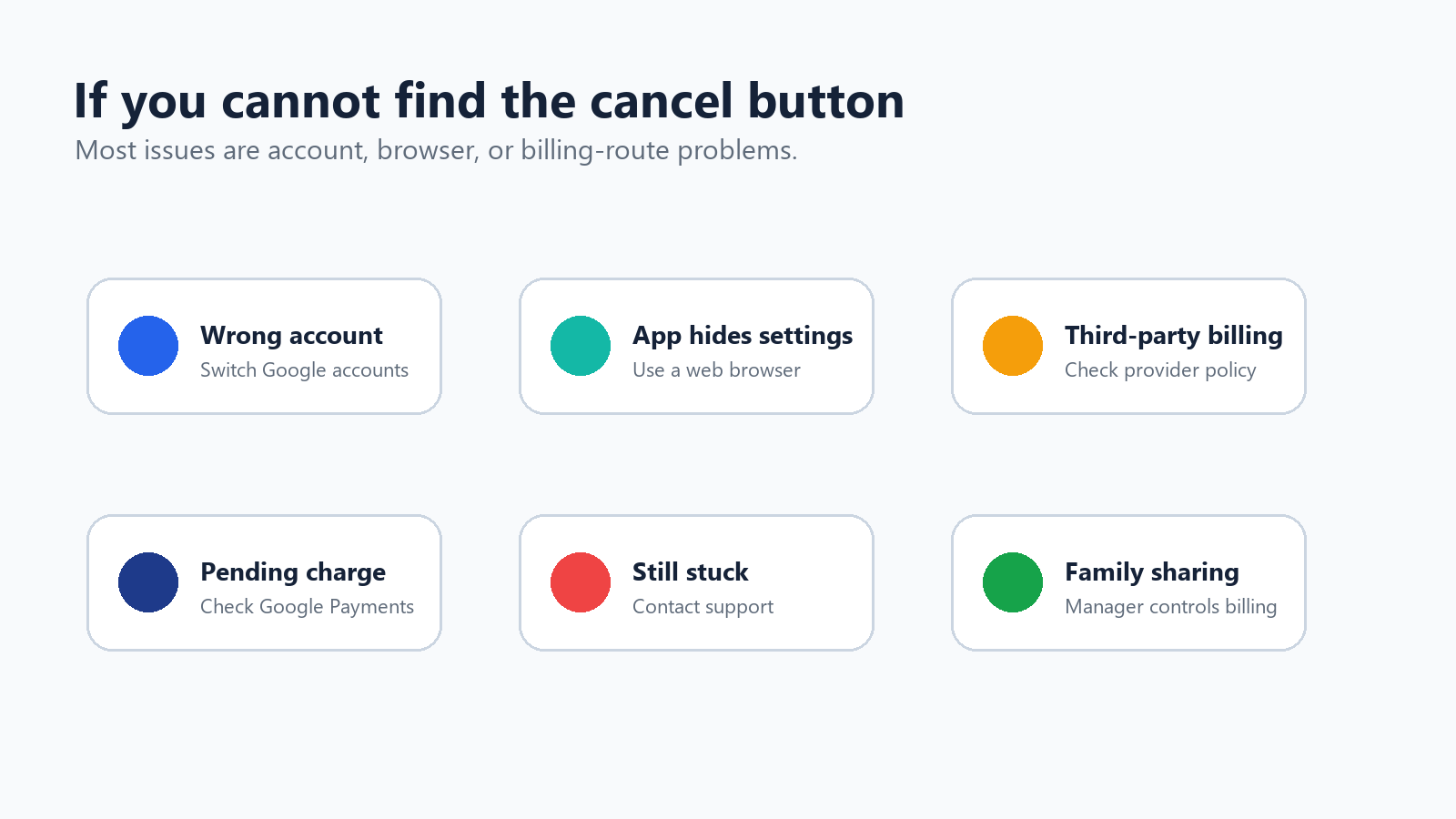
If the cancellation controls are missing, slow down before assuming the setting is hidden. In many households, more than one Google account has been used on the same device. The paying account, family manager account, and everyday viewing account may not be the same.
Switch Google accounts; the watching account may not be the paying account.
Use a browser instead of a smart TV, streaming device, or mobile app.
Ask the family manager to cancel if the membership is managed through a family group.
Check whether billing runs through a carrier, app store, or internet provider.
Use Google's unauthorized-charge help if you do not recognize the charge.
Before You Cancel: Keep Useful Knowledge, Not Unauthorized Content
Some users hesitate to cancel because they still have long webinars, lectures, training videos, or saved recordings they meant to revisit. Keep the boundary clean: do not use an AI tool to copy or preserve paid TV programming you do not have rights to use. But if the video is yours, public, company-owned, educational, or otherwise permitted, summarizing it can save the useful information before it disappears into a backlog.
Okay to summarize | Do not use AI for |
A webinar you hosted or were given permission to process. | Bypassing YouTube TV access or preserving protected TV shows. |
A training video from your company library. | Copying subscription-only content you do not own. |
A lecture, demo, interview, or meeting replay you are allowed to use. | Sharing private or copyrighted recordings without permission. |
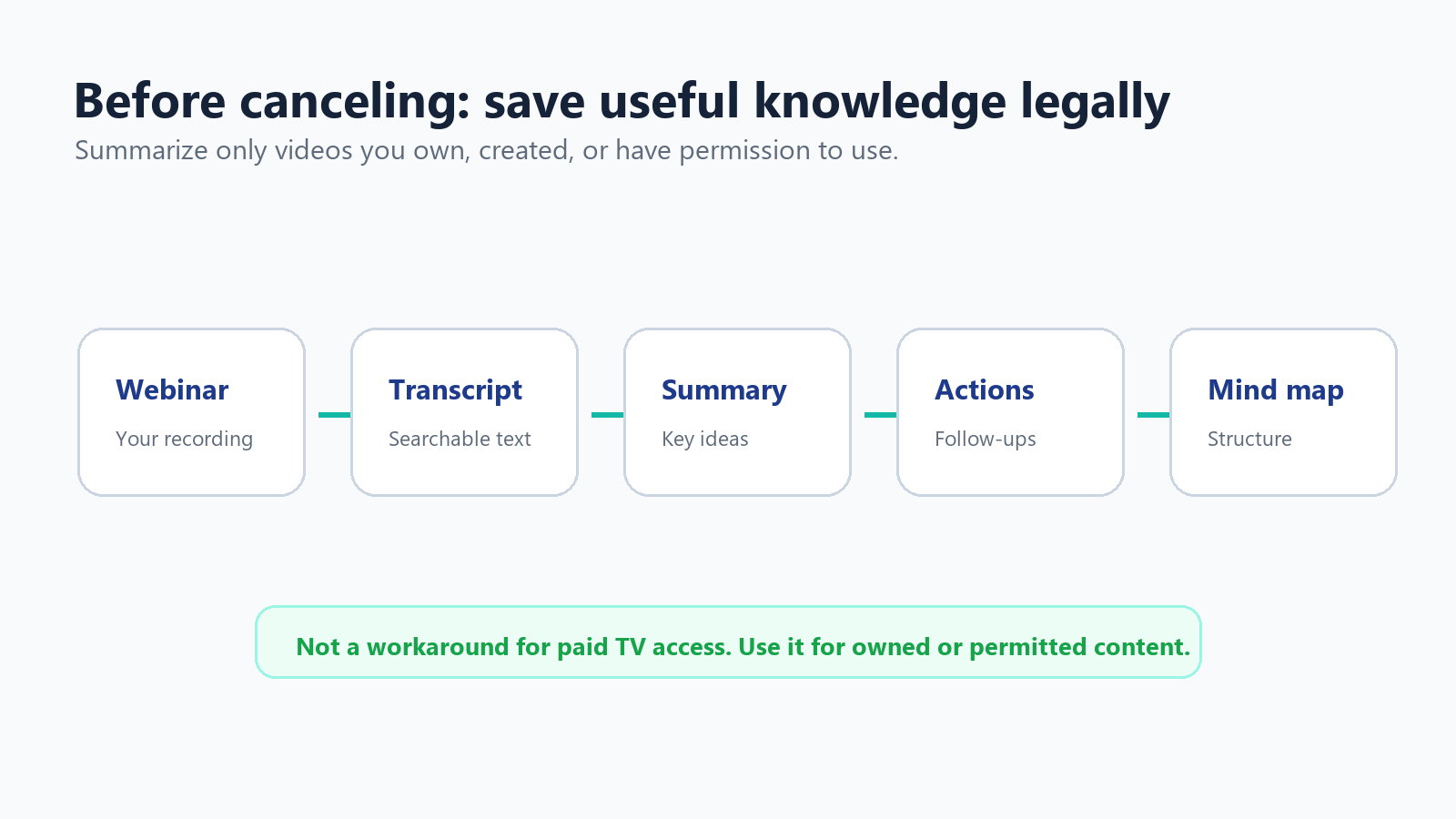
This is especially relevant for teams that used YouTube links as an informal learning library. A saved list of two-hour recordings is not a knowledge base. A short summary, a transcript, and a few tagged action items are easier to search, share, and revisit months later.
Where HiNoter Fits
If you have permission to use saved webinars or training videos, upload the file or URL to HiNoter to generate a summary, action items, and a mind map. For a cleaner workflow, use video-to-text, YouTube video summarizer, or AI notes only when the content is yours or you are allowed to process it.
Plain-English rule HiNoter is for turning permitted videos into useful notes. It is not a subscription workaround and should not be used to archive protected TV content. |
After-Cancellation Checklist
Once the cancellation is done, take five minutes to close the loop. The checklist below is intentionally plain because this is where most billing surprises come from.
Save the cancellation confirmation or screenshot.
Write down the final access date shown in the account.
Remove paid add-ons you no longer need if they are listed separately.
Check Google Payments or your card statement after the next billing date.
Summarize only videos you own or are allowed to process; do not use AI tools to preserve protected TV content.
Delete old notes, links, or saved-video lists that no longer serve a real purpose.
FAQ
Question | Answer |
Can I cancel YouTube TV immediately? | You can cancel the membership immediately, but access usually continues until the end of the current payment or trial period. |
Where is YouTube TV cancellation? | Profile photo > Settings > Membership > Manage > Cancel membership > Cancel. |
Is pausing better than canceling? | Pause if you plan to return soon. Cancel if you want recurring billing to stop. |
Will I get a refund? | Not usually for a normal partial billing period. Use YouTube's refund path only when the issue qualifies. |
What happens to family sharing? | When the paid membership ends, family members lose YouTube TV access too. |
Can HiNoter summarize YouTube TV shows? | No. Use HiNoter for owned, public, company-approved, or otherwise permitted videos, not protected subscription TV content. |