If you need to capture a meeting, product demo, class, interview, or walkthrough, learning how to screen record on Mac is the fastest first step. macOS includes a built-in Screenshot toolbar, so you do not need to install recording software for basic captures. The bigger question comes later: how do you turn that recording into a summary, action items, and searchable notes without rewatching the whole file?
Quick Answer
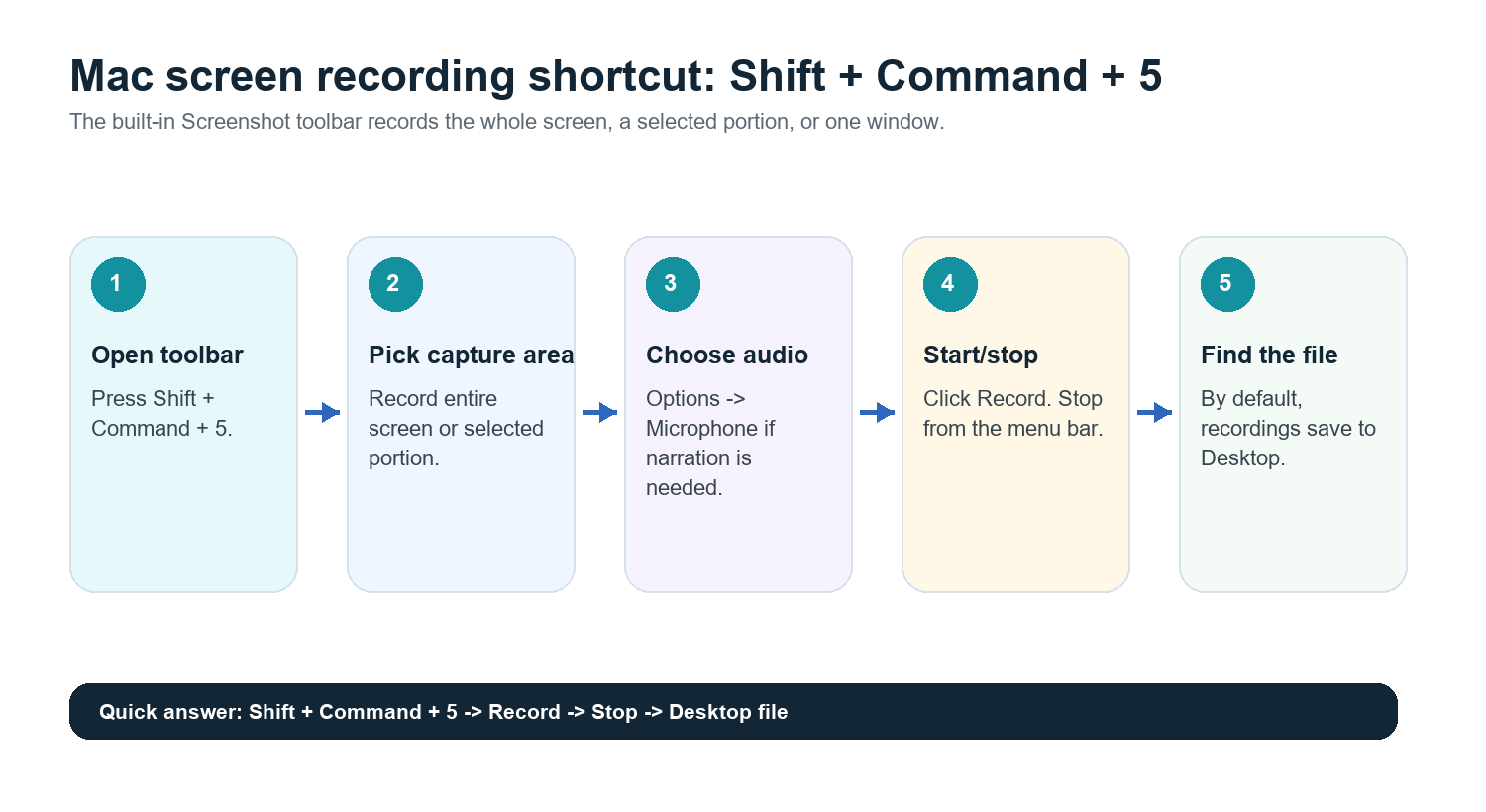
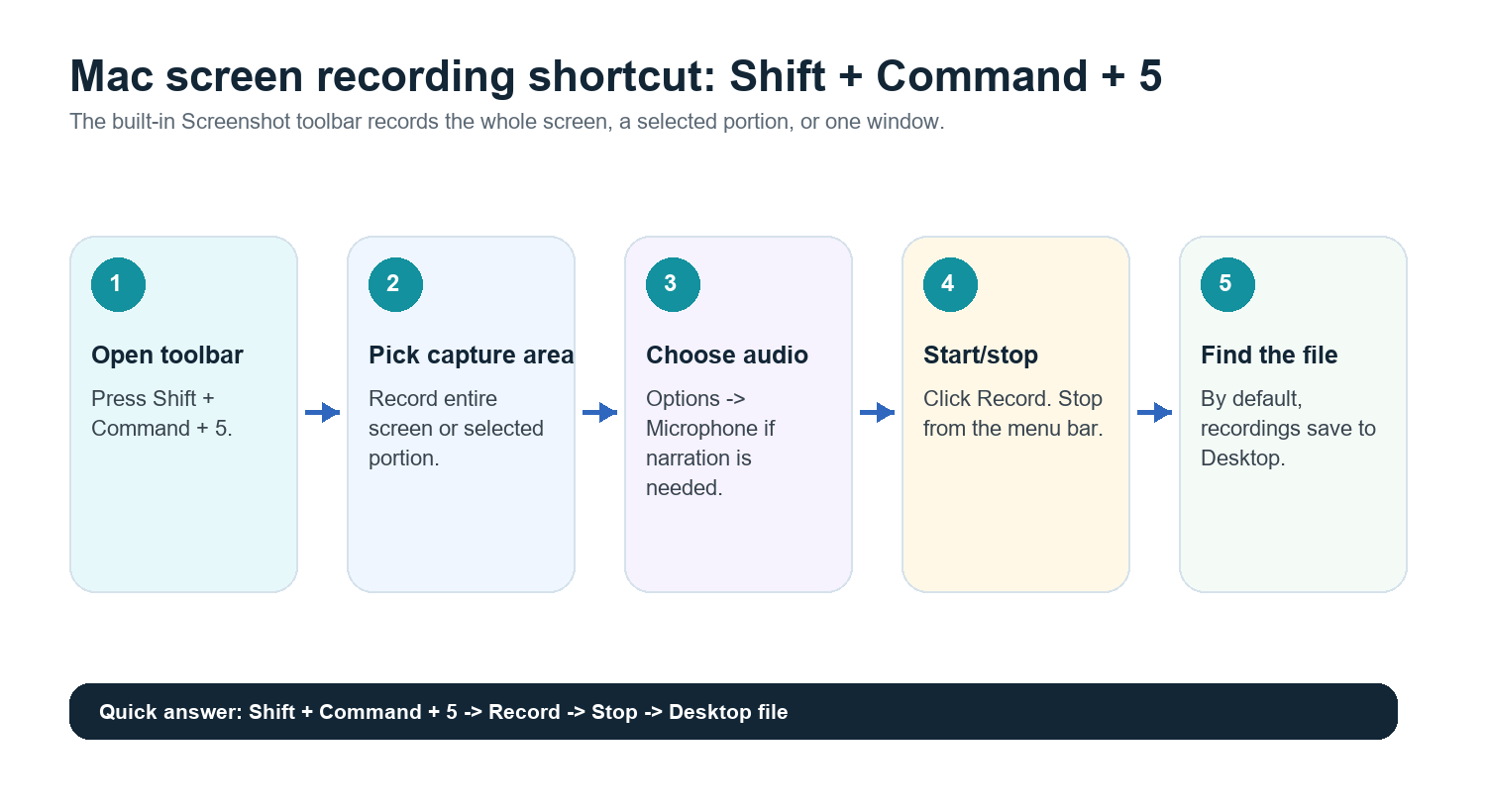
Press Shift + Command + 5, choose Record Entire Screen or Record Selected Portion, click Record, then stop from the menu bar. By default, Mac screen recordings save to the Desktop. To include your voice, open Options in the Screenshot toolbar and choose a microphone before recording.
Official source checked: Apple Support lists Shift + Command + 5 as the shortcut for screenshots and screen recordings on Mac, with Options for save location, timer, microphone, and other settings.
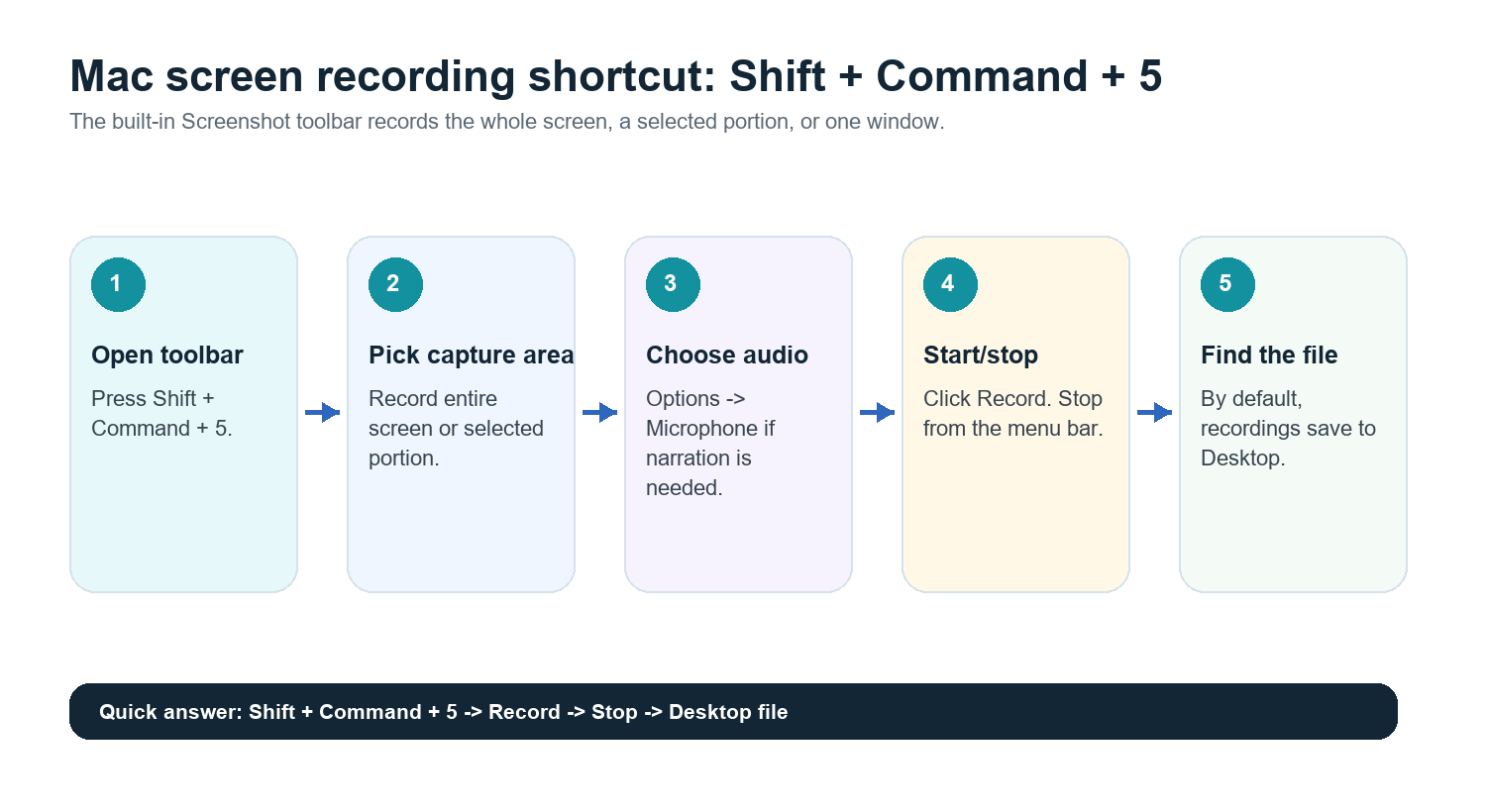
Method 1: Use the Screenshot Toolbar
Press Shift + Command + 5.
Choose Record Entire Screen if you want to capture everything visible on your display.
Choose Record Selected Portion if you only want a browser window, slide deck, app demo, or meeting area.
Click Options to choose a save location, timer, and microphone.
Click Record.
To stop, click the stop button in the menu bar or press Command + Control + Esc.
Open the saved file from your Desktop or the location you selected in Options.
This is the best method for quick demos, training clips, bug reports, and lightweight meeting captures. It is built into macOS and does not add another app to your workflow.
Method 2: Use QuickTime Player
QuickTime Player is still useful when you prefer a familiar app window or need a simple recording workflow outside the Screenshot toolbar.
Open QuickTime Player from Applications.
Choose File > New Screen Recording.
If macOS opens the Screenshot toolbar, choose your recording area there.
Use Options to select a microphone if you need narration.
Click Record, then stop from the menu bar.
Save, trim, rename, or share the recording.
How to Record Audio on Mac
For voice narration, select a microphone in the Screenshot toolbar before you click Record. If you do not see the microphone or the recording has no sound, open System Settings, review Privacy & Security permissions, and make sure the relevant app has microphone access.
Internal system audio is a different story. macOS does not always capture system audio through the basic screen recording flow. For meetings, the cleaner approach is usually to record with the meeting platform's consent-based recording feature or use an AI meeting assistant that joins the call and captures the conversation directly.
Where Mac Screen Recordings Save
By default, Mac screen recordings save to the Desktop. In the Screenshot toolbar, click Options to choose another location such as Documents, Downloads, Clipboard, Mail, Messages, Preview, or another folder. If you record often, create a folder such as Screen Recordings or Meeting Recordings so files do not pile up on the Desktop.
Rename files immediately with the meeting name and date.
Move large files to cloud storage or a shared drive after processing.
Delete raw recordings when a transcript, summary, and action list are safely stored and the recording is no longer needed.
Trim, Compress, and Share Recordings
For quick cleanup, open the recording in QuickTime Player and use Edit > Trim. Keep only the useful segment before sending it to a teammate. For large recordings, upload to cloud storage instead of emailing the file directly. Long videos can become a storage problem quickly, especially for demos, interviews, lectures, and recurring meetings.
When Screen Recording Is Useful
You need to show exactly what happened on screen.
You are documenting a product bug or UX issue.
You are creating a tutorial or onboarding walkthrough.
You are recording a lecture, demo, or interview for later review.
You need a visual backup of a meeting where slides, dashboards, or workflows matter.
When an AI Meeting Assistant Is Better
A screen recording is great evidence, but it is a poor working document. Most people do not rewatch a 45-minute recording to find one decision. They want the answer, the timestamp, the owner, and the next step.
For live meetings, an AI meeting assistant is usually better than recording your screen. HiNoter Meeting Assistant can auto-join scheduled calls and create structured notes, summaries, action items, and mind maps without someone manually taking notes.
Use case | Screen recording | AI meeting notes |
Product demo | Best for exact visual playback | Useful for summary and follow-up |
Team meeting | Useful backup, but hard to scan | Best for decisions and owners |
Interview | Good for review with consent | Best for transcript and highlights |
Class or lecture | Captures visuals | Best for study notes and search |
Customer call | Can be sensitive and file-heavy | Best for source-linked recap and action items |
After Recording: Transcribe and Summarize Automatically
If you already recorded a Mac screen session, do not let the file sit in a folder until nobody remembers what it contains. Upload the video or audio to HiNoter to generate a transcript, concise summary, action items, and a mind map. For future meetings, you can skip manual screen recording in many cases and let HiNoter auto-join the call.
This is especially helpful for multilingual teams. HiNoter supports 50+ languages with automatic detection, so teams in the U.S., Europe, Brazil, Portugal, and other regions can work from one meeting record instead of scattered local notes. With AI Chat, teammates can ask the notes what was decided or where a point came from, with source-linked answers.
Best workflow block: record the screen only when visuals matter; otherwise let HiNoter join the meeting, capture the conversation, and deliver summaries, action items, and mind maps directly after the call.
Common Problems and Fixes
Problem | Likely cause | Fix |
No microphone audio | No microphone selected or permission missing | Choose a microphone in Options and check System Settings > Privacy & Security. |
Cannot find the recording | Saved to default Desktop or a custom folder | Open Screenshot toolbar > Options and check the selected save location. |
File is too large | Long recording or high visual activity | Trim in QuickTime and upload to shared storage instead of email. |
Meeting audio is incomplete | System audio capture limitations | Use the meeting app's recording feature or an AI meeting assistant with consent. |
Nobody rewatched it | Video is not a searchable knowledge asset | Transcribe and summarize it automatically after recording. |
Mac Recording Checklist
Press Shift + Command + 5.
Choose full screen or selected portion.
Open Options and choose microphone and save location.
Record only the part of the screen you need.
Stop from the menu bar.
Rename and store the file.
Upload the recording to HiNoter or let HiNoter auto-join future meetings.
Share source-linked notes, action items, and mind maps instead of raw video alone.
FAQ
How do I screen record on Mac?
Press Shift + Command + 5, choose Record Entire Screen or Record Selected Portion, click Record, then stop from the menu bar. The file saves to the Desktop by default.
How do I screen record on Mac with audio?
Open the Screenshot toolbar, click Options, and choose a microphone before recording. If the microphone is missing, check macOS Privacy & Security permissions.
Where do screen recordings go on Mac?
By default, they save to the Desktop. You can change the destination from Options in the Screenshot toolbar.
Can QuickTime screen record on Mac?
Yes. Open QuickTime Player, choose File > New Screen Recording, then use the recording controls that macOS provides.
Can HiNoter summarize a Mac screen recording?
Yes. Upload the video or audio recording to HiNoter, or let HiNoter auto-join future meetings, to generate transcripts, summaries, action items, and mind maps.