If your team keeps missing calls, inviting the wrong people, or losing action items after meetings, the first fix is simple: learn how to share Google Calendar in a way that matches how your team actually works. A shared calendar gives everyone the same schedule; an automated meeting-notes workflow gives everyone the same record of what happened next.
Quick Answer
To share Google Calendar with your team, open Google Calendar on desktop, find the calendar under My calendars, click the three-dot menu, choose Settings and sharing, then add teammates or a Google Group under Share with specific people or groups. Choose a permission level and click Send.
Official source checked: Google Calendar Help explains that sharing options depend on calendar ownership and Google Workspace admin settings.
Exact Steps to Share Google Calendar
1. Open Google Calendar in a desktop browser. Sharing controls are easier to manage on desktop than in the mobile app.
2. In the left sidebar, find My calendars. Hover over the calendar you want to share.
3. Click the three-dot menu next to the calendar name and choose Settings and sharing.
4. Scroll to Share with specific people or groups.
5. Click Add people and groups.
6. Enter a teammate's email address or a Google Group, such as product-team@company.com.
7. Choose the permission level: free/busy, event details, edit events, or manage sharing.
8. Click Send. The recipient receives an email invitation to add the calendar.
Share With Individuals, Groups, or the Organization
A good team calendar setup starts with the audience. Adding one person is fine for an assistant, manager, or contractor. For a department or recurring project team, share with a Google Group so onboarding and offboarding stay manageable. For company-wide events, make the calendar available to your organization if Workspace settings allow it.
Sharing method | Best for | Operational note |
Individual email | A teammate, assistant, contractor, or manager | Use when access should be precise and easy to revoke. |
Google Group | Departments, squads, regions, project teams | Best default for distributed teams because access follows group membership. |
Organization-wide | All-hands meetings, training sessions, holiday calendars | Keep details appropriate for broad visibility. |
Public calendar | Webinars, public office hours, community events | Avoid public sharing for internal meetings or customer-sensitive work. |
Google Calendar Permission Levels
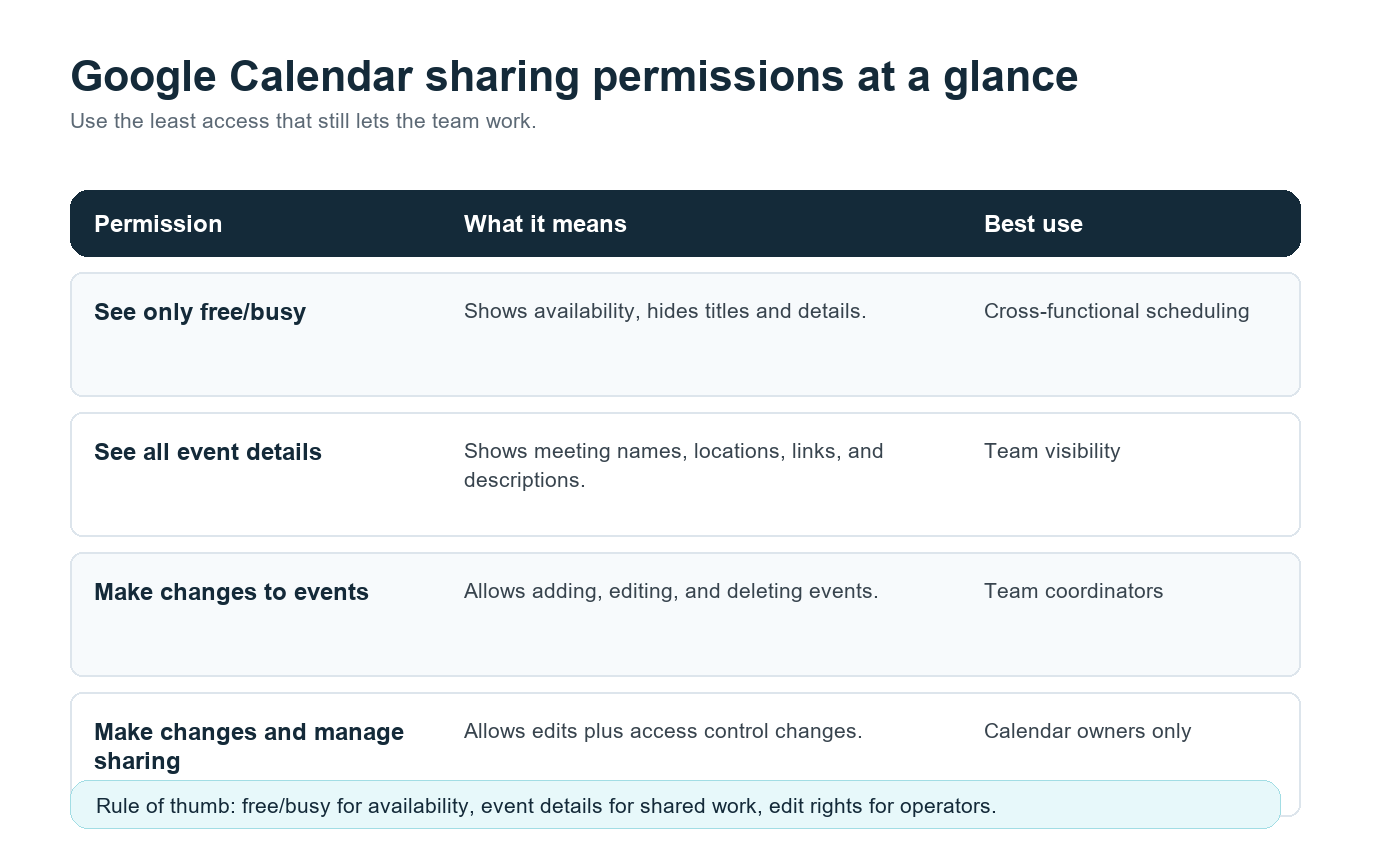
Permission | What people can do | Best use |
See only free/busy | View availability without meeting titles, descriptions, or links. | Scheduling across teams. |
See all event details | View event names, times, descriptions, locations, and meeting links. | Shared team visibility. |
Make changes to events | Add, edit, and delete calendar events. | Team coordinators or operations roles. |
Make changes and manage sharing | Edit events and change who can access the calendar. | Calendar owners only. |
The practical rule: give people the least access that still lets them do their work. A sales leader may need event details for customer calls. A cross-functional partner may only need free/busy visibility. An operations manager may need edit access. Very few people need the ability to manage sharing.
The Missing Layer: Calendar Visibility Is Not Meeting Memory
A shared calendar answers who, when, and where. It does not answer what was decided, who owns the next step, or how a teammate in another time zone can catch up without watching a recording.
That gap is why meeting operations often break down in remote and hybrid teams. Microsoft reported in its 2023 Work Trend Index that employees spend 57% of their Microsoft 365 time communicating, including meetings, email, and chat. Calendar hygiene helps, but the larger opportunity is reducing the manual work around meetings.
This is where HiNoter AI Meeting Assistant fits naturally. Once a team calendar is shared and meeting links are attached, HiNoter can connect to the calendar, auto-join selected calls, and generate structured summaries, transcripts, action items, and mind maps after the meeting. The person who missed the call gets the same record as the person who attended.
Sample Workflow: Shared Calendar + HiNoter
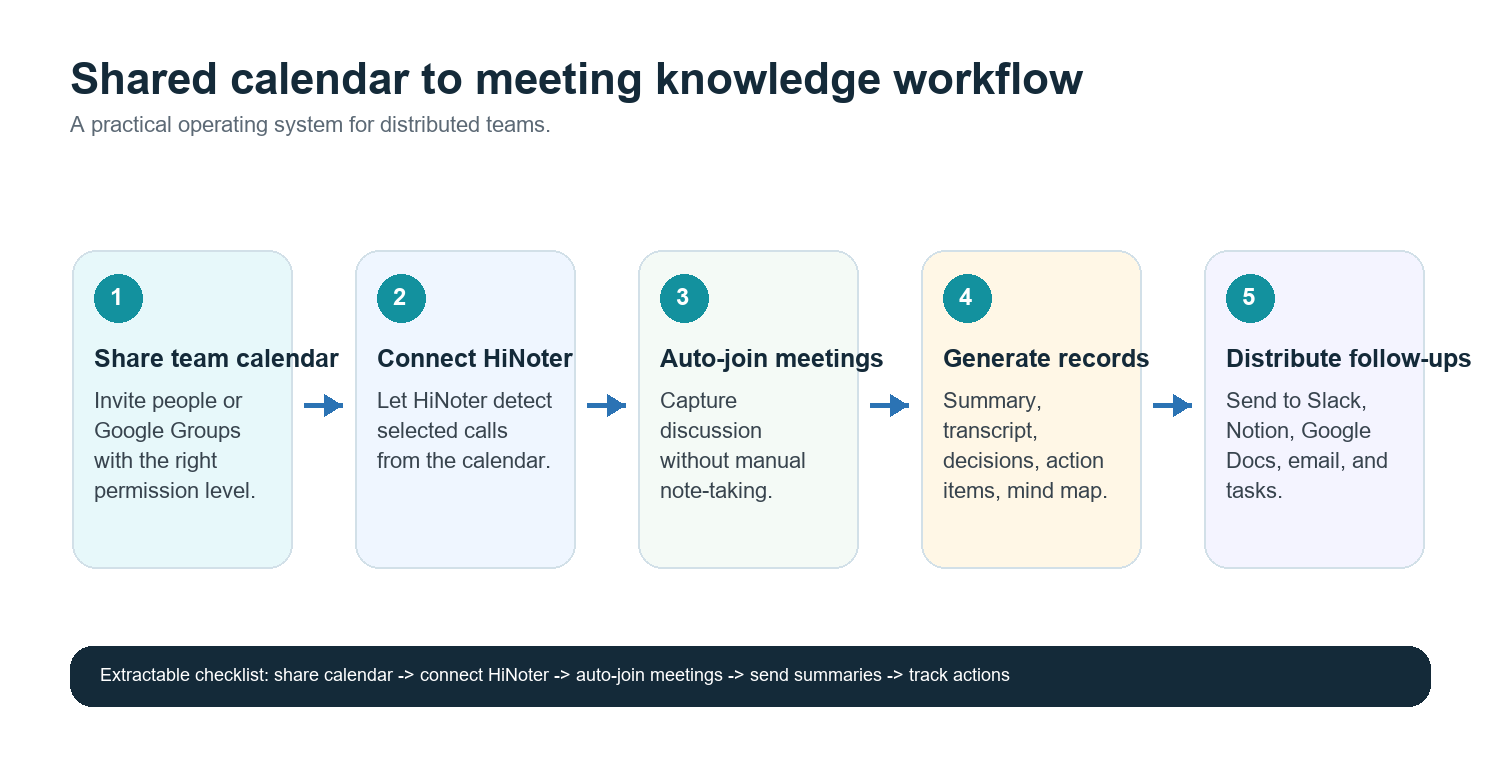
9. Create one calendar per team, project, or meeting stream. Examples: Product Reviews, Customer Calls, Hiring Interviews, Executive Staff.
10. Share the calendar with the right individuals or Google Group.
11. Require clean event titles, meeting links, and owners. For example: Product Review - Search Onboarding - Owner: Maya.
12. Connect Google Calendar to HiNoter and choose which meetings the assistant should join.
13. After each call, send the summary, decisions, action items, and mind map to Slack, Notion, Google Docs, email, or the team's preferred workspace.
14. Use the notes as the source of truth for follow-ups instead of asking someone to rewrite the meeting in chat.
Primary CTA: Connect Google Calendar so HiNoter automatically joins scheduled calls and delivers summaries, action items, and mind maps after meetings. Start from HiNoter's AI meeting notes and route finished notes into the tools your team already uses.
A Better Setup for Multilingual Teams
Teams spread across the United States, Europe, Brazil, Portugal, and Asia often run meetings in more than one language. A calendar invite may be in English, the discussion may switch to Portuguese, and the follow-up may need to be readable by a regional team that was asleep during the call.
For those teams, the shared calendar should be paired with one meeting record. HiNoter multilingual support covers 50+ languages with automatic detection, so the record does not depend on one person manually rewriting notes for each region. This is especially useful for sales handoffs, customer success reviews, recruiting panels, and product syncs where context matters across borders.
Distribution: Put Notes Where Work Already Happens
The fastest way to lose a meeting decision is to leave it inside a private doc or a recording folder. The workflow should push the record into the team's existing system:
· Slack: post a concise meeting summary and action items into the relevant channel.
· Notion: store recurring meeting records under the project or team workspace.
· Google Docs: create a readable document for leadership reviews, customer recaps, or formal records.
· Email: send summaries to stakeholders who do not live in chat tools.
· Calendar: keep the next meeting tied to the prior action items so ownership is visible.
HiNoter's value is not only capture. The stronger use case is turning notes from an archive into a knowledge base. With AI Chat and source references, teammates can ask what was decided, who owned a task, or why a timeline changed without scanning every transcript.
Troubleshooting Calendar Sharing
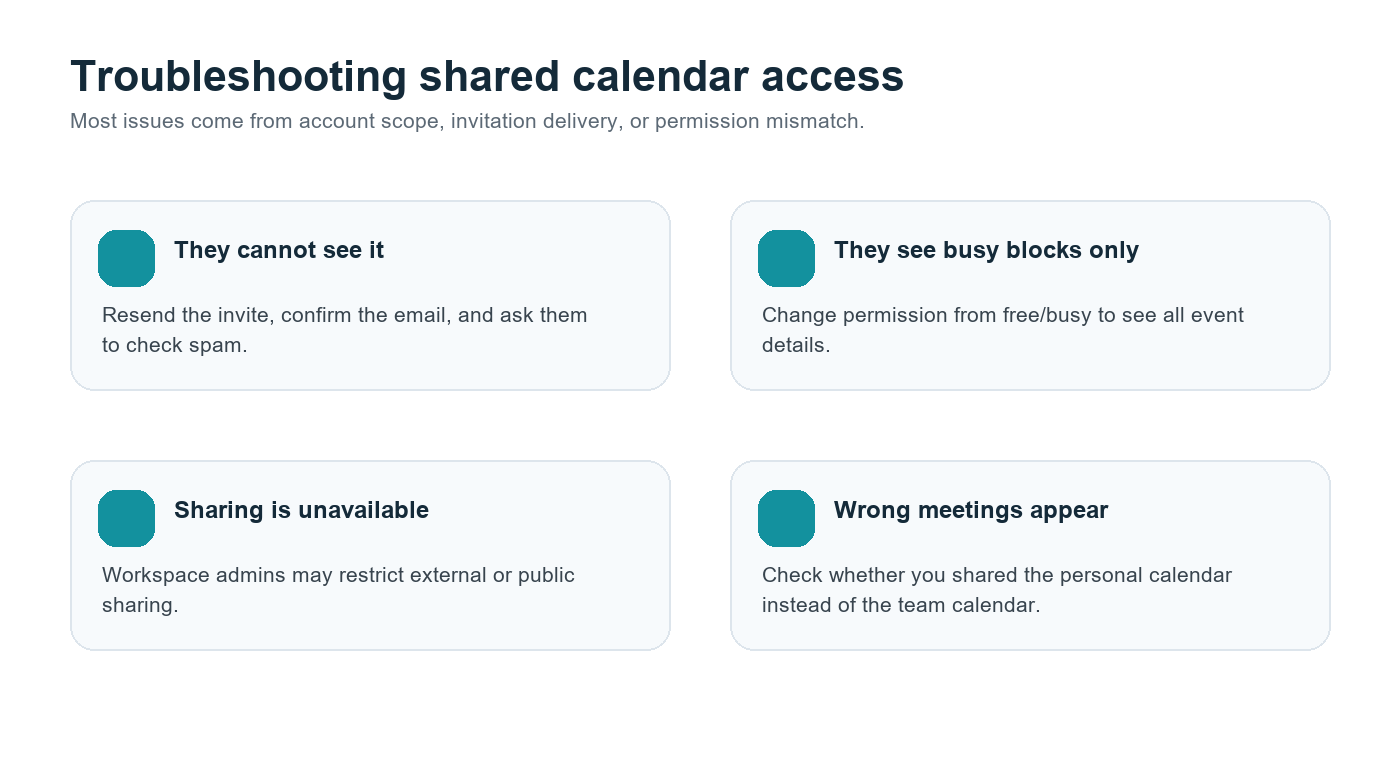
Problem | Likely cause | Fix |
Teammate cannot see the calendar | Invitation missed or wrong email address | Resend the invite and confirm the account they use for Google Calendar. |
They see busy blocks only | Permission is set to free/busy | Change access to see all event details if they need context. |
Sharing controls are disabled | Google Workspace admin policy | Ask the Workspace admin to review calendar sharing settings. |
People see personal events | Wrong calendar was shared | Create a dedicated team calendar and share that instead. |
External partners cannot access it | External sharing restriction | Use a public event page, shared doc, or admin-approved external sharing path. |
Team Operations Checklist
· Create a dedicated team calendar instead of exposing personal calendars.
· Share with Google Groups for departments and recurring project teams.
· Use free/busy for broad scheduling and event details for people who need context.
· Limit edit and manage-sharing permissions to trusted owners.
· Add meeting links, owners, and clear event titles.
· Connect HiNoter to scheduled calls that need a reliable record.
· Send summaries, action items, and mind maps to Slack, Notion, Google Docs, or email.
· Review permissions during onboarding, offboarding, and team restructures.
FAQ
Can I share Google Calendar with my whole team?
Yes. You can add individual teammates or share the calendar with a Google Group. For most teams, Google Groups are easier to maintain because calendar access updates when group membership changes.
What is the safest Google Calendar permission level?
For broad visibility, use See only free/busy. For real team collaboration, See all event details is often the best balance. Reserve edit and manage-sharing permissions for owners and operations roles.
Can I share Google Calendar outside my company?
Sometimes. Google Workspace admins can restrict external sharing. If the setting is unavailable, ask your admin before using a workaround.
Can HiNoter automatically join meetings from my calendar?
Yes. HiNoter can connect to scheduled meetings, auto-join selected calls, and generate summaries, action items, transcripts, and mind maps after the meeting.
How should multilingual teams manage meeting notes?
Use one shared calendar and one structured meeting record. HiNoter's language auto-detection and 50+ language support help teams keep a single source of truth across regions.