Last year my coworker Elena and I spent three days trying to schedule a thirty-minute call. Three days. She'd email "Tuesday afternoon?" and I'd write back "In meetings until 4." Then she'd try Wednesday and I was free but she wasn't. By Thursday we were both annoyed about a conversation that should have taken ten seconds to set up. The dumb part? All she needed was to see my calendar. I just didn't know how to share Google Calendar without handing over the keys to my entire life.
Turns out there are four different ways to share Google Calendar with someone, and they're not interchangeable. One is for inviting someone to a single meeting. One is for letting a coworker see your availability. One is for putting your schedule on a website. And one is for giving an assistant real access to manage your day. I'm going to walk through all four — plus the permission levels (which Google labels in the most confusing way possible), the privacy stuff that actually matters, and how to undo it when you share too much.
Tested in January 2025 with the current browser version of Google Calendar. If you're on the mobile app, some of these settings aren't there — I'll flag those spots.
What we'll cover:
1. Method 1: Share a single event
2. Method 2: Share your entire calendar
3. Method 3: Get a public link for your calendar
4. Method 4: Delegate access to an assistant
5. Permission levels compared
6. Privacy and security
7. How to stop sharing
8. Sync with Outlook and Apple Calendar
9. FAQ
Method 1: Share a Single Event
You've got a meeting. You want someone there. You don't want them poking around your whole calendar. This is the one.
The quick version: make an event, add their email as a guest, pick what they can do, save. Google sends them an invite with a yes/no/maybe. When they respond, you see it right in the event.
Now the detailed version, because the quick version leaves out some stuff that trips people up.
1. Open Google Calendar in your browser. Click the day and time for your event. A little box pops up. Type a title — doesn't matter what, you can change it later. Click More options.
2. Now you're on the full event page. Fill in whatever matters — location, a description, a Zoom link, whatever. On the right side there's a box that says Add guests.
3. Type the person's email. Hit Enter. You can add more than one person — just keep typing and pressing Enter after each. Google autocompletes from your contacts, which is great until it autocompletes to the wrong "David" and you don't notice. Ask me how I know.
4. Below the guest list, there's a small link that says Guest permissions. Click it. Three checkboxes appear:
· Modify event — they can change the time, add more guests, or delete the whole thing.
· Invite others — they can forward the invite to more people but can't change the time or details.
· See guest list — they can see who else is coming. That's it. No editing.
For most work stuff, "See guest list" is what you want. You probably don't need a client rescheduling your meeting without asking you first.
5. Click Save at the top. Google asks "Send invitation emails to guests?" Click Send. Done. They get an email, they click Yes or No, and if they're on Google Calendar the event shows up automatically when they accept.
The person you invite doesn't need a Google account to get the email invite. But if they want it on their own Google Calendar, they need to be logged into one. If they use Outlook or Apple Calendar, they can still open the .ics attachment in the email to add it manually.
Method 2: Share Your Entire Calendar

Okay, this is the one that scared me. The first time I tried to share Google Calendar with a coworker, I accidentally gave her full edit access to everything. She could have renamed my dentist appointment to "DEFINITELY NOT A DENTIST APPOINTMENT" and I wouldn't have known until I opened my phone. She didn't, but she could have.
The permission labels don't help. They're vague and slightly ominous. But once you know what each one means, it's fine. I promise.
1. Open Google Calendar. On the left side, under "My calendars," hover over the calendar you want to share. Three little dots appear next to the name. Click them. Choose Settings and sharing.
2. Scroll down until you see Share with specific people. There's a button that says Add people. Click it.
3. Type the email address. Then — and this is the part that matters — look at the permission dropdown right next to where you typed the email. Four options:
· See only free/busy (hide details) — they see blocks on your calendar that are occupied. No titles. No locations. Just "busy." This is what you want for coworkers who just need to know when you're free.
· See all event details — they see titles, locations, descriptions for everything. Everything except events you've specifically marked as private, which I'll get to.
· Make changes to events — they can create, edit, and delete events on your calendar. Think carefully about this one.
· Make changes AND manage sharing — full control. They can do everything including sharing your calendar with other people. Only give this to someone you'd trust with your password.
4. Pick a permission. Click Send. The person gets an email saying you've shared your calendar. They click a link to accept. Once they do, your calendar appears in their list under "Other calendars" and they can toggle it on and off.
Solving the Elena problem
Remember Elena from the beginning? The three-day scheduling nightmare? The fix was giving her "See only free/busy" access. She could see when I was occupied but not what I was doing. No more back-and-forth emails. She'd look at my calendar, find an open slot, and send a single invite. Thirty seconds. Done.
If you work with anyone on a regular basis — give them free/busy access. It takes less than a minute and it will save you hours of "how's Thursday at 2?" over the course of a year.
Method 3: Get a Public Link for Your Calendar
This one's for when you want to make Google Calendar public — say, embedding your available appointment times on a website, or sharing a link in a newsletter that anyone can open without logging in.
1. Same starting point. Hover over your calendar name on the left, click the three dots, pick Settings and sharing.
2. Scroll to Access permissions for events. There's a checkbox: Make available to public.
Stop. Before you check that box, think about what "public" means. It means anyone on the internet can see your event details. If that makes your stomach tighten a little, good. It should.
What I do instead — and what I'd recommend to most people — is create a separate calendar just for the stuff you want public. Call it "Available Times" or "Office Hours" or whatever. Put only your open slots on it. Make THAT one public. Keep your real calendar — the one with doctor appointments and personal stuff — private. Now the world sees when you're available. They see nothing else. Clean.
To make a new calendar: on the left side of Google Calendar, next to "Other calendars," click the + and pick Create new calendar. Name it. Then go back and share that one publicly.
3. Once public access is on, scroll down a little more. Two things appear:
· Public URL — a link. Anyone who clicks it sees your calendar in a read-only view. No login needed.
· Embed code — an HTML snippet. Paste it into your website and your calendar shows up in a little window on the page.
4. Copy whichever one you need. For a website, grab the embed code. For an email or a text, grab the URL.
Before you paste the embed code, click Customize next to it. You get options — which view to show (week, month, agenda), the size, whether to show the calendar name. Mess with those, copy the code, put it on your site.
The separate-calendar trick I mentioned? I use it. My "Bookable" calendar has nothing but open time slots on it. That's the one embedded on my website. Clients see green blocks when I'm free and nothing else. My actual calendar with all my real events is shared with exactly two people. This setup took me maybe ten minutes to build and it's been running for over a year without a single issue.
Method 4: Delegate Access to an Assistant or Team
So you've got an assistant. Or a team admin. Or a partner who handles your scheduling. You want them to be able to see your calendar, add things, move things around — basically manage your schedule so you don't have to. This is called delegated access, and it works a little differently depending on whether you're on a free Google account or a paid Google Workspace account.
For most people, Method 2 is actually enough. Give your assistant "Make changes to events" permission using the steps above, and they can see and edit your calendar from their own account. They just can't share it with anyone else.
If you need them to do more — respond to invitations on your behalf, manage sharing settings, that kind of thing — you need true delegated access, which is a Google Workspace feature. Here's the setup:
1. Go to calendar.google.com. Click the Settings gear in the top-right.
2. On the left sidebar, find your calendar under "Settings for my calendars." Click it.
3. Scroll to Share with specific people. Click Add people.
4. Type your assistant's email. For the permission, pick Make changes and manage sharing if you want them to have full control. Or Make changes to events if you just want them managing your schedule without the ability to reshare.
5. Click Send. They get the email, click to accept, and your calendar shows up in their account.
Permission Levels: What Each One Actually Means
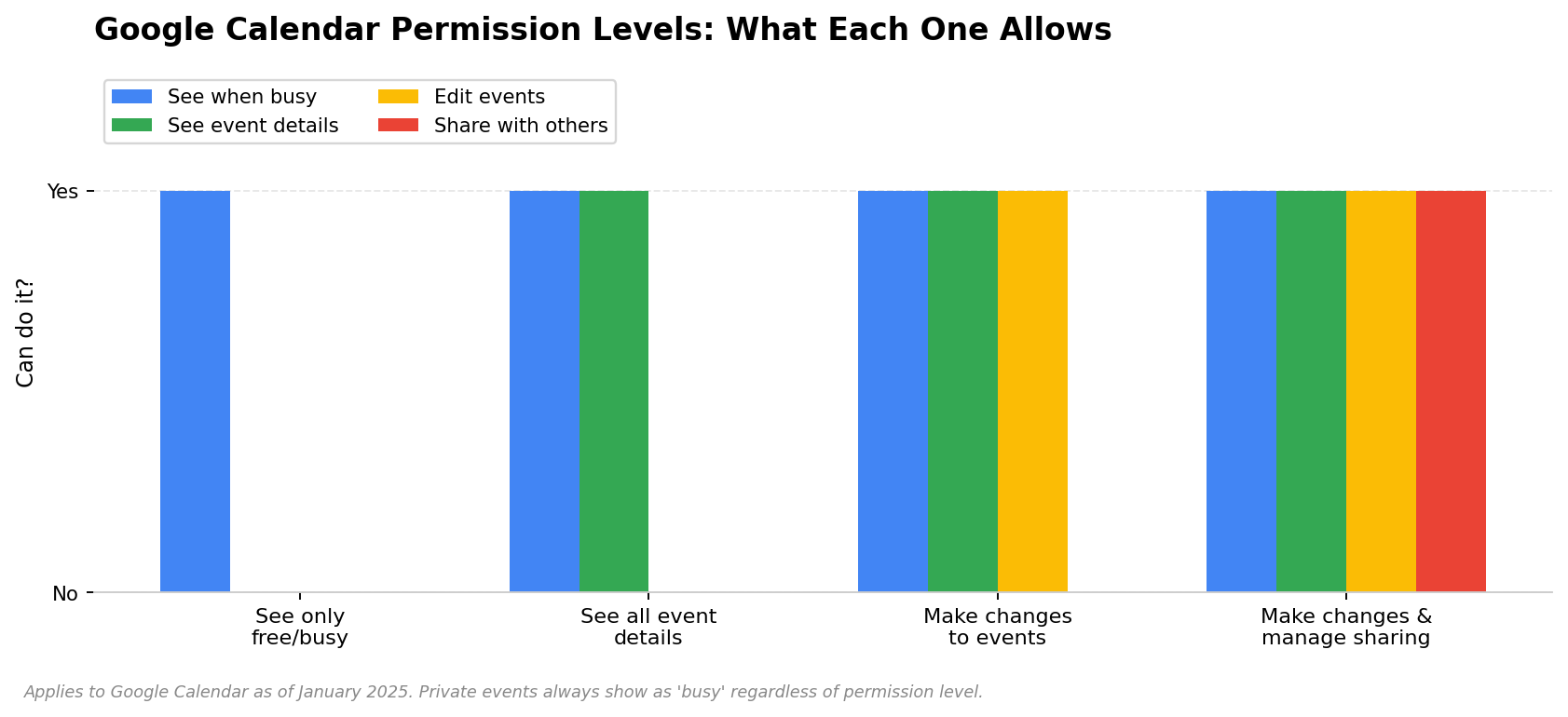
I've had to explain these to people so many times that I made a table. Bookmark this. Seriously.
Permission | See when you're busy | See event titles/details | Edit your events | Share with others | Delete events |
See only free/busy | ✅ | ❌ | ❌ | ❌ | ❌ |
See all event details | ✅ | ✅ (except private) | ❌ | ❌ | ❌ |
Make changes to events | ✅ | ✅ | ✅ | ❌ | ✅ |
Make changes & manage sharing | ✅ | ✅ | ✅ | ✅ | ✅ |
Which one do I pick?
Coworkers who just need to know when you're free: See only free/busy. This is the one almost nobody uses because they don't know it exists. Use it. It's the right one.
A team you work with closely: See all event details. They can see what you're working on. They can't change anything.
An assistant or partner who books things for you: Make changes to events. They can add and move stuff. They can't reshare your calendar.
Nobody, ideally: Make changes and manage sharing. Full control. Only give this to someone if you'd also hand them your laptop password.
Privacy: What Can People Actually See?
This is the thing that makes people nervous about sharing. They think "if I share my calendar, everyone will see my doctor appointments and my kid's parent-teacher conference." And yeah, they will — unless you mark those events as private.
When you create an event in Google Calendar, there's a little dropdown on it that says "Default visibility." Change it to Private. That event now shows up as "busy" to anyone who has access to your calendar. They see the time block. They don't see the title, the location, the description. Nothing. Just "busy."
So if your coworker has "See all event details" and you've got a 2pm appointment that you've marked private, they see that you're busy from 2 to 3. They do not see what the appointment is. Works exactly the way you'd want it to.
Want every new event to start as private? Settings → your calendar under "Settings for my calendars" → scroll to "Default visibility" → change to "Private." Now every event you create is private unless you manually switch it. This is the lazy-person approach and I mean that as a compliment. If you share your calendar widely, do this and stop worrying about it.
How to Stop Sharing (and Make Sure It Actually Stops)
Sometimes you share your calendar with someone and then you don't want them to have access anymore. They left the company. You had a falling out. You shared too broadly and now you're anxious about it. Whatever. Here's the fix.
1. Go to Calendar Settings. Hover over your calendar name on the left, click the three dots, pick Settings and sharing.
2. Scroll to Share with specific people. You'll see everyone you've shared with, listed by email.
3. Find the person you want to remove. Click the trash can next to their name.
4. Click Save.
Done. Their access is gone. Immediately. Not "within 24 hours" — right now. Your calendar disappears from their view. If they try to open it, they'll get a "you don't have access" error. They don't get an email saying you revoked access. It just stops working.
One caveat: if they already copied event details or exported your calendar before you removed them, that's on their computer now. Removing sharing stops future access. It doesn't wipe anything they already saved. Can't undo the past.
Syncing Google Calendar with Outlook and Apple Calendar
Not everyone lives entirely in Google's ecosystem. Some people use Google Calendar on their personal account but Outlook at work. Or they have an iPhone and want their Google Calendar events to show up in Apple's Calendar app. Both of these are doable.
Google Calendar → Apple Calendar (iPhone, iPad, Mac)
This one's painless. On iPhone or iPad: Settings → Calendar → Accounts → Add Account → Google. Sign in. Make sure Calendars is toggled on. That's it. Your Google events now show up in the Apple Calendar app.
On Mac: System Settings → Internet Accounts → Add Account → Google. Same deal.
Google Calendar → Outlook (desktop)
A bit more involved but not bad. Open Outlook. File → Account Settings → Account Settings. Click the Internet Calendars tab. Click New.
Now you need a special URL from Google. Go back to Google Calendar. Settings → find your calendar on the left → scroll way down to Secret address in iCal format. Copy that URL. Paste it into Outlook. Click Add. Give it a name. Done — Google events show up in Outlook.
The catch: this is one-way. Google pushes events TO Outlook. If you create an event in Outlook, it won't appear in Google. For two-way sync, you'd need a paid third-party tool. CalendarBridge is one. There are others.
The other direction — Outlook → Google Calendar
Outlook on the web. Open your calendar. Click Share → Publish a calendar. Pick the calendar, pick the permission level, click Publish. You get an iCal URL. Copy it.
Then Google Calendar. On the left, next to "Other calendars," click the + → From URL. Paste the Outlook URL. Click Add calendar. Outlook events now appear in Google. One-way, same as before.
FAQ
Can I share Google Calendar with someone who doesn't have a Google account?
Not directly. To share with a specific person by email, they need a Google account. If they don't have one, your options are: make your calendar public (anyone with the link can see it, no login required) or export your calendar as an .ics file and email it to them. The .ics file is a snapshot though — it won't update if you add new events later.
Can people see my private events if I share my calendar?
No. Events you mark as private show up as "busy" to anyone you've shared with. They see the time block. They don't see the title, the location, or any details. This works the same way across all permission levels — even "Make changes and manage sharing" can't see private event details unless they manually change the visibility setting on a specific event.
I shared my calendar but the other person says they can't see it. What went wrong?
Most common reason: they haven't clicked the link in the invitation email. Google sends an email when you share a calendar. The recipient has to click "Add calendar" in that email. Until they do, nothing shows up on their end. Tell them to check their spam folder — the email sometimes ends up there. Also double-check that you typed their email correctly. I've gotten that wrong more times than I'd like to admit.
How do I know if someone shared their calendar with me?
You'll get an email from Google. The subject line is something like "So-and-so shared a calendar with you." Click the link in the email to accept. After that, their calendar appears on the left side of your Google Calendar under "Other calendars." You can toggle it on and off with the checkbox next to the name.
What happens if I delete an event that has guests?
Google asks if you want to send a cancellation email to the guests. Click yes. The event is removed from their calendar and they get an email saying it's been canceled. If you click no — don't do this — the event stays on their calendar until they manually delete it, and they have no idea you canceled.
Can I share a calendar with a group email alias?
You can add a Google Group email address in the "Share with specific people" field. Everyone in that group gets access. The catch is that if someone joins the group later, they may or may not automatically get access — Google's behavior on this is inconsistent depending on your Workspace setup. If you're relying on this, test it with a new group member before assuming it works.
HiNoter joins your calendar, attends your meetings, and turns every call into structured notes with action items — synced to the tools you already use. No more manual recaps.
That's Everything
Sharing a Google Calendar isn't hard. It feels hard because Google buried the settings three menus deep and labeled the permissions like a lawyer wrote them. But the actual mechanics of how to share Google Calendar come down to: pick a method, pick a permission, send the invite. The table up in the permissions section is the only thing you really need to remember.
Do yourself a favor and set up free/busy sharing with your closest coworkers today. Once you know how to share Google Calendar properly, it takes a minute and kills the scheduling email dance forever. Elena and I went from three days of back-and-forth to "I see you're free at 2, sending an invite" in a single message. It's a small change that makes a big difference.
And if your calendar is packed with meetings — well, maybe pair it with something that handles the notes. A tool that joins your calls automatically and syncs to Notion, Slack, or Google Docs. Knowing when your meetings are is one thing. Remembering what happened in them is another.
About the author: Written by the HiNoter editorial team. We write about how distributed teams actually work — and build tools to make it easier. HiNoter joins your meetings automatically, transcribes across 50+ languages, and turns what gets said into structured notes and action items the second a call ends. Looking for a meeting assistant that actually shows up? That's us.