⚠️ Legal Disclaimer
This article is for informational purposes only and does not constitute legal advice. Phone recording laws vary by jurisdiction. In the US, 11 states require all-party consent. In the EU, GDPR applies. Consult a lawyer before recording any call you're unsure about.
The first time I needed to record a phone call, I was on an iPhone 12 and I assumed there was a button for it somewhere. There wasn't. I spent forty minutes downloading three different apps, two of which wanted $10 a month, and the third played a loud beep every ten seconds that the other person could hear. The call was with a vendor who'd promised a refund and I wanted it on record. I ended up putting the call on speakerphone and recording with a second phone's voice memo app like an animal. It worked. Barely.
Things are better now. iOS 18 finally added native call recording in 2024. Android has had it for years on some devices. But the legal stuff — that hasn't gotten simpler. If anything, it's more confusing because people assume "there's an app for it" means "it's legal." It doesn't. Recording a call without consent in the wrong state can be a crime. So before we get into the how, we need to talk about the whether.
This guide covers how to record a phone call on iPhone and Android, the legal landscape you need to navigate, and what to do with the recording once you have it — including turning it into text.
What's in this guide:
1. The legal stuff (read this first)
2. Recording on iPhone
3. Recording on Android
4. Turning recordings into text
5. FAQ
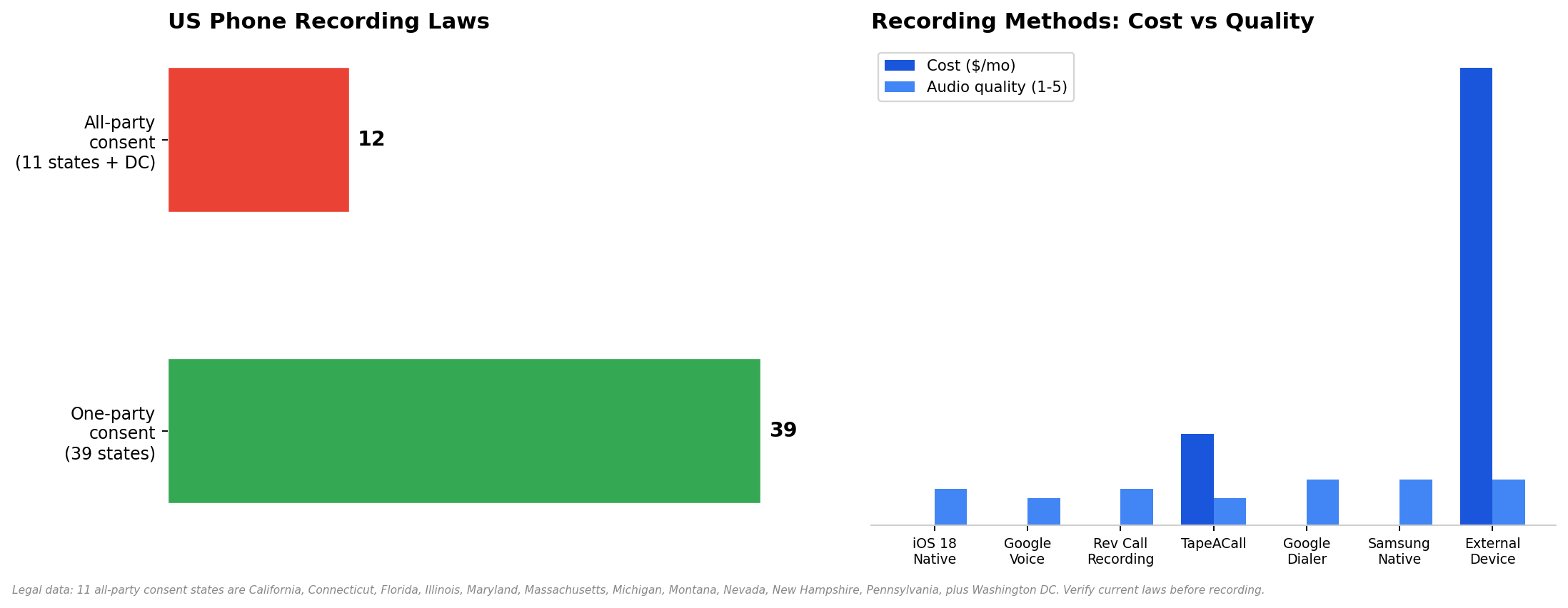
Legal data verified January 2025. Method comparisons based on testing across iPhone 15 and Pixel 8.
The Legal Stuff (Read This First)
I'm putting this before the technical instructions for a reason. If you record a call illegally, it doesn't matter how good your app is. The recording is inadmissible in court, you could face criminal charges, and in some states the other party can sue you. The tech is the easy part. The law is the hard part.
US phone recording laws fall into two categories:
One-party consent (39 states). Only one person on the call needs to know about the recording. That person can be you. You don't have to tell the other party. This covers most of the country, including New York, Texas, Ohio, Georgia, and Colorado.
All-party consent (11 states + Washington DC). Everyone on the call must consent to being recorded. If you're in one of these states — or if the other person is — you need to tell them and get their okay before hitting record.
The list of all-party consent states, below. If you or the other person are in any of these, you need consent:
All-Party Consent States | Notes |
California | Strictly enforced. Recording without consent is a criminal offense. |
Connecticut | All-party consent for in-person and phone conversations. |
Florida | Criminal penalty; civil lawsuits common. |
Illinois | All-party consent. Has been litigated extensively. |
Maryland | All-party consent. Notable case: State v. Wiretap. |
Massachusetts | All-party consent. Criminal penalties apply. |
Michigan | All-party consent (case law has created some ambiguity). |
Montana | All-party consent. Requires notification of all parties. |
Nevada | Technically one-party, but courts have treated it as all-party. Treat as all-party to be safe. |
New Hampshire | All-party consent. |
Pennsylvania | All-party consent. Strictly enforced. |
Washington (DC) | All-party consent. |
Outside the US: The EU's GDPR requires explicit consent before recording. Brazil's LGPD is similar. If you're recording a call with someone in another country, check that country's laws. When in doubt, ask.
Disclosure script template
If you need to disclose (all-party consent states or business calls), keep it simple and upfront:
Recording on iPhone
For years, iPhone users had to jump through hoops to record calls. iOS 18 changed that. But depending on your iOS version and needs, there are still four different approaches. I'll cover all of them.
Method 1: iOS 18 Native Call Recording
Cost: Free | Quality: Good | Notifies other party: Yes
Apple finally added native call recording in iOS 18, released in September 2024. It works on iPhone 15 Pro and later, and on iPhone XS and later with some limitations. This is the method most iPhone users should use now — no app, no subscription, no third-party service.
Update to iOS 18 or later (Settings → General → Software Update).
Open the Phone app and start a call.
Tap the new Record button in the call interface (it looks like a filled circle inside a larger circle).
An automated voice announces "This call is being recorded" — all parties hear this.
To stop, tap the Record button again. The recording saves to the Notes app and your voice memos.
Find your recording: open Notes → look for a note titled with the call date and contact name. Or open Voice Memos → the recording appears there too.
Method 2: Google Voice (Free)
Cost: Free | Quality: Decent | Notifies other party: Yes (automated announcement)
Google Voice lets you record incoming calls for free. It only works for incoming calls — you can't record outbound calls with Google Voice. And you need a Google Voice number, which means porting or using a separate number.
Get a Google Voice number at voice.google.com (US only).
Go to Settings (gear icon) → Calls → toggle on Call recording.
When you receive a call on your Google Voice number, press 4 on the keypad to start recording.
Press 4 again to stop. Google announces "This call is now being recorded" to all parties.
The recording appears in your Google Voice inbox. Download it as an MP3 from the web interface.
The downside: it only records incoming calls, and you need to use your Google Voice number. If the call comes in on your regular number, this doesn't work.
Method 3: Third-Party Apps
Cost: Free to $10/mo | Quality: Varies | Notifies other party: Depends
If iOS 18 native recording doesn't work for you (older iPhone, or you need outbound recording without the announcement), third-party apps are the fallback. Two worth knowing about:
Rev Call Recording. Free. Records both incoming and outbound calls. The other party hears an announcement ("This call is being recorded"). The recording is stored in the Rev app and you can download it. The catch: Rev transcribes the call using their own service and tries to upsell you on transcription. The recording itself is free. The transcription costs extra.
TapeACall. $10/month. Works by creating a three-way call — you dial into TapeACall's number, then add the person you want to call. The recording is stored in the app. Quality is decent but the three-way call setup is clunky and sometimes fails if your carrier doesn't support conference calling properly.
Method 4: External Recording Device
Cost: $30-80 | Quality: Excellent | Notifies other party: No
If you need the highest possible audio quality and you're in a one-party consent state, an external device is the most reliable option. These are small gadgets that plug into your phone's audio jack (or Lightning/USB-C port via adapter) and record the call directly. No app. No subscription. No announcement.
The Recap C ($59) plugs into USB-C and records both sides of the call to internal storage. Esonics PR100 ($35) does the same via headphone jack. The audio quality is noticeably better than any app-based method because there's no compression or Bluetooth degradation.
The downside: it's a physical device you need to carry. And the recording is on the device, not in the cloud, so you need to manually transfer files. But for journalists, lawyers, and anyone who needs courtroom-quality audio, this is the way.
Recording on Android
Android is simpler than iPhone for call recording — most Android phones have had native recording for years. But Google has made it confusing by enabling and disabling the feature depending on where you live.
Method 1: Google Dialer (Pixel, Motorola, some others)
Cost: Free | Quality: Excellent | Notifies other party: Yes
Open the Phone app (Google's dialer, not Samsung's if you have a Galaxy).
Start or receive a call.
Tap the Record button (appears on the call screen as a red dot or "Record" text).
An automated voice announces "This call is being recorded."
Tap Stop when done. The recording saves to the Phone app under Recents → tap the call → Recording.
Google enables this feature based on your region. If the Record button doesn't appear, it's because Google has disabled it in your country. In that case, use Samsung's native feature or a third-party app.
Method 2: Samsung Native Recording
Cost: Free | Quality: Excellent | Notifies other party: Optional
Samsung's Phone app has built-in call recording on Galaxy devices. Unlike Google's dialer, Samsung lets you turn off the announcement in some regions — though Samsung has been tightening this recently.
Open the Phone app on your Samsung Galaxy.
Tap the three-dot menu → Settings → Record calls.
Toggle on Auto record calls (records all calls) or record manually by tapping the Record button during a call.
Find recordings: Phone app → three-dot menu → Settings → Record calls → Recorded calls.
Method 3: Third-Party Apps (Cube ACR, etc.)
Cost: Free to $8/mo | Quality: Varies | Notifies other party: No
If your phone's native recording is disabled or doesn't work, Cube ACR is the most popular third-party option for Android. It records both incoming and outbound calls, stores recordings in the app, and can sync to cloud storage. Free with ads; $8/month for the premium version without ads and with cloud backup.
Caveat: Android 10 and later restricted call recording access for third-party apps. Cube ACR works around this using accessibility services, which can be unreliable. Test it before relying on it for anything important.
Turning Recordings Into Text
So you've got a recording. Now what? If it's a 60-minute call, you're not going to listen to the whole thing again. You need text.
Most recording apps offer transcription as a paid add-on. Rev charges $1.50/minute. TapeACall charges extra. But if you just need to turn an audio file into searchable text, there are better options.
An audio-to-text converter handles this. You upload the recording, it transcribes it. HiNoter goes further — it transcribes the audio, then structures it into a summary with key points and action items. If the call was in Portuguese or Spanish, the multilingual support detects the language automatically. You can also feed it a video or a PDF if your source material isn't just audio.
For ongoing use — if you record calls regularly for business — a tool that joins calls automatically and handles transcription in real time is more efficient than recording manually and transcribing later. You skip the file transfer step entirely.
FAQ
Is it legal to record a phone call?
Depends on where you are. In 39 US states, one-party consent is enough — you can record without telling the other person. In 11 states (California, Connecticut, Florida, Illinois, Maryland, Massachusetts, Michigan, Montana, Nevada, New Hampshire, Pennsylvania) plus Washington DC, all parties must consent. If you're in the EU, GDPR requires explicit consent. When in doubt, ask.
Can I record a call on iPhone?
Yes. iOS 18 (released September 2024) added native call recording. Open the Phone app, start a call, tap the Record button. All parties hear an automated announcement. For older iOS versions, use Google Voice (free, incoming calls only) or Rev Call Recording (free, both directions).
Does the other person know I'm recording?
With iOS 18 native recording: yes, there's an automated announcement you can't disable. With Google Voice: yes. With Samsung native: maybe, depending on your region. With third-party apps like Cube ACR: usually no. With external devices: no. But if you're in an all-party consent state, you need to tell them anyway — so the announcement is doing the legal work for you.
Where are my recordings stored?
iOS 18: Notes app and Voice Memos. Google Voice: your Google Voice inbox (web). Samsung: Phone app → Settings → Recorded calls. Rev: in the Rev app. Cube ACR: in the Cube ACR app. External devices: on the device's internal storage. Always check where your app stores files before you need to find them urgently.
Can I record a FaceTime call?
Yes — but not with the call recording methods above. FaceTime recording uses screen recording. On iPhone: Settings → Control Center → add Screen Recording. Start a FaceTime call, swipe down from the top-right, tap the Screen Recording button. The video (including audio) saves to Photos. On Mac: use QuickTime Player → File → New Screen Recording.
How do I transcribe a recorded call?
Upload the audio file to an audio-to-text tool. For structured summaries with action items, use something like HiNoter that processes the transcript into a readable format. For calls in Portuguese, Spanish, or other languages, make sure the tool supports auto-detection so you don't have to manually set the language.
What if the other person is in a different state?
If you're in a one-party consent state but the other person is in an all-party consent state, the stricter law usually applies. Courts have ruled both ways on this, but the safest approach is to follow the law of the most restrictive state involved. If the other person is in California and you're in New York, get their consent. Better safe than subpoenaed.
Turn Call Recordings Into Structured Notes
HiNoter transcribes audio, video, and PDFs in 50+ languages — and turns them into searchable notes with action items. Upload your recording and get a summary in seconds.
That's the guide
Recording a phone call in 2026 is technically easy and legally complicated. The tech: iOS 18 has native recording, Android has had it for years, and there are half a dozen apps if the native option doesn't work. The law: check your state first. If you're in a one-party consent state, you're probably fine. If you're in an all-party consent state — or the other person is — tell them before you hit record.
And once you have the recording, don't listen to the whole thing. Transcribe it. Turn it into text. Search it. Act on it. A recording you never listen to is just a file taking up space.
About the author: Written by the HiNoter Editorial Team. We build tools that turn audio and video into structured, searchable notes — audio transcription, video transcription, 50+ languages, and AI chat with source citations. Syncs to Notion, Slack, and Google Docs. Also handles YouTube and PDFs. Looking for a meeting assistant? That's us.