PDF files are ubiquitous. Businesses use them to create contracts and reports, students rely on them to record lecture notes, and researchers often share academic papers in PDF format. While PDFs are excellent for maintaining formatting, editing, searching, analyzing, or reusing them can be quite difficult.
This is why many users need to convert PDFs to text.
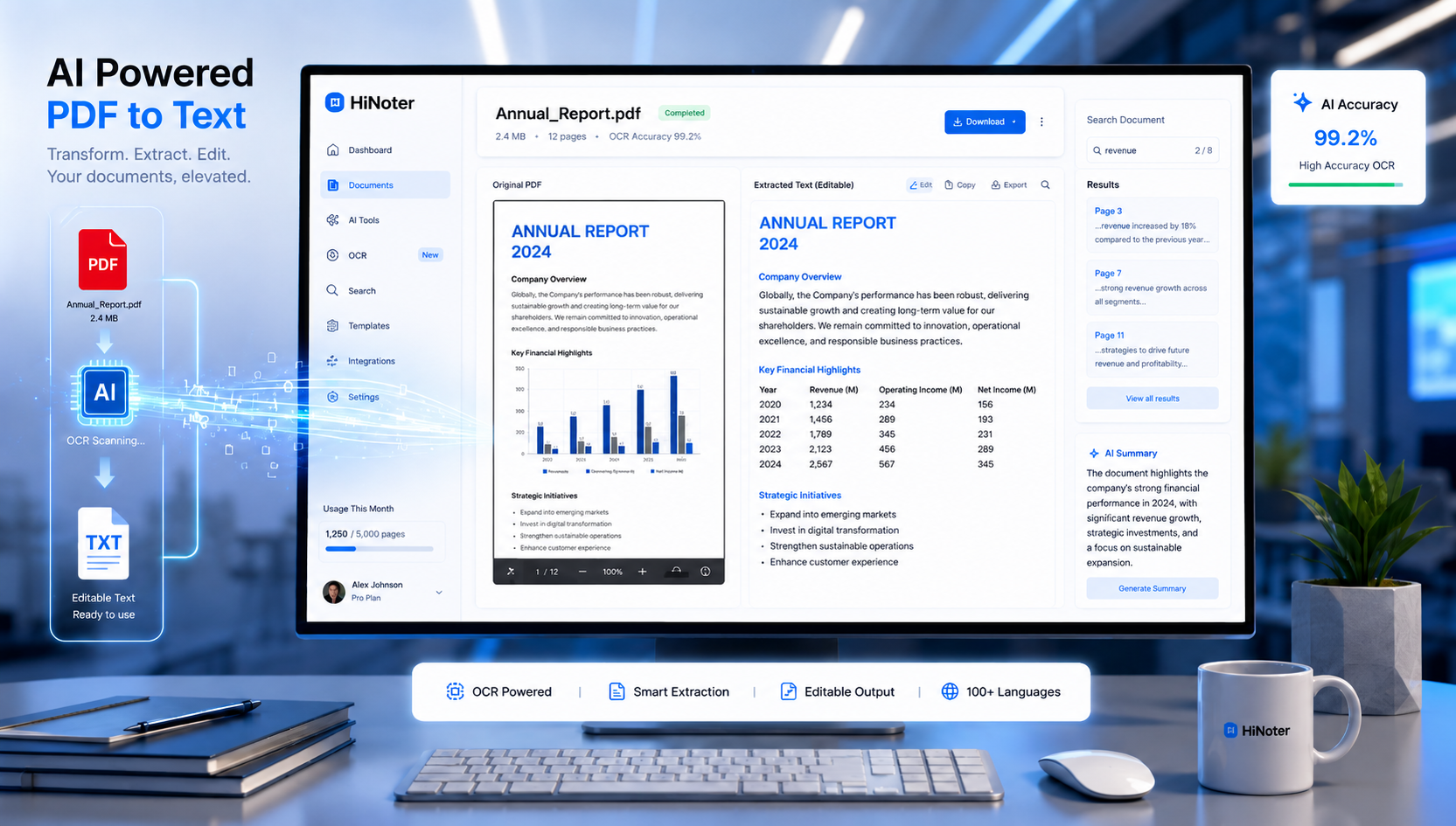
By extracting text from PDFs, you can edit content, summarize documents with AI, search for information more efficiently, and transform static files into usable knowledge. Whether you're working with digital PDFs or scanned documents, modern tools make the whole process simpler than ever before.
In this guide, you will learn about the PDF to text conversion process, when you need OCR, the best tools, and how AI is changing document processing.
Why do people need PDF to text converters?
PDF is designed to maintain document formatting across different devices and operating systems. However, this consistency can also make content difficult to reuse.
When you convert a PDF to text, you'll unlock several advantages:
Main advantages
| Benefit | Why It Matters |
|---|---|
| Easier Editing | Modify content without recreating documents |
| Faster Searching | Locate information instantly |
| AI Analysis | Generate summaries and insights |
| Content Repurposing | Turn reports into articles or notes |
| Better Accessibility | Improve compatibility with assistive tools |
| Data Extraction | Import information into other systems |
For students, professionals, and researchers, converting PDFs to editable text can save hours of manual work.
Understanding the Different Types of PDFs
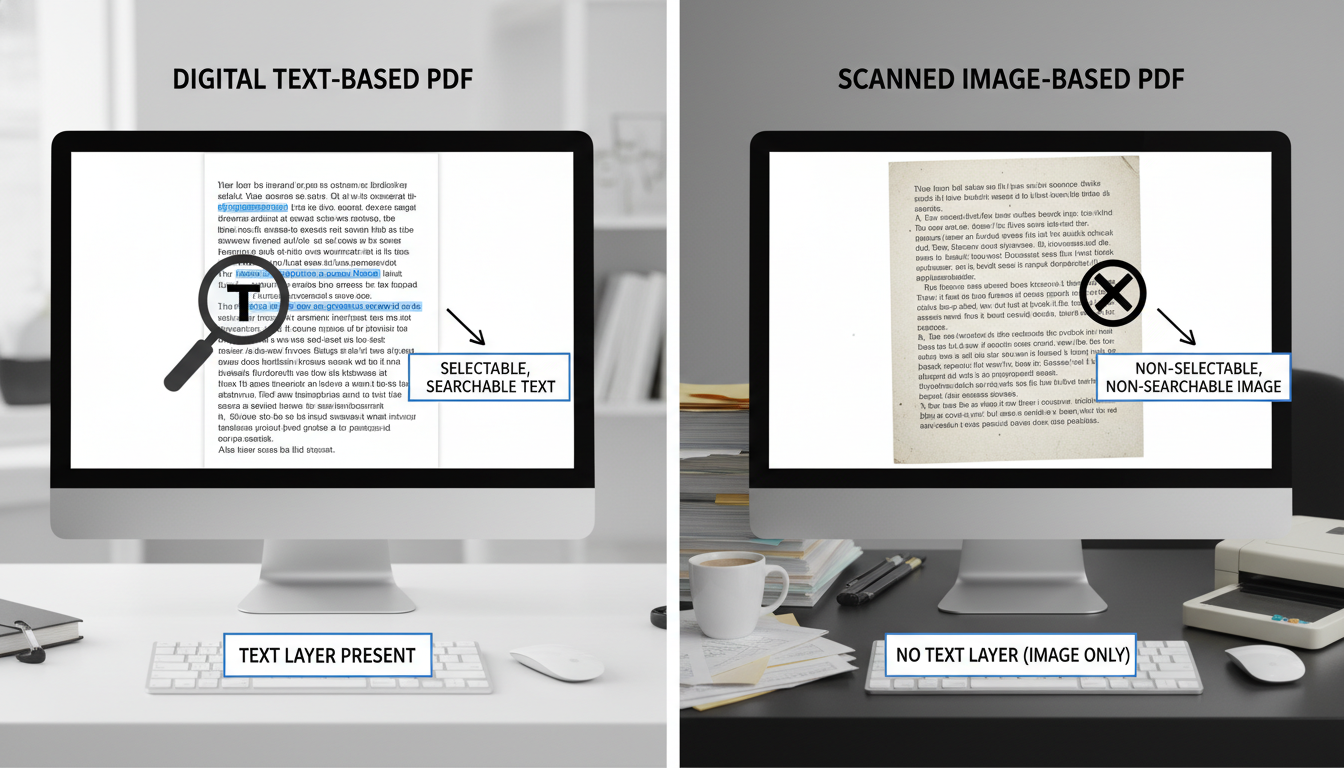
Before selecting a conversion method, it's important to understand the two main categories of PDF files.
Text-Based PDFs
These files already contain machine-readable text.
Examples include:
- Word documents exported as PDFs
- Digital reports
- E-books
- Online manuals
- Business presentations
Text extraction from these files is typically fast and highly accurate.
Scanned PDFs
Scanned PDFs are essentially image files stored inside a PDF container.
Examples include:
- Scanned contracts
- Printed books
- Historical archives
- Handwritten documents
- Paper forms
Since there is no actual text embedded in the file, software must first recognize characters from the image before extracting them.
This process relies on OCR technology.
What is OCR in AI?
OCR stands for Optical Character Recognition.
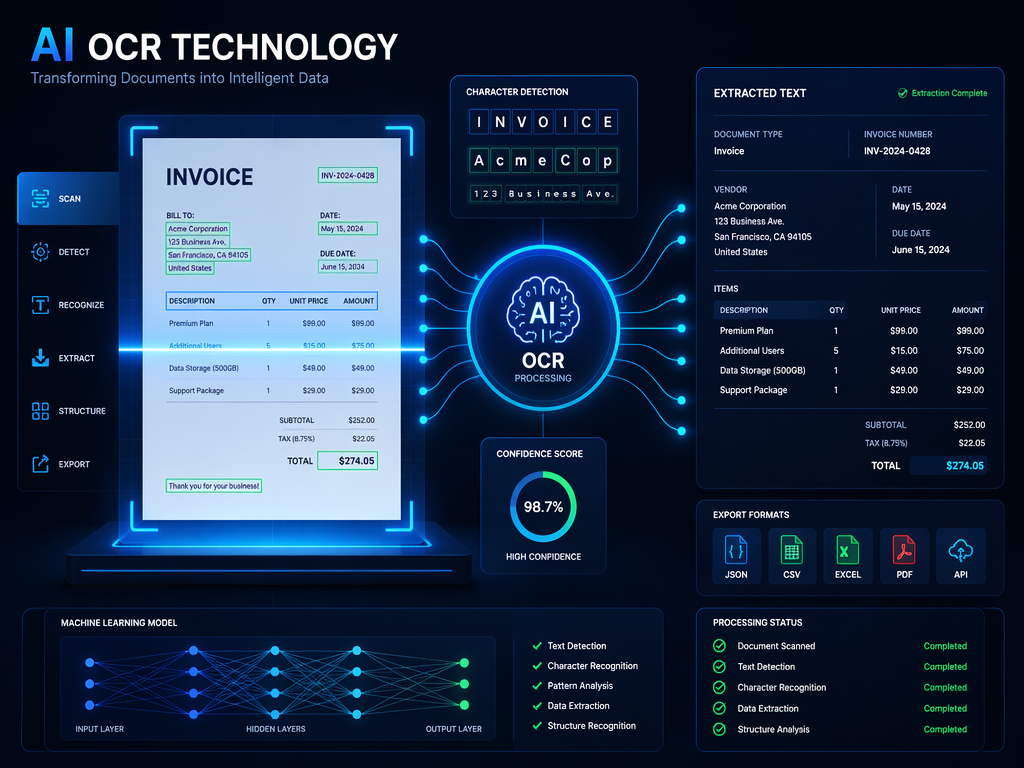
OCR technology identifies letters, numbers, and symbols inside images and converts them into editable text.
Traditional OCR has existed for decades, but modern AI-powered OCR systems are significantly more advanced.
AI OCR Can:
- Recognize multiple languages
- Detect document structure
- Extract tables
- Identify headings
- Process handwritten content
- Correct recognition mistakes automatically
Instead of simply recognizing characters, AI models understand the context of documents.
This is why many users now prefer solutions that support Convert PDF to text AI workflows rather than relying on traditional OCR software.
Traditional OCR vs AI OCR
| Feature | Traditional OCR | AI OCR |
|---|---|---|
| Character Recognition | Good | Excellent |
| Handwriting Support | Limited | Advanced |
| Layout Preservation | Basic | Strong |
| Table Extraction | Weak | Accurate |
| Error Correction | Manual | AI-Assisted |
| Multi-Language Support | Moderate | Excellent |
How to Convert Scanned PDF to Text with OCR
Scanned documents require OCR before text can be extracted.
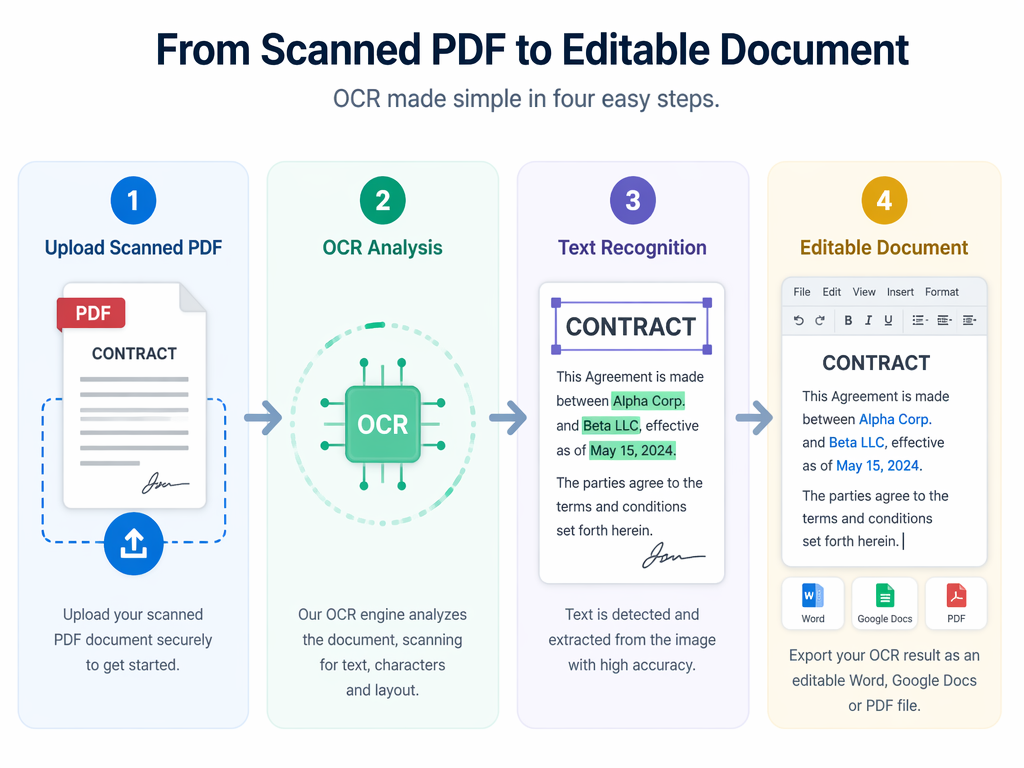
Follow these steps:
Step 1: Upload the PDF
Choose an OCR-capable tool such as:
- Adobe Acrobat
- Google Drive OCR
- Microsoft OneDrive
- HiNoter
- ABBYY FineReader
Step 2: Run OCR Processing
The software scans each page and identifies text elements.
OCR engines typically:
- Detect characters
- Reconstruct sentences
- Preserve formatting
- Identify document structure
Step 3: Review the Results
Check:
- Names
- Dates
- Numbers
- Tables
- Special formatting
Even advanced OCR systems can occasionally make mistakes.
Step 4: Export the Text
Common export formats include:
- TXT
- DOCX
- Markdown
- HTML
At this stage, your pdf file convert to text workflow is complete.
How Can I Convert a PDF to Text for Free?
Many users only need occasional conversions and prefer not to pay for specialized software.
Fortunately, several free solutions exist.
Popular Free Methods
| Tool | Free Version | OCR Support |
|---|---|---|
| Google Docs | Yes | Basic |
| Adobe Online Tools | Limited | Yes |
| Microsoft OneDrive | Yes | Basic |
| Tesseract OCR | Yes | Advanced |
| HiNoter | Freemium | AI OCR |
Many users begin with a pdf to text online tool because it requires no installation and works directly in a browser.
Advantages of Free Solutions
- No software installation
- Quick setup
- Accessible from any device
- Suitable for simple tasks
Limitations
- File size restrictions
- Lower OCR accuracy
- Export limitations
- Fewer AI features
For large document workflows, dedicated AI-powered tools often provide significantly better results.
How Do I Convert a PDF Into Text?
The process depends on whether your PDF is text-based or scanned.
Method 1: Copy Existing Text
For text-based PDFs:
- Open the file
- Highlight the content
- Copy the text
- Paste into a document editor
Method 2: OCR Conversion
For scanned documents:
- Upload PDF
- Enable OCR
- Extract text
- Review results
- Export
Method 3: AI-Powered Conversion
Modern AI tools can:
- Extract text
- Organize sections
- Create summaries
- Identify key insights
- Generate searchable notes
This approach is becoming increasingly popular among professionals managing large volumes of documents.
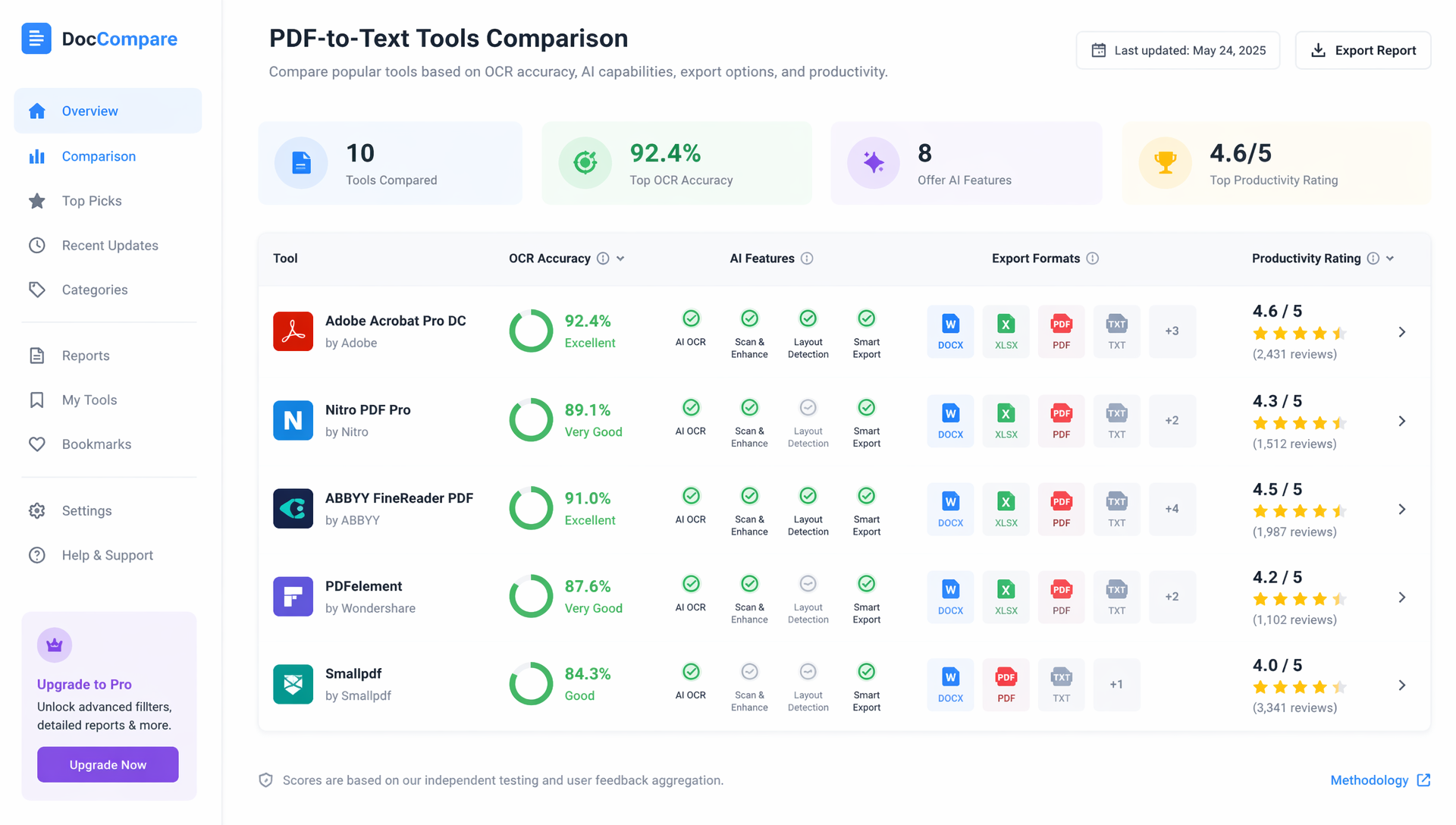
Best PDF-to-Text Conversion Tools
The market offers a wide range of PDF conversion solutions.
Comparison Table
| Tool | OCR Quality | AI Features | Free Plan | Best For |
|---|---|---|---|---|
| HiNoter | Excellent | Excellent | Yes | AI productivity |
| Adobe Acrobat | Excellent | Good | Limited | Professional documents |
| Google Docs | Basic | No | Yes | Casual users |
| ABBYY FineReader | Excellent | Moderate | No | Enterprise OCR |
| Microsoft OneDrive | Basic | No | Yes | Microsoft ecosystem |
What to Look For
When choosing a converter, consider:
- OCR accuracy
- Supported languages
- Export options
- AI capabilities
- Privacy protections
- Processing speed
Not every user needs enterprise-level OCR, but accuracy becomes increasingly important when handling contracts, research papers, or business documentation.
How AI Is Transforming Document Processing
Traditional converters focus on extraction.
Modern AI platforms focus on understanding.
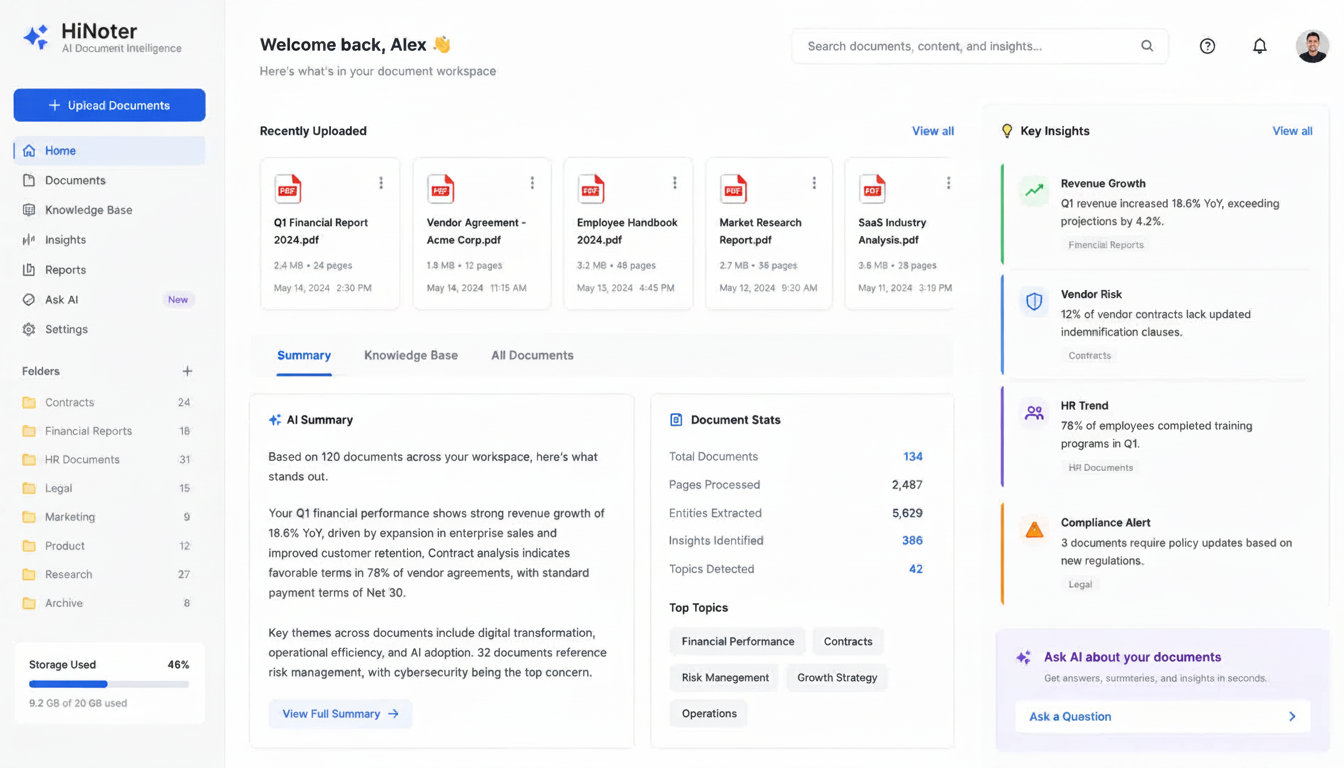
Instead of simply helping users Convert PDF to Text, AI systems can analyze document content and provide actionable insights.
AI Capabilities Beyond OCR
- Summarization
- Key-point extraction
- Question answering
- Semantic search
- Note generation
- Knowledge organization
This evolution has changed how businesses process information.
Example AI Workflow
| Step | AI Action |
|---|---|
| Upload PDF | Analyze document structure |
| OCR | Extract text |
| Understanding | Identify topics and sections |
| Summarization | Create concise overviews |
| Search | Enable instant retrieval |
This is why interest in Convert PDF to text AI solutions continues to grow across education, research, and business sectors.
Common PDF Conversion Challenges
Even the best tools encounter challenges.
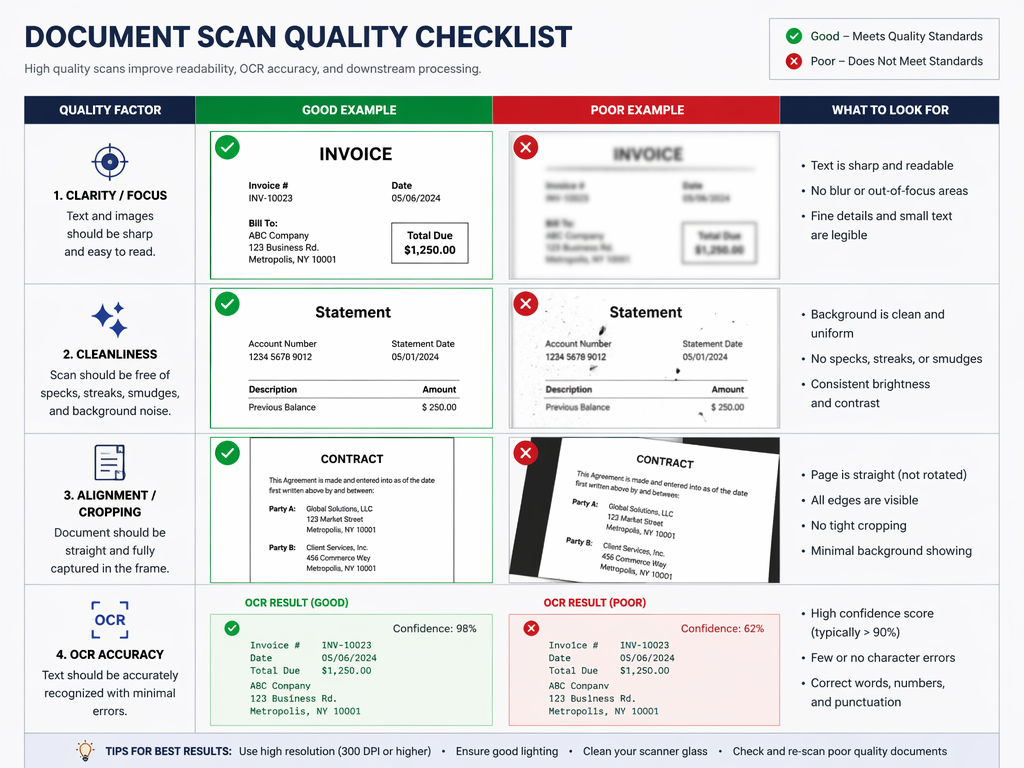
Poor Scan Quality
Low-resolution scans reduce OCR accuracy.
Complex Layouts
Documents containing:
- Tables
- Multi-column layouts
- Charts
- Mixed media
can be more difficult to process.
Handwritten Content
Handwriting recognition continues improving but remains more challenging than typed text.
Multiple Languages
Some OCR engines struggle with multilingual documents.
Choosing a high-quality OCR platform significantly improves results.
Can You Convert Text Back Into PDF?
Interestingly, many users who extract information later need to recreate PDF documents.
This is where convert text to pdf online free tools become useful.
Most document editors allow users to:
- Create or edit text documents
- Format content
- Export directly as PDF
Popular options include:
- Google Docs
- Microsoft Word
- Canva
- Adobe Acrobat
- Online PDF generators
This makes it easy to move between editable text and PDF formats depending on your workflow needs.
Best Practices for Accurate Results
To improve PDF conversion quality:
Before Uploading
- Use high-resolution scans
- Ensure pages are properly aligned
- Avoid shadows or glare
- Scan in good lighting
After Extraction
- Verify names and dates
- Check numerical values
- Review tables carefully
- Compare against original files
Small verification steps can significantly improve accuracy.
FAQs
How can I convert a PDF to text for free?
You can use Google Docs, Microsoft OneDrive OCR, Adobe's online tools, or freemium AI platforms. These options allow users to extract text without purchasing software.
What is OCR in AI?
OCR (Optical Character Recognition) is technology that converts text inside images into editable content. AI-powered OCR improves accuracy by understanding document structure and context.
How to Convert Scanned PDF to Text with OCR
Upload the scanned file to an OCR-enabled tool, process the document, review the extracted content, and export the text in your preferred format.
What is the best PDF to text converter?
The best solution depends on your needs. For basic tasks, free OCR tools may be sufficient. For advanced document understanding, AI-powered platforms like HiNoter provide OCR, summaries, and searchable knowledge management in one workflow.
How do I convert a PDF into text?
For text-based PDFs, simply copy the content directly. For scanned PDFs, use OCR software or AI-powered document processing tools to extract editable text.
Final Thoughts
PDFs remain one of the most important document formats in modern workflows, but valuable information often becomes trapped inside static files.
The ability to Convert PDF to Text makes documents easier to edit, analyze, search, and organize. Whether you're processing contracts, academic papers, business reports, or scanned archives, choosing the right conversion method can save significant time and effort.
As AI continues to improve OCR and document understanding, the future of PDF processing is shifting beyond simple extraction toward intelligent knowledge management. Modern tools can now transform PDFs into searchable, actionable information—helping users work faster and gain more value from every document.