Zoom transcription turns meeting audio into searchable text, usually through Zoom cloud recording audio transcripts, live captions, or an approved recording file processed after the meeting. The exact workflow depends on your account settings, cloud recording access, host controls, participant permissions, and whether transcription is enabled by an admin. Use Zoom's built-in transcript path when you need a native record, then use HiNoter when the team needs more than text: summaries, decisions, action items, owners, due dates, exports, mind maps, and source-linked AI Chat that makes long meetings usable.
Last reviewed: 2026-07-21. Tested context: Zoom Support and product documentation for cloud recording transcripts, local recording, Meeting Summary, and AI transcription, plus HiNoter editorial workflow requirements. Editorial note: Zoom feature availability can vary by plan, account settings, region, admin policy, meeting role, and client version. Verify the current Zoom support pages before publishing screenshots, pricing, or product limits.
Try HiNoter for Zoom transcripts or review the Zoom transcription workflow before your next permitted meeting.
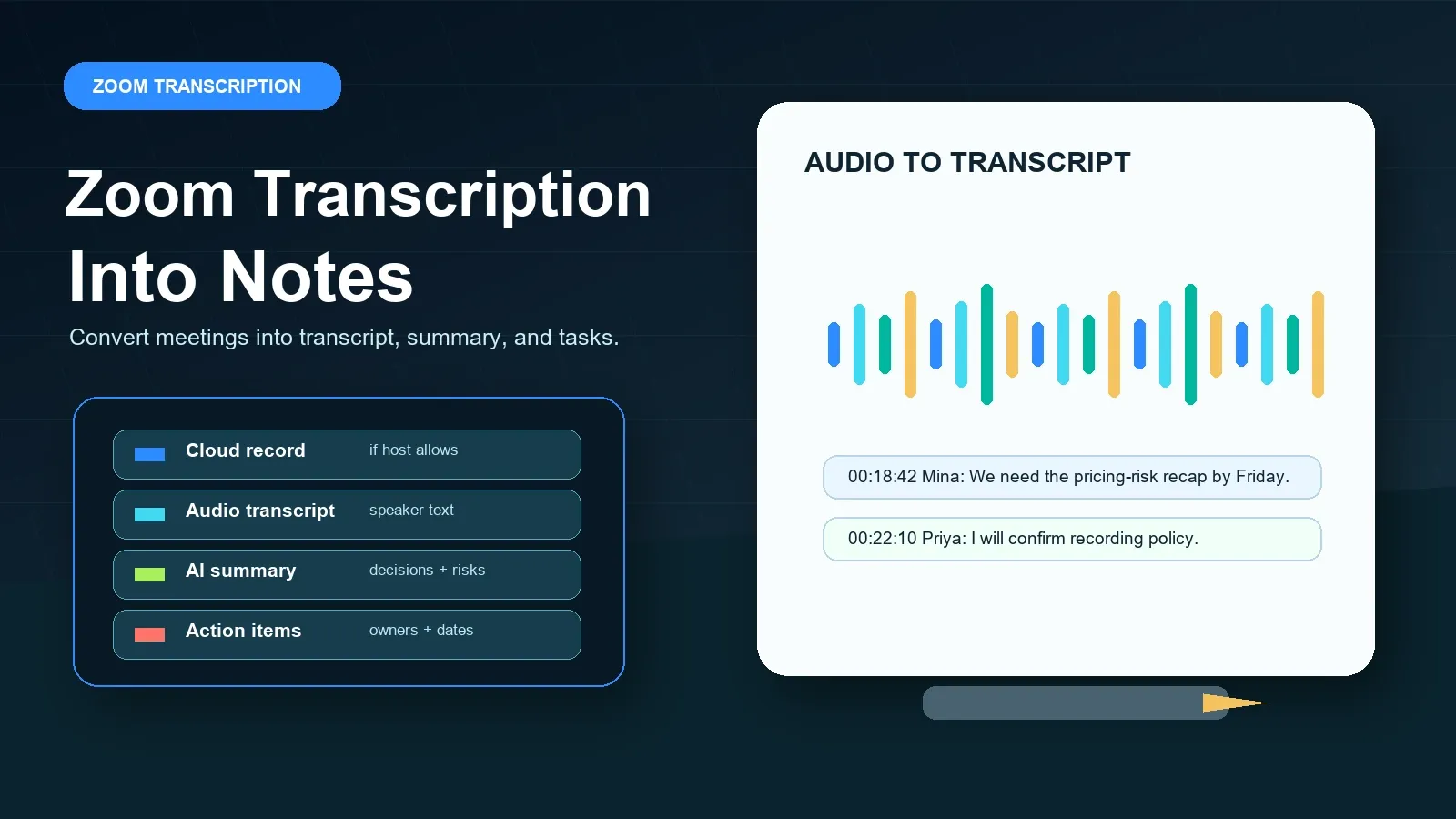
Direct Answer: Zoom Transcription
Zoom transcription is the process of converting Zoom meeting speech into text through cloud recording audio transcripts, live captions, or an approved post-meeting file workflow. HiNoter adds the next layer: transcript cleanup, summaries, decisions, action items, owners, mind maps, exports, and source-linked AI Chat for searchable meeting knowledge.
Zoom Transcription Prerequisites and Permissions
Before you rely on Zoom transcription, check which kind of transcript you actually need. A cloud recording transcript is different from live captions, and both are different from a local recording that you later upload to another tool. A host can often control recording and sharing. An admin can enable or restrict cloud recording, audio transcripts, AI Companion, automated captions, and local recording. A participant may see captions during the call but still lack access to the recording or transcript after the call.
Zoom's official audio transcript documentation describes audio transcripts as a cloud recording feature. Zoom's local recording documentation describes a device-based recording workflow, which is useful as a source file but should not be confused with Zoom's built-in cloud transcript. Zoom Meeting Summary and Zoom AI transcription features can help with AI-generated outputs, but they are not a replacement for checking names, dates, obligations, and source context.
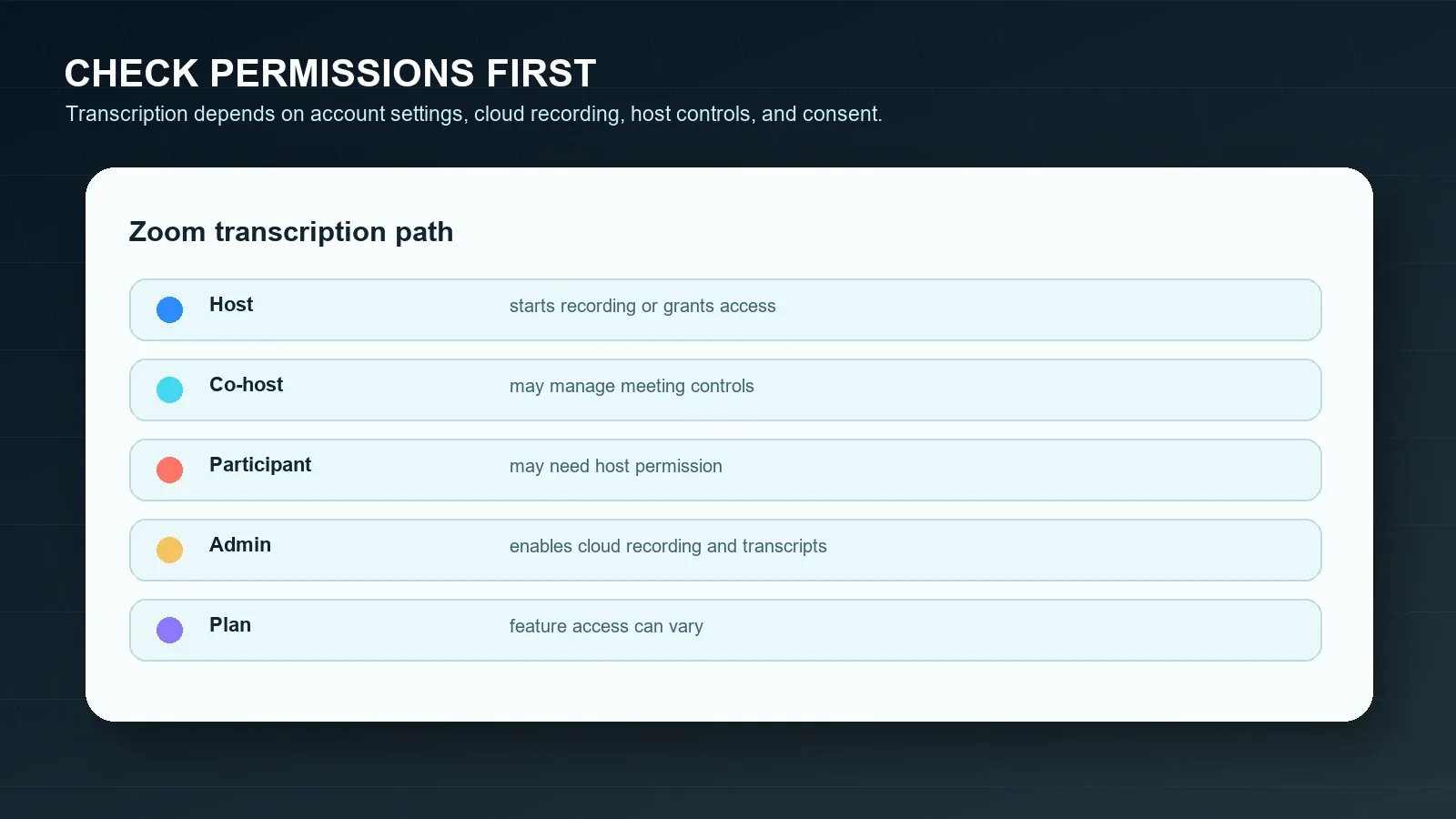
| Requirement | Why it matters | Official source to verify |
|---|---|---|
| Cloud recording | Zoom's built-in audio transcript workflow is tied to cloud recording availability. | Zoom audio transcripts |
| Host or co-host control | The host typically controls recording and can grant or deny participant recording access. | Zoom cloud recording |
| Local recording permission | Local files can preserve audio or video, but they are not the same as cloud transcript processing. | Zoom local recording |
| AI Companion setting | Meeting Summary and AI transcription features can be controlled by account and admin settings. | Zoom Meeting Summary |
| Consent and policy | Recording or transcribing meetings can involve privacy, security, employment, customer, or regulated data. | FTC privacy guidance |
Short definition: A transcript is a text version of spoken meeting content. Captions are text shown during or near the live meeting experience. A summary is a shorter interpretation of the discussion. Notes combine transcript evidence, decisions, context, open questions, tasks, owners, and follow-up destinations.
Official Zoom Steps for Transcripts, Captions, and Summaries
Use Zoom's official path first when your account allows it. That keeps recording controls, participant notices, transcript storage, and sharing inside Zoom's permissions. Then decide whether the output is enough. Most teams discover that a transcript is searchable but still too long to act on directly.
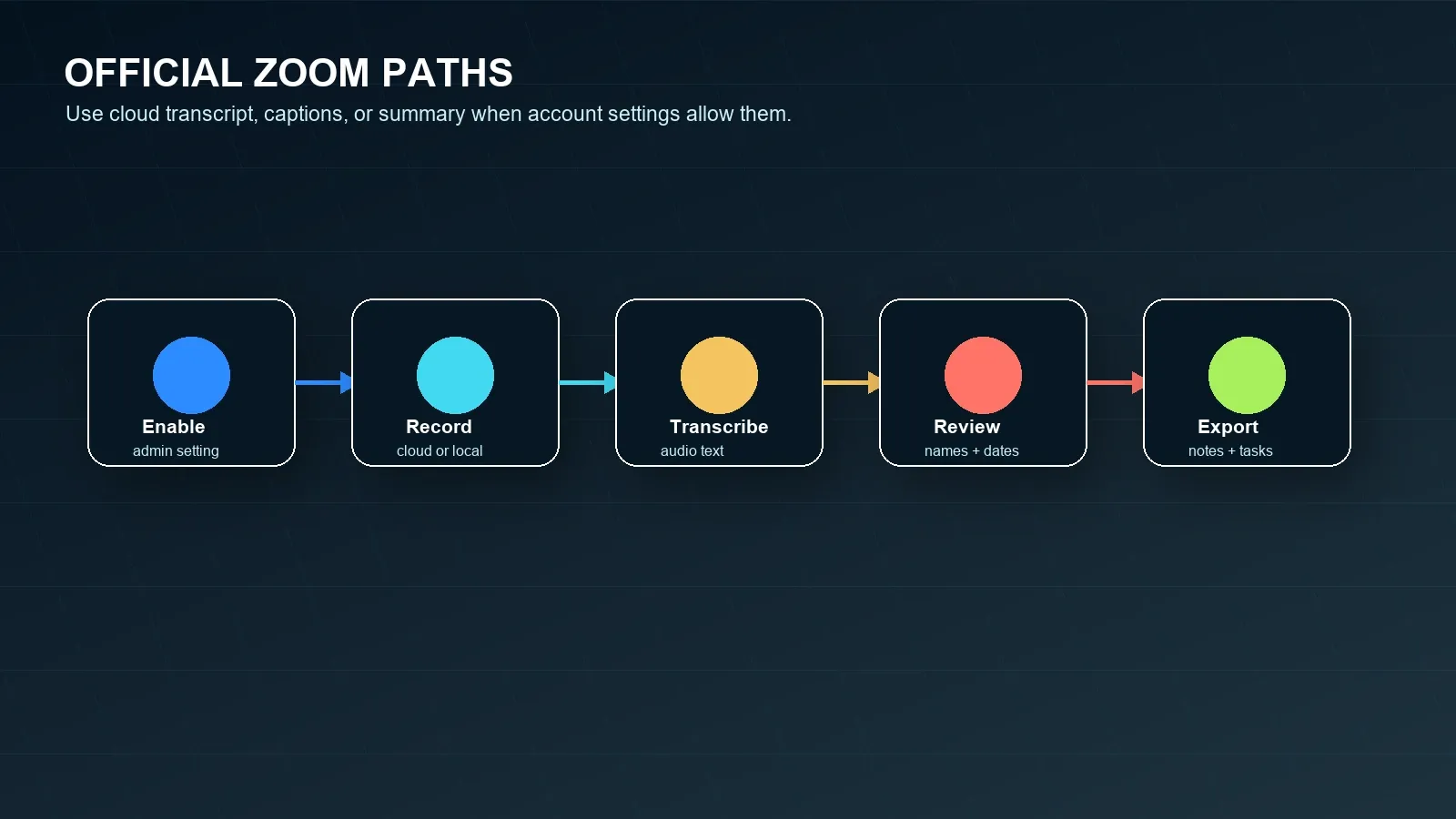
Option 1: Use Zoom cloud recording audio transcript
- Confirm that cloud recording is available for the host account and enabled by the account owner or admin.
- Confirm that the audio transcript setting is enabled. Zoom documents audio transcripts as part of the cloud recording workflow.
- Start the Zoom meeting as host or co-host and start cloud recording when policy and consent requirements allow it.
- After the meeting, wait for Zoom to process the recording and transcript. Processing time can vary by recording length and system conditions.
- Open the cloud recording transcript and review speaker names, technical terms, dates, customer commitments, and action items before quoting or sharing.
Option 2: Use live captions or live transcript text
- Confirm automated captions or live transcript features are enabled for the account and meeting.
- Start captions during the meeting so participants can follow the spoken content in real time.
- Remember that captions are not always the same as a saved post-meeting transcript, depending on the meeting configuration.
- If you need reusable notes after the meeting, preserve an approved source such as a cloud transcript, recording, chat log, or written recap.
Option 3: Use Zoom Meeting Summary
- Confirm the account has Zoom AI Companion Meeting Summary access and that the feature is enabled by the account owner or admin.
- Start Meeting Summary from the Zoom meeting controls when it is available and allowed for the meeting.
- After the meeting, review the generated summary before forwarding it to customers, executives, or cross-functional teams.
- Move accepted decisions and action items into the team's system of record rather than leaving them only in a summary email.
Option 4: Use local recording plus an approved transcript workflow
- Confirm that the host allows local recording and grants permission if you are a participant.
- Record only after participant notice, consent, and company policy checks are handled.
- Save the local audio or video file securely and process it only if you have permission to use it for transcription or notes.
- Use HiNoter or another approved workflow to turn the permitted file into a transcript, summary, and action items.
Host vs Participant: What Changes?
The host usually has the cleanest route to a reliable Zoom transcript because the host controls recording and many sharing decisions. Participants often need permission to record locally, access the cloud recording, or receive the transcript after the meeting. That difference should be resolved before the meeting starts, especially for customer calls, interviews, legal discussions, HR meetings, and partner conversations.
| Scenario | If you are the host | If you are a participant |
|---|---|---|
| You want a cloud transcript | Check cloud recording and audio transcript settings before the call. | Ask whether the host will record to the cloud and share the transcript. |
| You want local recording | Start local recording if account and policy allow it. | Ask the host for local recording permission before the meeting gets too far. |
| You want AI summary | Check AI Companion and Meeting Summary settings. | Ask whether the host will start and share the approved summary. |
| You need source evidence | Keep transcript timestamps, recording links, or approved source files with the recap. | Ask for transcript access rather than relying on memory or private notes. |
| You need action items | Review the transcript and assign owners before sharing the recap. | Ask the host to confirm owners, dates, and open questions. |
Conditional Answers for Common Zoom Transcription Situations
Use these short condition blocks when the team needs the next step quickly.
If you are the host
Check cloud recording, audio transcript, local recording, automated captions, and AI Companion settings before the meeting. Announce the recording or transcription workflow, start the right feature when permitted, and review the transcript before sharing.
If you do not have recording permission
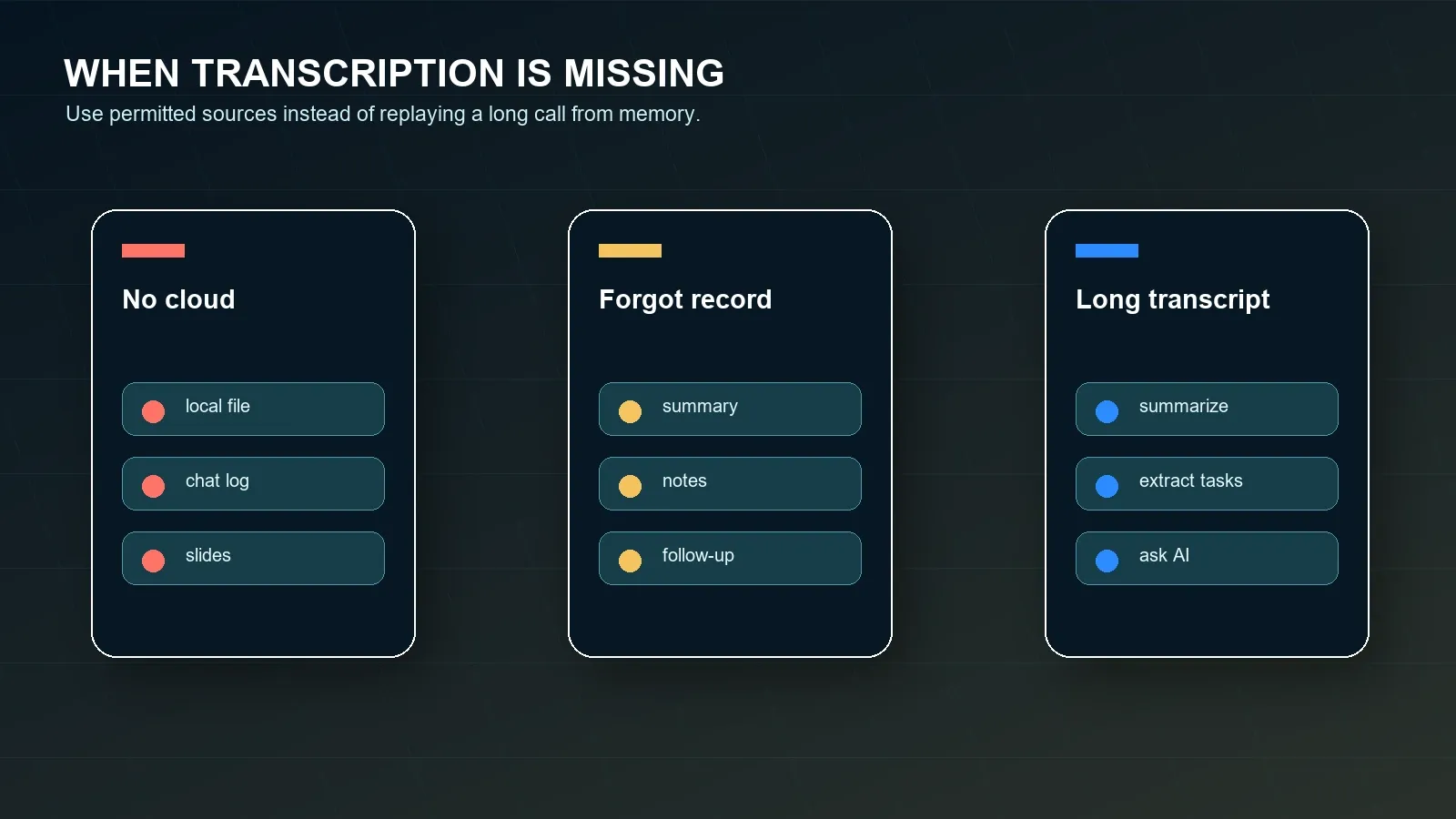
Ask the host for recording, transcript, caption, or summary access. Do not bypass Zoom or organization controls. Use permitted chat logs, slides, shared notes, or a written recap only when allowed by policy and participant expectations.
If you need notes instead of video
Use transcript, summary, and action-item extraction instead of storing another long recording. HiNoter helps when the goal is decisions, owners, deadlines, mind map, and searchable source-linked answers rather than replay.
If the meeting already ended
Look for an approved cloud transcript, recording, chat export, slides, notes, Zoom summary, or recap email. If the content is permitted, upload it to HiNoter to create structured notes and ask source-linked questions.
Common Zoom Transcription Problems and Fixes
Most Zoom transcription problems are operational rather than mysterious. The transcript may be missing because the meeting was not cloud recorded, audio transcript was not enabled, the host used local recording, the participant lacked access, the meeting language or audio quality reduced accuracy, or the team expected a raw transcript to behave like a reviewed project plan.
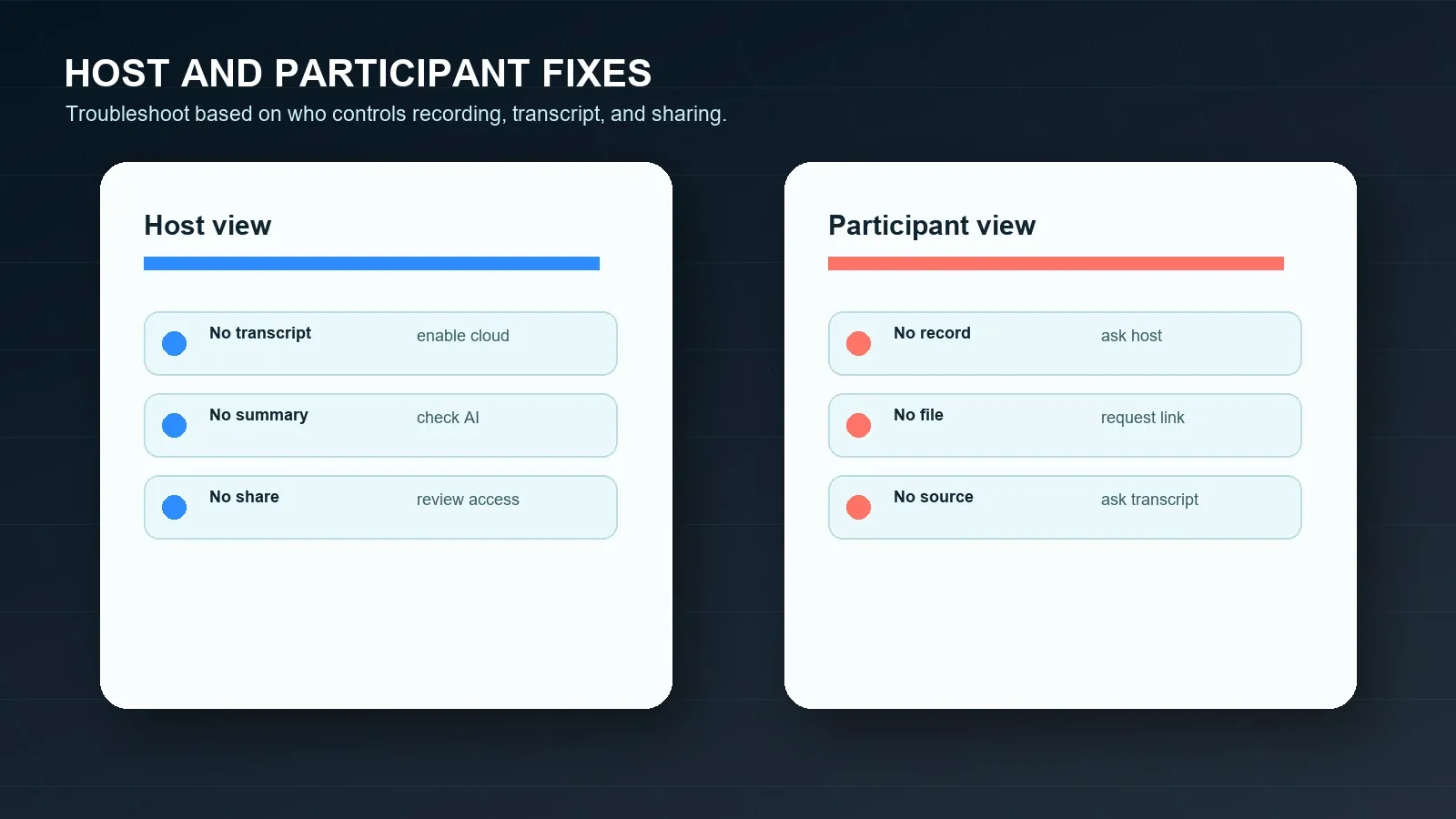
| Problem | Likely cause | Fix |
|---|---|---|
| No transcript after the meeting | Cloud recording or audio transcript may not have been enabled. | Confirm both settings before the next meeting and use cloud recording where policy allows. |
| Only a local file exists | The meeting may have been recorded locally instead of to the cloud. | Use a permitted upload workflow such as HiNoter if the file can be processed. |
| Transcript has weak speaker labels | Audio quality, overlap, names, or account settings may limit attribution. | Review the transcript against the recording before assigning owners or quoting decisions. |
| Meeting Summary is missing | AI Companion may be disabled or unavailable for the meeting. | Check account, admin, host, client, and meeting conditions before the next call. |
| Action items are vague | The transcript preserves words but not always ownership or context. | Use HiNoter to extract decisions, owners, due dates, risks, and recap language. |
| Problem | Likely cause | Fix |
|---|---|---|
| No record button | You are not the host or do not have local recording permission. | Ask the host for permission, a transcript, or an approved post-meeting recap. |
| No transcript link | The host may not have shared the cloud recording or transcript. | Ask for the transcript or a source-backed recap. |
| Captions disappeared after the call | Live captions may not have been saved as a reusable transcript. | Ask for an approved recording, transcript, chat log, or notes document. |
| Transcript is too long to use | Raw speech-to-text usually includes repetition and side discussion. | Summarize it into decisions, risks, owners, due dates, and next steps. |
| External meeting has restrictions | Customer, vendor, HR, legal, or regulated content may limit recording or AI processing. | Use written approval and policy checks before processing the content. |
Alternatives When Zoom Recording Fails or Is Not Enough
If you cannot record, forgot to start recording, or do not want to watch a long video, do not give up on the meeting outcome. Use the allowed source that best preserves the discussion. That may be a Zoom transcript, local audio or video file, chat log, Meeting Summary, shared slides, Google Docs notes, a customer email, a Microsoft Teams recap, or a Google Meet transcript.
Raw capture is only the beginning. A useful meeting workflow turns a permitted source into a transcript, summary, decision list, risks, unresolved questions, action items, owners, due dates, exports, and a searchable place to ask what was said later.
| Situation | Use this source | HiNoter output |
|---|---|---|
| Cloud transcript exists | Approved transcript and recording. | Summary, decisions, action items, quotes, and source-linked AI Chat. |
| Only local recording exists | Approved local audio or video file. | Transcript, structured notes, owners, deadlines, and exports. |
| No recording | Chat log, notes, slides, shared documents, or calendar context. | Meeting notes draft, open questions, risks, and follow-up checklist. |
| Meeting Summary exists | Zoom summary plus supporting context. | Action items, recap email, mind map, and source-check prompts. |
| Cross-platform meetings | Zoom, Google Meet, Teams, video, audio, YouTube, or PDFs where permitted. | One searchable knowledge layer across content sources. |
How HiNoter Automates Zoom Transcription Follow-Up
HiNoter is an AI meeting notes and transcription platform, not just a recorder. It turns permitted Zoom meetings, Google Meet calls, Microsoft Teams calls, YouTube videos, PDFs, videos, and audio into structured, searchable, source-linked knowledge. For Zoom users, the useful outcome is not merely a transcript. The useful outcome is a reviewed summary, decisions, action items, owners, due dates, mind map, exports, and AI Chat answers with citations.
HiNoter is useful when a team wants the same output format across meeting platforms. A sales call might happen in Zoom. A vendor review might happen in Teams. A workshop might happen in Google Meet. A training might exist as a video. A policy reference might live in a PDF. The knowledge layer should still let the team search, summarize, quote, assign, and sync work from one place.
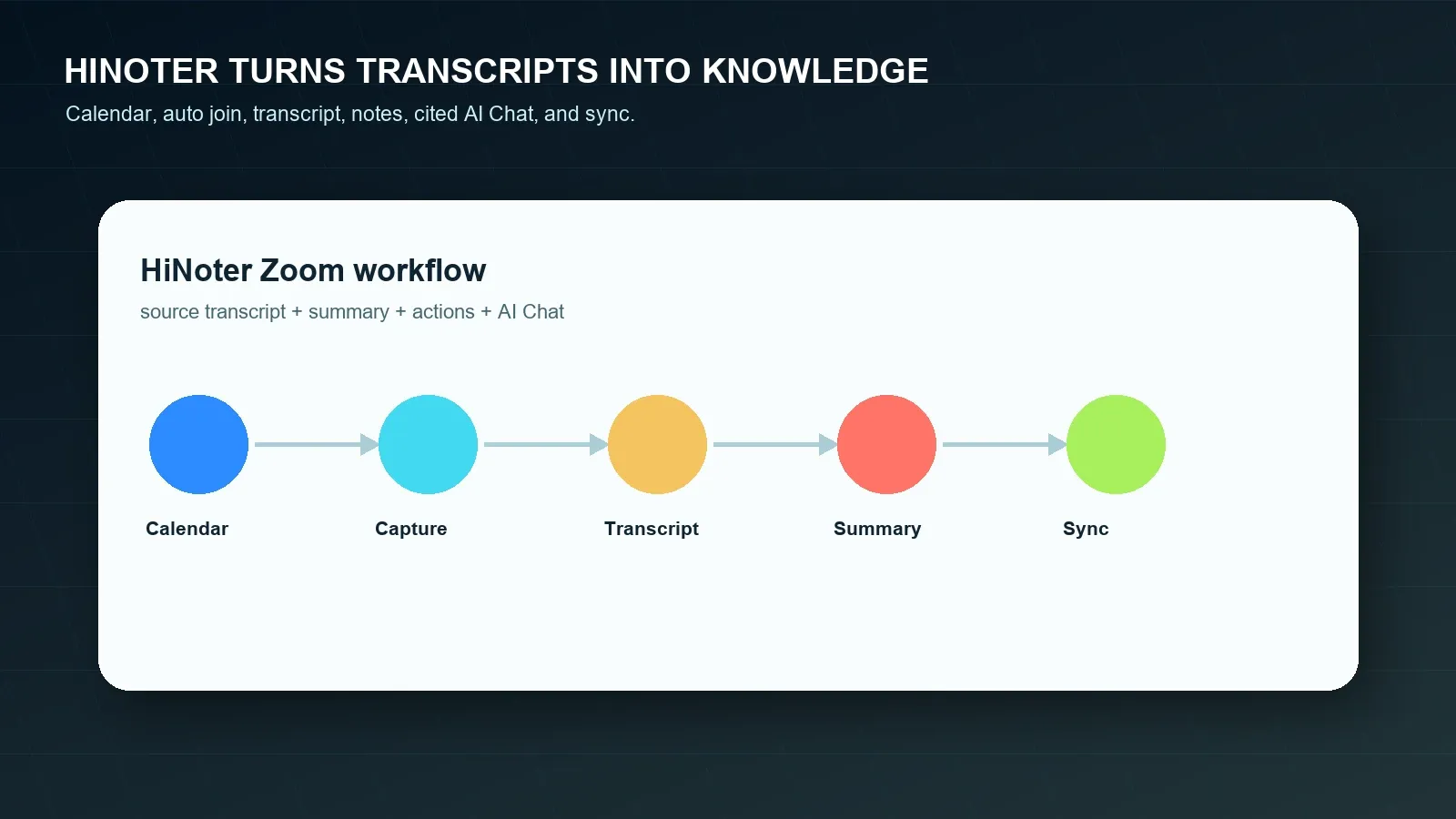
- Connect your calendar. Prepare for scheduled meetings and reduce the chance that someone forgets the transcription or note workflow.
- Capture permitted Zoom content. Use approved cloud transcripts, local recordings, audio, video, chat, or notes. If your team also uses Google Meet or Microsoft Teams, keep the same review process across platforms.
- Generate structured output. HiNoter can create a transcript, summary, topic sections, decisions, action items, owners, due dates, and risks.
- Ask source-linked questions. Use AI Chat to ask where a customer mentioned a risk, which deadlines were proposed, or which tasks lack owners, then review citations.
- Sync approved results. Send reviewed notes to Notion, Slack, Google Docs, calendar reminders, or email when supported by the workflow.
Sample Zoom Transcript Output and Summary
A transcript is most useful when the next layer makes it easier to act. Below is an example of how a small transcript excerpt can become a meeting summary and task list. These samples are editorial examples, not claims about a specific live Zoom meeting.
SAMPLE TRANSCRIPT EXCERPT
00:18:42 Mina: The customer wants pricing-risk language in the follow-up before Friday.
00:22:10 Priya: I can confirm whether external Zoom transcription is allowed for this account.
00:29:05 Omar: If policy is approved, I will turn the transcript into an onboarding plan.
SAMPLE SUMMARY
The team reviewed the customer onboarding follow-up and agreed that the transcript is useful but too long to send as-is. The practical outcome is a short recap, one pricing-risk note, a policy check for external transcription, and a Google Docs onboarding plan.
Decisions:
- Add pricing-risk language to the customer recap.
- Confirm the external transcription policy before sharing the transcript.
- Use the transcript only as source material, not as the final follow-up.
Action items:
- Mina sends the customer recap by July 24.
- Priya confirms the transcription policy by July 25.
- Omar drafts the onboarding plan by July 27.
| Workflow | Strength | Common limitation | Best fit |
|---|---|---|---|
| Manual notes | Human judgment during the meeting. | Distracts the note taker, misses quotes, and often skips owners or deadlines. | Small internal meetings with low documentation risk. |
| Zoom transcription | Native text from cloud recording or live transcript workflows where enabled. | Depends on cloud recording, settings, host control, access, and review. | Teams that need searchable text and quotes from Zoom meetings. |
| Zoom Meeting Summary | Fast recap when AI Companion is enabled and allowed. | May not provide the team's full action-item, export, or source Q&A workflow. | Meetings where a quick summary is enough after review. |
| HiNoter knowledge layer | Transcript, summary, actions, mind map, exports, and source-linked AI Chat. | Requires permission to process the source and human review before sharing. | Teams that need searchable knowledge across meetings and content sources. |
Zoom, Google Meet, and Microsoft Teams Compared
Teams often use more than one meeting platform, which creates inconsistent transcripts and note formats. Zoom, Google Meet, and Microsoft Teams each have separate permissions, recording rules, transcript behavior, AI summaries, and storage patterns. HiNoter helps when the team wants one reviewed note workflow no matter where the conversation happened.
| Platform path | What it can produce | Common limitation | When HiNoter helps |
|---|---|---|---|
| Zoom cloud recording transcript | Transcript attached to cloud recording when available. | Cloud recording and audio transcript must be enabled and accessible. | When long transcripts need summaries, tasks, mind maps, and Q&A. |
| Zoom local recording | Approved audio or video file stored locally. | Not the same as Zoom's built-in cloud transcript workflow. | When permitted local files need transcription and structured notes. |
| Google Meet notes/transcripts | Notes, transcripts, or recording depending on Workspace and settings. | Availability depends on account, admin, host, and meeting conditions. | When Meet and Zoom notes should follow the same format. |
| Microsoft Teams transcription/recap | Transcript, recap, and AI-supported outputs depending on license and policy. | Output can stay inside Teams if no cross-tool workflow exists. | When cross-platform meeting knowledge should be searchable together. |
Compliance, Consent, and Trust
Recording, transcribing, and summarizing meetings can involve personal data, customer commitments, employee issues, legal terms, security incidents, commercial negotiations, or regulated information. Follow applicable law, Zoom notices, customer contracts, employer policy, retention rules, and privacy/security requirements before recording or processing a meeting. Requirements vary by jurisdiction, industry, meeting type, account role, and participant location.
Use source-backed notes to reduce review risk. A source reference lets a reviewer compare an AI answer against the transcript, recording, document, or timestamp. It does not remove the need for human judgment. Check names, dates, dollar amounts, legal obligations, medical or employment details, customer commitments, and external-sharing rules before syncing notes to other tools. The U.S. Federal Trade Commission and NIST Privacy Framework are useful public references for privacy and security program design.
When to Choose HiNoter for Zoom Transcripts
Choose Zoom's built-in transcript when you need a native cloud recording transcript and the host, plan, and admin settings allow it. Choose Zoom Meeting Summary when a short AI recap is enough and you can review it before sharing. Choose HiNoter when the team's real job is broader: no manual note-taking, transcript processing, structured summaries, action items, owners, deadlines, mind maps, exports, multilingual support, and source-linked answers that are searchable across meetings and files.
Start with the AI meeting notes workflow, compare the meeting assistant category page, and confirm current plan details on HiNoter pricing. For teams building a content workflow, also review meeting summary generator, AI action items from meetings, and automatic meeting notes.
Try HiNoter for Zoom transcription and turn your next permitted meeting into reviewed notes, action items, and synced follow-up.
Frequently Asked Questions
Does Zoom have transcription?
Yes. Zoom supports audio transcripts for cloud recordings when cloud recording and audio transcription are enabled and the account meets the current requirements. Zoom also supports automated captions and transcript-style live text during meetings, but availability depends on account settings, meeting controls, and the current Zoom client.
Can Zoom transcribe a local recording?
Zoom's built-in audio transcript feature is tied to cloud recording, not a simple local recording workflow. A local recording can still be transcribed with a permitted external workflow such as HiNoter, but only if you have the right permission to process the audio or video file.
Who can start Zoom transcription?
The host or a user with the right meeting role and account settings usually controls recording and transcript availability. Participants may need host permission for local recording or may need the host to share the cloud recording transcript after the meeting.
What should I do if I forgot to record the Zoom meeting?
Use permitted sources that still exist: meeting chat, shared documents, slides, calendar notes, participant notes, a Zoom summary, or a follow-up email. Do not bypass access controls. HiNoter can organize approved files or notes into a structured recap and action-item list.
Is a Zoom transcript enough for meeting notes?
A transcript is useful for search, quotes, and evidence, but it is usually too long to act on directly. Teams still need a summary, decisions, action items, owners, due dates, risks, exports, and a searchable way to ask source-backed questions later.
Can HiNoter summarize Zoom transcripts?
Yes. HiNoter can turn permitted Zoom recordings, transcripts, audio, video, or meeting notes into a transcript, summary, action items, owners, due dates, mind map, exports, and source-linked AI Chat answers. Review sensitive details before sharing or syncing the output.